
How to Set Encryption for Your Files in WPS Writer
How to Set Encryption for Your Files in WPS Writer
In order to make sure your files much safer, WPS Writer provides you a encryption function. The steps of this function are shown as below:
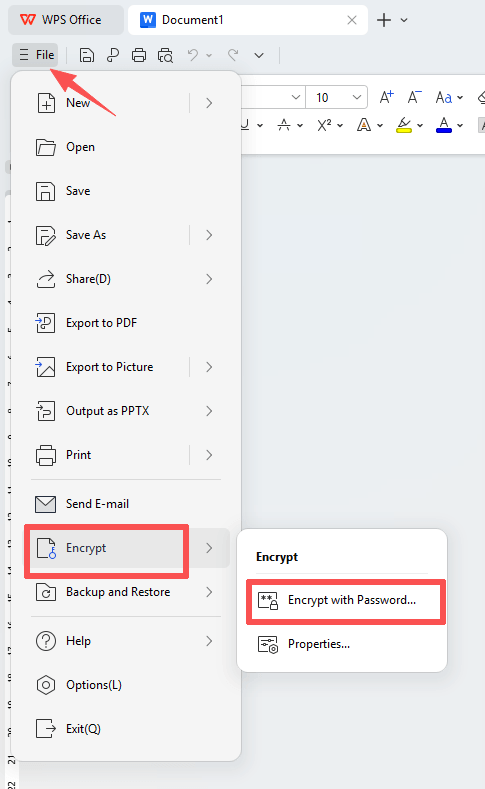
Step 1: In Application Menu  ,which is in the top left corner of WPS Writer, find “Encrypt” and select "Encrypt with Password" to open the dialog box.
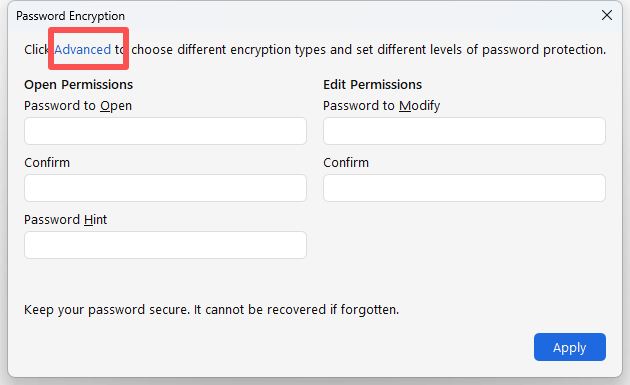
Step 2: Enter a password you want to set in Document Password box, and then reenter the password in the following box to ensure that it is the same as the above one.
Step 3: In File Sharing Options, you can enter a password for the shared files.
Step 4: Click the button "Advanced", choose a type of encryptions you want to keep.
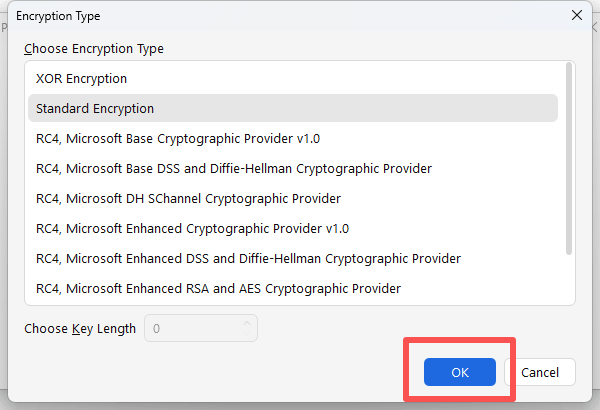
Step 5: At last, click "OK" to complete your setting.
Warn Tips: Please keep your password properly, losing or forgetting the password will make the file never be recovered.
How to Set Encryption for Your Files in WPS Writer
In order to make sure your files much safer, WPS Writer provides you a encryption function. The steps of this function are shown as below:
Step 1: In Application Menu  ,which is in the top left corner of WPS Writer, find “Encrypt” and select Encrypt with Password to open the dialog box.
Step 2: Enter a password you want to set in Document Password box, and then reenter the password in the following box to ensure that it is the same as the above one.
Step 3: In File Sharing Options, you can enter a password for the shared files.
Step 4: Click the button Advanced, choose a type of encryptions you want to keep.
Step 5: At last, click OK to complete your setting.
Warn Tips: Please keep your password properly, losing or forgetting the password will make the file never be recovered.
Not what you're looking for?
 Join our Facebook Group
 Feedback
