
Split-merge PDF Files with WPS Office
How to Split-merge PDF files with WPS Office
You may sometimes want to split or merge a PDF file and creating a new PDF file.With WPS Office you can do these with great ease. Please launch WPS Writer and we will give you guide for the PDF split-merge.
Launch WPS PDF to Word Converter
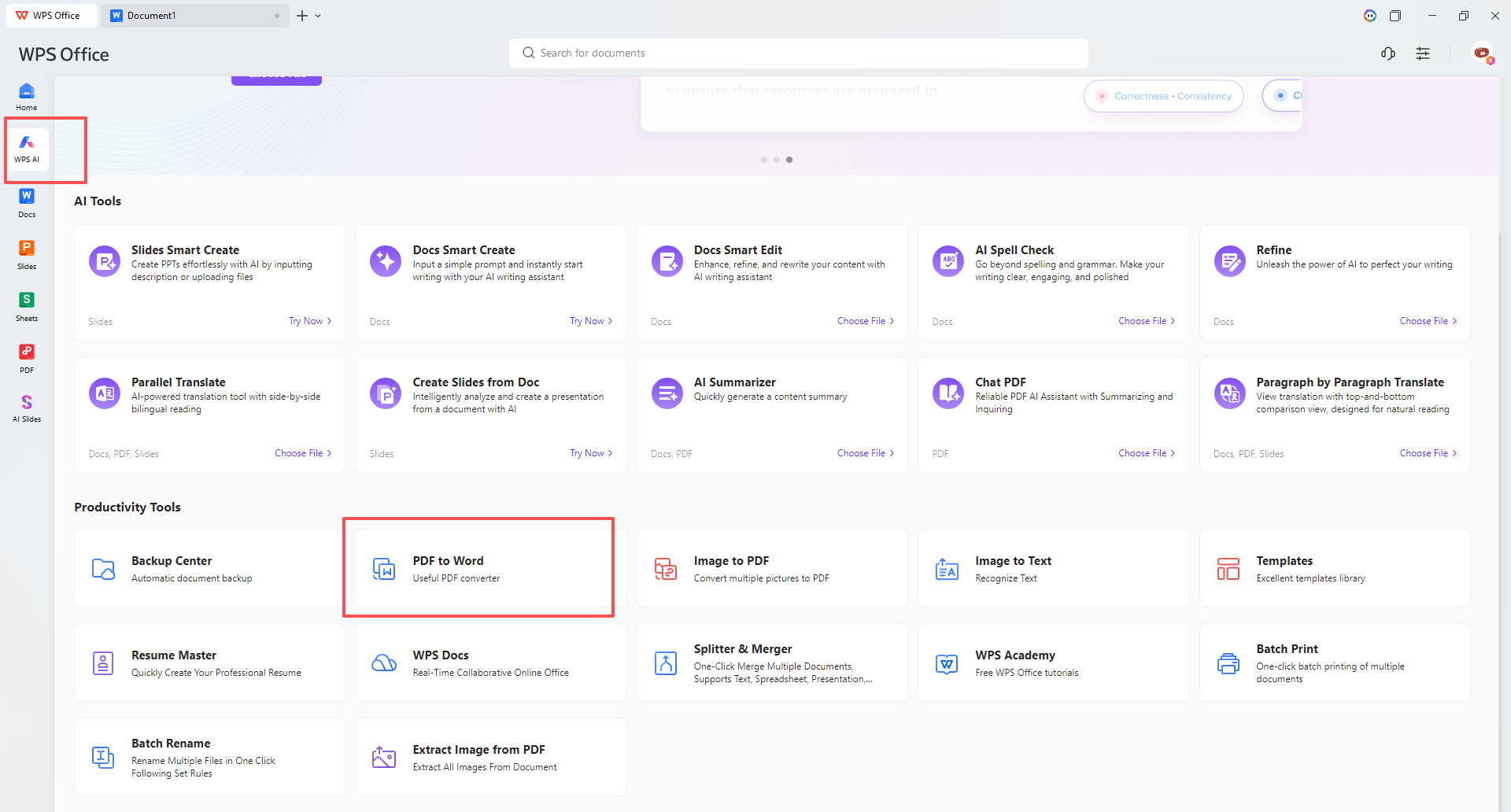
1- Open the WPS Office homepage, locate WPS AI on the left panel, and click on PDF to Word under Productivity Tools
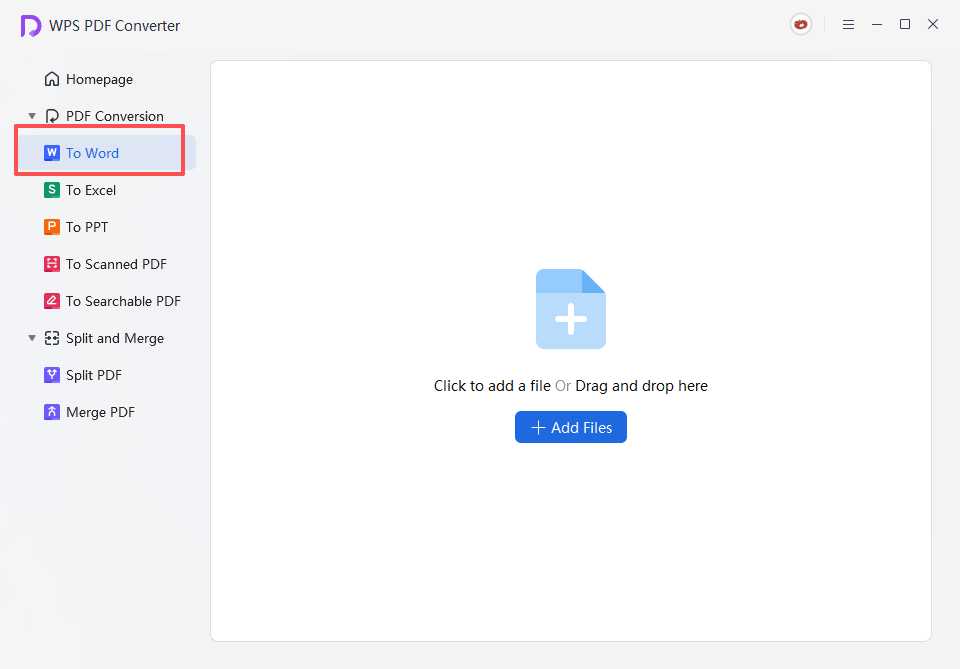
2- Drag or add a PDF file to the Converter.
Spliting PDF files
WPS Office allows you to extract separate one pages for easy conversion into a new PDF file.
1- Select “PDF Split” and you can set the page you want to split from and to. You can also set the convert each page to one PDF file, or set the specific pages you want to slip.
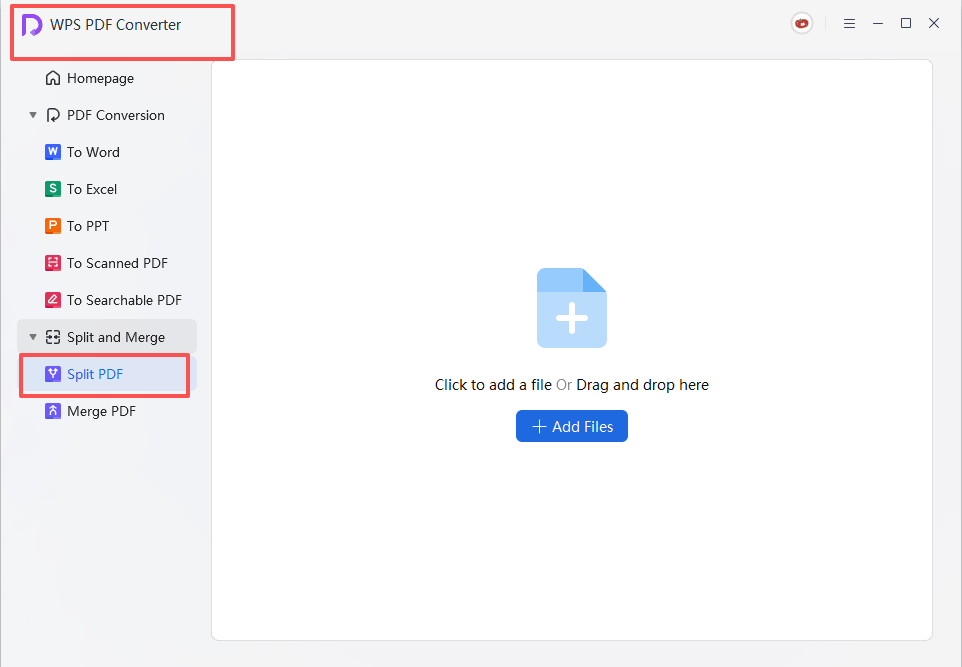
2- Click the “Split” to export the separate page, and you will find it or them in you local files.
Merging PDF files
As the steps of Spliting PDF files, WPS Office allows all users combine separate PDF pages to one.
1- Select “PDF Merge” and you can set the pages you want to combine together. You can also set Output Name.
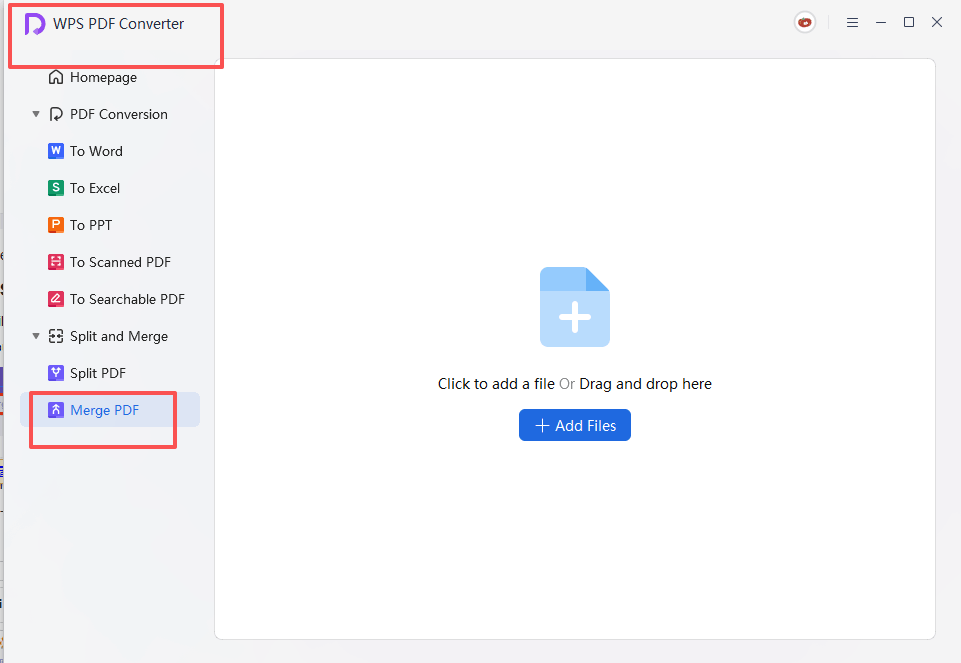
2- Click “Merge” and you can find the new PDF file on your local files.
Now, you can enjoy PDF Split-merge features with WPS Office Premium Edition.
How to Split-merge PDF files with WPS Office
You may sometimes want to split or merge a PDF file and creating a new PDF file.With WPS Office you can do these with great ease. Please launch WPS Writer and we will give you guide for the PDF split-merge.
Launch WPS PDF to Word Converter
1- Open the WPS Office homepage, locate WPS AI on the left panel, and click on PDF to Word under Productivity Tools
2- Drag or add a PDF file to the Converter.
Spliting PDF files
WPS Office allows you to extract separate one pages for easy conversion into a new PDF file.
1- Select “PDF Split” and you can set the page you want to split from and to. You can also set the convert each page to one PDF file, or set the specific pages you want to slip.
2- Click the “Split” to export the separate page, and you will find it or them in you local files.
Merging PDF files
As the steps of Spliting PDF files, WPS Office allows all users combine separate PDF pages to one.
1- Select “PDF Merge” and you can set the pages you want to combine together. You can also set Output Name.
2- Click “Merge” and you can find the new PDF file on your local files.
Now, you can enjoy PDF Split-merge features with WPS Office Premium Edition.
Not what you're looking for?
 Join our Facebook Group
 Online Customer Service
