
How to Use WPS Special Paragraph Layout Tool
WPS Special Paragraph Layout Tool
It is well-known that WPS Writer is a professional word processor within WPS Office Software. WPS special paragraph layout tool is a distinctive feature in Writer. You can adjust paragraphs in seconds just by dragging them. The Paragraph Layout tool provides the functions of paragraph spacing, line spacing, and indentations. Here will show how unique this function is.
Step 1: Select the text or paragraphs. It will pop up an icon  , please click this icon. It will shade the selected text or paragraphs or in a gray box.
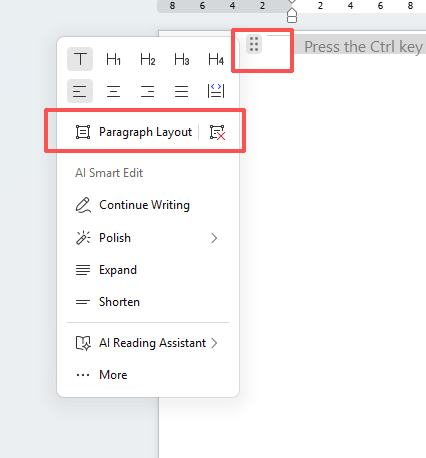
Step 2: You can regulate the layout according to your needs.
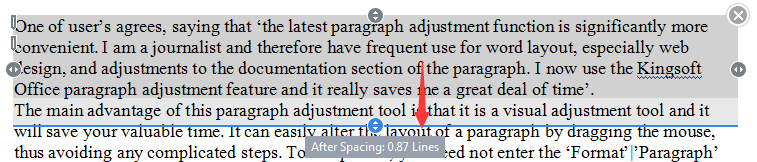
If you want to indent the first line of each paragraph, select the whole text or paragraphs, you can drag the first line to the desired place.
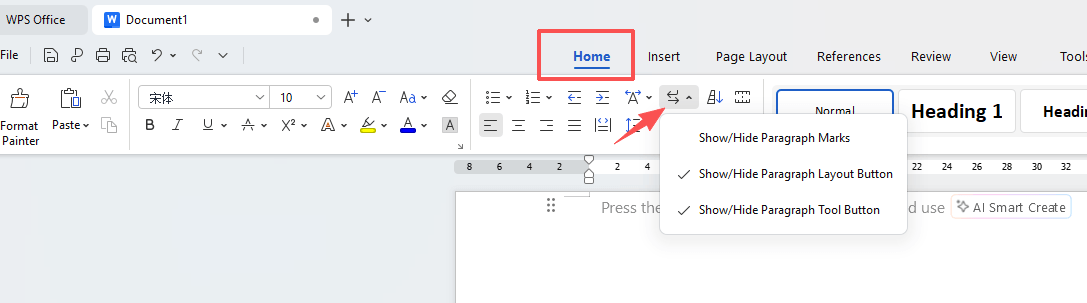
If you want to indent the left of the selected paragraph, you can drag left indent line to your desired place. You can see the characters while you are dragging. If you want to indent the right of the selected paragraphs, you can drag right line to your desired place. If you want to regulate the space above a paragraph, drag the top line to your desired place. If you want to regulate the space below a paragraph, drag the bottom line to your desired place. If you want to show or hide Paragraph Icon, please go to Home > Show/ Hide Editing Marks to set it.



WPS Special Paragraph Layout Tool
It is well-known that WPS Writer is a professional word processor within WPS Office Software. WPS special paragraph layout tool is a distinctive feature in Writer. You can adjust paragraphs in seconds just by dragging them. The Paragraph Layout tool provides the functions of paragraph spacing, line spacing, and indentations. Here will show how unique this function is.
Step 1: Select the text or paragraphs. It will pop up an icon  , please click this icon. It will shade the selected text or paragraphs or in a gray box.
Step 2: You can regulate the layout according to your needs.
If you want to indent the first line of each paragraph, select the whole text or paragraphs, you can drag the first line to the desired place.
If you want to indent the left of the selected paragraph, you can drag left indent line to your desired place. You can see the characters while you are dragging.
If you want to indent the right of the selected paragraphs, you can drag right line to your desired place. If you want to regulate the space above a paragraph, drag the top line to your desired place. If you want to regulate the space below a paragraph, drag the bottom line to your desired place. If you want to show or hide Paragraph Icon, please go to Home > Show/ Hide Editing Marks to set it.
Not what you're looking for?
 Join our Facebook Group
 Feedback
