Feature Summary
Add new members to the organization's organizational structure manually or via invitation links
Feature Description
| Feature Dimension | Description |
|---|---|
| Plan Restrictions | No plan restrictions |
| Version Restrictions | No version restrictions |
Steps
Add Members
Feature Entry
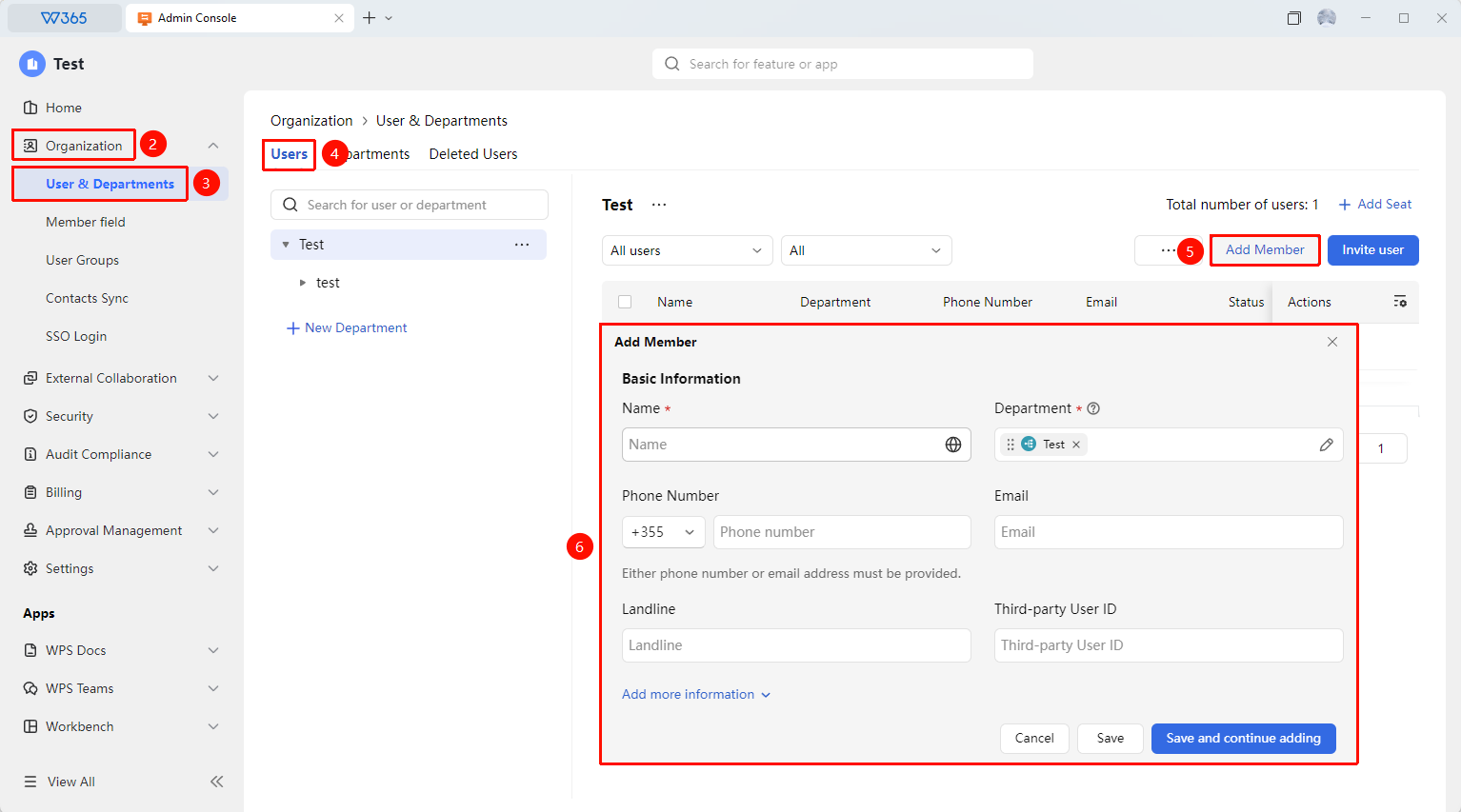
Office Document → Contacts → organizational structure → Add Members
- Open the WPS365 client and click Office Document in the lower-left corner of the client homepage.
- Click 「Contacts」 in the left-side list.
- Click 「organizational structure」 in the drop-down list.
- Click the 「Add Members」 button in the upper-right corner of the Users tab.
- Fill in the member information in the pop-up side form:
- Name: Required
- Department: Required, multiple departments can be selected (the first one is the primary department)
- Email/Phone: Either phone number or email must be filled in
- Optional: Landline, organization email, third-party ID
6.Click 「Fill in More Information」 to supplement the member's profile.
7.After filling in, click 「Save」 to complete the addition.
8.Click 「Save and Continue Adding」 to save the current entry and continue adding the next member's information.

Invite Members to Join
Feature Entry
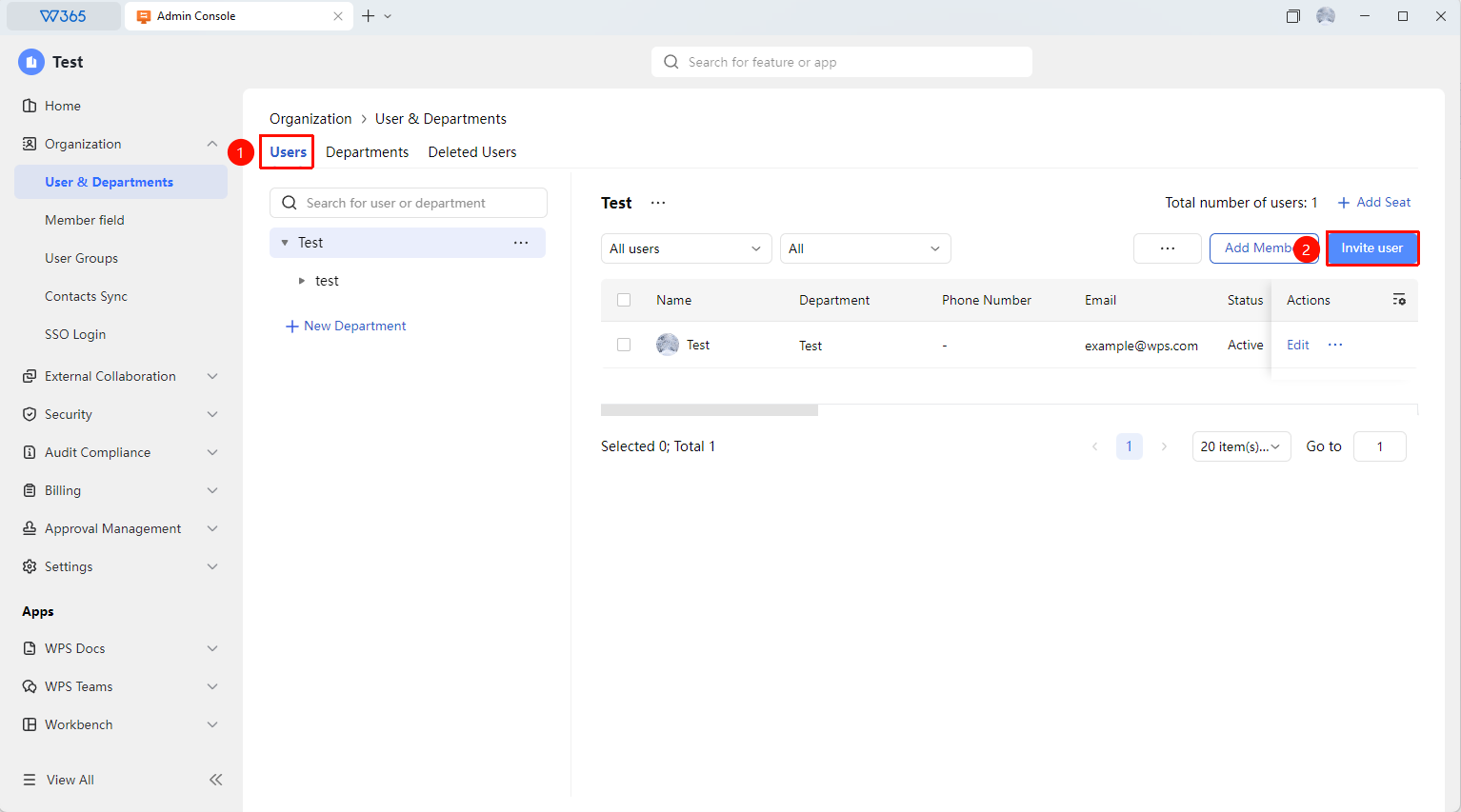
Office Document → Contacts → organizational structure → Invite to Join
- Enter the Users Tab under 「organizational structure」 and click the 「Invite to Join」 button.
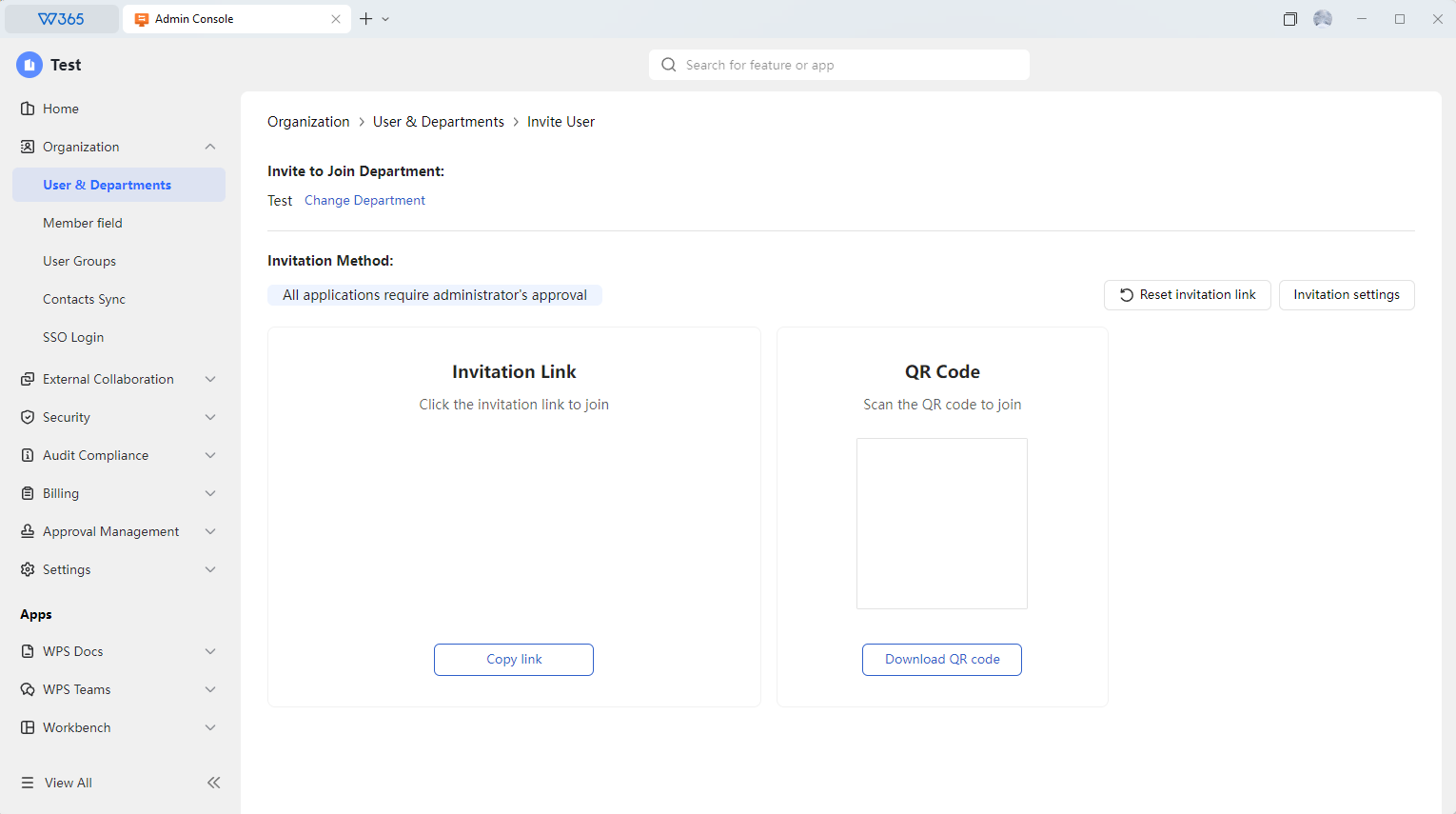
- The system generates an invitation link and an invitation QR code.
- Click 「Change Department」 at the top of the page to switch the department for the invitation.
- Send the link or QR code to the members who need to join.
- After opening the link, members select their identity and complete the joining process as prompted.
- If join approval is enabled, an Admin must approve the request before the member can join.
Invitation Settings
Feature Entry
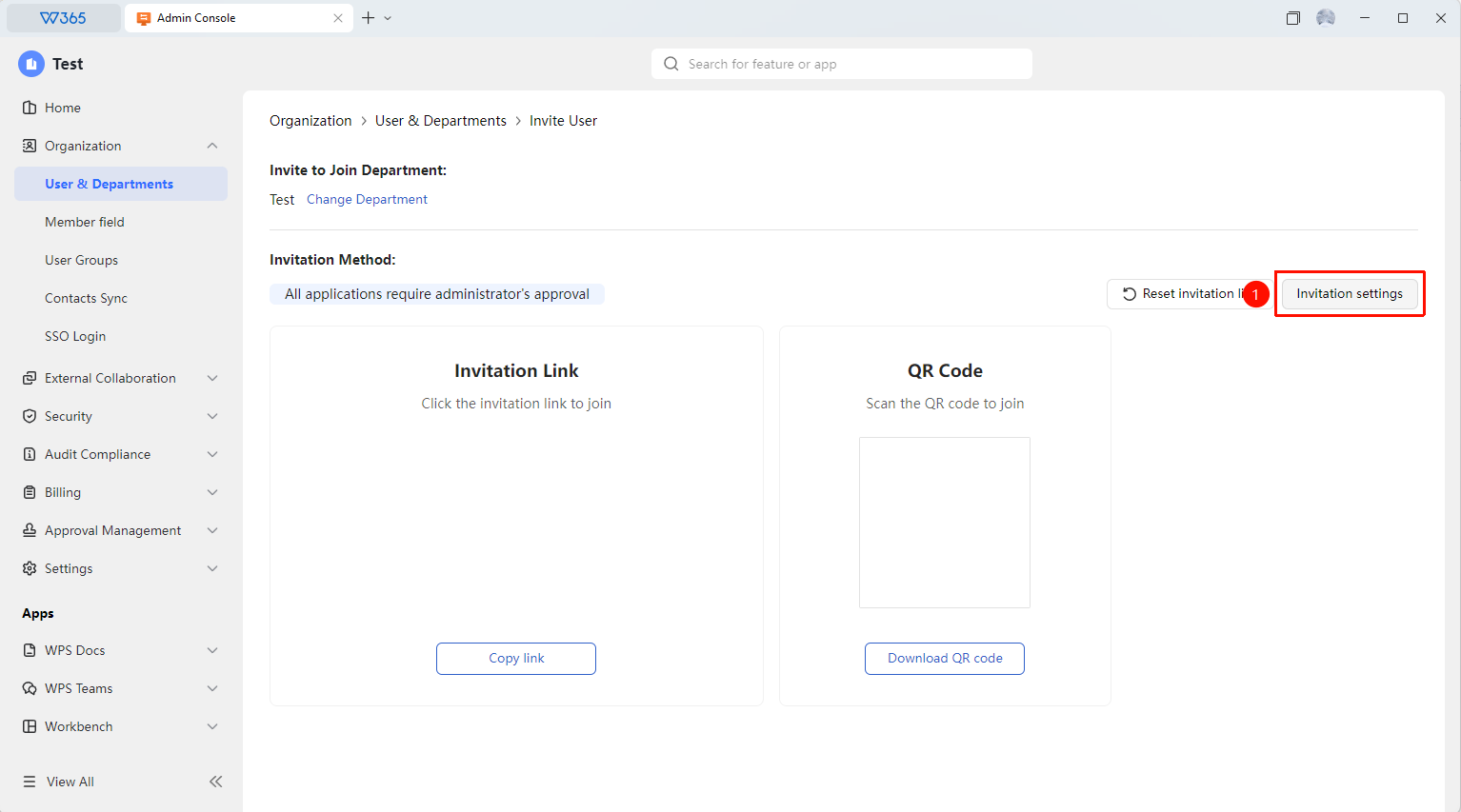
Upper-right corner of the Invite to Join interface → 「Invitation Settings」
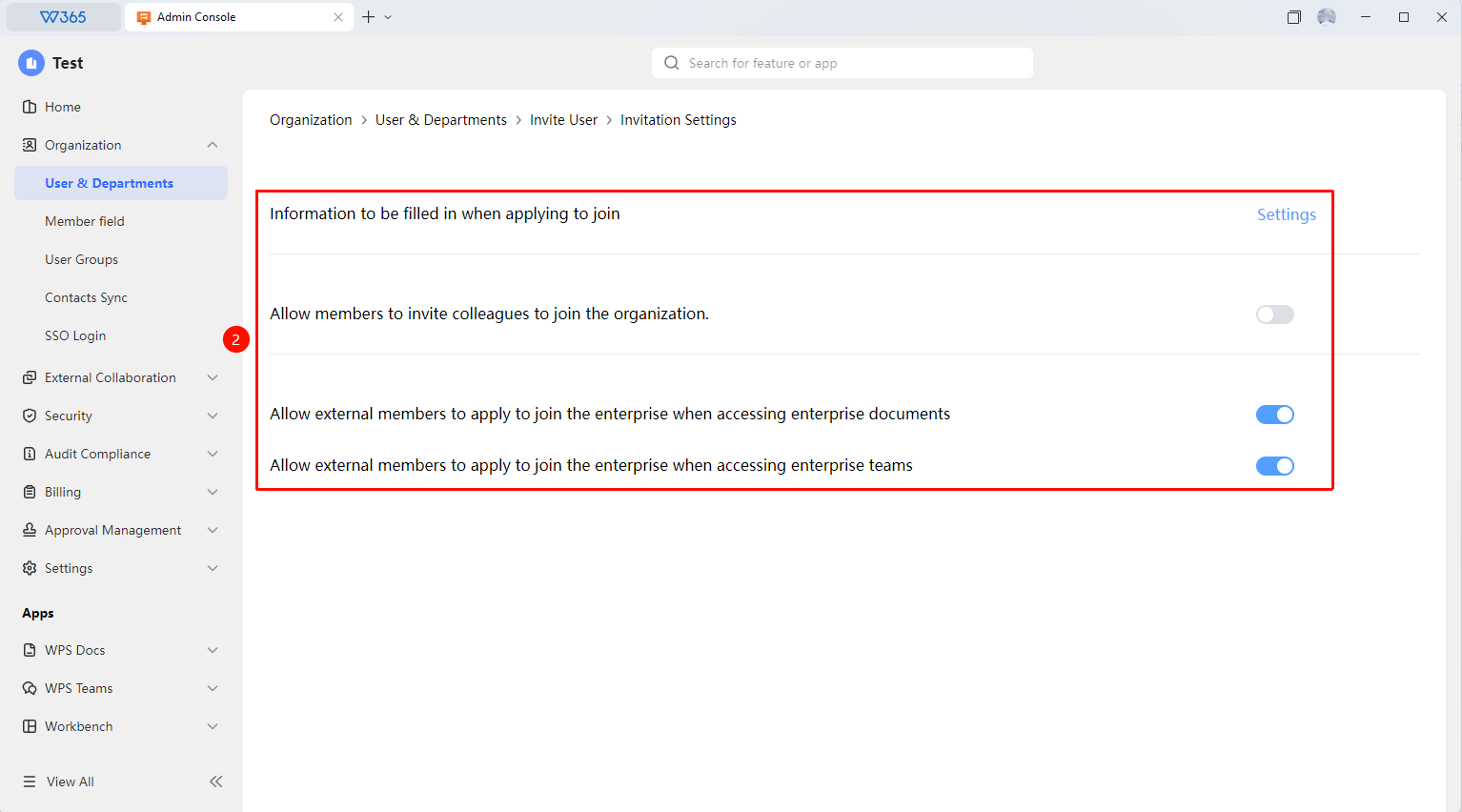
- Click 「Invitation Settings」 in the upper-right corner of the Invite to Join interface to enter the settings page.
- 「Information required when applying to join」
- 「Real Name, Email」 : When applying to join, members need to fill in their real name and email.
- 「Real Name, Email, Remarks」 : When applying to join, members need to fill in their real name and email and add remarks.
3.Enable/Disable 「Allow members to invite colleagues to join the organization」
4.Enable/Disable 「Allow external members to apply to join the organization when accessing organization documents」
5.Enable/Disable 「Allow external members to apply to join the organization when accessing the organization teamspace」
FAQ
Q1: How to prevent external members from applying to join the organization when accessing organization documents?
- Solution: In the invitation settings, turn off the 「Allow external members to apply to join the organization when accessing organization documents」 toggle.
Q2: Does the invitation link have an expiration date?
- Solution: The invitation link is valid indefinitely by default. After the Admin manually resets the invitation link, the old link will become invalid. If the invitation link is found to be invalid, contact the Admin to get the latest link.
Q3: Will adding member information to Contacts automatically add the member to the organization?
- Solution: Adding to Contacts only edits the member's identity information. You need to send the invitation link/invitation QR code to the member. After opening the link/QR code, the member selects their identity and completes the joining process as prompted.
Notes
- When adding members, the required fields are Name and Department.
- In invitation link mode, if approval is enabled, the Admin must review and approve the member's application after submission.
- After adding a member, the member entry will be synced to the organization's Contacts. Click the 「Edit」 button on the right side of the member entry to re-edit the member's profile.