Feature Summary
Batch import or update organization member information via Excel templates, suitable for batch onboarding, organizational structure adjustments, or initial Contacts setup.
Feature Description
| Feature Dimension | Description |
|---|---|
| Plan Restrictions | No plan restrictions |
| Version Restrictions | No version restrictions |
Steps
Batch Import New Members
Feature Entry
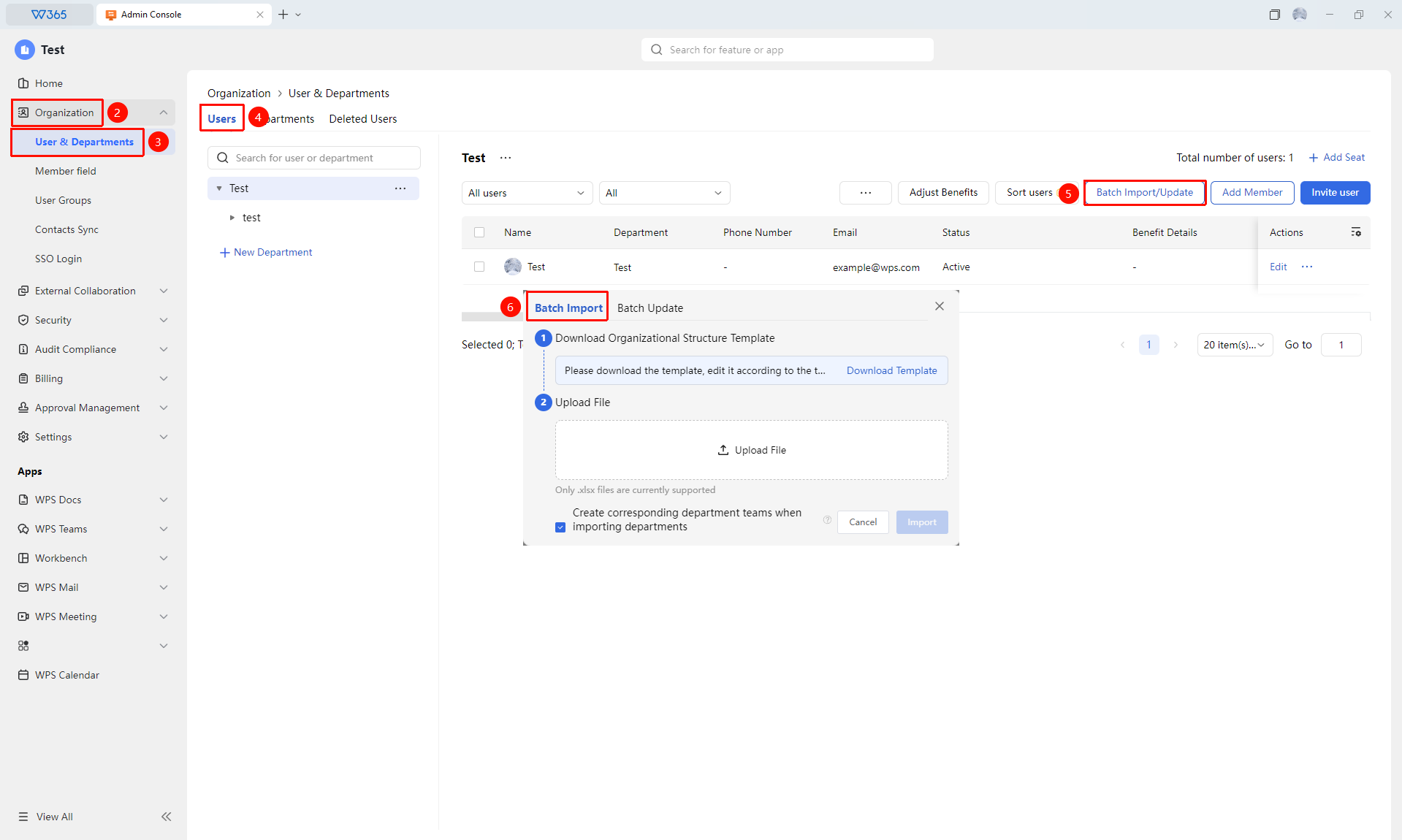
Office Document → Contacts → Organizational Structure → Batch Import/Update
- Open the WPS365 client and click Office Document in the lower-left corner of the client homepage.
- Click Contacts in the left-side list.
- Click Organizational Structure, then click Batch Import/Update under the "Users" tab
- Click Download Template to obtain the standard Excel template file.
- Open the template and fill in member information according to the format:
- Red headers are required fields (Name, Email, etc.)
- Optionally fill in Department, Position, Mobile Number, Employee ID, and other information.
6.Save the Excel file.
7.Return to the batch import window and click Upload File.
8.Check "Create corresponding department teamspace when importing departments" (optional).
9.Click Start Import. The system will automatically validate the data and import.

Batch Update Existing Members
Feature Entry
Office Document → Contacts → Organizational Structure → Batch Import/Update
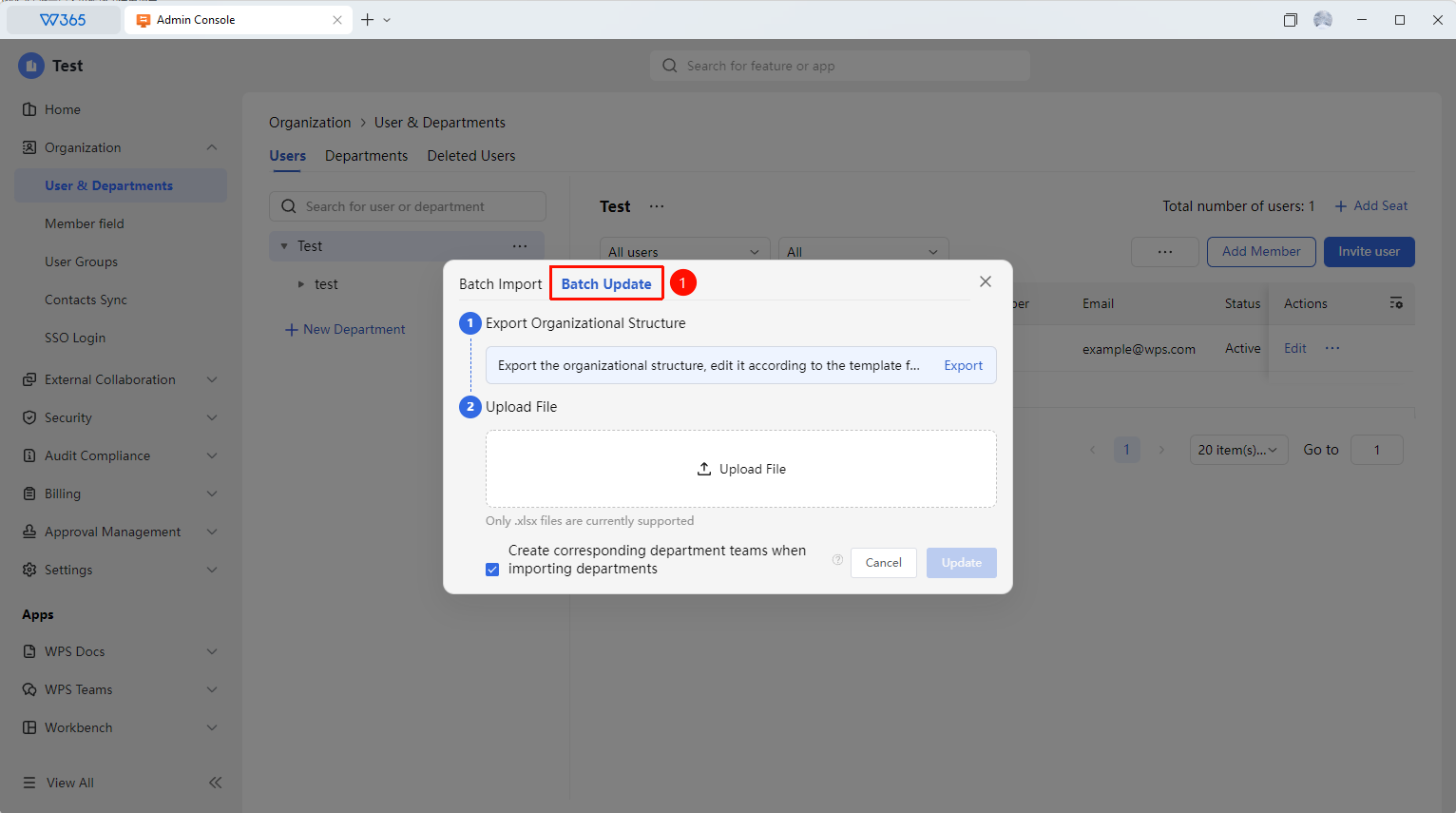
- In the batch import window, select the Batch Update mode.
- Export the template containing existing member information.
- Modify the member information that needs to be updated.
- Upload the file. The system will automatically identify changes and update.
- Click Start Update to complete the update.
FAQ
Q1: What should I do if duplicate data appears during batch import?
- Solution: The system uses email as the unique identifier for deduplication. If the imported email already exists in the organization, it will skip or update the existing record and will not add duplicates.
Q2: What should I do if some members do not appear in the expected department after import?
- Solution: Please check whether the department name filled in Excel is exactly the same as the department name in Office Document. If the department does not exist, a new department will be automatically created during import.
Q3: Are there any time or quantity limits for batch import?
- Solution: A single import supports a maximum of 5,000 records. It is recommended to import in batches if exceeding this limit. After the import is complete, the system will display the number of successes and the reasons for failures. You can correct the data based on the prompts and re-import.
Notes
- Use the most recently downloaded template and do not modify the header structure.
- Red headers are required fields and cannot be left blank.
- Checking "Create corresponding department teamspace" during import will automatically generate a document collaboration space.
- After the import is complete, it is recommended to check whether the Contacts data is complete and accurate.