Feature Summary
Batch transfer organization data (documents, permissions, spaces, etc.) under a departing or transferred member's name to designated recipients
Feature Description
| Feature Dimension | Description |
|---|---|
| Plan Restrictions | No plan restrictions |
| Version Restrictions | No version restrictions |
Steps
Data Transfer
Feature Entry
Office Document → Contacts → Organizational Structure → Data Transfer
- Open the WPS365 client, and click Office Document in the lower-left corner of the client homepage
- Click Contacts in the left-side list
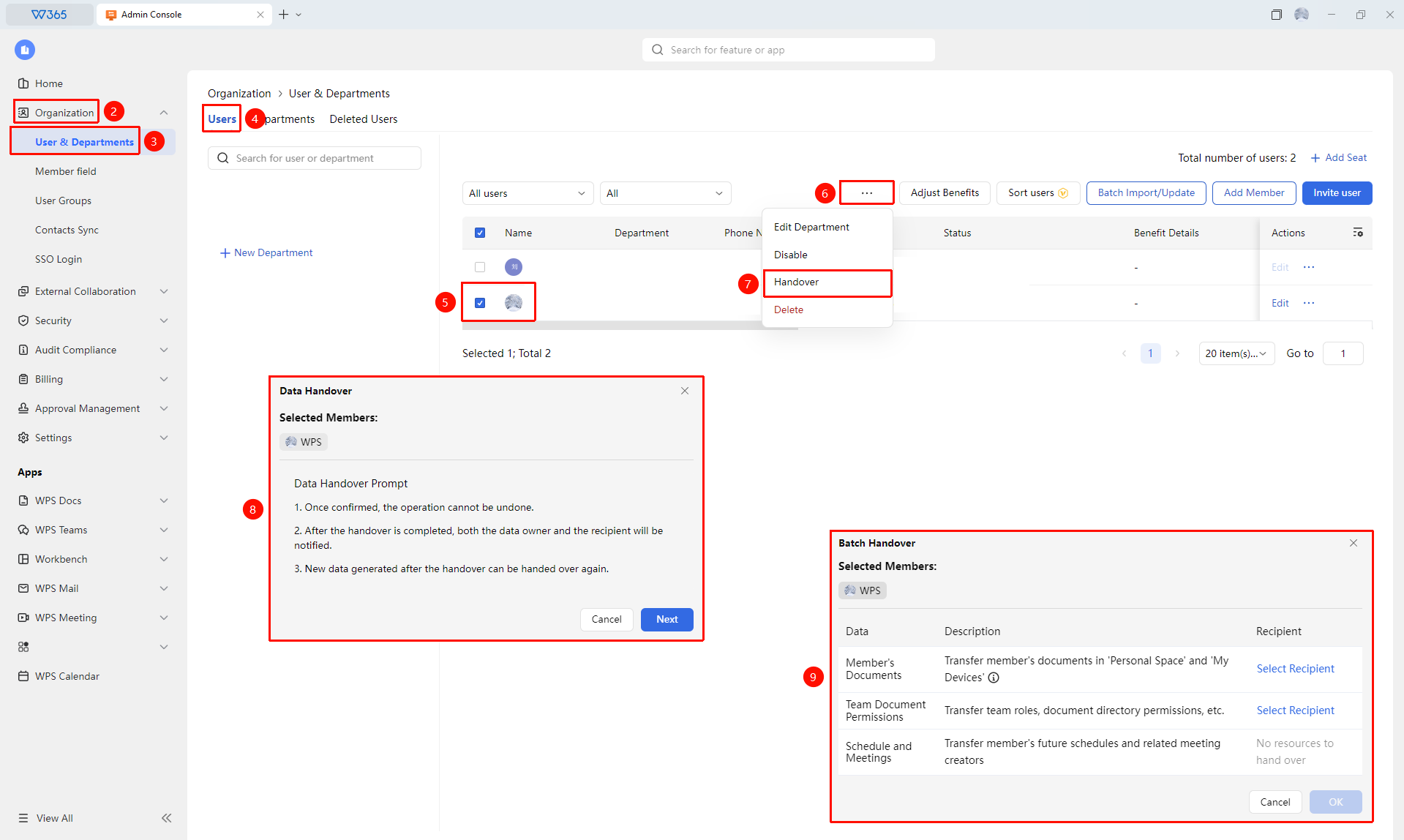
- Click "Organizational Structure" and locate the member requiring a handover under the Users tab.
- Click the Data Transfer button at the top of the page
- The system lists all organization assets under that member's name:
- Member Documents
- Team Space Permissions
- Events and Meetings
6.Select a recipient for each item
7.Click Confirm to complete the data transfer
8.After the transfer is complete, the system generates a transfer record for subsequent verification

FAQ
Q1: What is the difference between Data Transfer and Offboarding Document Transfer?
- Solution: Data Transfer has a narrower scope, including member documents, document ownership, team permissions, events, and meetings. Offboarding Document Transfer can transfer the email data of departing employees.
Q2: Can the original member still access the data after the data transfer?
- Solution: After the transfer is complete, the original member can no longer access the transferred data. It is recommended to promptly revoke the original member's organization account permissions after the transfer to ensure data security.
Q3: Can multiple recipients be specified during the transfer?
- Solution: Different categories of data can be assigned to different recipients. For example, documents can be transferred to Colleague A, and team permissions to Colleague B. Currently, only one recipient can be specified for the same category of data.
Notes
- Data transfer operations are irreversible. Please carefully check the transfer content before confirming
- The recipient must have joined the organization's organizational structure
- After the transfer is complete, it is recommended to check whether all data has been transferred correctly
- The data transfer time depends on the volume of data being transferred. If the transfer content is large, please be patient
- You can also click '...' on the far right of a member's entry to expand the drop-down menu and click Data Transfer