Feature Summary
Edit the departments that members belong to in the organization's organizational structure, suitable for personnel transfers, organizational structure restructuring, and other scenarios.
Feature Description
| Feature Dimension | Description |
|---|---|
| Plan Restrictions | No plan restrictions |
| Version Restrictions | No version restrictions |
Operation Steps
Edit Member Department
Feature Entry
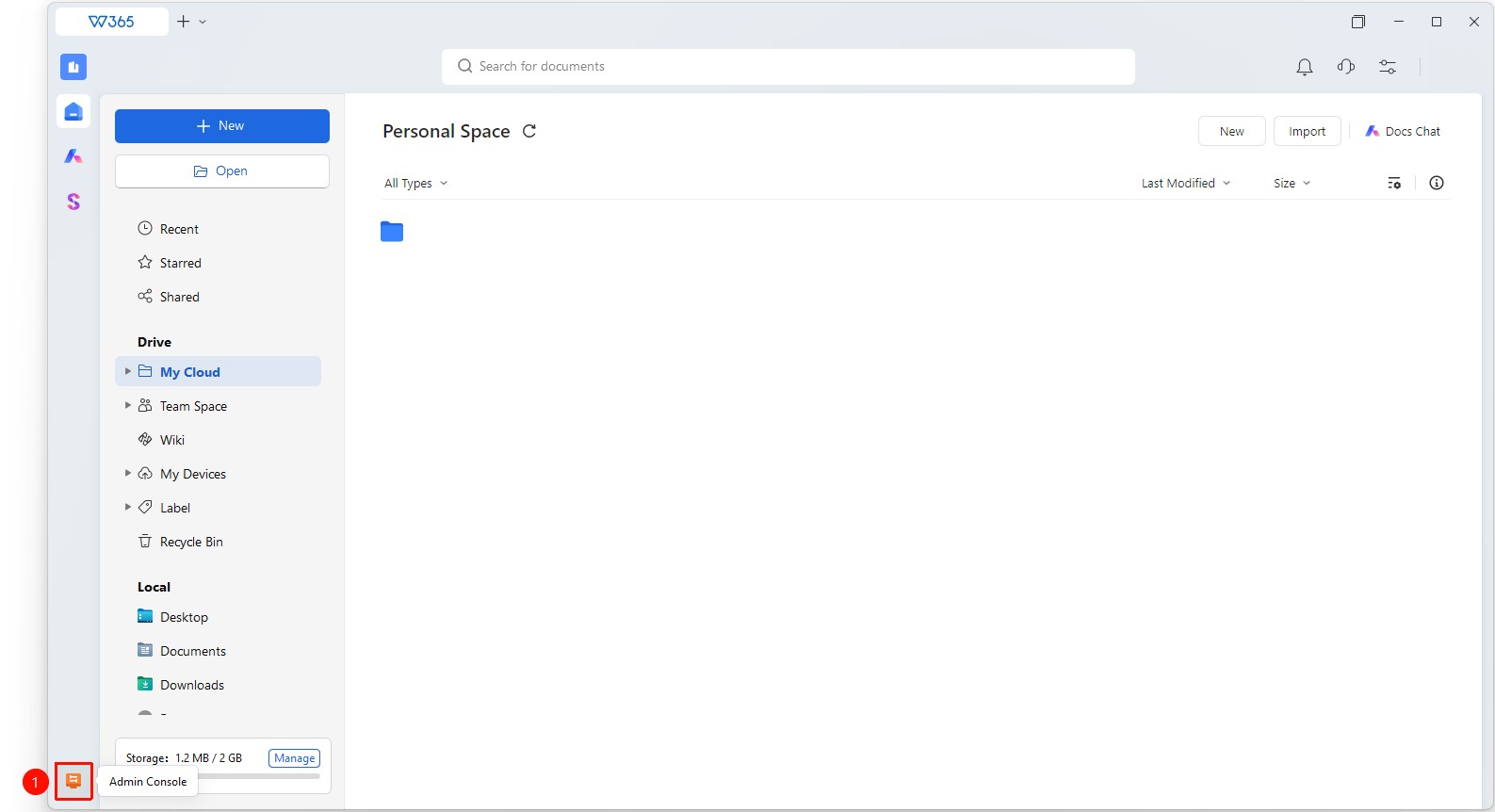
Office Document → Contacts → organizational structure → Member Information
- Open the WPS365 client, and click Office Document in the lower-left corner of the client homepage.
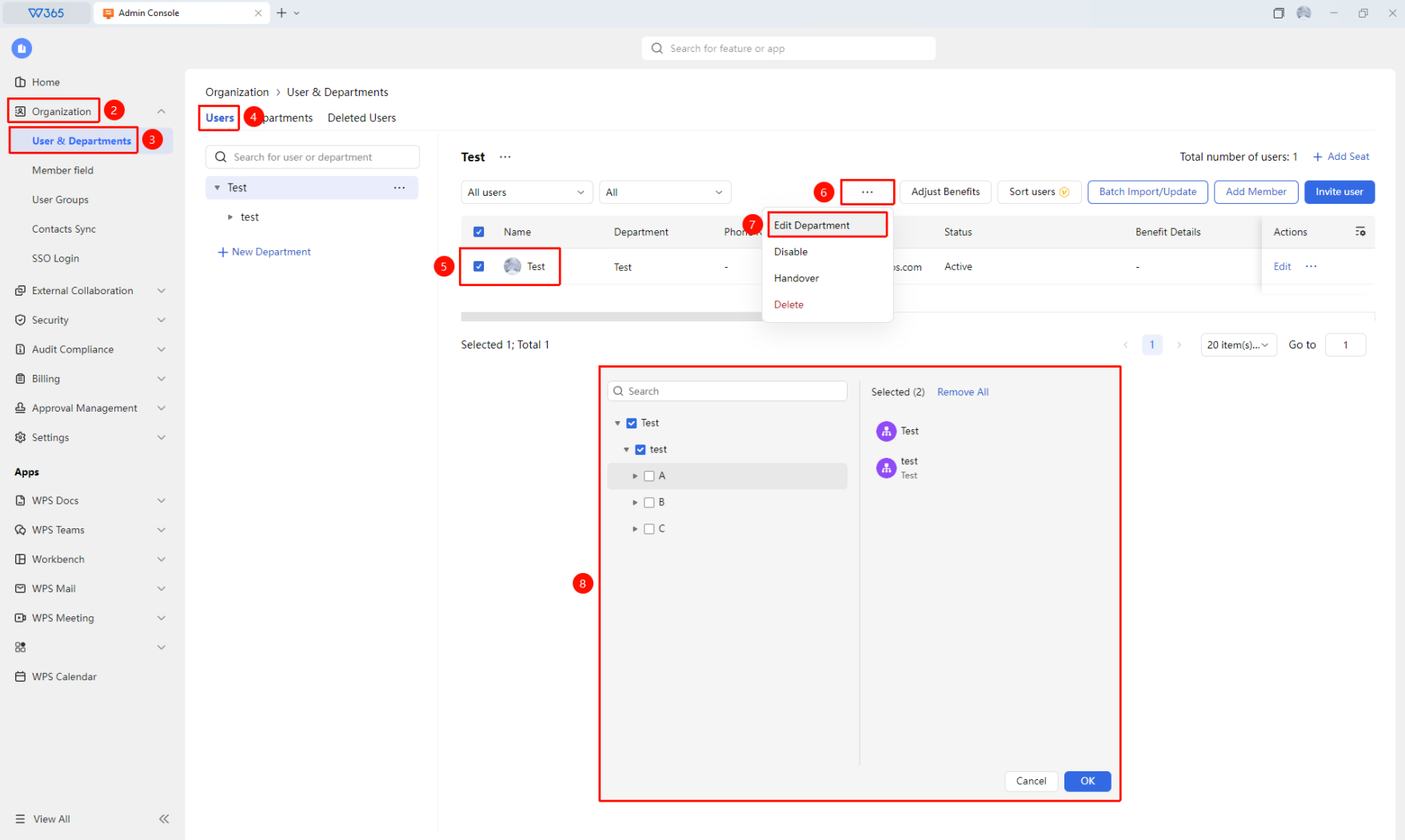
- Click 「Contacts」 in the left-side list.
- Click 「organizational structure」 and find the select member in the member list under users tab.
- Click 「Edit Department」 at the top of the page.
- Re-select the department in the department selection box:
- You can select one or more departments (the first one is the primary department).
- You can remove departments that are no longer needed.
6.Click 「OK」 to complete the Editment.
7.After the Editment, the member's document permissions and group affiliations in the new department are automatically synchronized.
Batch Edit Departments
Feature Entry
Office Document → Contacts → organizational structure → Edit Department
- Enter the 「Users」 page.
- Select multiple members whose departments need to be Edited.
- Click 「Edit Department」 at the top of the page.
- Select the target department.
- Click 「Confirm」 to complete the batch Editment.
FAQ
Q1: Will the member's document permissions be affected after Editing the department?
- Solution: Yes. After a member is Edited to a new department, the access permissions for the new department's documents will follow the new department's permission rules. The document permissions of the original department will be automatically updated or retained based on the department permission settings.
Q2: Can a member belong to multiple departments?
- Solution: Yes. The first selected department is the primary department. The member's primary department is displayed first in Contacts.
Q3: After Editing the department, will the member's team groups be automatically changed?
- Solution: If the team is set to automatically create an associated department teamspace when creating a department, the member will automatically join the new department's team and groups after the department Editment.
Notes
- Department Editment can only be performed by the Super Admin or an Admin with Contacts management permissions.
- After Editing the department, the related document permissions and group affiliations will be updated synchronously.
- It is recommended to notify the relevant members after the organizational structure Editment to avoid confusion caused by department changes.
- Clicking 「...」 on the far right of the member entry to expand the drop-down menu also allows you to click 「Edit Department」.