Feature Summary
Permanently remove a member from the organization's Contacts and revoke all their organization permissions and access credentials.
Feature Description
| Feature Dimension | Description |
|---|---|
| Plan Restrictions | No plan restrictions |
| Version Restrictions | No version restrictions |
Operation Steps
Delete a Single User
Feature Entry
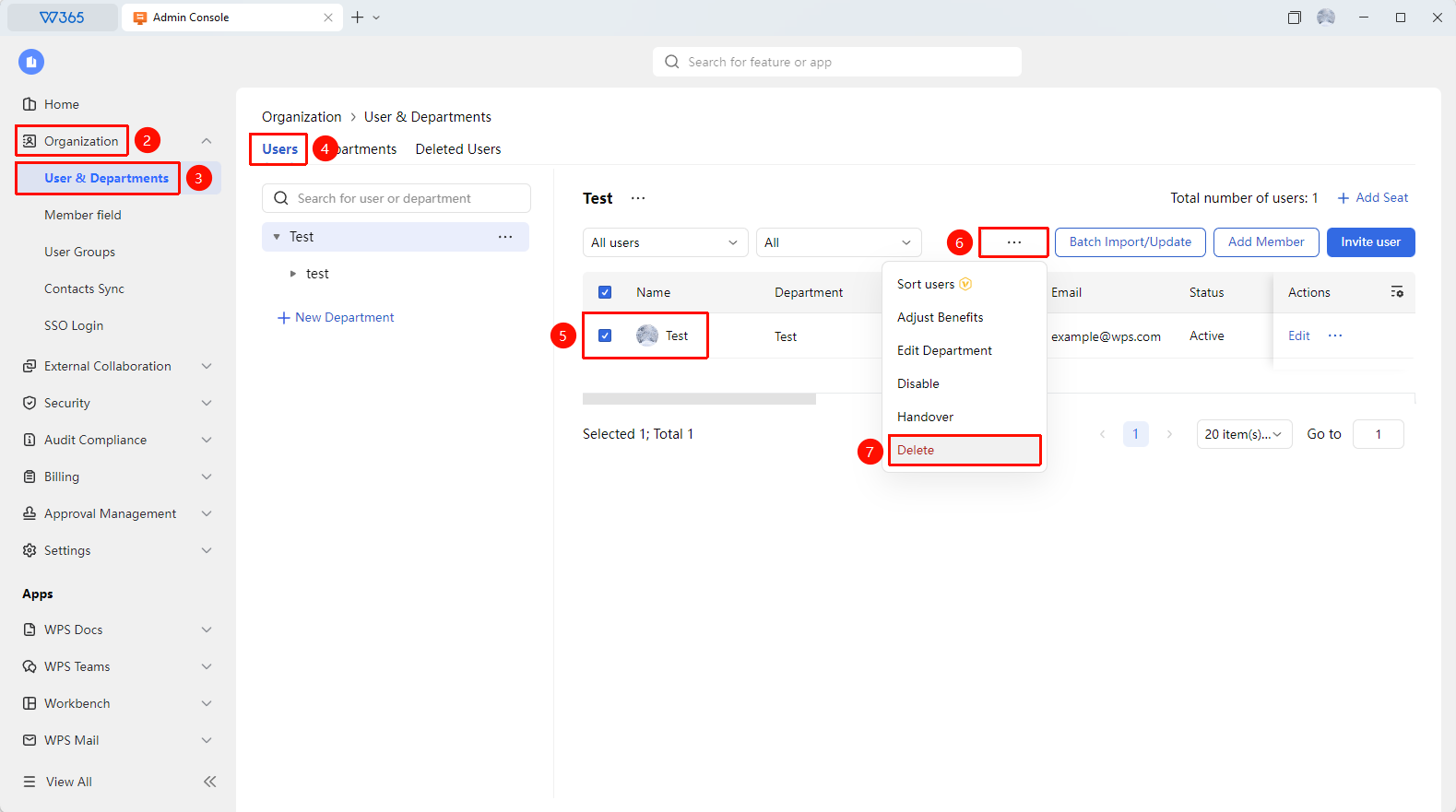
Office Document → Contacts → organizational structure → Delete Member
- Open the WPS365 client and click Office Document in the lower-left corner of the client homepage.
- Click 「Contacts」 in the left-side list.
- Click 「organizational structure」 and find the target member in the member list.
- Click the 「More」 button above the member list.
- Select 「Delete」 from the drop-down menu.
- The system prompts that the organization documents and data under the member's name must be handled first.
- After completing the data transfer, confirm the deletion again.
- After deletion, the member can no longer access any organization resources.

Batch Delete User
Feature Entry
Office Document → Contacts → organizational structure → Batch Delete
- Enter the 「organizational structure」 page.
- Select multiple members to be deleted.
- Click the 「Delete」 button above the member list in sequence.
- Confirm to batch delete the selected members.
FAQ
Q1: Do I need to transfer documents before deleting a member?
- Solution: Yes. Before deleting a member, it is recommended to handle the organization documents under that member's name first. It is recommended to perform a data transfer or offboarding document transfer first, transferring the documents to another member before executing the deletion.
Q2: Can a member be restored after deletion?
- Solution: Yes, they can be restored. The Admin needs to operate in 「Office Document」 → 「Contacts」 → 「Former Employees」. After restoring the account, the member's data will be restored to the corresponding account. Data that has already been transferred cannot be recovered. Confirm the account restoration.
Q3: Will the organization's seat be released after deleting a member?
- Solution: Yes. After deleting a member, the organization seat occupied by that member will be released and can be used to add a new member. If it is a paid plan, the released benefit quota can be reallocated to other members.
Notes
- Before deleting a member, ensure that data transfer and document handover have been completed.
- It is recommended to disable the member first, confirm there is no impact, and then proceed with the deletion.