Feature Summary
Adjust the display order of Users within a department to organize the User list in Contacts according to specific rules
Feature Description
| Feature Dimension | Description |
|---|---|
| Plan Restrictions | Requires a subscribe to organization plan |
| Version Restrictions | No version restrictions |
Operation Steps
Manually Adjust User Sorting
Feature Entry
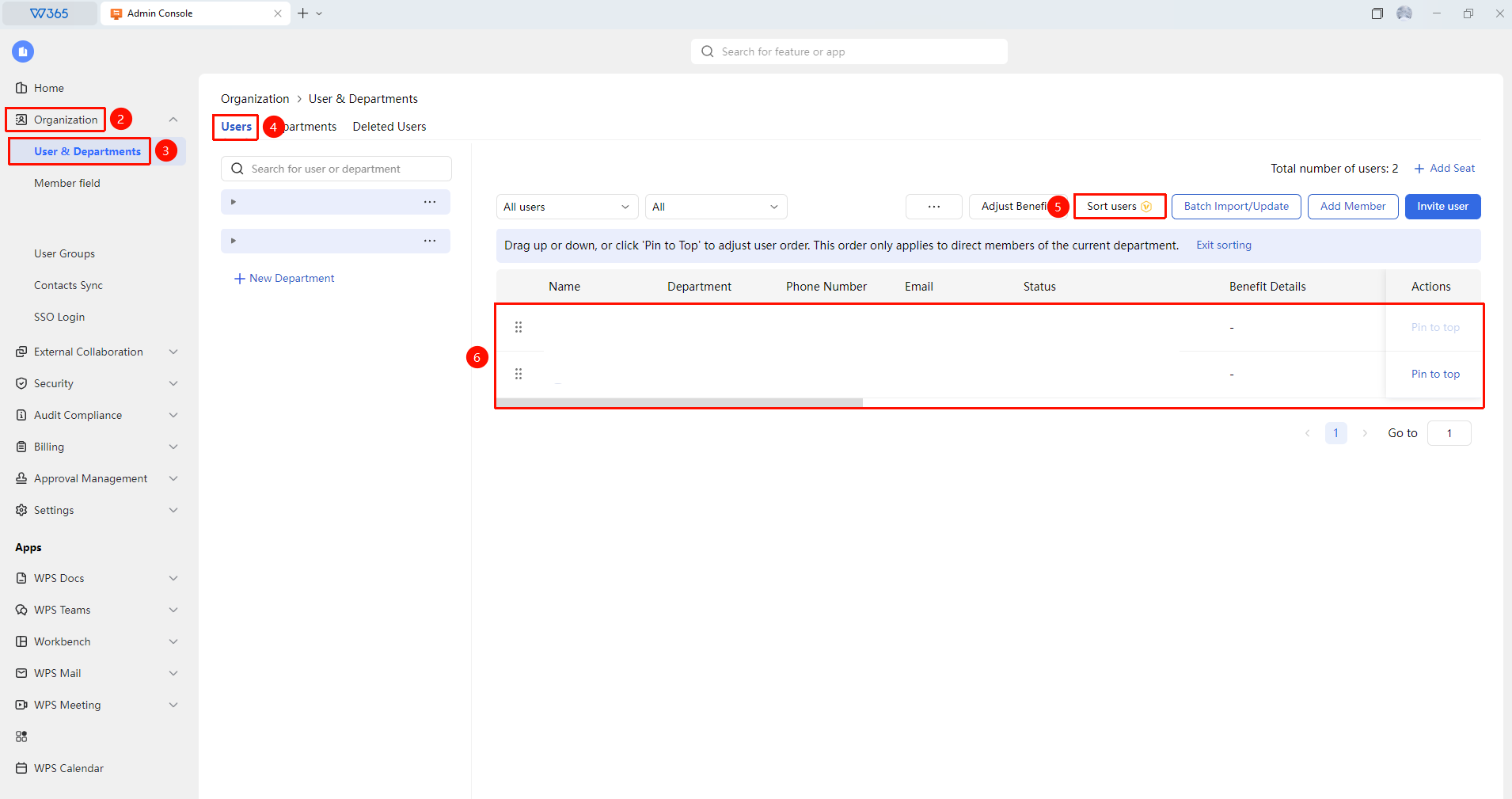
Office Document→Contacts→organizational structure→User Sorting
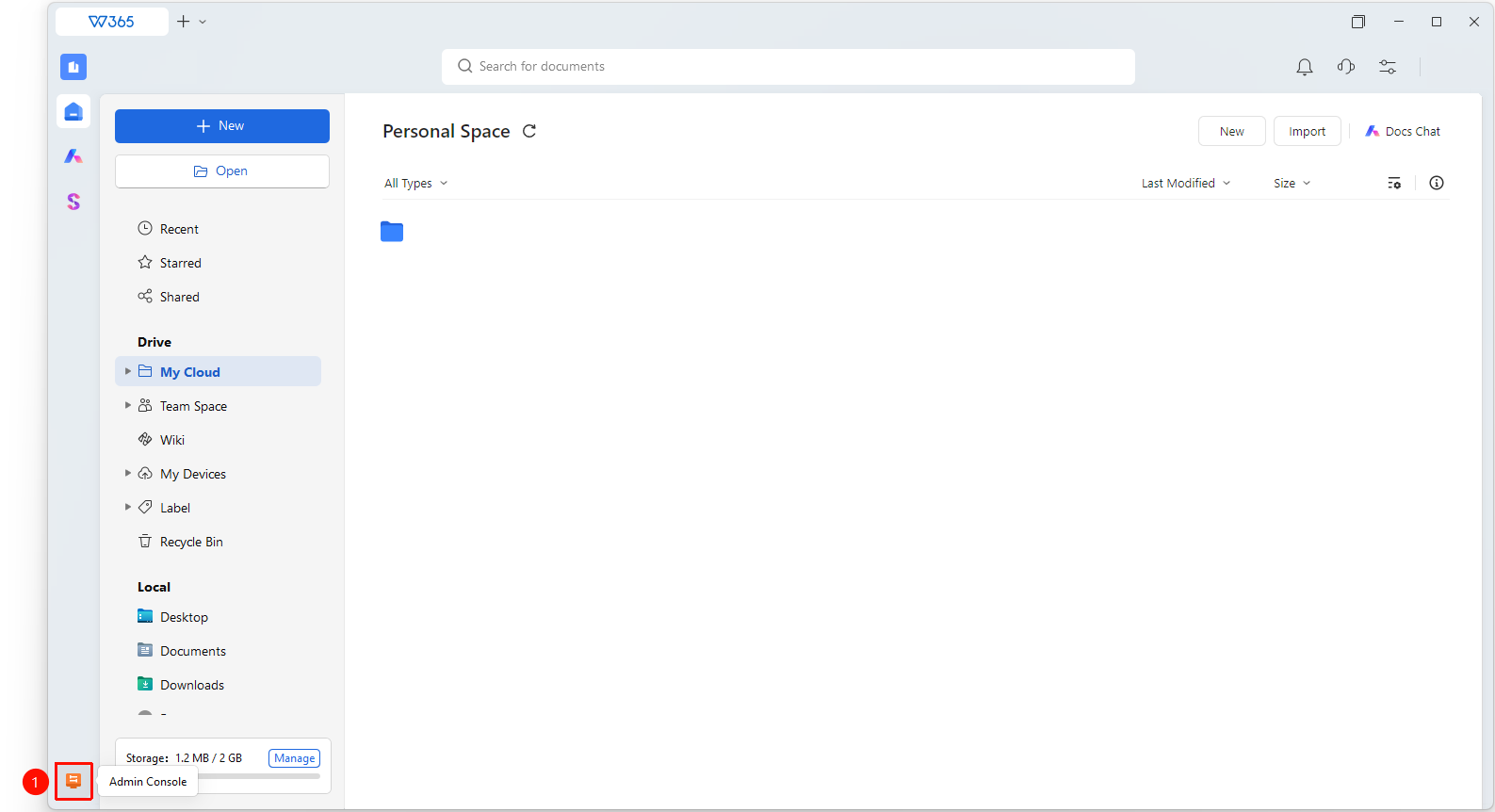
- Open the WPS365 client, and click Office Document at the bottom left corner of the client homepage
- Click 「Contacts」 in the left list
- Click 「organizational structure」 to enter the target department
- Click the 「User Sorting」 button in the upper right corner of the page
- On the sorting page, directly drag User names to adjust the order
- Click the 「Pin to Top」 button on the right side of a User entry to quickly pin the User
- After adjustment, click 「Exit Sorting」
- The display order of Users in Contacts will be updated synchronously
FAQ
Q1: Does User sorting support unified settings across departments?
- Solution: Unified settings across departments are not supported. User sorting is set individually for each department, and different departments can have different sorting rules.
Q2: Where will a newly added User appear?
- Solution: Newly added Users are placed at the bottom of the list by default and need to be manually repositioned.
Q3: How long does it take for the sorting adjustment to take effect?
- Solution: It takes effect immediately after saving. All Users can see the updated sorting order by refreshing Contacts. If the client does not refresh in time, it is recommended to sign in again.
Notes
- User sorting only affects the display order in Contacts and does not affect other features
- Newly added Users need to be repositioned manually
- If a department has many Users, it is recommended to pin the department head to the top