Feature Summary
Create new departments within the organization's organizational structure to build a hierarchical structure, facilitating member management and permission assignment.
Feature Description
| Feature Dimension | Description |
|---|---|
| Plan Restrictions | No plan restrictions |
| Version Restrictions | No version restrictions |
Operation Steps
Add Department
Feature Entry
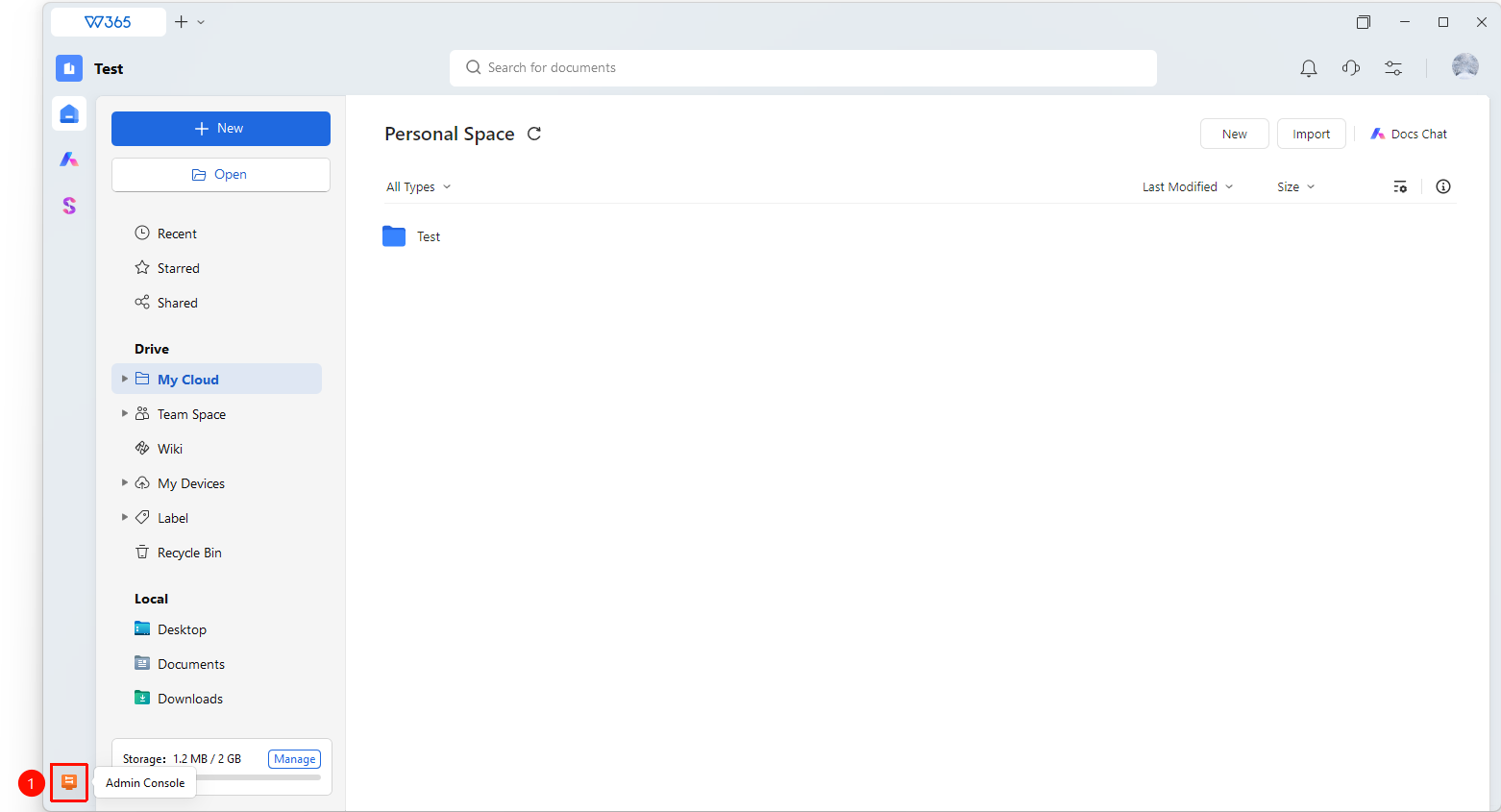
Office Document → Contacts → organizational structure → Add Department
- Open the WPS365 client, and click Office Document in the lower-left corner of the client homepage.
- Click Contacts in the left-side list.
- Click organizational structure → Departments to enter the department management page.
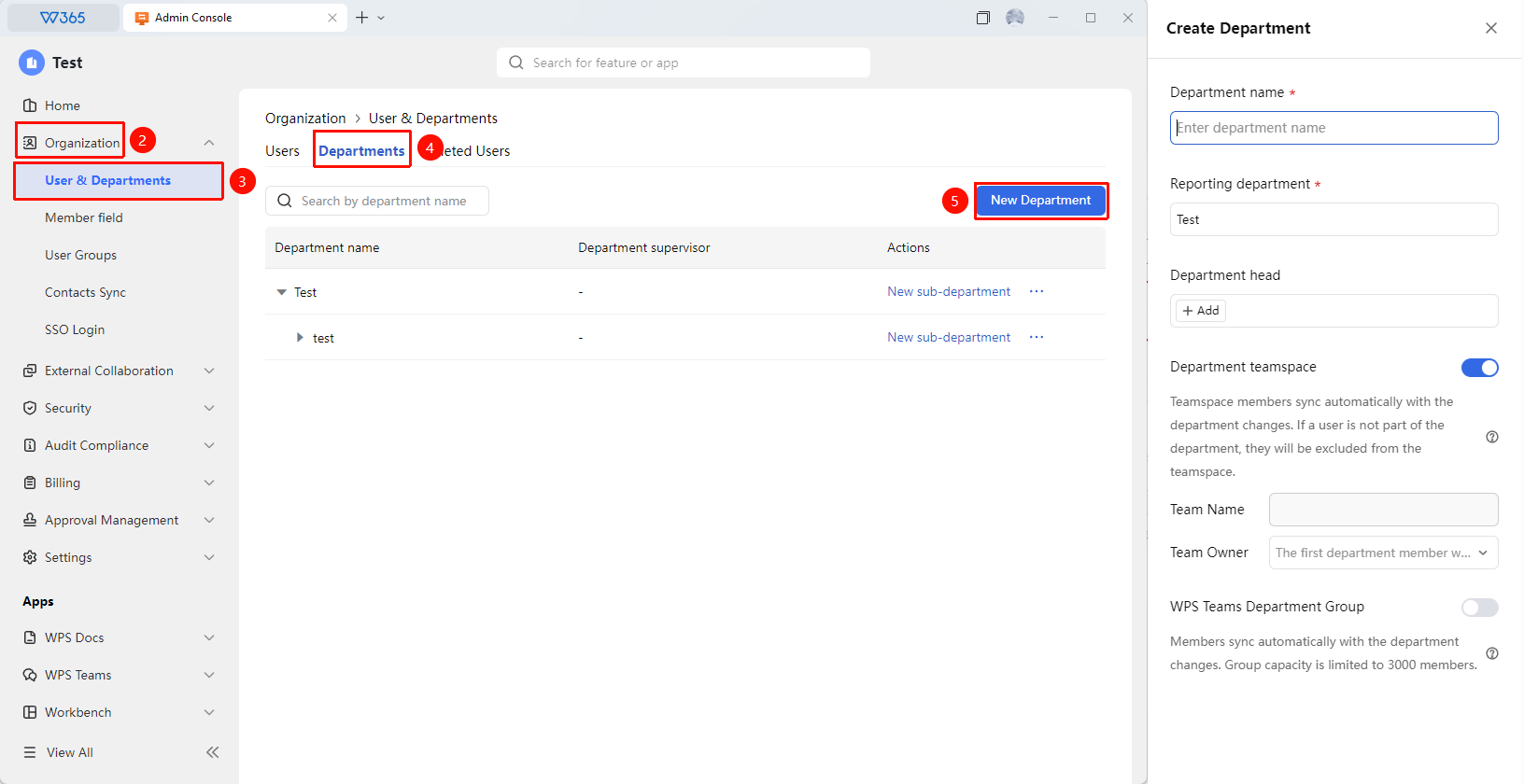
- Click the Add Department button in the upper right corner of the page.
- Fill in the department information in the pop-up form:
- Department Name: Required; it is recommended to use the full name.
- Parent Department: Automatically displays the department.
- Department Head: Optional; select the department supervisor.
6.Optional settings:
- department teamspace: Automatically generates a document collaboration space when enabled.
- WPS Collaboration Department Group: Automatically generates a WPS collaboration group when enabled.
7.Click OK to complete department creation. The new department will automatically refresh on the management page.
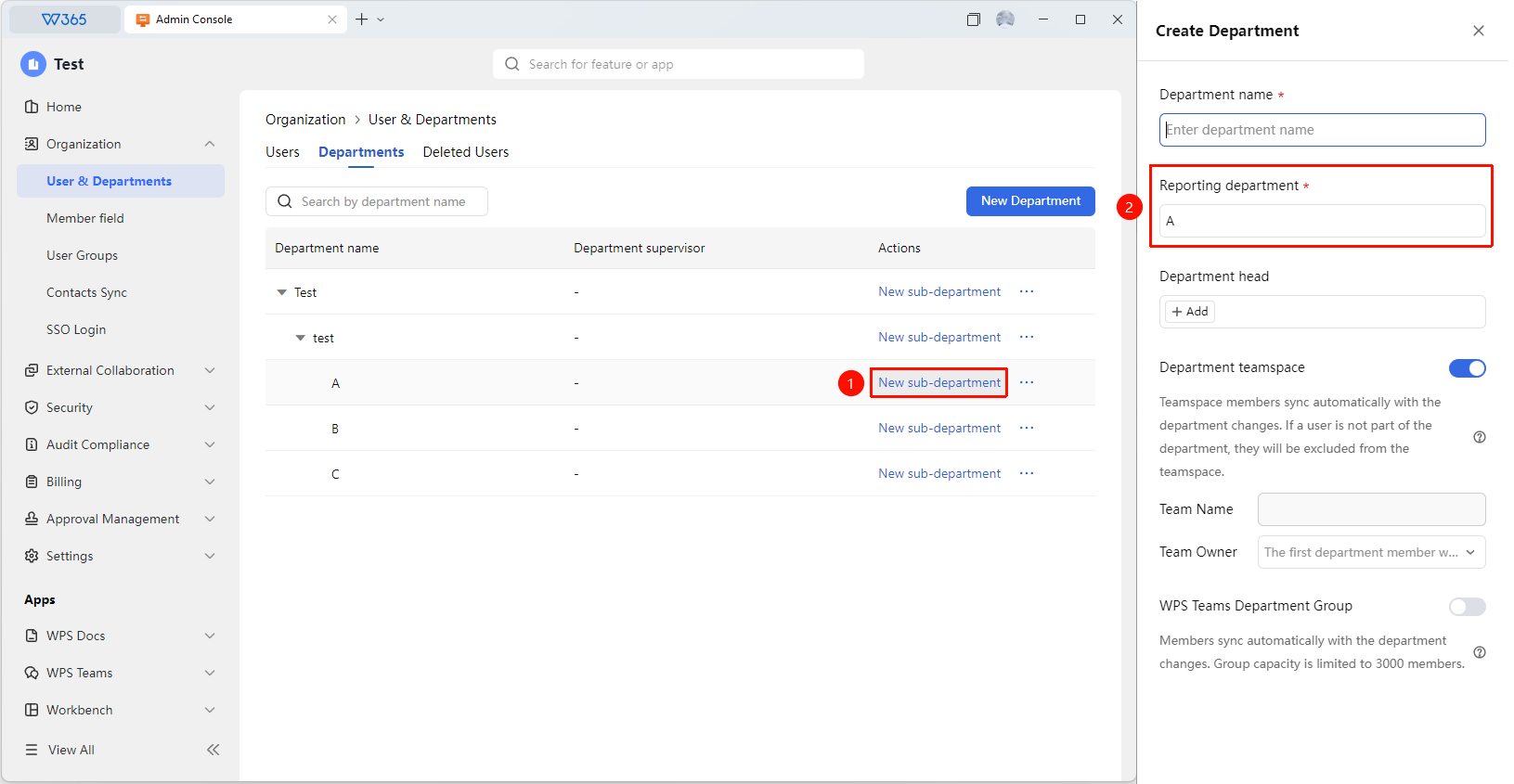
8.Can click Add Sub-department to continue setting up subordinate departments for this department.
To add further sub-departments to a specific department, locate the department in the department tree and click "Add Sub-department" (located to the right of the department name) to configure its subordinate departments, as shown in the figure:
Adjust Department
Feature Entry
Department Management Page
- Enter the department management page.
- In the department tree, select the department you want to move.
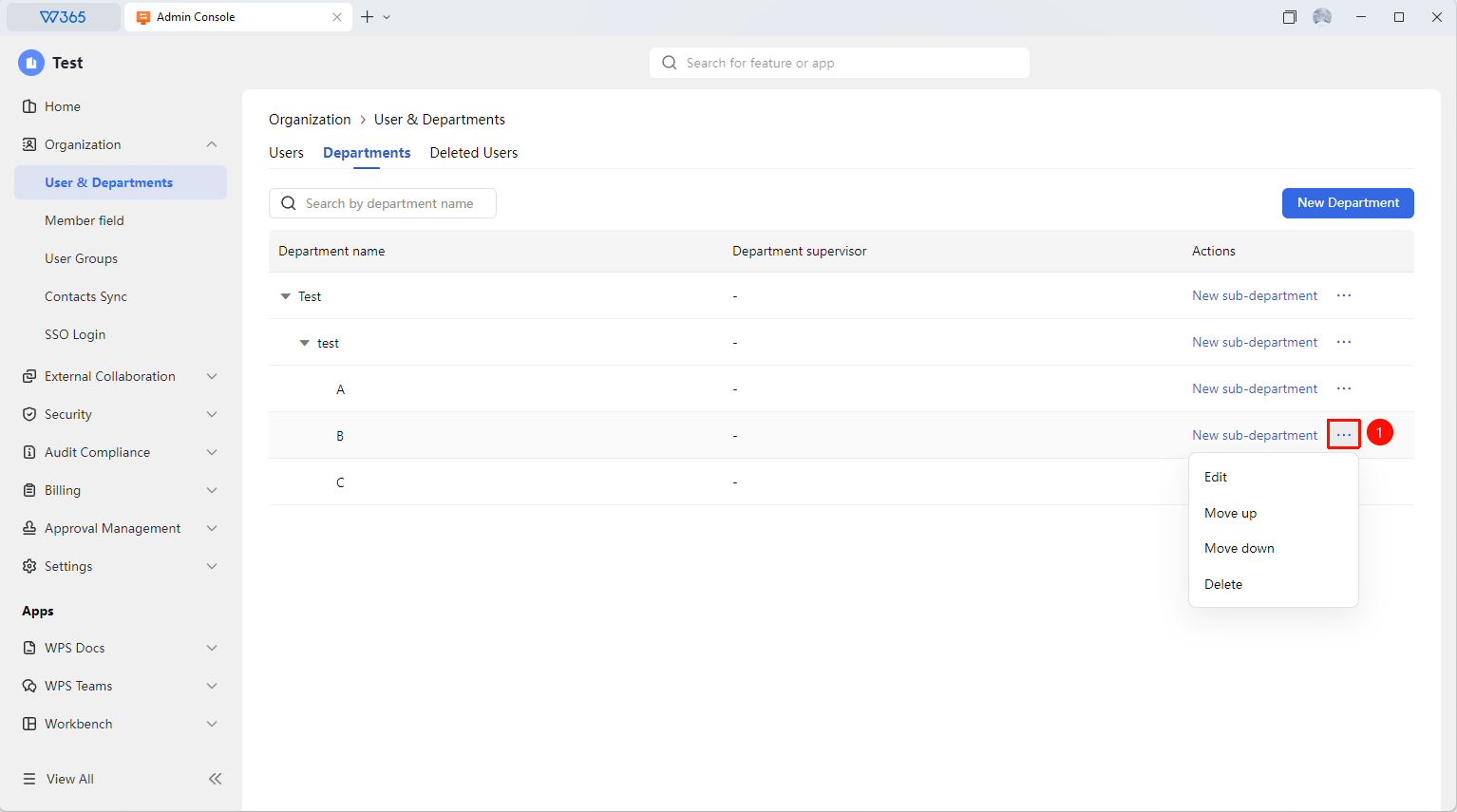
- Click the ... button on the far right of the department entry to choose from the following options:
- Edit: Edit department information.
- Move Up: Move the department position up.
- Move Down: Move the department position down.
- Delete: Delete the department.
FAQ
Q1: What are the benefits of enabling automatic team creation when adding a department?
- Solution: When enabled, the system automatically creates a corresponding document collaboration team and communication group for the department. Department members are automatically added without manual adjustment.
Notes
- It is recommended to use the full name for the department name to avoid confusion caused by abbreviations.
- Before adding a sub-department, please confirm that the parent department has been correctly created.