Feature Summary
Create custom fields in the organization's Contacts to record additional member information (such as job level, hire date, etc.)
Feature Description
| Feature Dimension | Description |
|---|---|
| Plan Restrictions | Requires subscribing to an organization plan |
| Version Restrictions | No version restrictions |
Operation Steps
Add Custom Member Field
Feature Entry
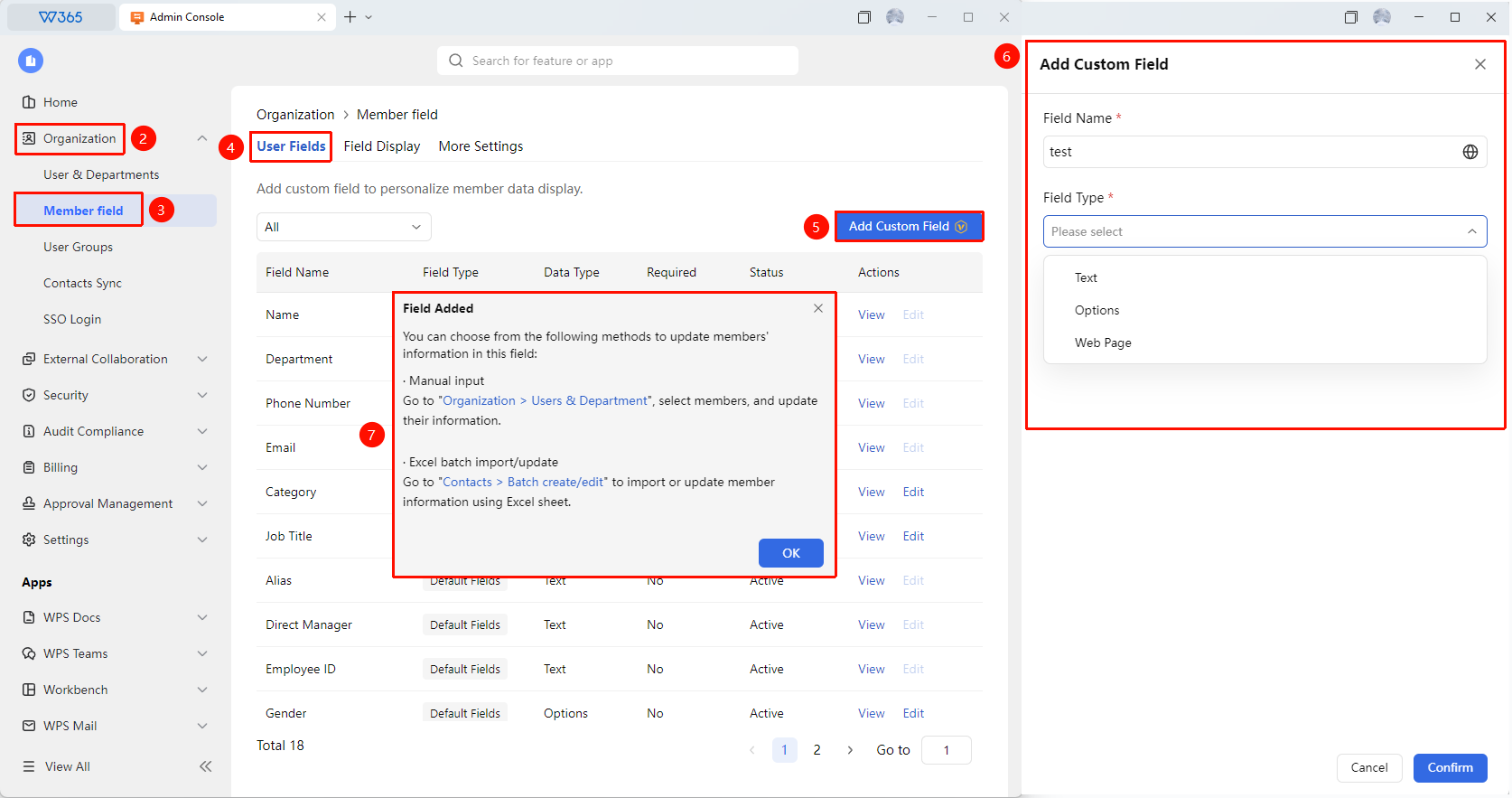
Office Document → Contacts → Member Fields → Add Custom Field
- Open the WPS365 client, click Office Document in the lower-left corner of the client homepage
- Click Contacts in the left-side list
- Click Member Fields, and then click Add Custom Field after entering the page
- Set the field in the pop-up form:
- Field Name: e.g., job level, hire date, etc.
- Field Type: Text / Options / Web
- Click OK to complete field creation
- After creation, fill in the field content through the following methods:
- Manual Input: Go to "Contacts - organizational structure", select the specific member to update information.
- Excel Batch Import/Update: "Contacts - Batch Import/Update", batch import or update member information via Excel Sheets

Manage Custom Fields
Feature Entry
Member Fields page
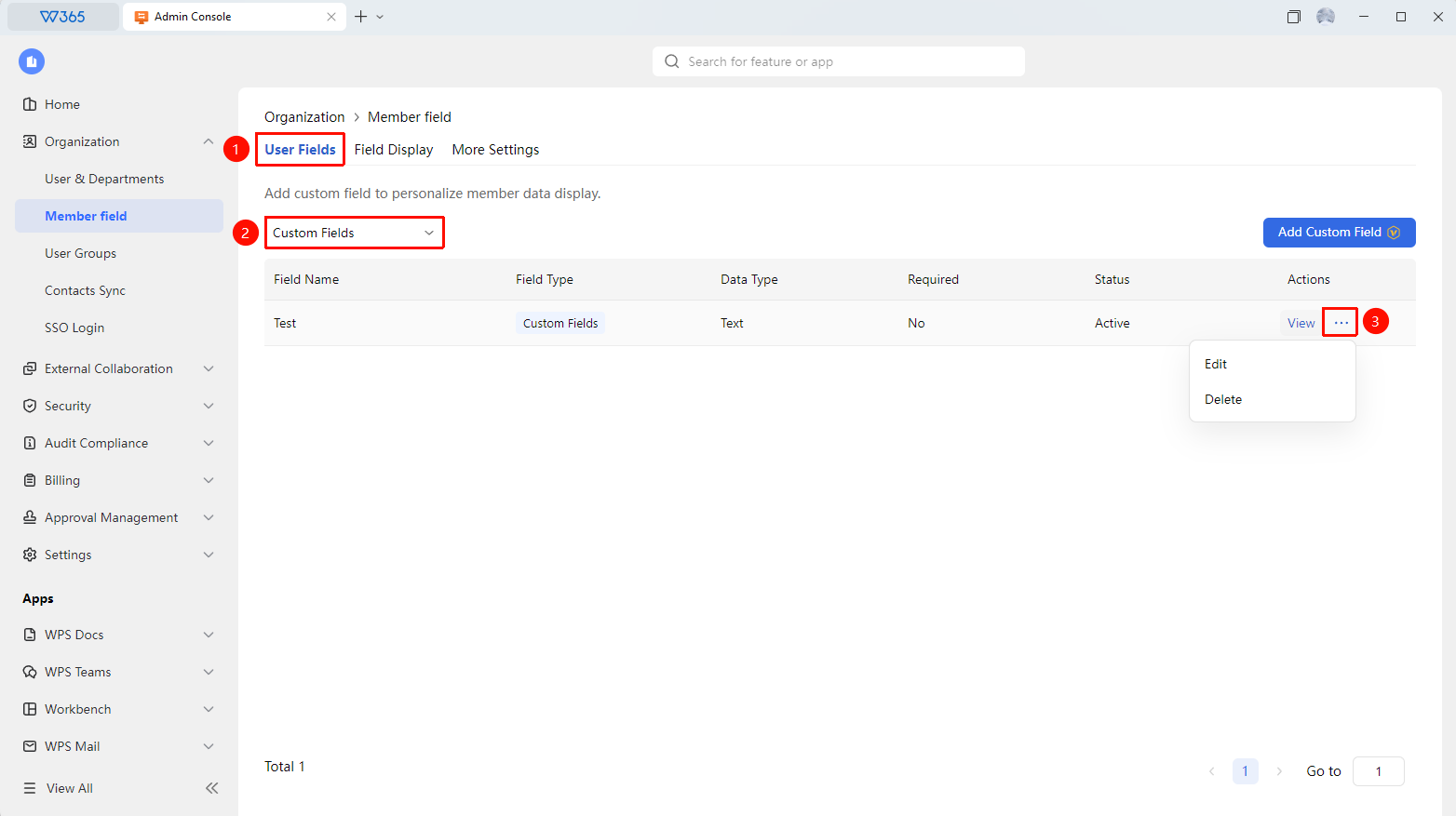
- On the Member Fields page, click the field filter box and select the filter condition as Custom Fields
- All custom member fields will be displayed
- The following operations can be performed:
- Edit: Modify field name, type, or settings
- Delete: Remove unnecessary fields
FAQ
Q1: What is the maximum number of custom member fields that can be created?
- Solution: There is currently no limit on the number. It is recommended to create fields based on actual needs and avoid excessive creation to prevent overburdening members when filling in information.
Q2: Who can see the content of custom member fields?
- Solution: Visibility scope can be set when creating a field, with options to make it visible to all members or only to specific members. It is recommended to set a stricter visibility scope for sensitive information.
Q3: After setting custom member fields, do they need to be filled in during batch import?
- Solution: Custom member fields are optional and can be left blank, to be supplemented later in the member details.
Notes
- It is recommended to update member information promptly after creating custom member fields
- After a field that has been used is deleted, the data already filled in will be lost
- Improper visibility scope settings may lead to information leakage; please set them carefully