Feature Summary
Create user groups to categorize and manage members with the same attributes or permission requirements, facilitating batch authorization and policy configuration.
Feature Description
| Feature Dimension | Description |
|---|---|
| Plan Restrictions | No plan restrictions |
| Version Restrictions | No version restrictions |
Operation Steps
Create Group
Feature Entry
Office Document → Contacts → User Groups → Add Group
- Open the WPS365 client, and click Office Document in the lower-left corner of the client homepage.
- Click 「Contacts」 in the left-side list.
- Click 「User Groups」 in the drop-down list.
- Click the "Add Group" button under the "User Groups" tab.
- Fill in the group name in the pop-up form.
- Click 「OK」 to create the group.

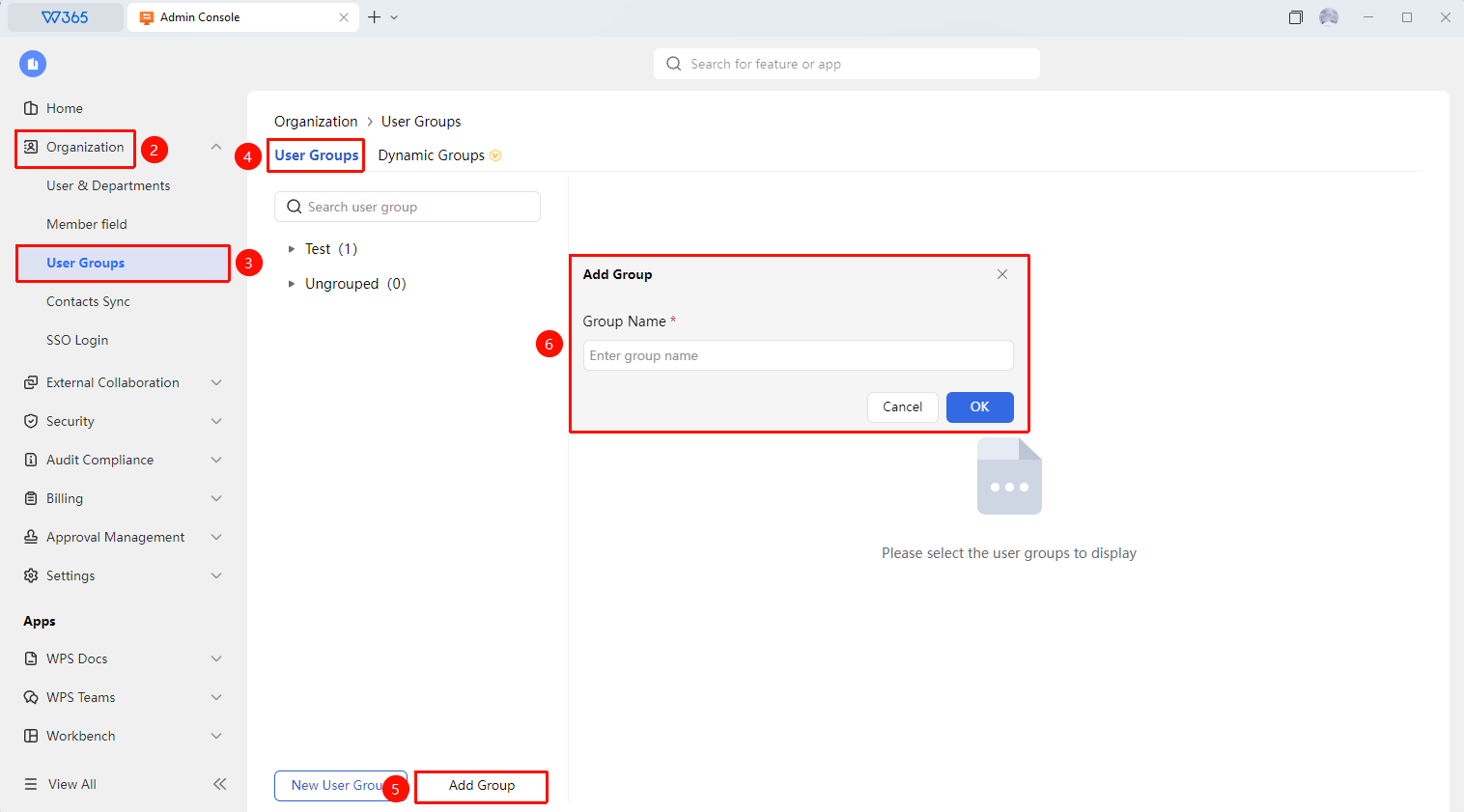
Create User Group
Feature Entry
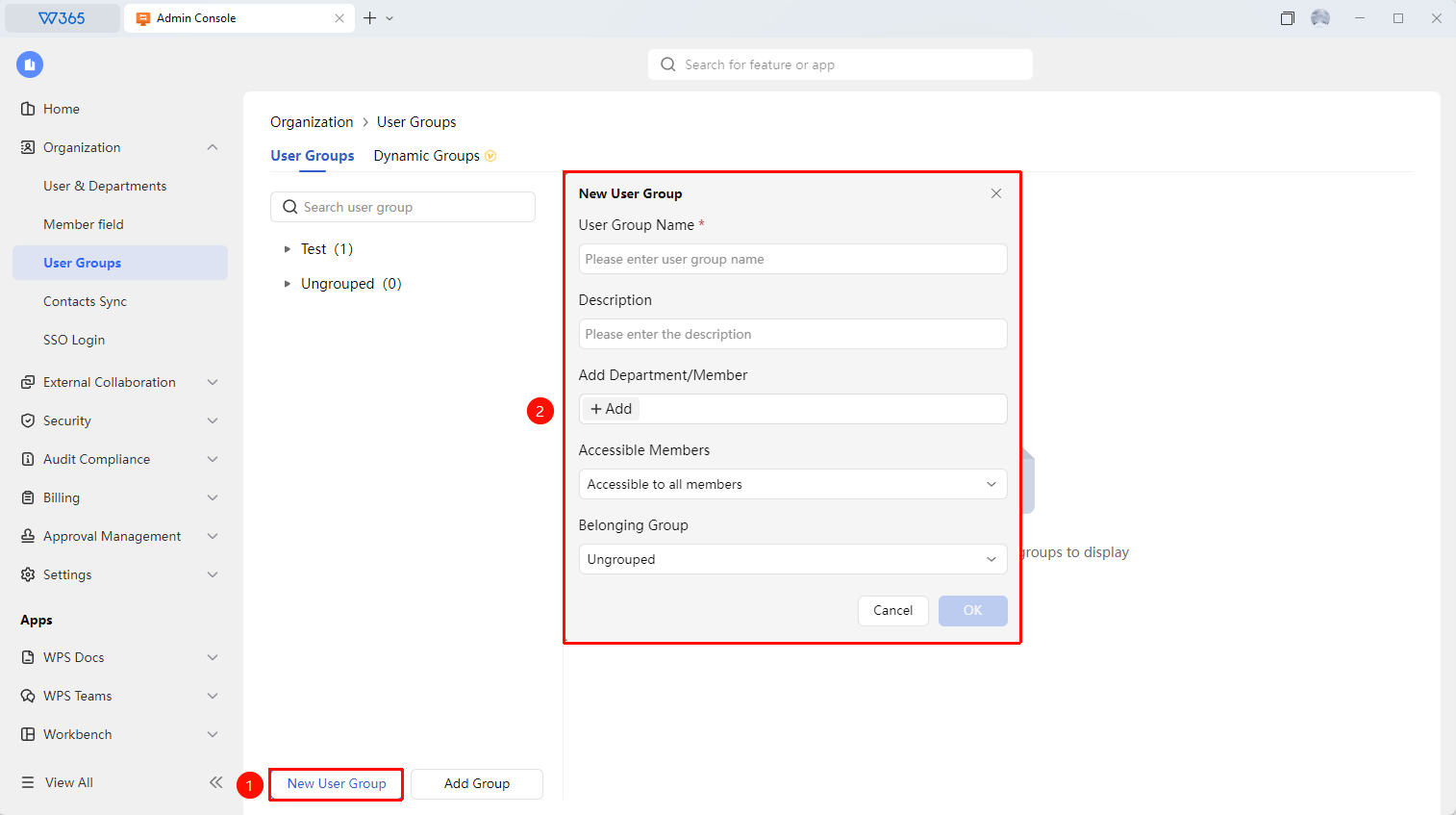
Office Document → Contacts → User Groups → Add User Group
- Select the group to which you want to add a user group.
- Click the 「Add User Group」 button.
- Fill in the following in the pop-up form:
- User Group Name: e.g., "Finance Approval Group", "Project A Members"
- Description: Optional, explain the purpose of the user group.
- Add Departments/Members: Optional, add departments or members to the user group.
- Available Users: Optional, define the scope of use.
- Associated Group: Optional, define the associated group.
5.Click 「OK」 to create the user group.
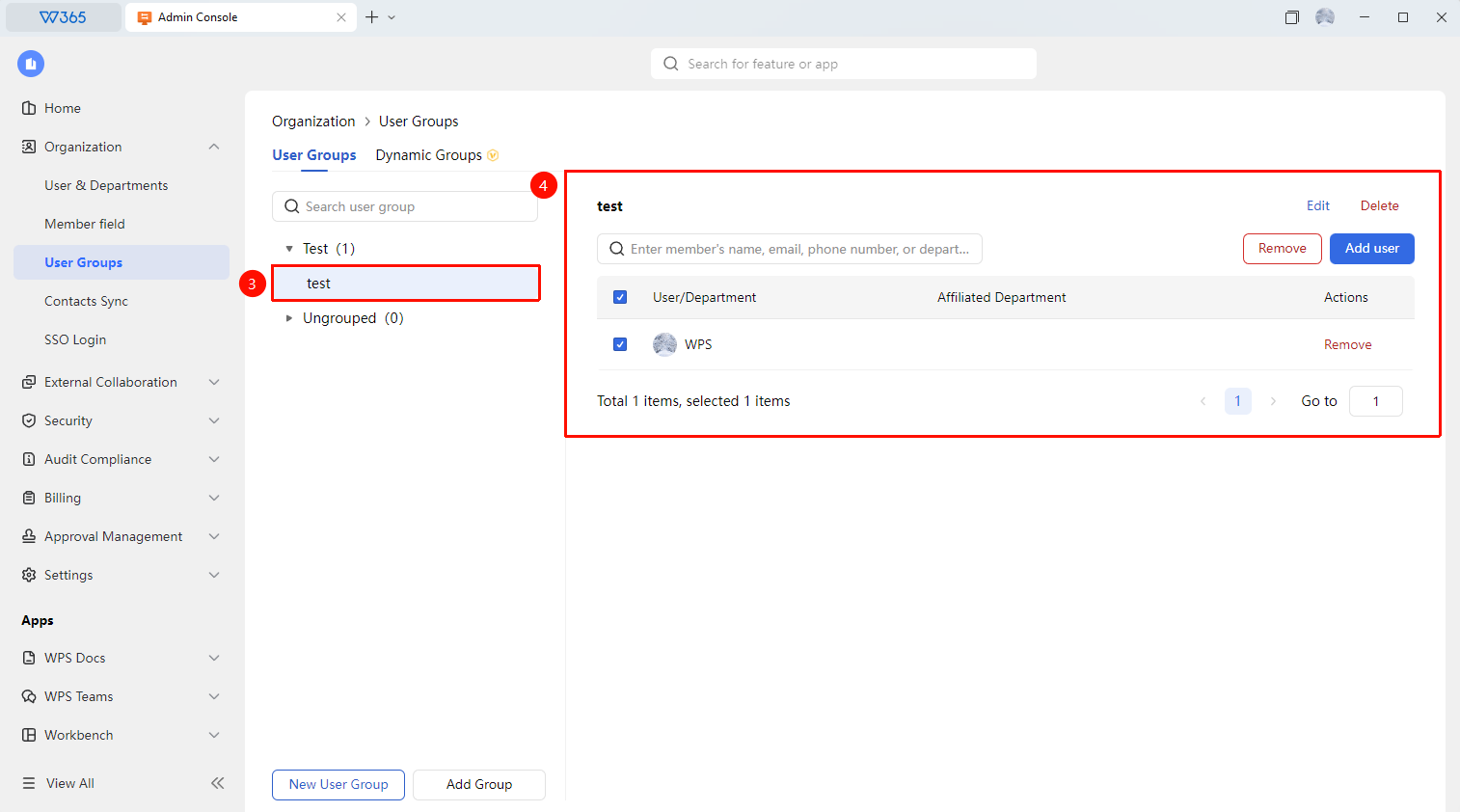
6.After selecting a user group, quickly add or remove members in the right-hand panel.
FAQ
Q1: What is the difference between a user group and a department?
- Solution: Departments are fixed structures based on the organization's organizational structure, where members are divided according to actual reporting relationships. User groups are flexible member combinations that can categorize different members across departments, suitable for temporary or functional scenarios such as project teams and approval groups.
Q2: Can a member join multiple user groups?
- Solution: Yes. A member can join multiple user groups simultaneously.
Q3: Can the name of a user group be modified after creation?
- Solution: Yes. Select the user group, click the more button (...) icon to re-edit.
Notes
- User groups have flexible application scenarios and can be used for batch configuration of Document permissions, approval processes, and security policies.
- Add members promptly after creating a user group to avoid empty and ineffective groups.
- It is recommended to use clear naming conventions to facilitate identification of the user group's purpose.
- User groups must have an associated group; it is recommended to create the group first.