Feature Summary
Automatically sync organizational structure and member information from the organization's AD to WPS 365 Contacts via Active Directory Domain Services
Feature Description
| Feature Dimension | Description |
|---|---|
| Plan Restrictions | Requires a subscribe to organization plan |
| Version Restrictions | No version restrictions |
Steps
Configure AD Sync
Feature Entry
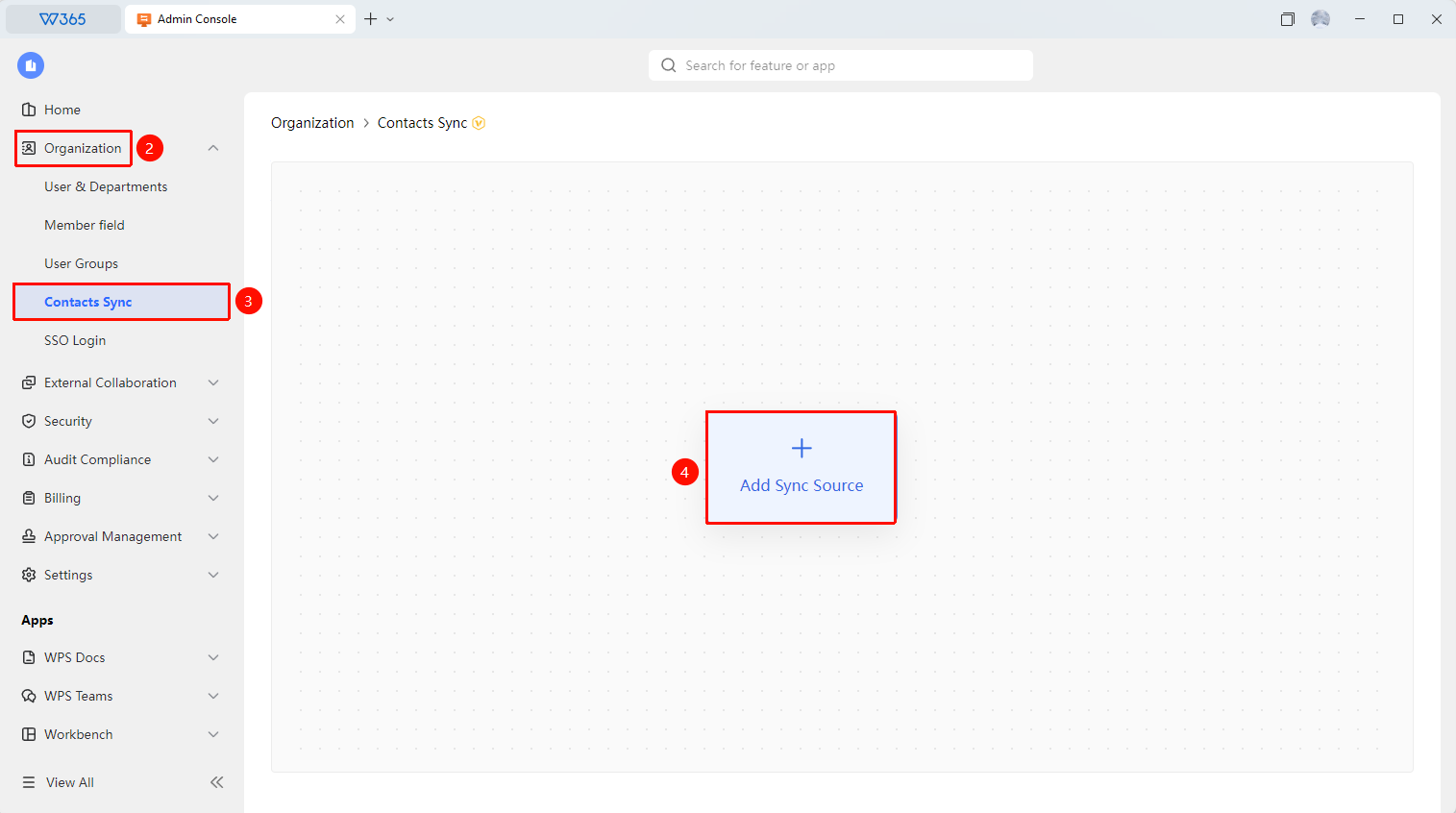
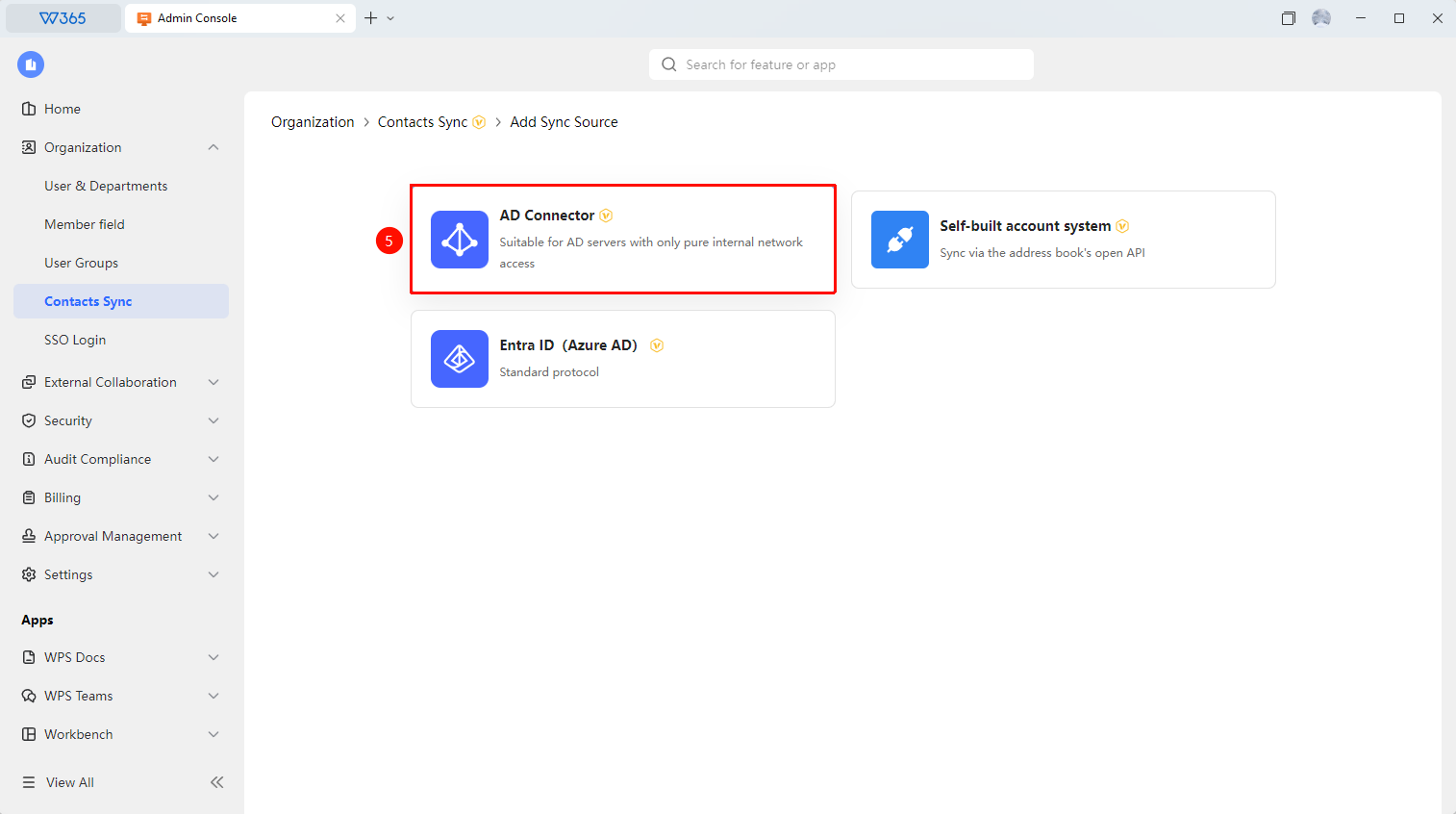
Office Document → Contacts → Contacts Sync → AD Connector
- Open the WPS 365 client and click Office Document in the lower-left corner of the client homepage
- Click 「Contacts」 in the left-side list
- Click 「Contacts Sync」 in the dropdown list
- Select the 「AD Connector」 mode
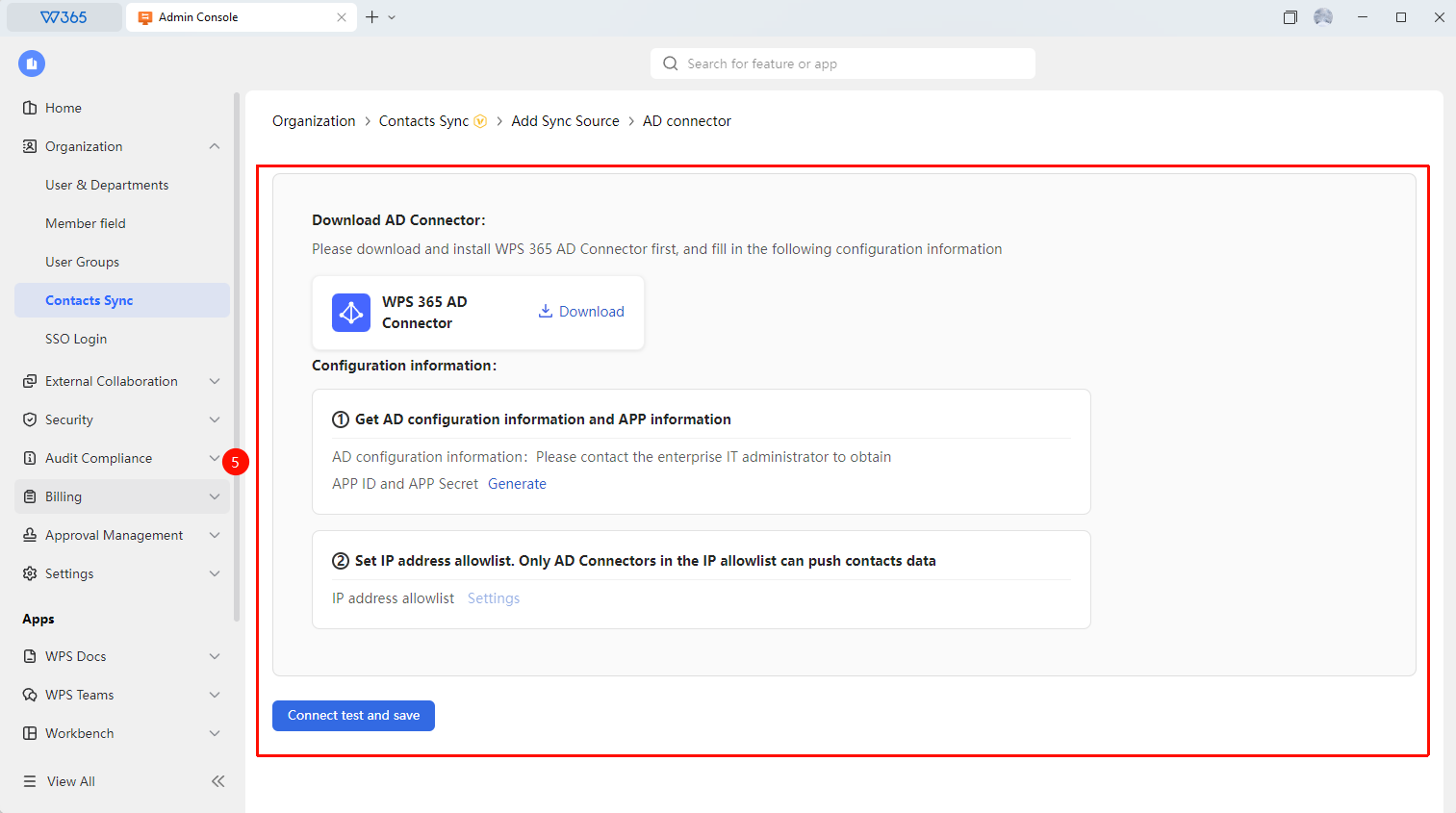
- Download 「WPS 365 AD Connector」 to obtain AD configuration information and APP information
- Use the APP ID and APP Secret to sync data to the organization's organizational structure
- Set an IP whitelist as needed; only AD Connectors within the IP whitelist can push Contacts data
- Click 「Test Connection and Save」 to enable sync and run an automatic test

Manage Sync Objects
Feature Entry
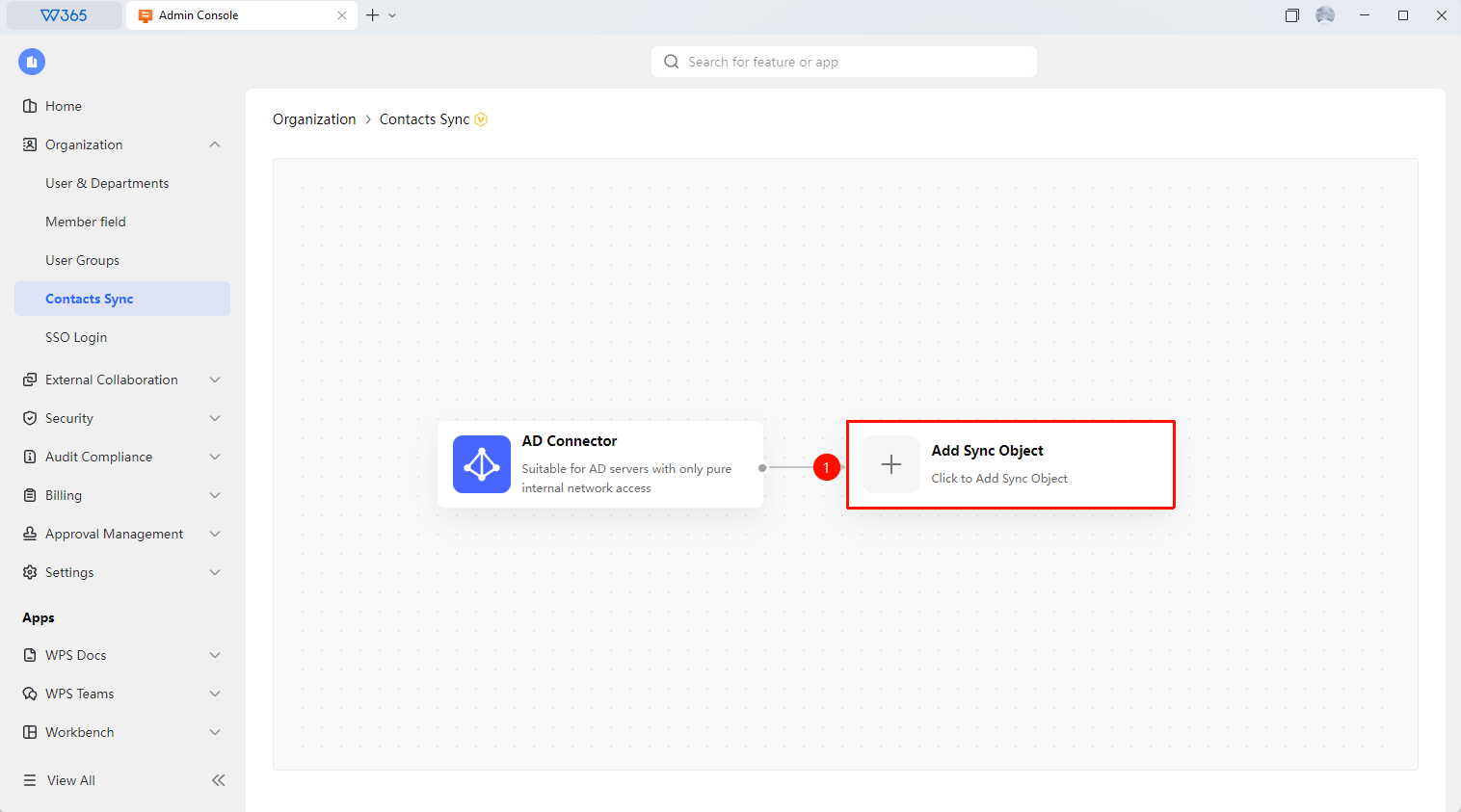
AD Connector page → Add Sync Object
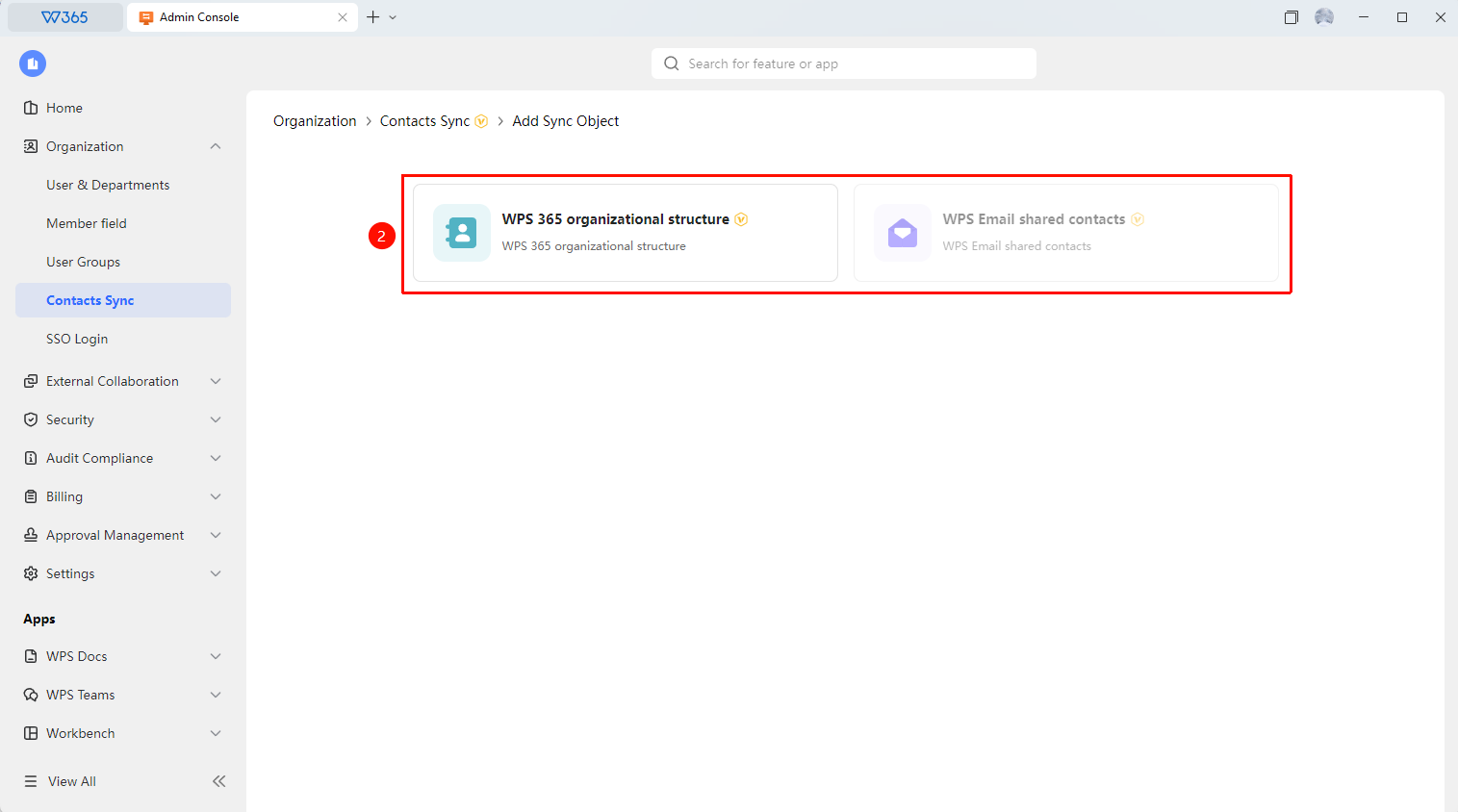
- After configuring the AD Connector, click 「Add Sync Object」
- Select 「365 Organizational Structure」 / 「WPS Email Shared contact」 for sync management
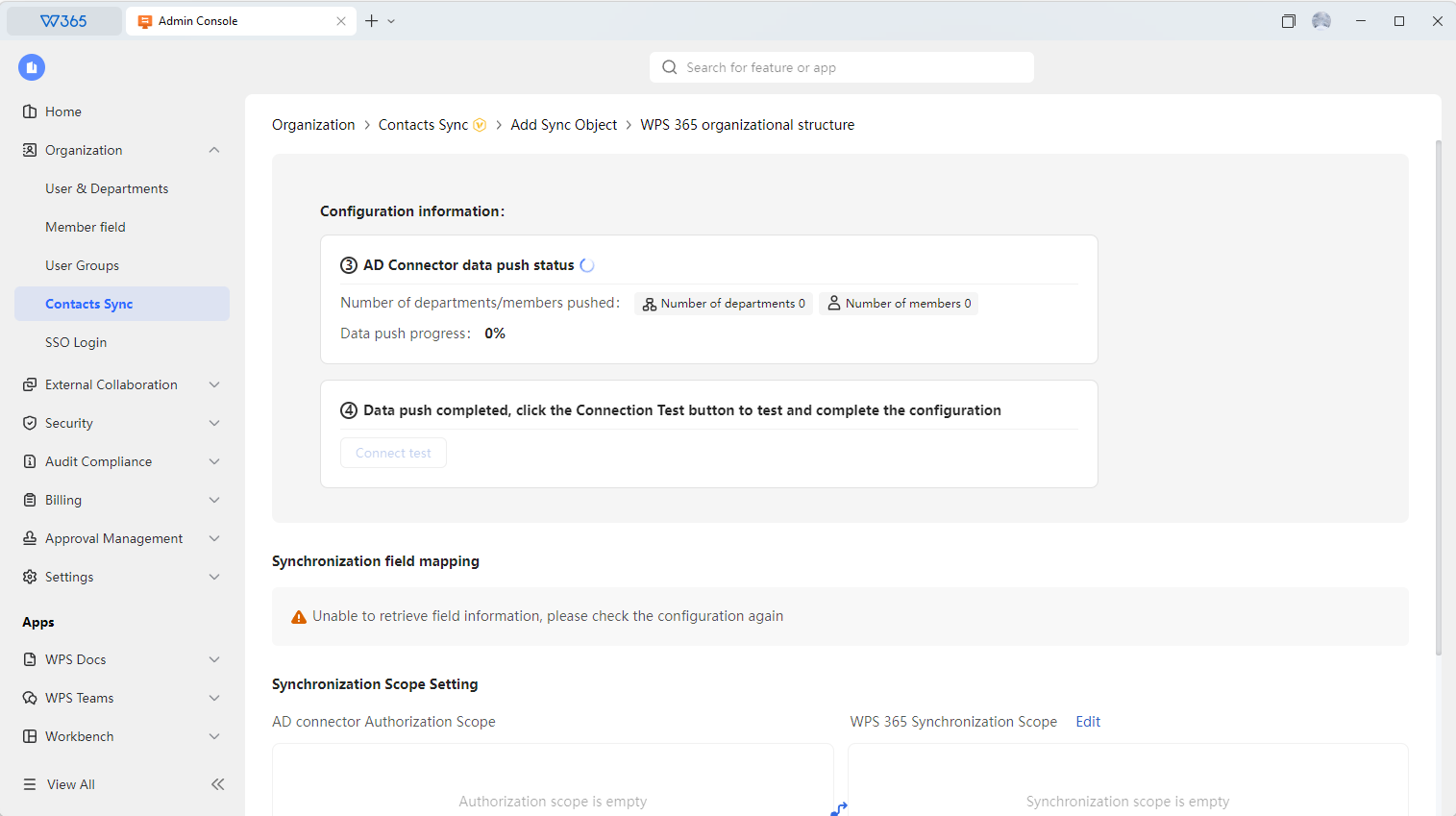
- Manage AD domain connection information:
- AD Connector Data Push Status: Total amount and progress of currently pushed data
- AD Connector Authorization Scope: Current authorization scope of the AD Connector
- WPS 365 Sync Scope: Toggle to keep consistent with the authorization scope / only specified departments / members
- Sync Field Mapping: View the currently configured sync field mapping status
4.Click 「Test Connection」 to verify if the configuration is correct
5.Click 「Create」 and enable automatic sync; click 「Reset」 to clear the entered configuration information and set policies, then reconfigure
FAQ
Q1: Which field mappings does AD sync support?
- Solution: Supports mapping common fields from AD to WPS 365 Contacts fields, including name, email, phone number, department, position, employee ID, etc. Unmapped fields will not be synced to WPS 365.
Q2: What happens to synced members after the AD sync is disconnected?
- Solution: After disconnecting the sync, the synced member information will not be automatically deleted and will remain in the organization's Contacts. However, new additions and changes in AD will no longer sync, which may cause the Contacts data to gradually become inconsistent with AD.
Q3: How to delete an AD sync?
- Solution: Office Document → Contacts → Contacts Sync → AD Connector, click the delete sync source button in the upper right corner.
Office Document → Contacts → Contacts Sync → AD Connector
Notes
- Configuring AD sync requires the Admin to have administrative privileges for the AD domain
- After the sync is complete, it is recommended to spot-check some member information for accuracy