Feature Summary
Configure single sign-on authentication based on SAML or Oauth2.0 protocol, allowing members to use the organization's existing account system to directly sign in to WPS 365
Feature Description
| Feature Dimension | Description |
|---|---|
| Plan Restrictions | Some features require a corporate plan |
| Version Restrictions | No version restrictions |
Operation Steps
Configure SSO sign in
Feature Entry
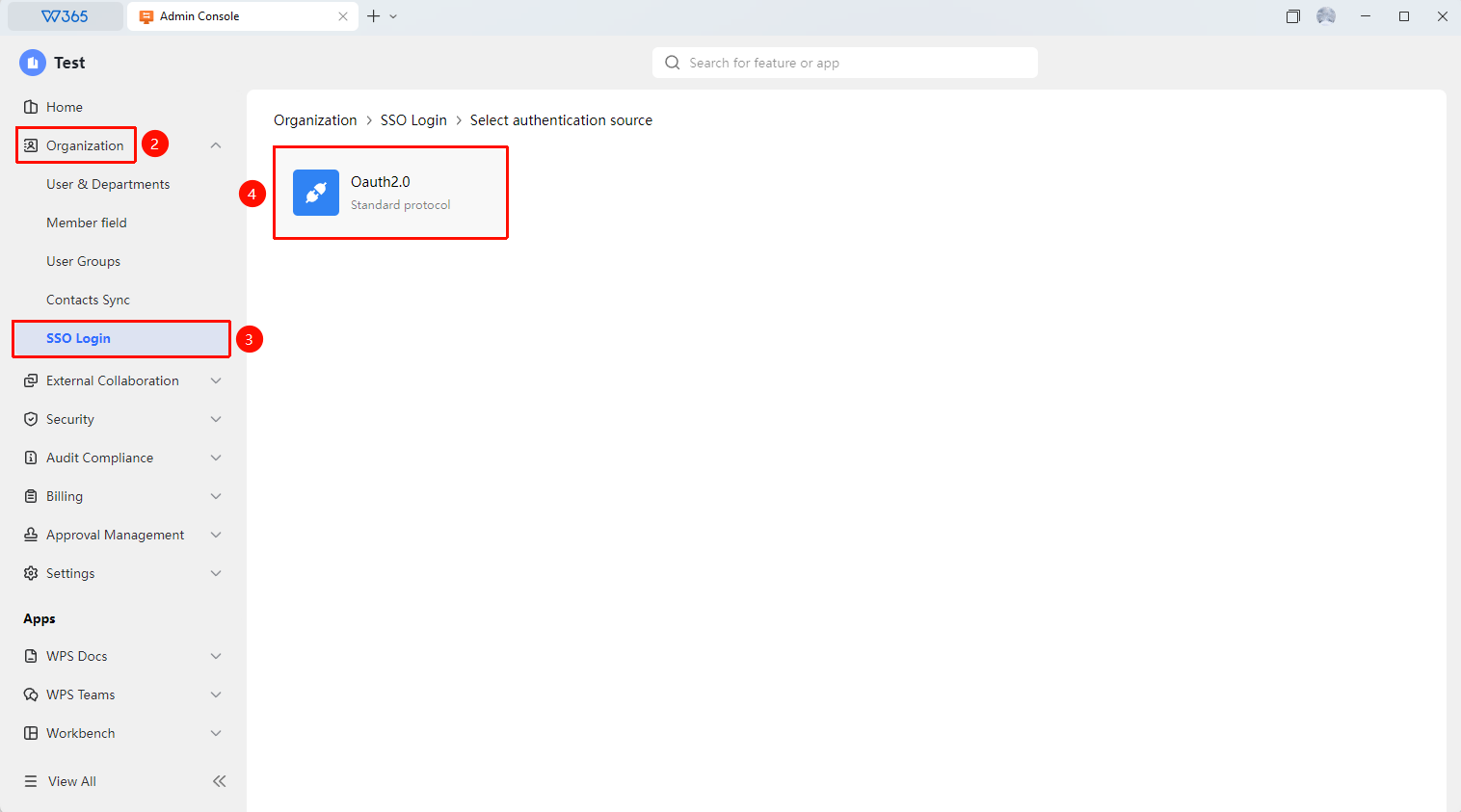
Office Document → Contacts → SSO sign in → Add Authentication Source → SAML/Oauth2.0
- Open the WPS 365 client, and click Office Document in the lower-left corner of the client homepage
- Click 「Contacts」 in the left-side list
- Click 「SSO sign in Authentication」 in the drop-down list
- On the SSO configuration page, click 「Add Authentication Source」 and select the following method to authenticate sign in:
- 「Oauth2.0」 Configure API authentication integration
5.After verifying that the SSO configuration is correct, click 「Save」 to apply
6.After saving, members can use their organization account to directly sign in to WPS 365

FAQ
Question 1: After configuring SSO, can members still use their password to sign in?
- Solution: Yes, both can be retained simultaneously. After configuring SSO, members can use either SSO single sign-on or the original WPS password to sign in.
Question 2: What are the common reasons for SSO configuration failure?
- Solution: Common reasons include: certificate configuration errors (incorrect certificate format or content), incorrect sign in address URL, entity ID mismatch, and domain name not properly bound. It is recommended to carefully check the configuration information and refer to the SSO configuration documentation on the WPSopen platform for item-by-item troubleshooting.
Notes
- SSO configuration requires the organization's IT Admin to have a basic understanding of the SAML protocol
- Before configuration, please prepare the organization's IdP certificate and sign in address
- It is recommended to verify the SSO configuration in a test environment first, and enable it in the production environment after confirming it is correct
- The SSO sign in domain name must be consistent with the organization's email domain name