Feature Summary
When an employee leaves, transfer all their organization Documents to a designated recipient with one click
Feature Description
| Feature Dimension | Description |
|---|---|
| Plan Restrictions | No plan restrictions |
| Version Restrictions | No version restrictions |
Steps
Document Transfer and Permission Revocation
Feature Entry Point
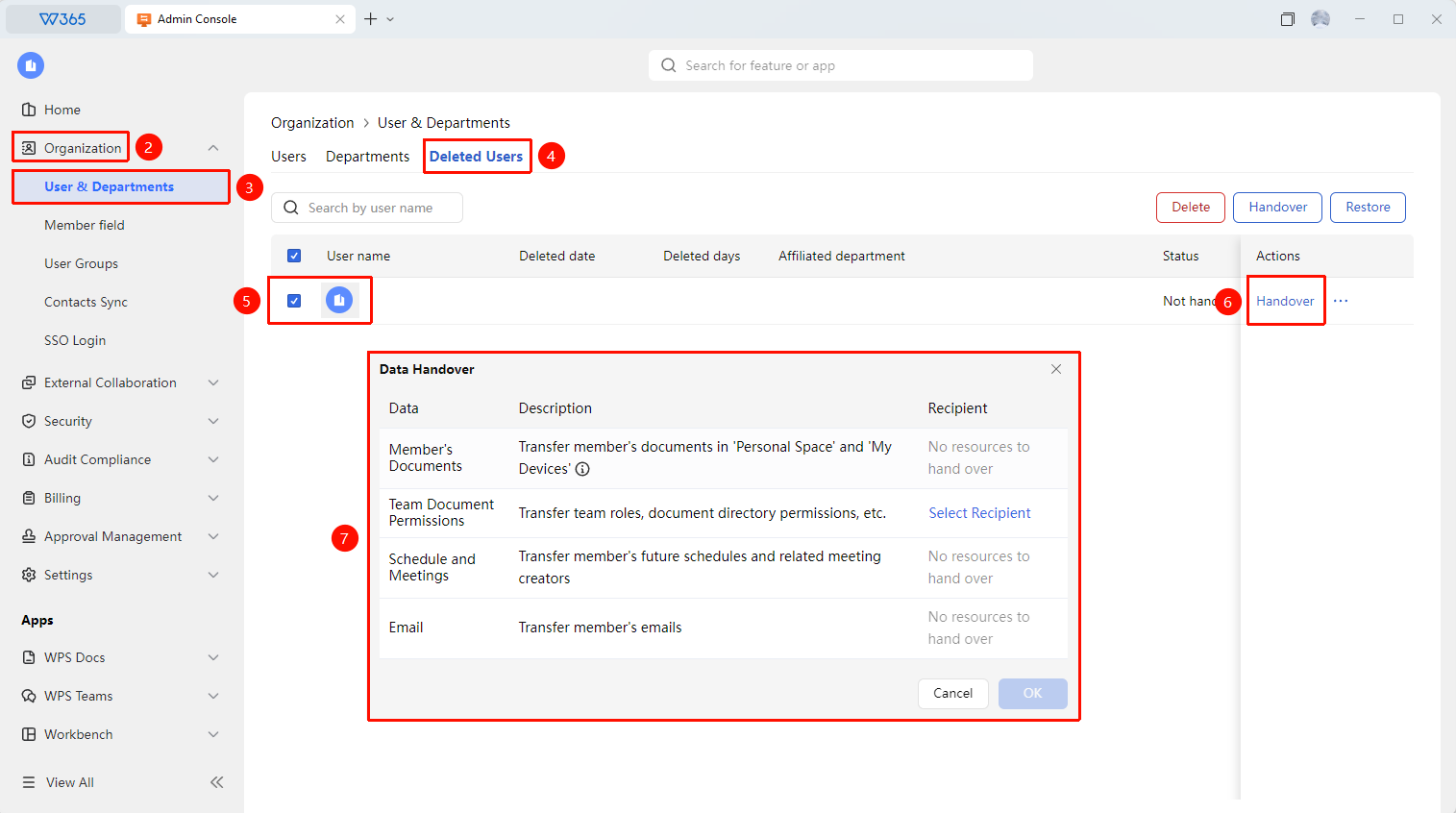
Office Document→Contacts→organizational structure→Departed Members→transfer
- Open the WPS 365 client and click Office Document in the lower-left corner of the client homepage
- Click Contacts in the left-side list
- Click organizational structure in the drop-down list
- Switch to the Departed Members tab
- Select the member to be removed from the departed members list
- Click the transfer button at the top right of the page
- The system lists all organization assets under that member:
- Member Documents
- Team Space permissions
- Events and Meetings
- Emails
8.Select a recipient (must have joined the organization's organizational structure)
9.Click Confirm to transfer all organization Documents to the recipient with one click
10.After the transfer is complete, delete or deactivate the departed employee's organization account

FAQ
Q1: The departed member can no longer sign in. Can the document transfer still be performed?
- Solution: Yes. An Admin can directly perform the departure transfer in the backend without the departed member signing in. The system will automatically identify all organization Documents under their name and transfer them.
Q2: Will the departed member's shared links still work after the document transfer?
- Solution: Ownership of the transferred Documents is moved to the recipient, but the original shared links for the Documents will not be automatically deactivated. It is recommended to check and clean up the departed member's external shared links after the transfer.
Q3: Can the departed member's Documents be transferred to different people in batches?
- Solution: Currently, the one-click transfer feature supports transferring all Documents to a single recipient. If you need to distribute them to different people, the recipient can distribute them after the transfer.
Notes
- The Document recipient must have joined the organization's organizational structure; otherwise, the transfer cannot be completed
- The departure transfer operation cannot be undone. Please carefully verify the recipient's identity before confirming
- It is recommended to incorporate WPS 365 departure transfer into the organization's standard offboarding process