Feature Summary
Set the organizational structure scope that members can view in Contacts, enhancing the confidentiality of organization organizational structure information
Feature Description
| Feature Dimension | Description |
|---|---|
| Plan Restrictions | Requires a subscribe to organization plan to use |
| Version Restrictions | No version restrictions |
Operation Steps
Apply organizational structure visibility default rules
Feature Entry
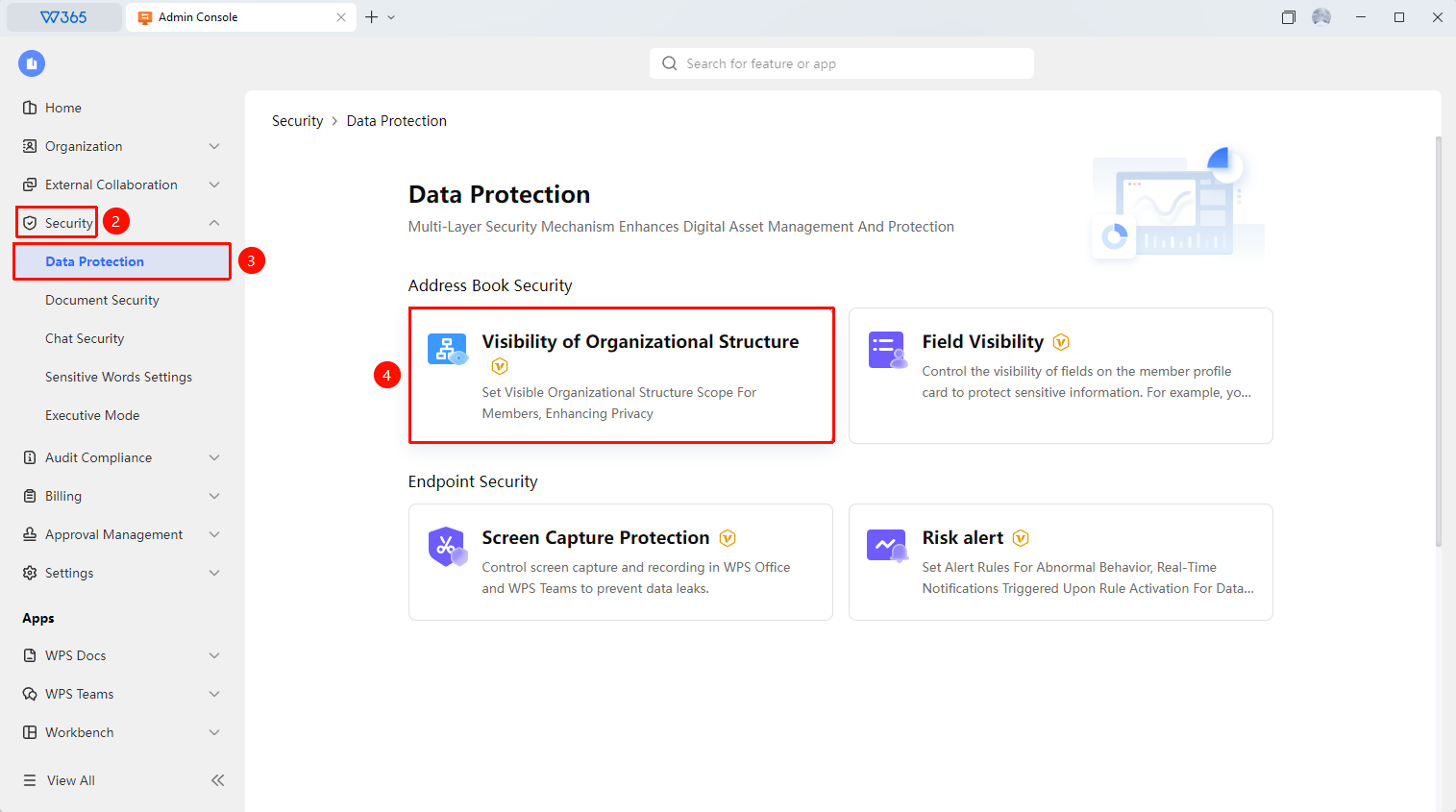
Office Document → Organization Security Control → organizational structure visibility → Default Rules → Modify
- Open the WPS365 client, click Office Document in the lower left corner of the client homepage
- Click 「Security Control」 in the left list to expand the dropdown list
- Click 「Data Protection」 in the dropdown list, then click 「organizational structure visibility」
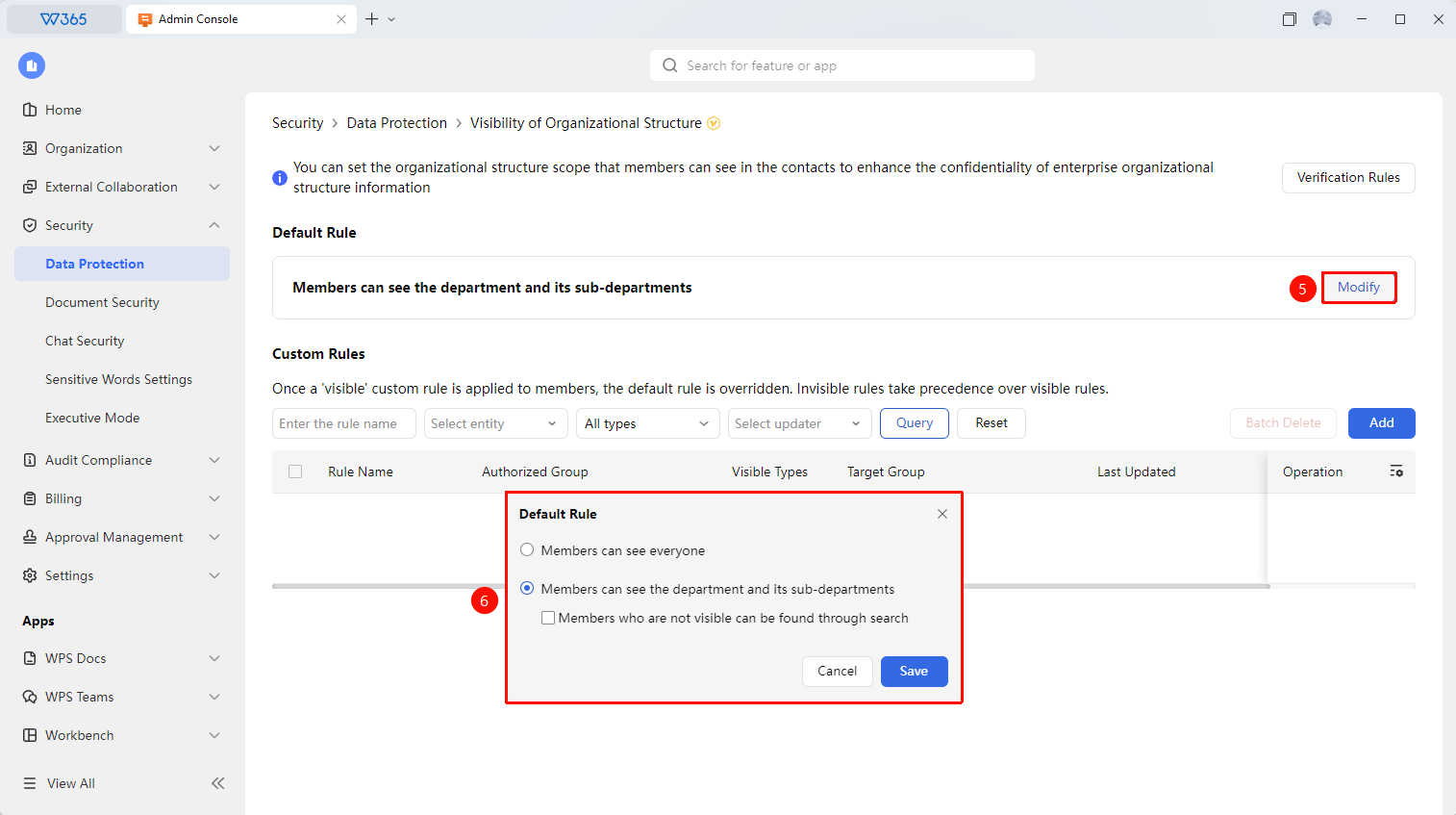
- Click Modify under 「Default Rules」 to apply organizational structure visibility:
- Members can view all members: Organization members can view all members, no restrictions
- Members can view this department and sub-departments: Organization members can view only all members (you can check Members can find invisible members through search to allow members to find members outside the rule through search)
5.Click 「Save」 to save the policy

Custom organizational structure visibility rules
Feature Entry
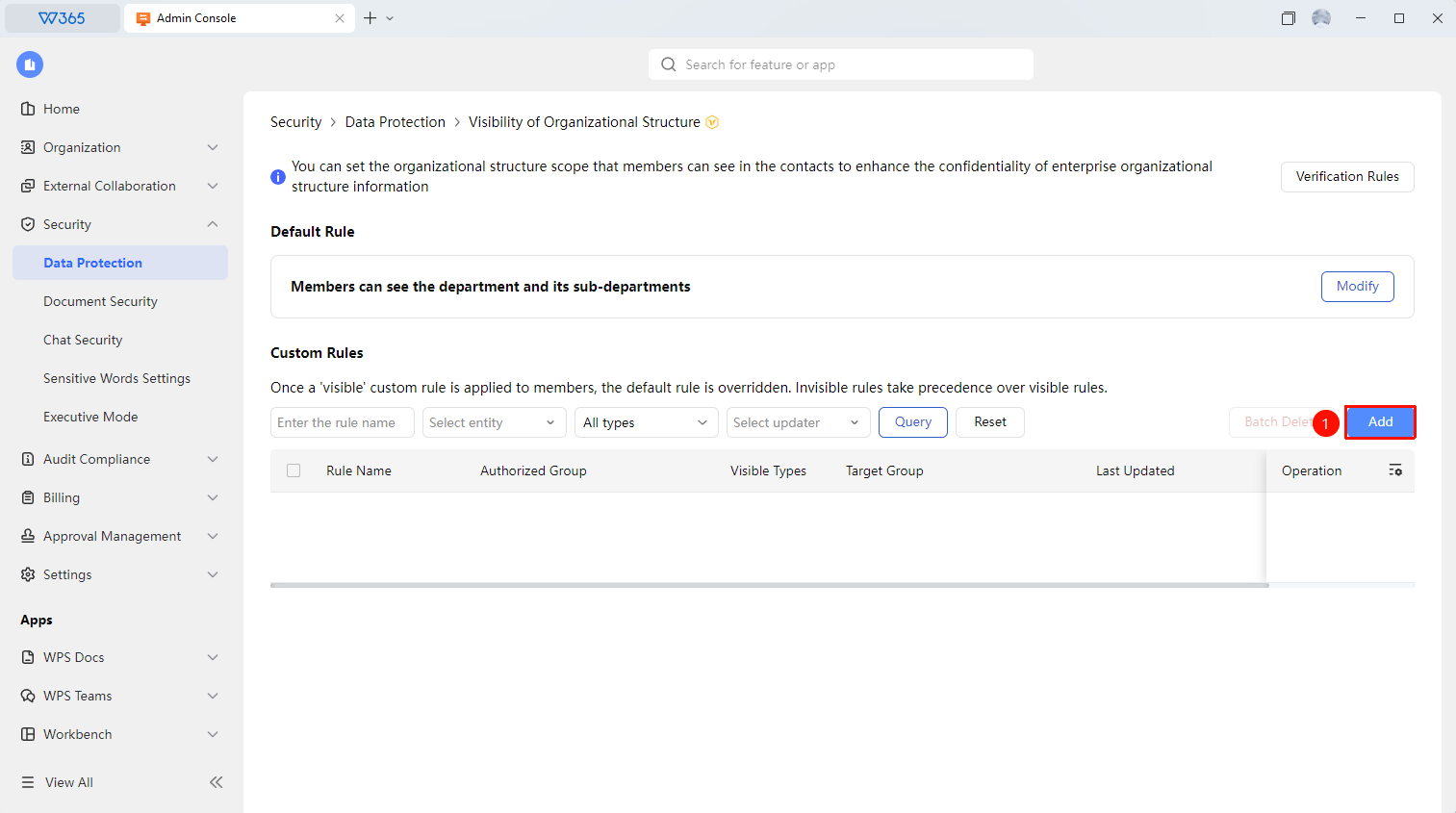
organizational structure visibility interface → Custom Rules → Add
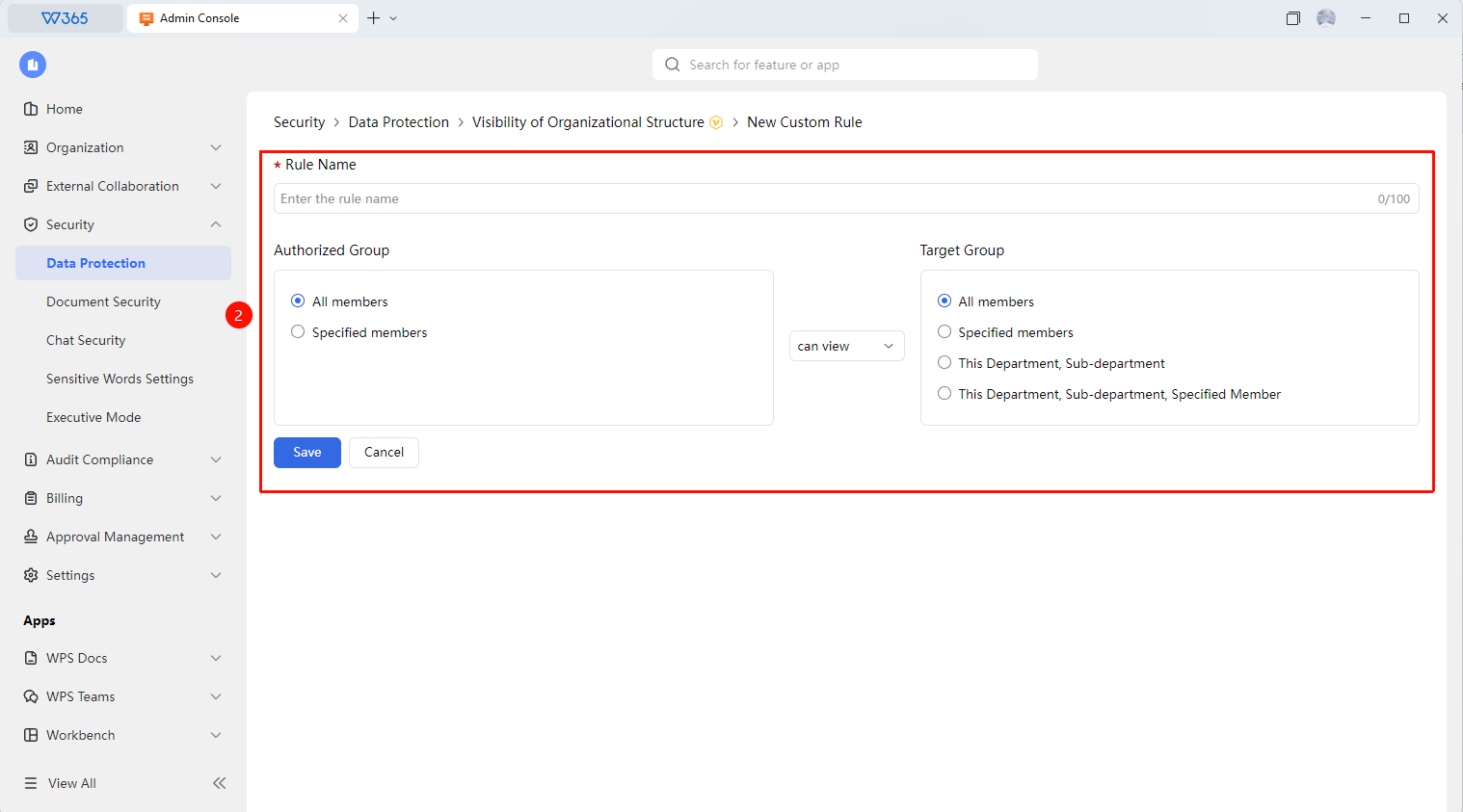
- Click Add under 「Custom Rules」 to configure custom organizational structure visibility rules:
- Rule Name
- Set All Members/Some Members to be Visible/Invisible to others
2.Click 「Save」 to save and apply the custom rule
Manage custom organizational structure visibility rules
Feature Entry
Field visibility policy interface
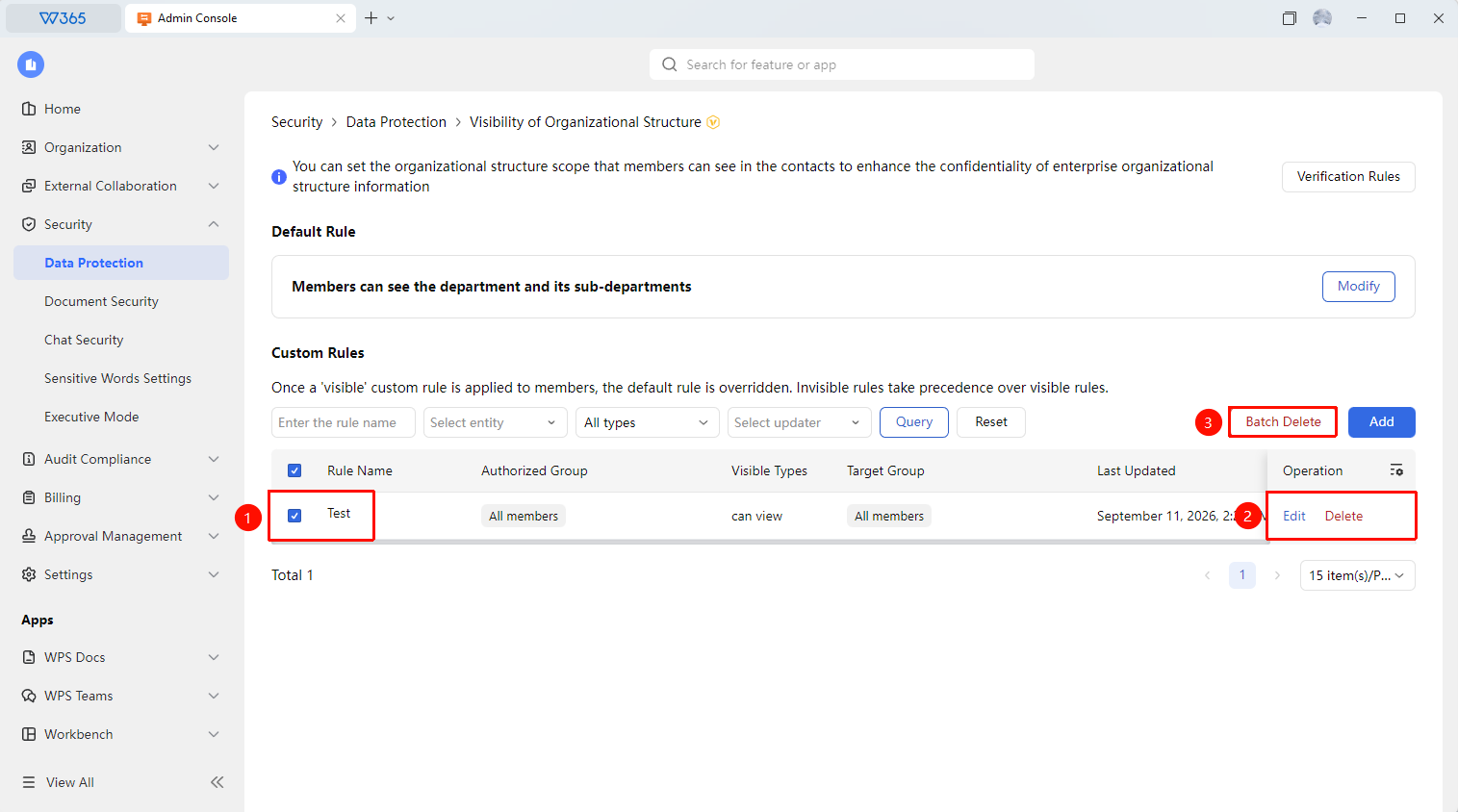
- On the screenshot control interface, filter the organizational structure visibility rules you need to manage by conditions such as rule name, subject type, and rule type
- Select the relevant policy and click the relevant option to manage:
- Edit : Edit rule
- Delete : Delete rule
- Batch Delete : Batch delete selected rules
FAQ
Question 1: How long does it take for an added organizational structure visibility custom rule to take effect?
- Solution: It takes about 3 minutes to take effect. If it does not take effect for a long time, you can provide a screenshot of the rule setting page to the WPS customer service team or engineer team for help.
Question 2: After setting organizational structure visibility, will Document collaboration be affected?
- Solution: No. organizational structure visibility only affects the display of Contacts, and does not affect Document collaboration and sharing. Even if a department is hidden, other members can still collaborate with it through Document sharing links.
Notes
- organizational structure visibility is suitable for scenarios where sensitive departments such as executives and finance need to be protected
- It is recommended to configure it together with field visibility to ensure multi-layer protection of sensitive information