Feature Summary
View the basic information overview of the organization, including organization name, industry type, scale, creation time, and current plan and benefit status
Feature Description
| Feature Dimension | Description |
|---|---|
| Plan Restriction | No plan restriction |
| Version Restriction | No version restriction |
Operation Steps
View Organization Overview
Feature Entry
Office Document → Organization Overview
- Open the WPS365 client, and click Office Document in the lower-left corner of the client homepage
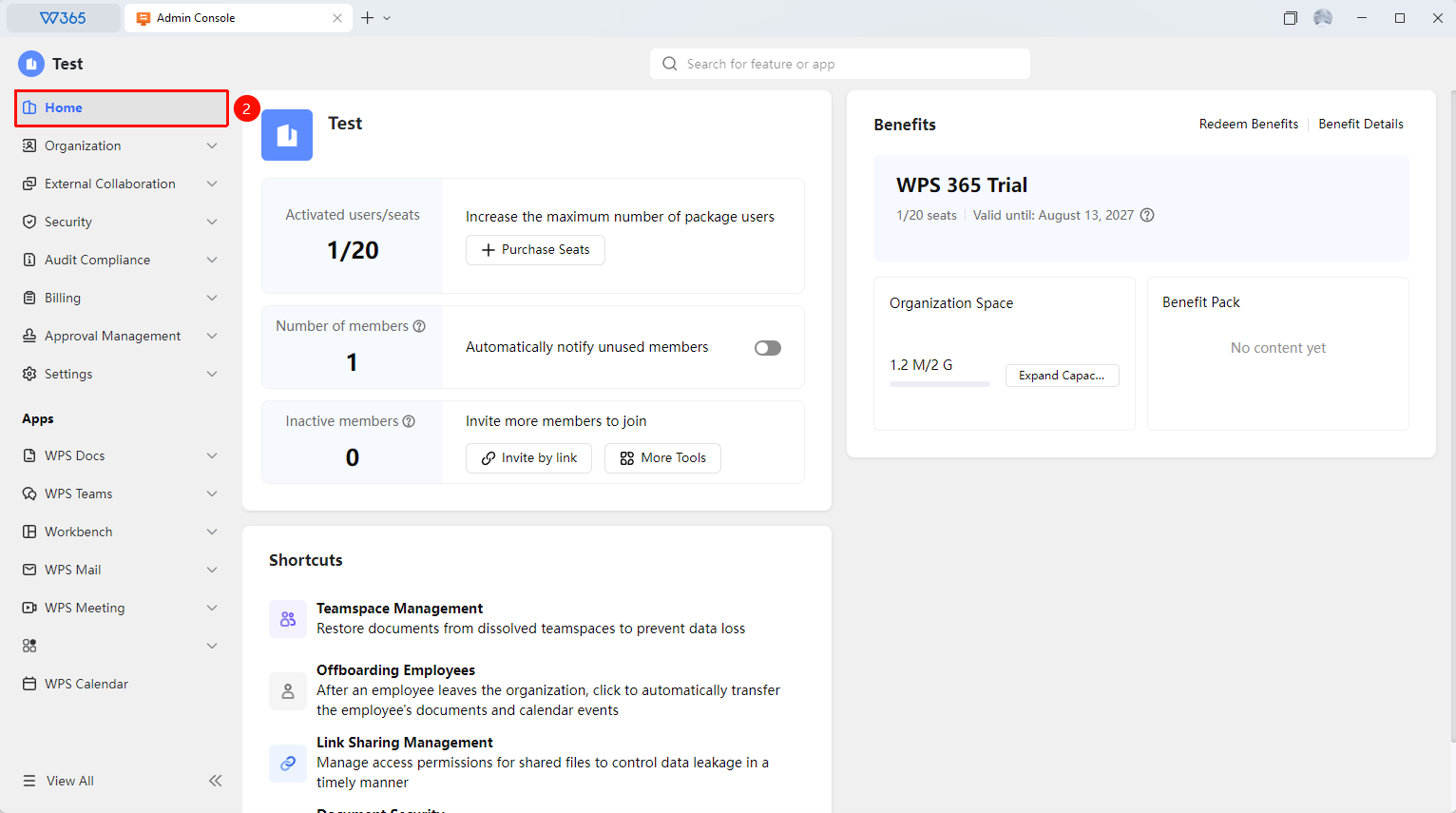
- Click 「Organization Overview」 in the left-side list to expand the overview of basic organization information:
- Organization Name: The organization name currently signed up
- Activated Users: The maximum number of seats and the number of activated users (quickly purchase additional seats)
- Active Users: The number of users in Contacts with active accounts (automatically notify inactive members)
- Unactivated Users: The number of users in the Contacts list with unactivated accounts (quickly generate invitation links, QR codes, and add members)
- Plan Info: The current plan in use and its expiration time, total organization space, used space, and benefit redemption entry
- Admin Feature Entry: Quick access entries for common features, such as team management, departed employees, Document security, etc.
3.Click the edit icon next to each information item to jump to the corresponding settings page for modification

FAQ
Q1: Which information in the Organization Overview can be directly modified?
- Solution: The Organization Overview page mainly displays information. Some information can be modified by clicking through to the corresponding settings page, such as organization name, industry type, etc. The Organization ID and creation time are automatically generated by the system and cannot be modified.
Q2: How often is the information displayed on the Organization Overview page updated?
- Solution: Organization Overview information is synchronized in real time. After modifying the organization name, adding members, etc., return to the Organization Overview page and refresh to see the latest data. If the page does not update in time, try refreshing the browser or signing in to the admin console again.
Q3: Do different Admins see the same content in the Organization Overview?
- Solution: Yes. The Organization Overview displays global organization information, and all Admins see the same content. However, regular members cannot view the Organization Overview page; this feature is only available to Admins.
Notes
- Organization Overview only supports viewing; to make modifications, you need to jump to the corresponding feature settings page
- The Organization ID is the unique identifier of the organization and must be provided when integrating with the open platform or contacting technical support
- It is recommended to pay attention to the plan expiration reminder and renew in advance to avoid affecting normal usage