Feature Summary
Preset default permission parameters for organization document sharing, centrally managing access permissions and validity periods for sharing
Feature Description
| Feature Dimension | Description |
|---|---|
| Plan Restrictions | Some features require subscribing to a plan to use |
| Version Restrictions | No version restrictions |
Operation Steps
Configure Sharing Defaults
Includes some organization plan features; note the member identifier before use
Feature Entry
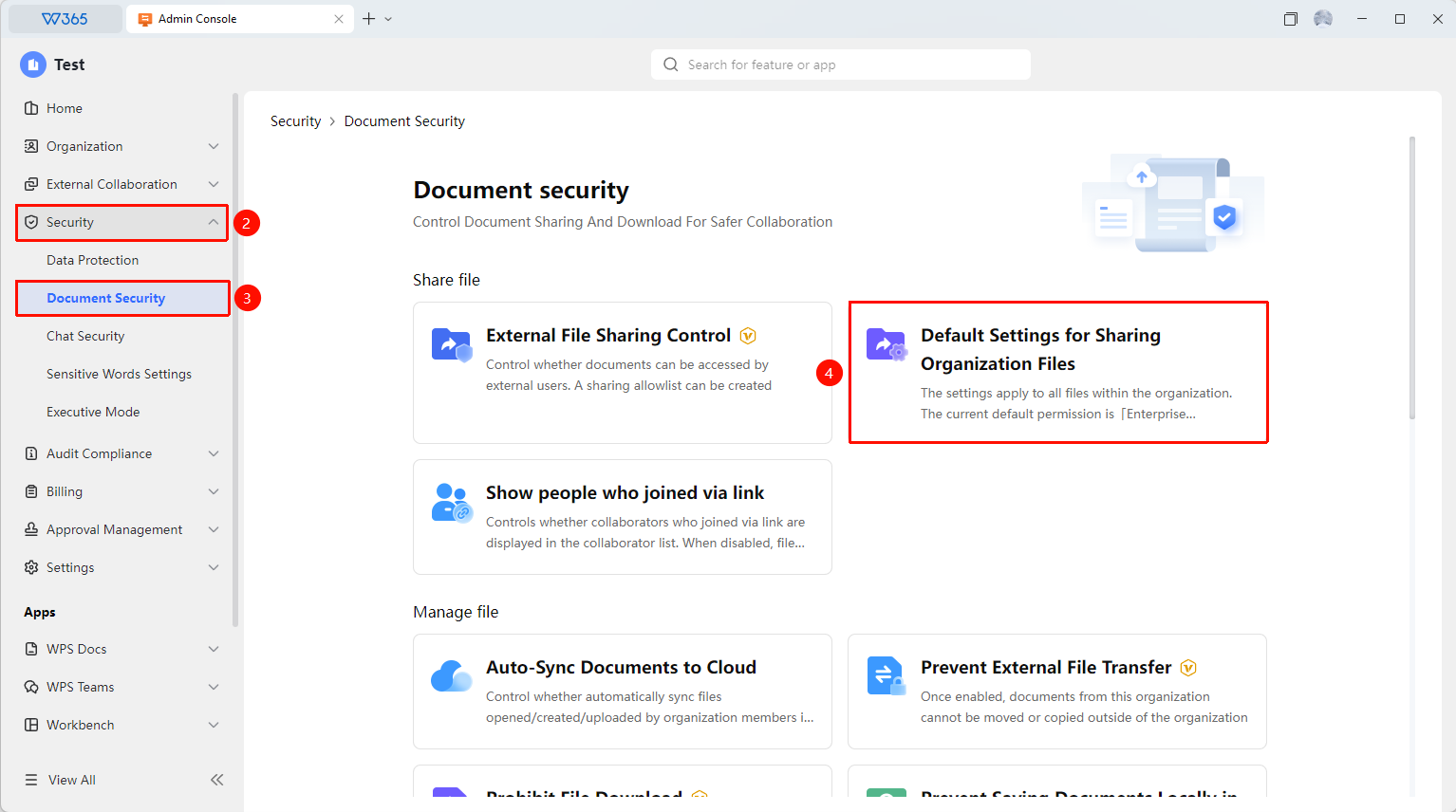
Office Document → Security Control → Document Security → Default Settings for Organization File Sharing
- Open the WPS365 client, click Office Document in the lower-left corner of the client homepage
- Click 「Security Control」 in the left-side list
- Click 「Document Security」 in the dropdown list
- Find and click 「Default Settings for Organization File Sharing」 to open the default settings configuration interface
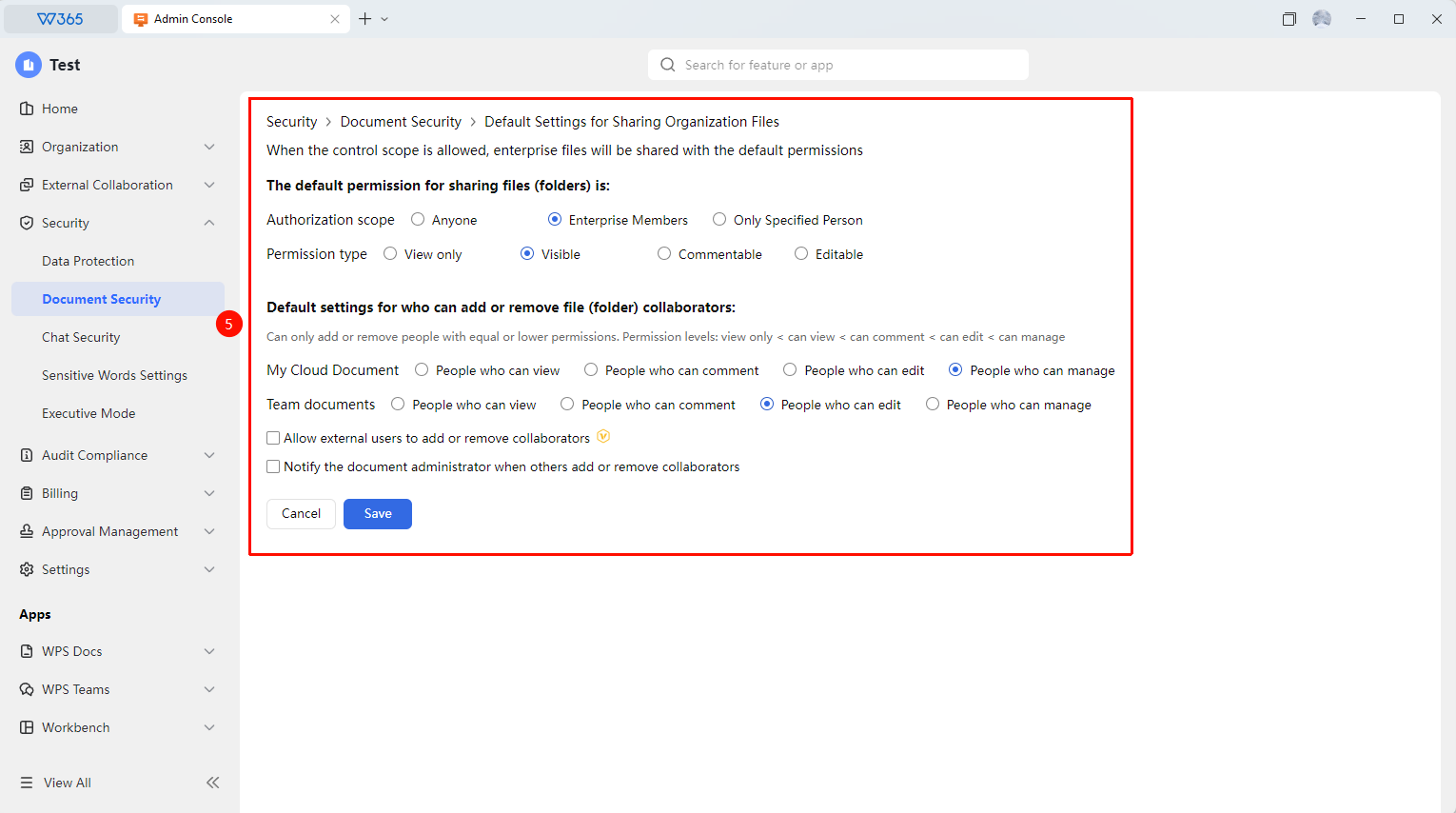
- Default permissions for enabling sharing of files (folders):
- Authorization Scope: Anyone / Organization Members / Specified People Only
- Permission Scope: view only / can view / can comment / can edit
6.Default who can add or remove collaborators for files (folders):
- Personal Space: People who can view / People who can comment / People who can edit / People who can manage
- Team Space: People who can view / People who can comment / People who can edit / People who can manage
7.Disable/Enable 「Users Outside the Team Can Add or Remove Collaborators」
8.Disable/Enable 「Notify Document Admin When Others Add or Remove Collaborators」
9.Click 「Save」 to apply

Notes
- Sharing default settings enable standardized management of document sharing
- It is recommended to set reasonable security parameters to balance security and convenience
- Regularly check the sharing default configuration to ensure compliance with the organization's latest security requirements