Feature Summary
Automatically sync locally specified folders or file types of members to the organization Cloud Document, ensuring unified storage and management of organization data
Feature Description
| Feature Dimension | Description |
|---|---|
| Plan Restrictions | No plan restrictions |
| Version Restrictions | No version restrictions |
Operation Steps
Configure Auto-Upload to Cloud Policy
Feature Entry
Office Document → Security Control → Document Security → File Auto-Upload to Cloud
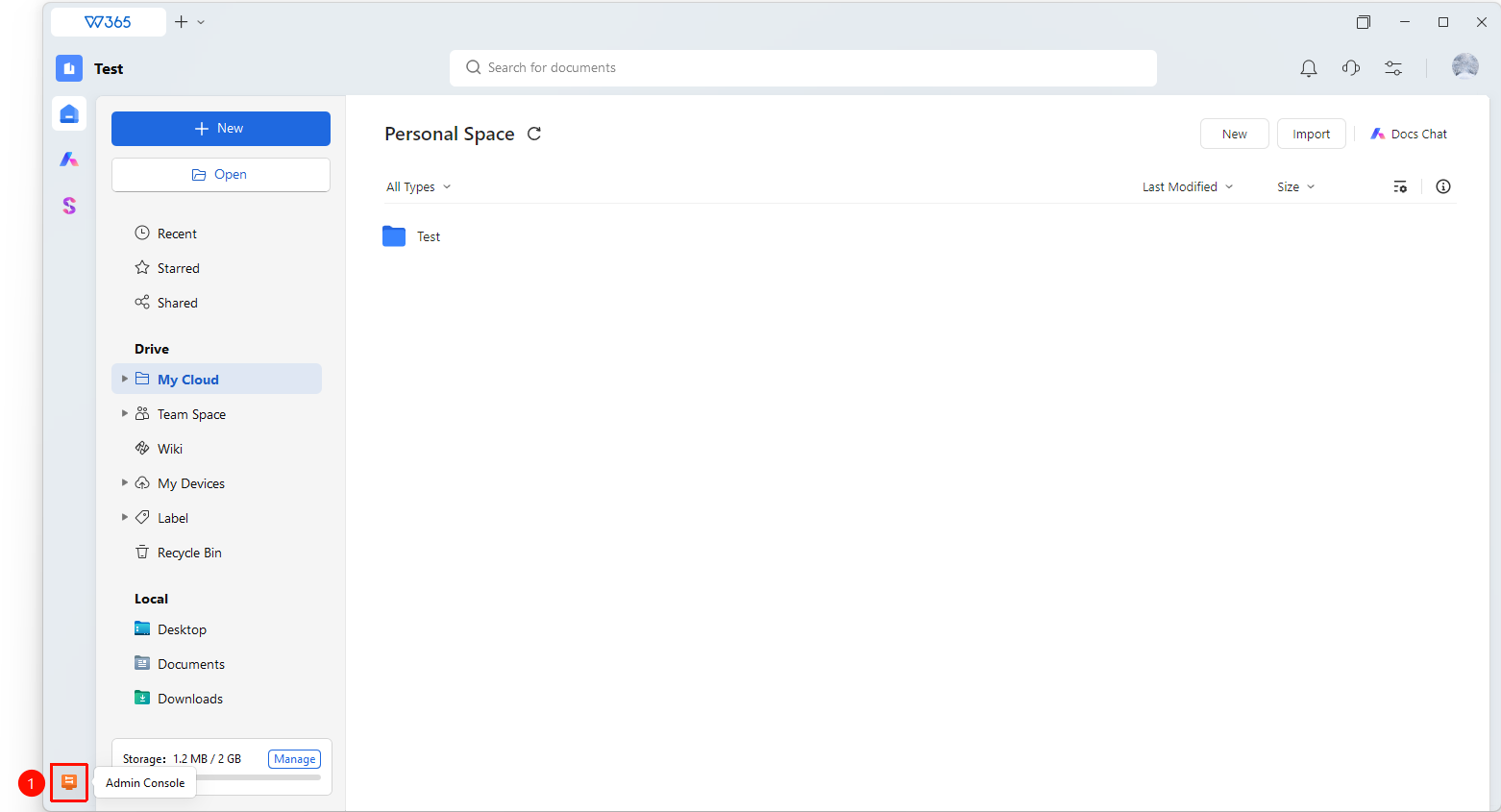
- Open the WPS365 client, click Office Document in the lower-left corner of the client homepage
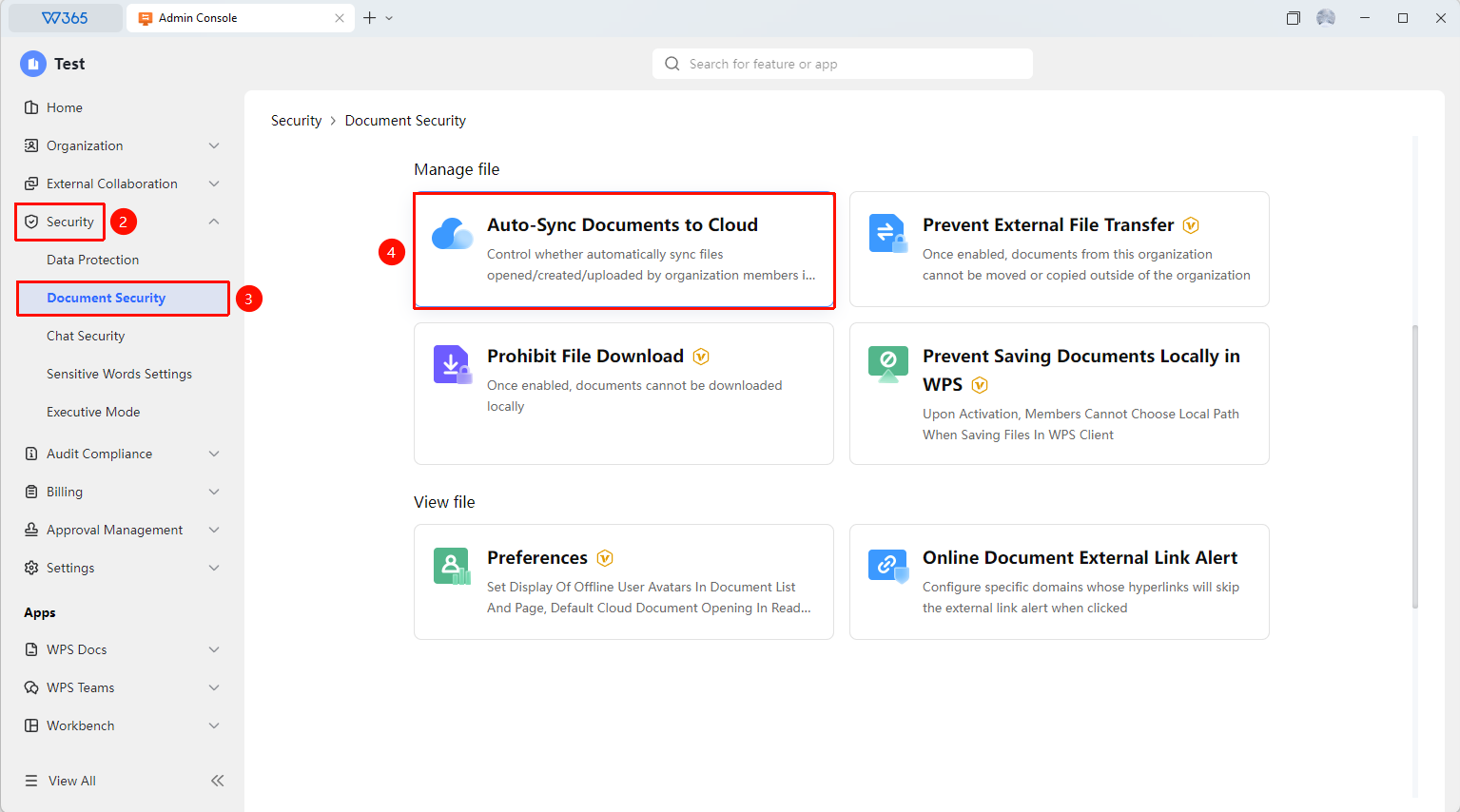
- Click 「Security Control」 in the left-side list
- Click 「Document Security」 in the dropdown list
- Find and click 「File Auto-Upload to Cloud」 to open the auto-upload configuration interface
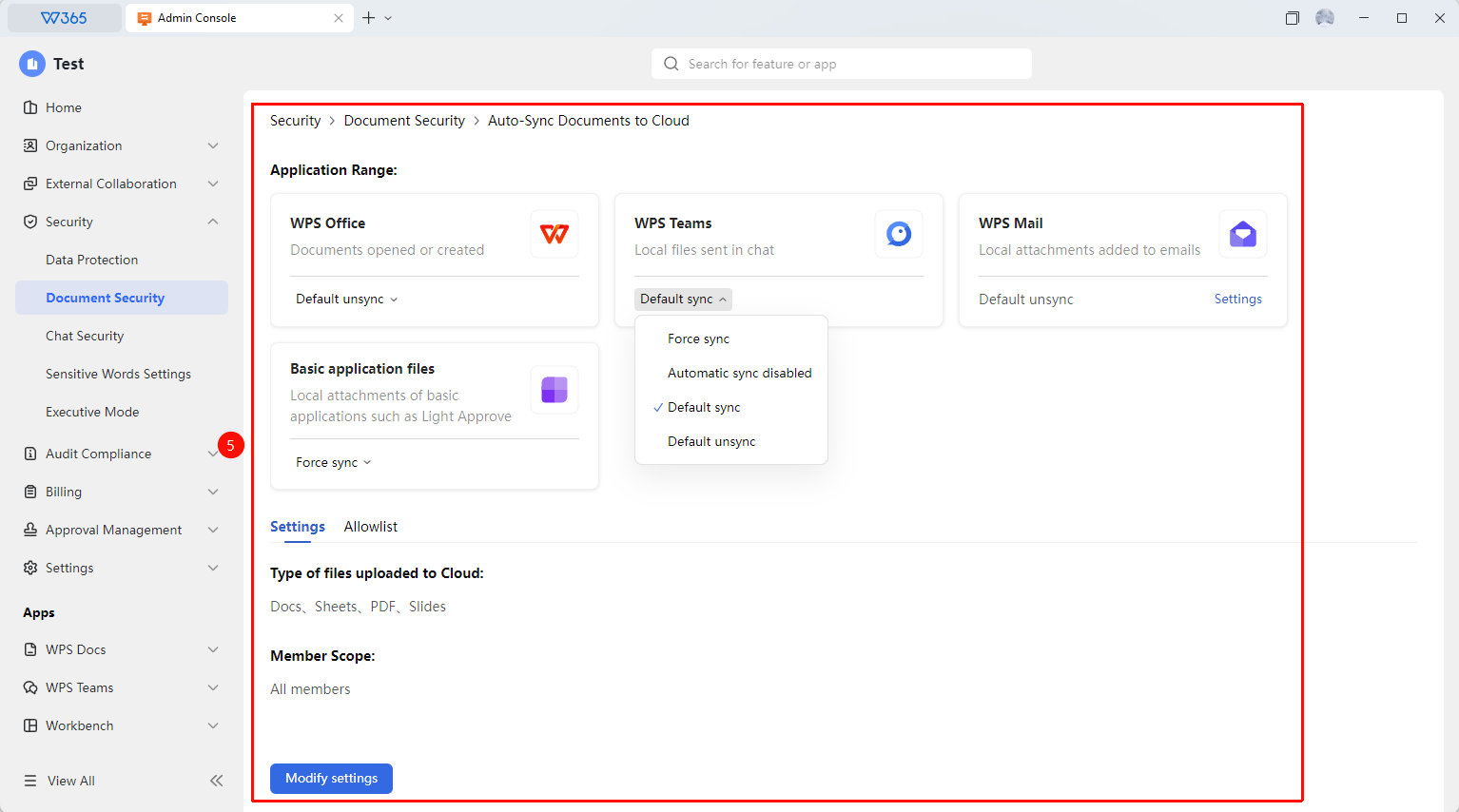
- Switch between WPS Office / WPS Teams / WPS Email to configure upload rules respectively:
- Force Sync: Force enable Document Cloud Sync (members cannot manually disable it)
- Disable Auto Sync: Disable Document Cloud Sync (prohibit client auto-upload and members cannot manually cancel it)
- Default Sync: Enable Document Cloud Sync by default (members can manually toggle the setting)
- Default No Sync: Disable Document Cloud Sync by default (members can manually enable it),
6..Click 「Settings」 for detailed management:
- 「Cloud Upload File Types」 : Manage file types for auto-upload to Cloud
- 「Member Scope」 : Manage the scope of members to whom the auto-upload rule applies
7.Click 「Whitelist」 to set the upload rule exemption whitelist:
- Add : Add whitelist users who are exempt from auto-upload rule management
- Remove/Batch Remove: Remove whitelist users
8.Click 「Save」 to apply
FAQ
Q1: Will auto-upload to Cloud sync all local files?
- Solution: No. Auto-upload to Cloud, i.e., Document Cloud Sync, will automatically upload files that users open and edit to Personal Space. Files that are not opened or are downloaded and archived by users will not be automatically uploaded.
Q2: Can local files be deleted after auto-upload to Cloud?
- Solution: It is recommended to delete local files after confirming that the files have been successfully synced to the Cloud. If local files are deleted before synchronization is complete, data loss may occur. It is recommended to enable two-way sync to ensure data security.
Q3: Will auto-upload to Cloud occupy local disk space?
- Solution: It will automatically occupy some space for file caching and sync management. If local disk space is tight, you can choose the Cloud-only (local deletion, Cloud retention) mode to free up local space.
Notes
- It is recommended to notify members before enabling auto-upload to Cloud to avoid confusion caused by data synchronization
- Large file synchronization may take a long time; it is recommended to perform the initial sync during idle network periods
- If a member leaves the organization, Cloud files will still be retained in the organization Document Library and will not be lost with account deletion