Feature Summary
Prevent members from copying, moving, or saving organization documents to personal cloud documents or external storage locations to prevent data leakage
Feature Description
| Feature Dimension | Description |
|---|---|
| Plan Restrictions | Requires subscribe to organization plan |
| Version Restrictions | No version restrictions |
Operation Steps
Enable Prohibit File Transfer
Feature Entry
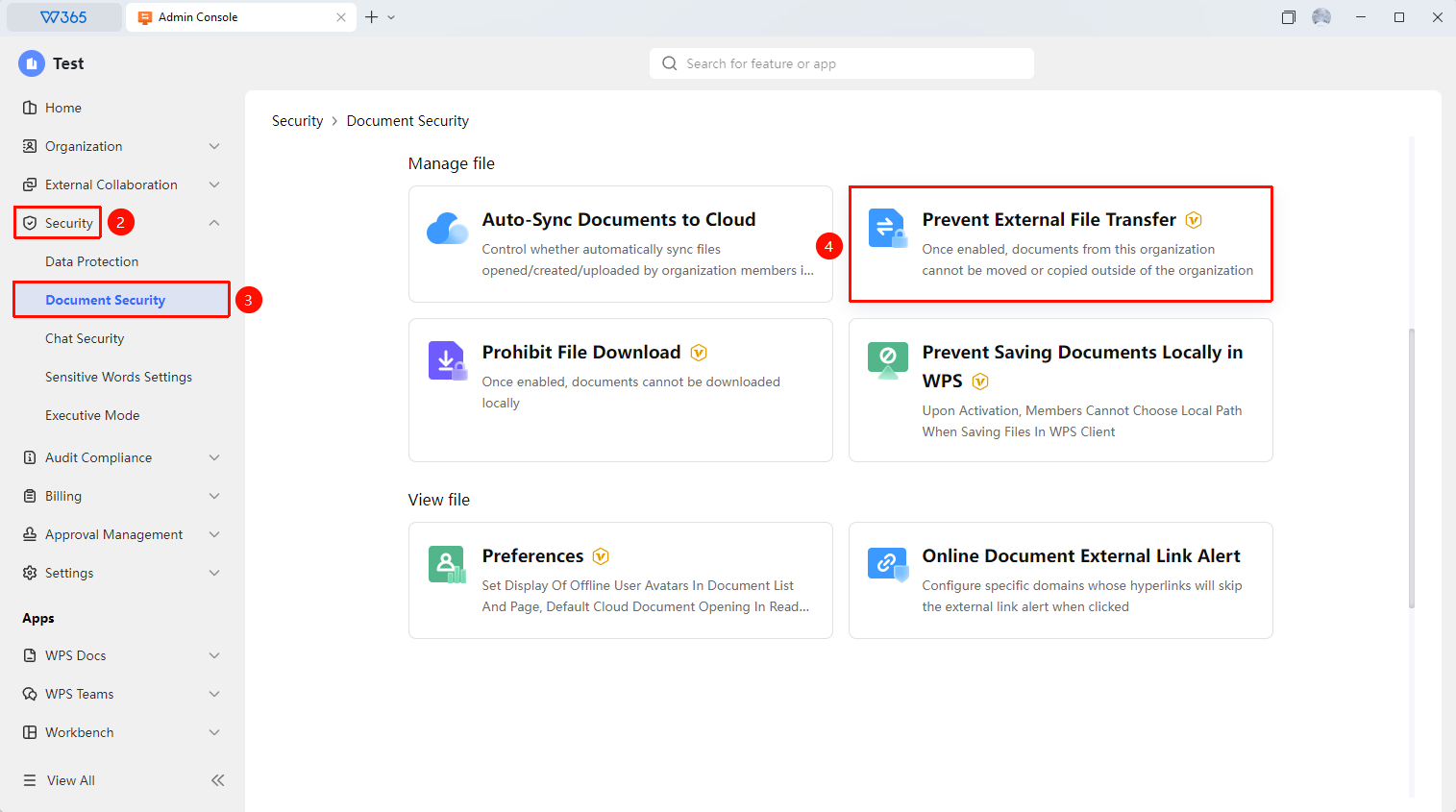
Office Document → Security Control → Prohibit Transfer of Organization Files Outside the Organization
- Open the WPS365 client, click to enter Office Document at the bottom left of the client homepage
- Click 「Security Control」 in the left list
- Click 「Document Security」 in the dropdown list
- Click 「Prohibit Transfer of Organization Files Outside the Organization」 on the expanded page
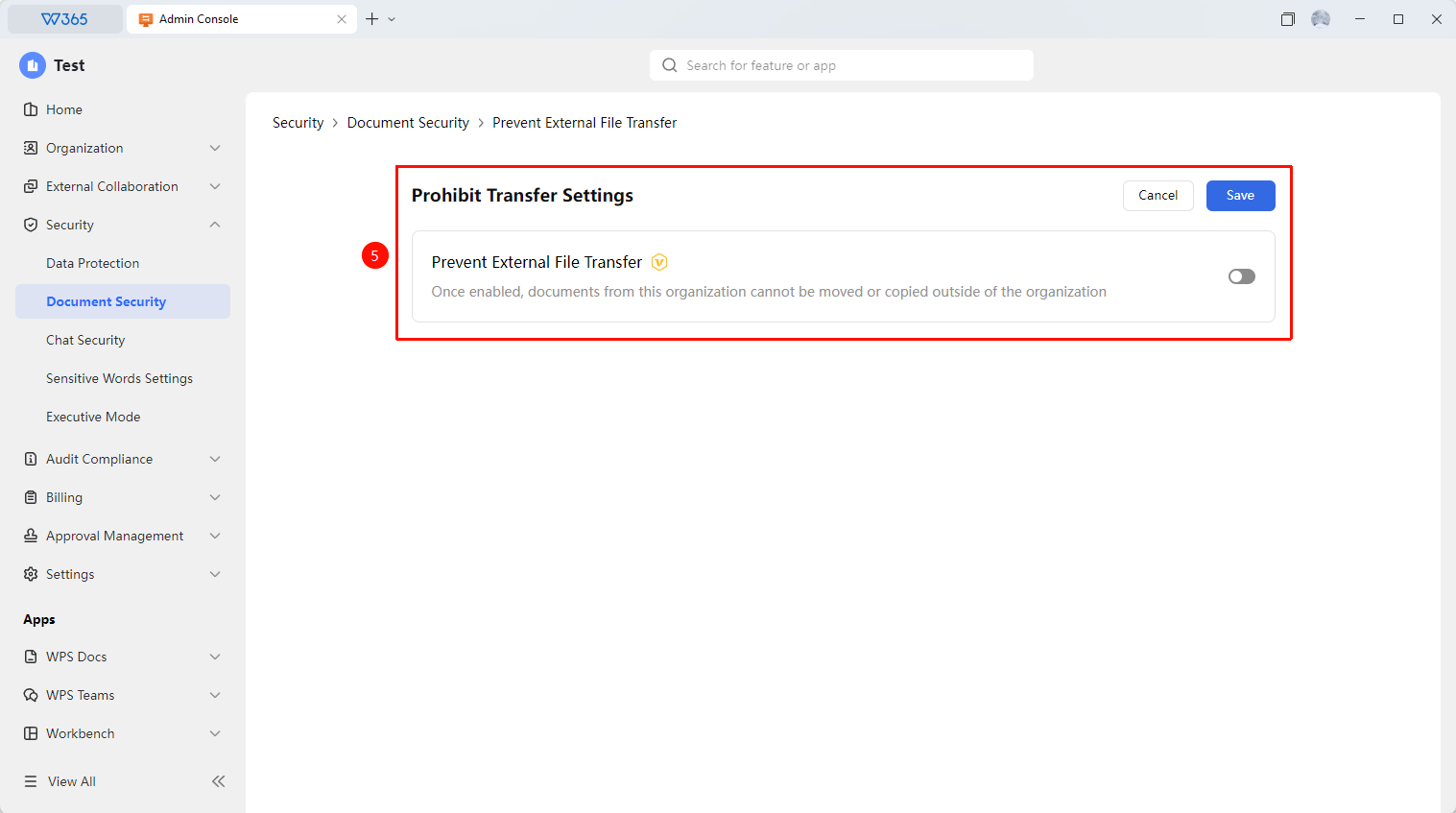
- Click 「Edit」 to enable the 「Prohibit Transfer of Organization Files Outside the Organization」 toggle
- Click 「Save」 to take effect

FAQ
Q1: After enabling, can members still download organization documents?
- Solution: This feature primarily prevents documents from being copied and moved outside the organization. If you also need to prohibit downloading, it is recommended to use it together with the "Prohibit Download" feature in collaboration files. The two features can complement each other to achieve more comprehensive protection.
Q2: After prohibiting transfer, will normal workflows be affected?
- Solution: Normal collaboration on organization documents within the organization is not affected. Only operations that copy or move documents outside the organization are restricted. If members need to share externally, it is recommended to do so via sharing links and set reasonable validity periods and permissions.
Q3: Do I need to notify members in advance before enabling this feature?
- Solution: Advance notification is recommended. After enabling, members will be unable to perform certain habitual operations. Advance notification can reduce member confusion and support tickets.
Notes
- The Prohibit File Transfer feature, used in conjunction with sharing control, can achieve more comprehensive data leakage prevention
- It is recommended to enable it during non-working hours or notify in advance to avoid impacting normal work