Feature Summary
Prevent members from downloading organization cloud documents to local devices, enabling online read-only access to documents and preventing offline data leakage.
Feature Description
| Feature Dimension | Description |
|---|---|
| Plan Restriction | Requires subscribing to an organization plan |
| Version Restriction | No version restriction |
Operation Steps
Enable Download Restriction
Feature Entry
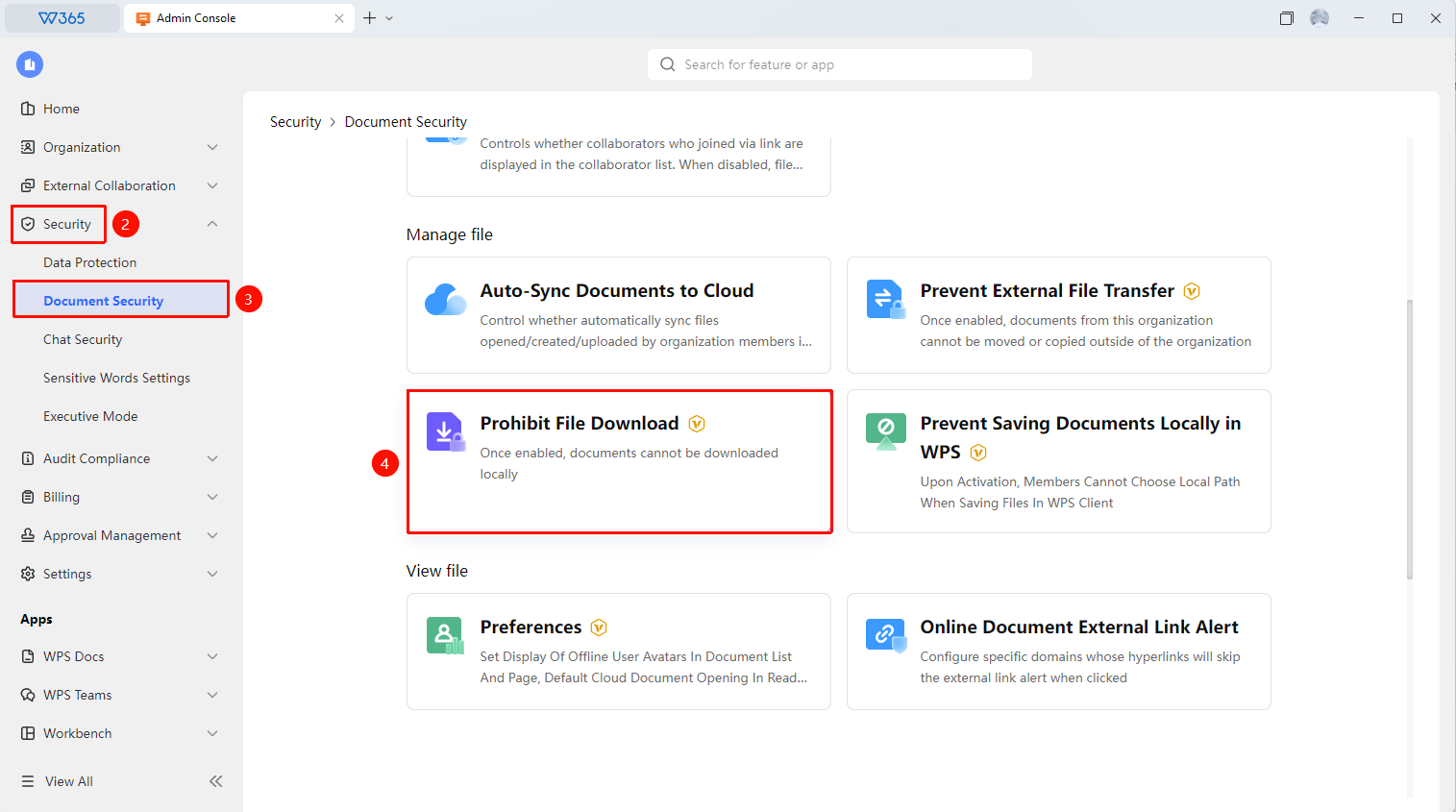
Office Document → Security Control → Document Security → Restrict File Download
- Open the WPS365 client, and click Office Document in the lower-left corner of the client homepage.
- Click 「Security Control」 in the left-side list.
- Click 「Document Security」 in the drop-down list.
- Locate and open the 「Restrict File Download」 page.
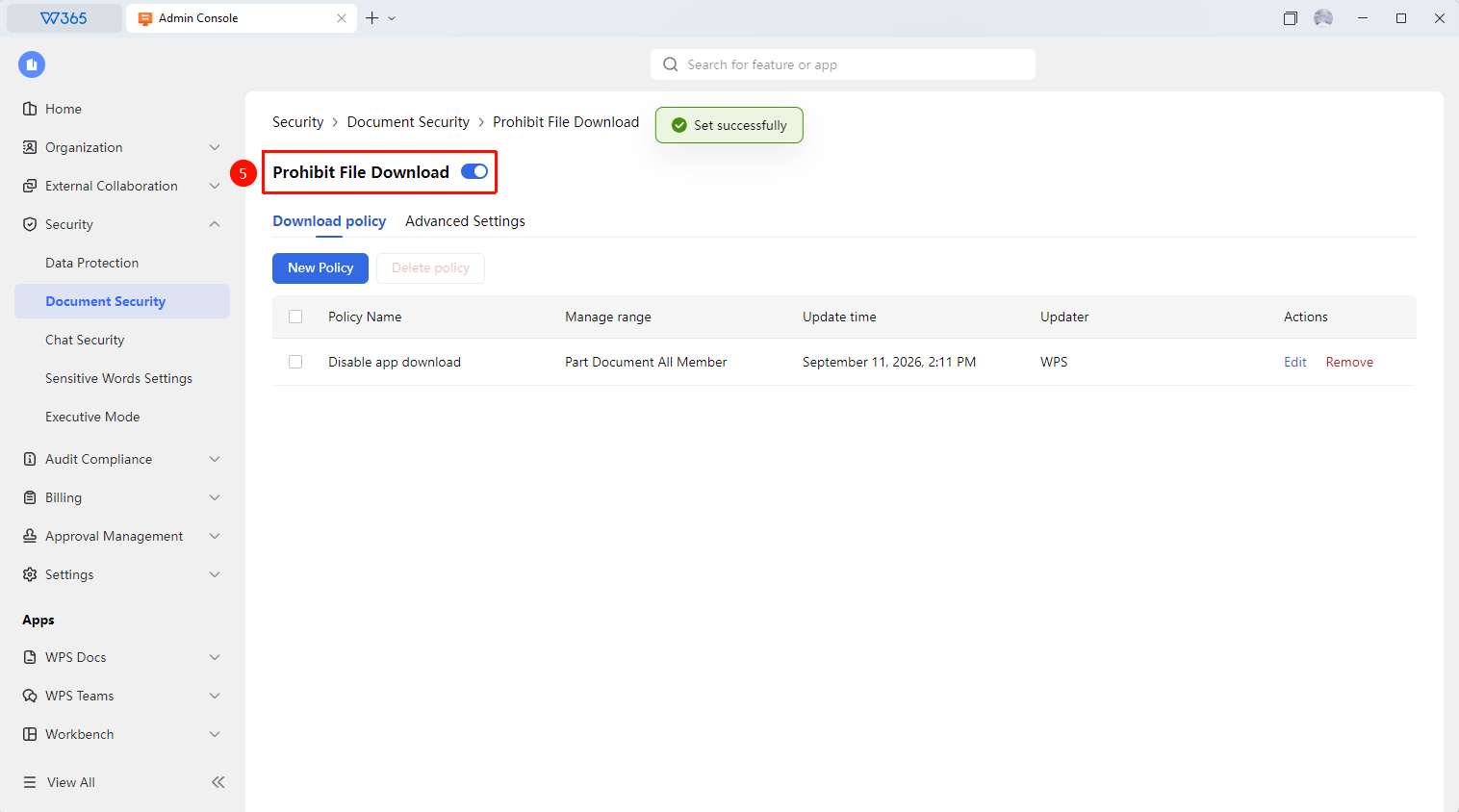
- Click the 「Restrict File Download」 button to apply the configured download restriction policy with one click.

Configure Download Restriction Policy
Feature Entry
「Restrict File Download」 page → Add Policy
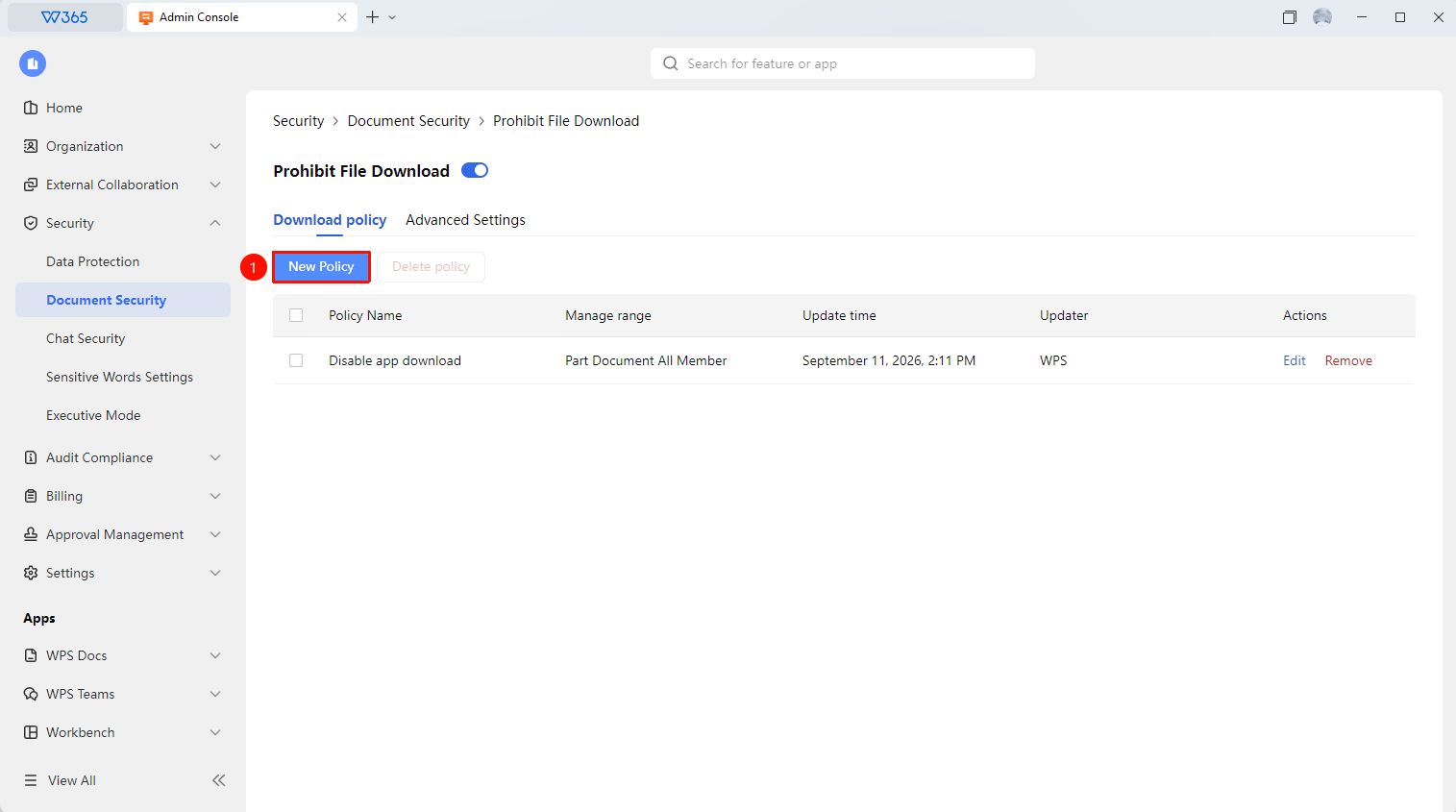
- On the 「Restrict File Download」 page, click 「Add Policy」.
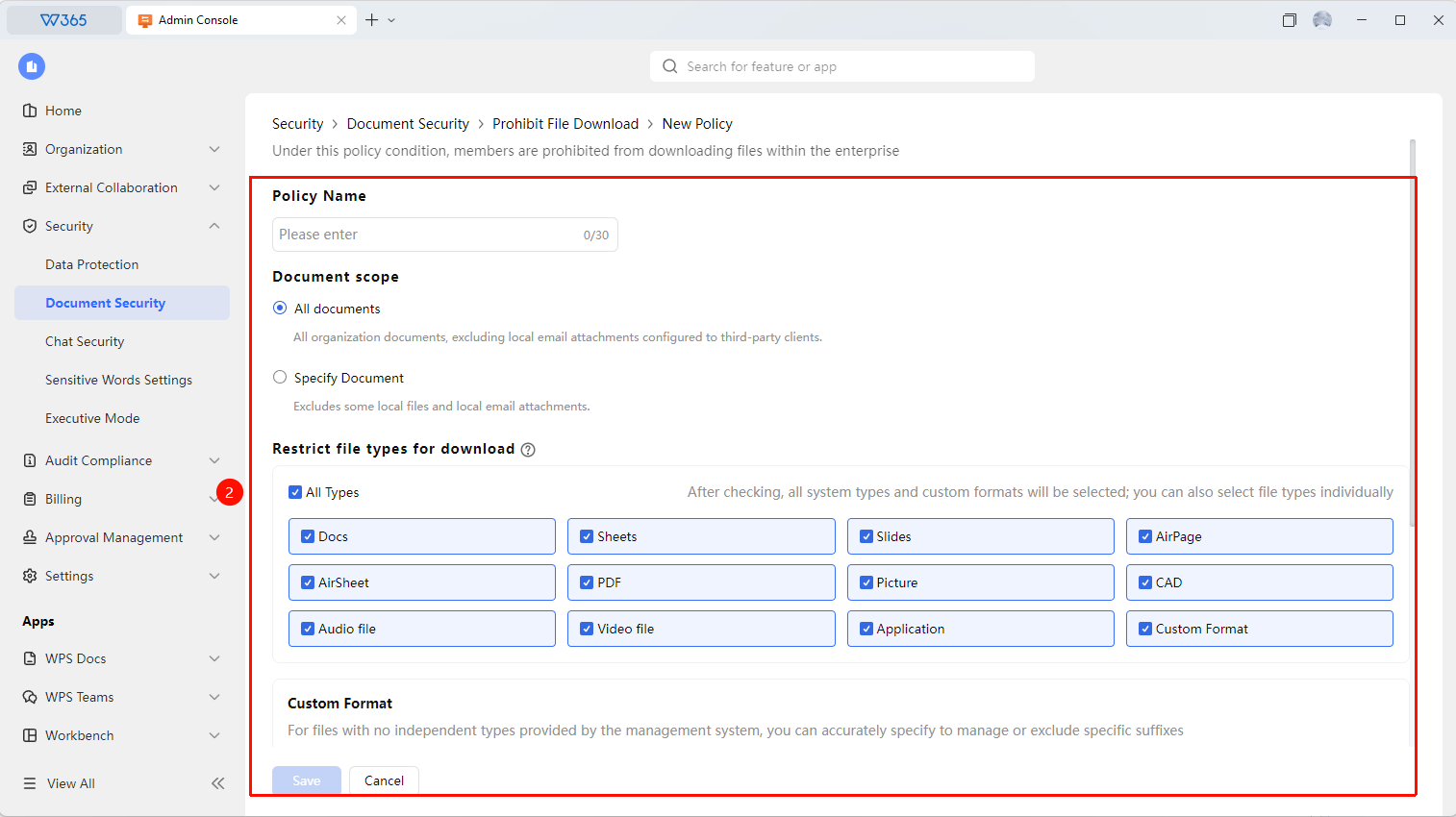
- Open the interface for configuring a download restriction policy:
- Policy Name
- Document Scope: Restrict downloading all documents / specified documents
- Restrict Download File Types: Select all types / specify file types
- Controlled Members: Restrict all members / some members from downloading documents
- Default No Sync: Disable document cloud sync by default (members can manually enable it)
3.Click 「Allowlist」 to set cloud upload rule exemption allowlist:
- Add: Add allowlist users exempt from automatic cloud upload rules
- Remove / Batch Remove: Remove allowlist users
4.Click 「Save」 to take effect.
Manage Download Restriction Policy
Feature Entry
「Restrict File Download」 page
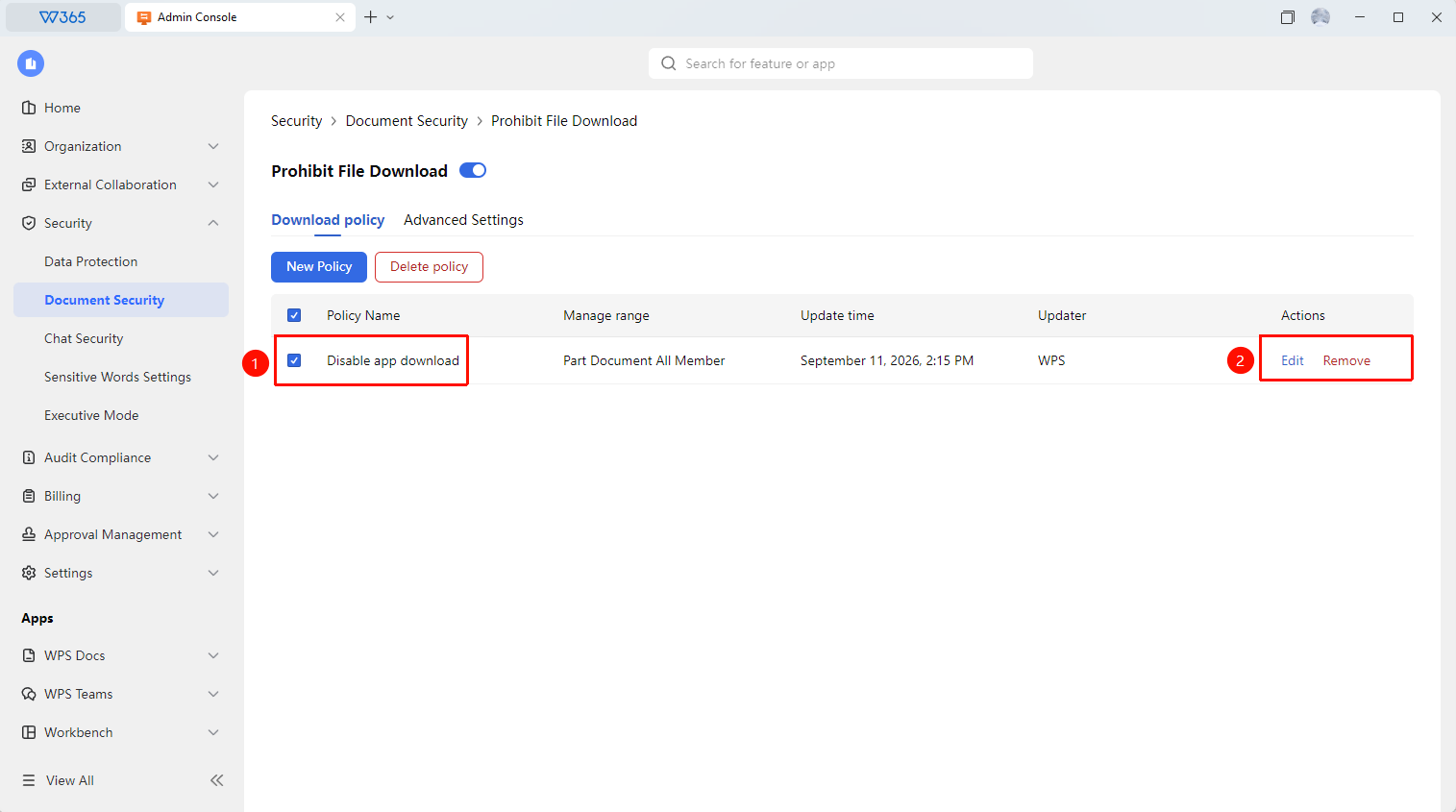
- On the 「Restrict File Download」 page, click to select an added download restriction policy:
- Edit: Re-edit the policy settings
- Remove: Delete the download restriction policy
Advanced Settings
Feature Entry
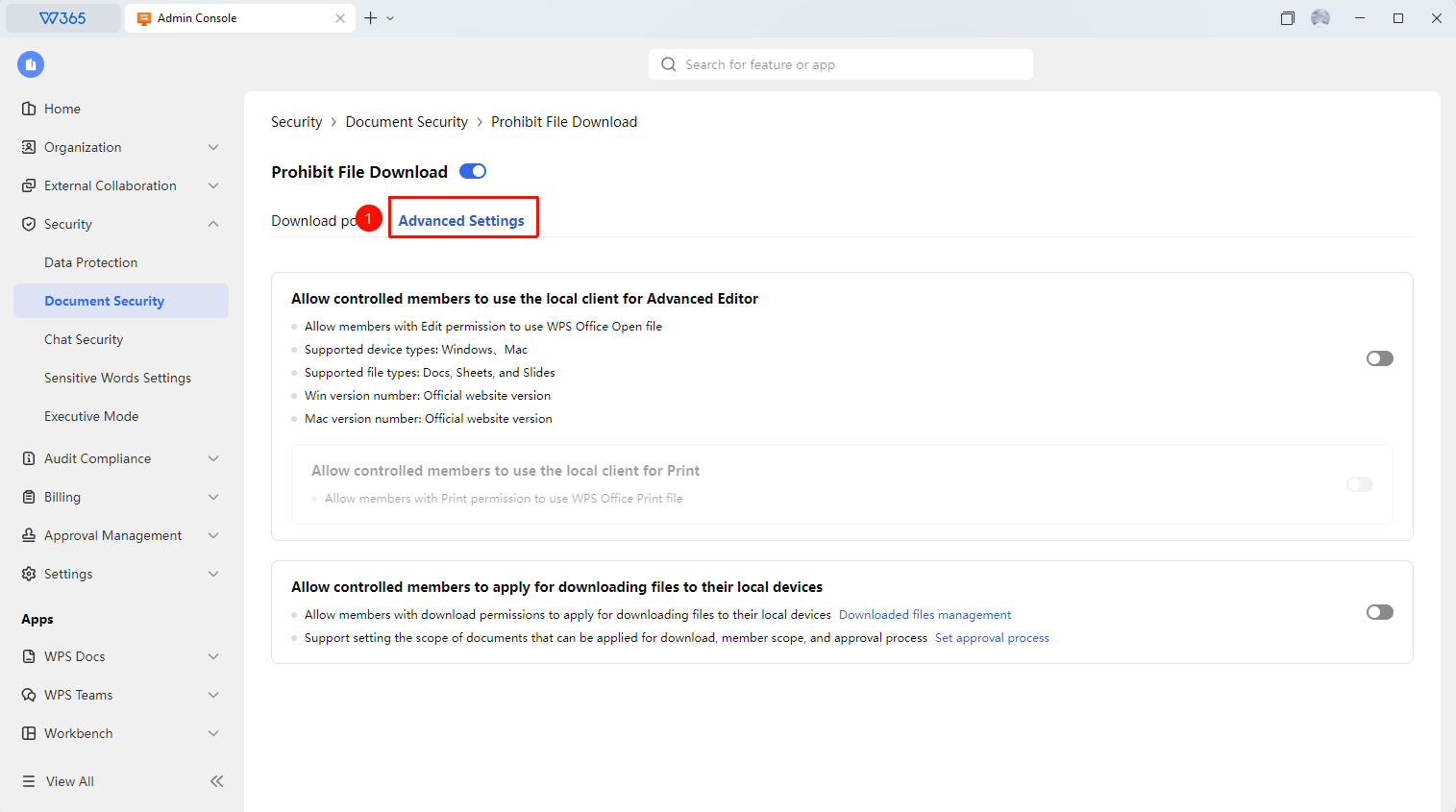
「Restrict File Download」 page → 「Advanced Settings」
- On the 「Restrict File Download」 page, click 「Advanced Settings」.
- Switch to the 「Advanced Settings」 interface, browse and find the following preset advanced policy settings:
- Allow controlled members to perform advanced editing using the local client
- Allow controlled members to print using the local client
- Allow controlled members to request downloading files to local
3.Click the toggle switch button to apply the above preset advanced policy settings with one click.
4.Click 「Download File Management」 to allow members with download permission to request downloading files to local.
5.Click 「Set Approval Process」 to set the document scope, member scope, and approval process for allowing download requests.
FAQ
Q1: After restricting downloads, can members still edit documents online?
- Solution: Yes. Restricting downloads only prevents saving documents to local devices and does not affect online editing and collaboration. Members can still modify documents online and save them to the Cloud.
Q2: After enabling download restriction, can previously created local copies still be opened?
- Solution: File copies already downloaded to local devices are not affected and can still be opened normally. However, once download restriction is enabled, members can no longer download new copies. To completely remove local copies, members need to delete them manually.
Q3: Does download restriction affect the printing feature?
- Solution: Download restriction and printing features are independent settings. If only download restriction is enabled, members can still print documents. If you need to restrict printing, you must configure it separately in document permissions.
Notes
- Download restriction is suitable for scenarios with high document security requirements.
- It is recommended to set exception rules or an allowlist to allow specific members (such as department heads) to download.
- It is recommended to notify members before enabling this feature to avoid impacting work that requires offline documents.