Feature Summary
Controls whether to display the profile pictures of users who are not currently editing in online collaborative documents, optimizing the display effect of the collaboration interface.
Feature Description
| Feature Dimension | Description |
|---|---|
| Plan Restriction | Requires a subscribe to organization plan |
| Version Restriction | No version restriction |
Operation Steps
Configure Offline User Profile Picture Display
Feature Entry
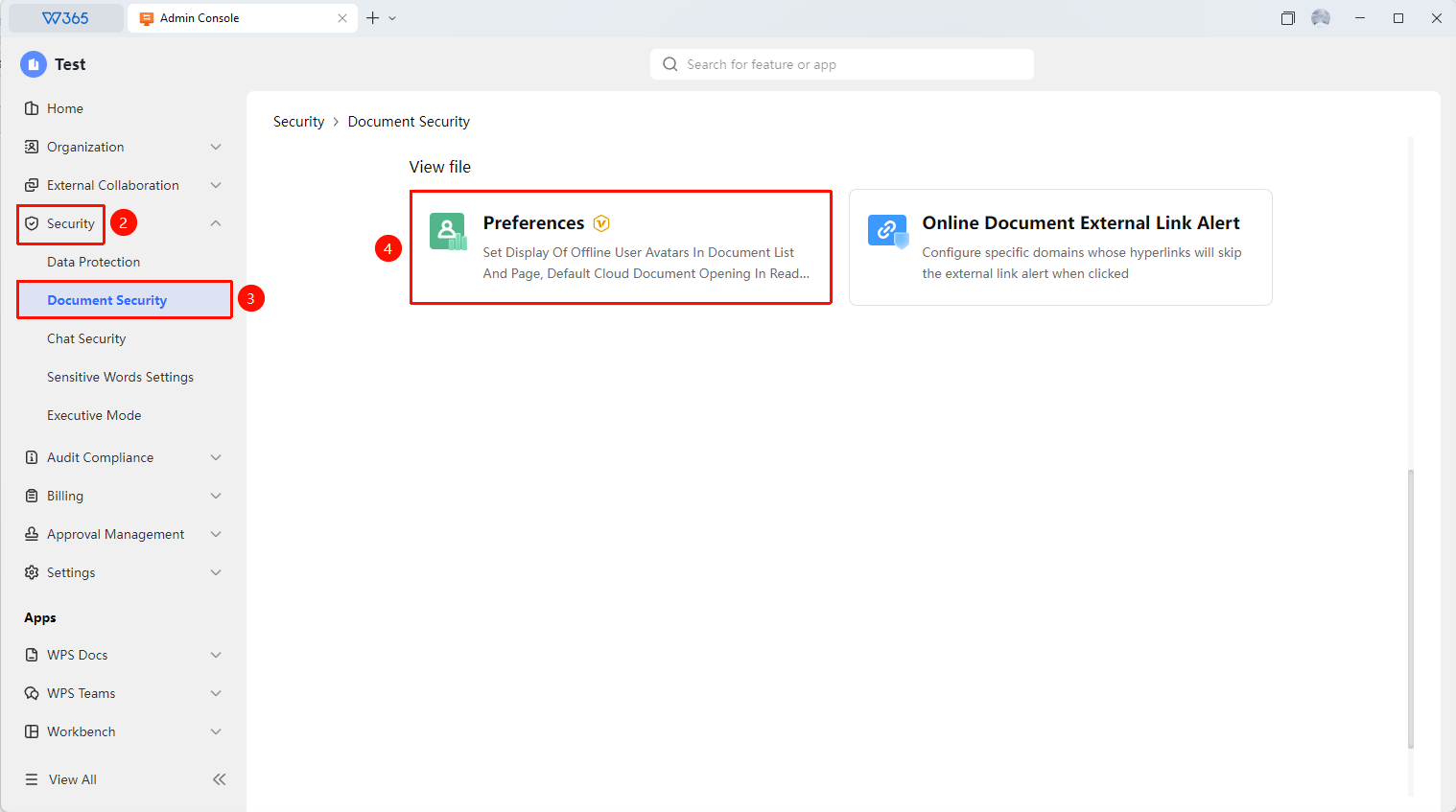
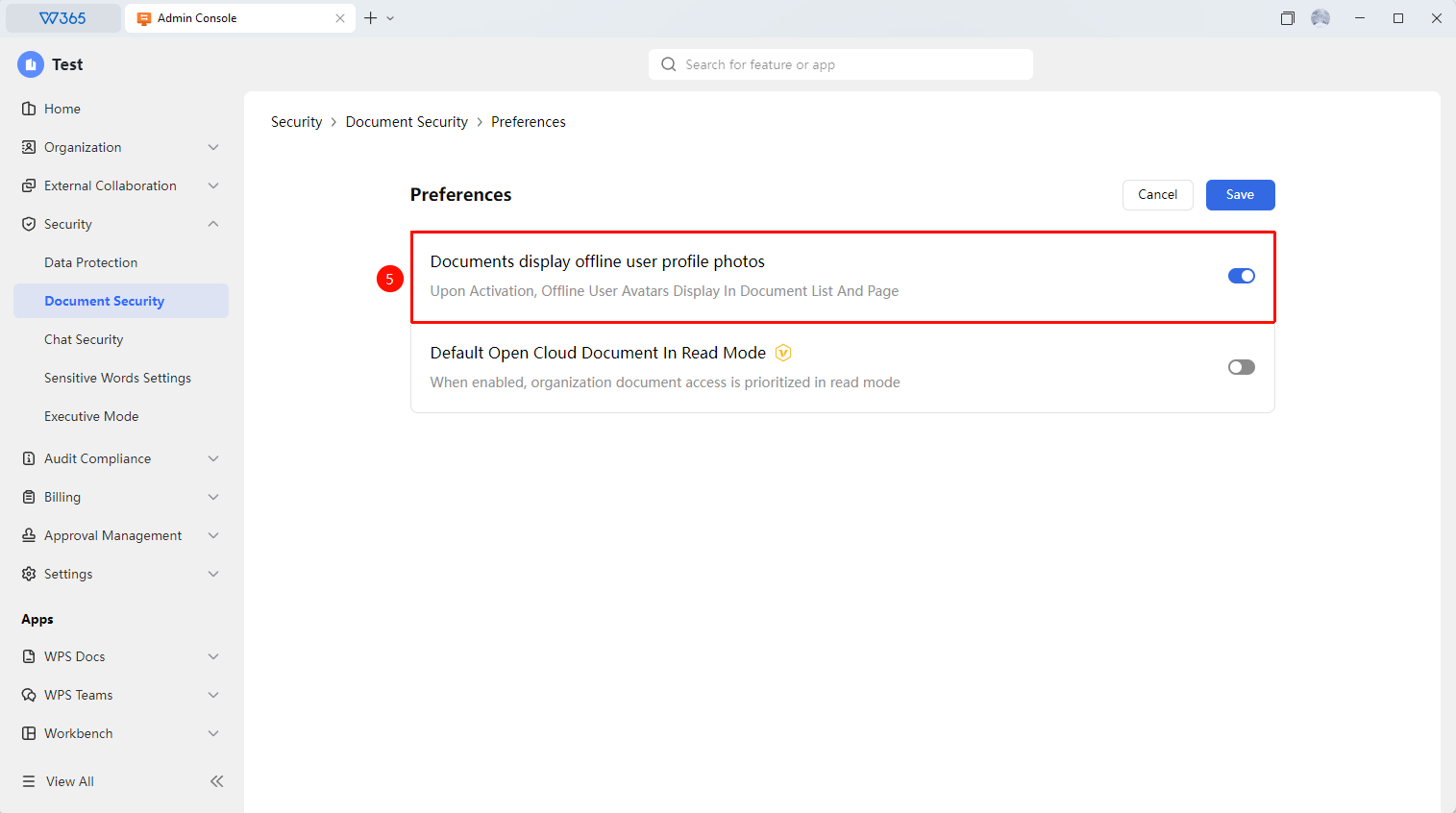
Office Document → Security Control → Document Security → Preference Settings → Document Display Offline User Profile Picture
- Open the WPS365 client, click Office Document in the lower left corner of the client homepage.
- Click Security Control in the left list.
- Click Document Security in the drop-down list.
- In the expanded panel, click Preference Settings, then click Edit to enter Read Mode.
- Enable/disable this feature on the right side of Document Display Offline User Profile Picture.
- Switch display mode:
- Enabled: Display the profile pictures of all users who have accessed the document in the document collaboration interface.
- Disabled: Only display the profile pictures of users currently editing the document.
7.Click Save to take effect.

FAQ
Question 1: After turning off offline profile pictures, can users still see who has accessed the document?
- Solution: No, they cannot view it through the profile picture display. However, the document's access records are still saved in the document history. Admins can view the document access status in the document logs.
Question 2: Does this setting apply to all documents?
- Solution: Yes. This setting is a global policy that affects the profile picture display of all online collaborative documents within the organization. Members' local settings cannot override the organization policy.
Notes
- This setting affects the collaboration interface of all Online Documents in the organization.
- It is recommended to choose the appropriate display mode based on the size of the organization's members and collaboration habits.
- After switching settings, opened documents need to be refreshed to see the changes.