Feature Summary
Set the default mode for organization cloud documents to Read Mode when members open them, preventing accidental editing or modification of document content
Feature Description
| Feature Dimension | Description |
|---|---|
| Plan Restrictions | Requires a subscription to an organization plan |
| Version Restrictions | No version restrictions |
Steps
Enable Default Read Mode
Feature Entry
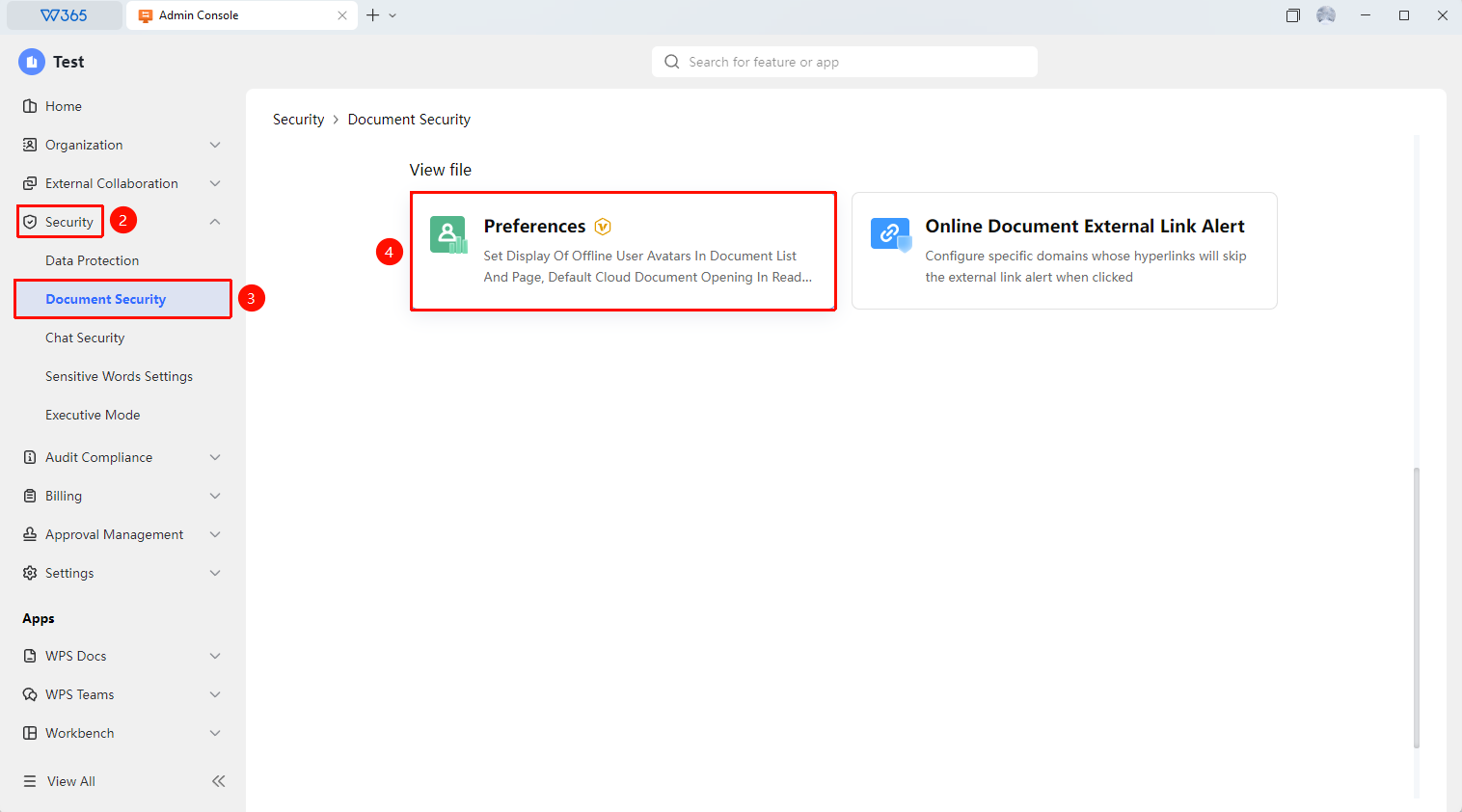
Office Document → Security Control → Document Security → Preferences → Open Cloud Document in Read Mode by Default
- Open the WPS365 client, and click Office Document in the lower-left corner of the client homepage
- Click 「Security Control」 in the left-side list
- Click 「Document Security」 in the dropdown list to expand the right panel
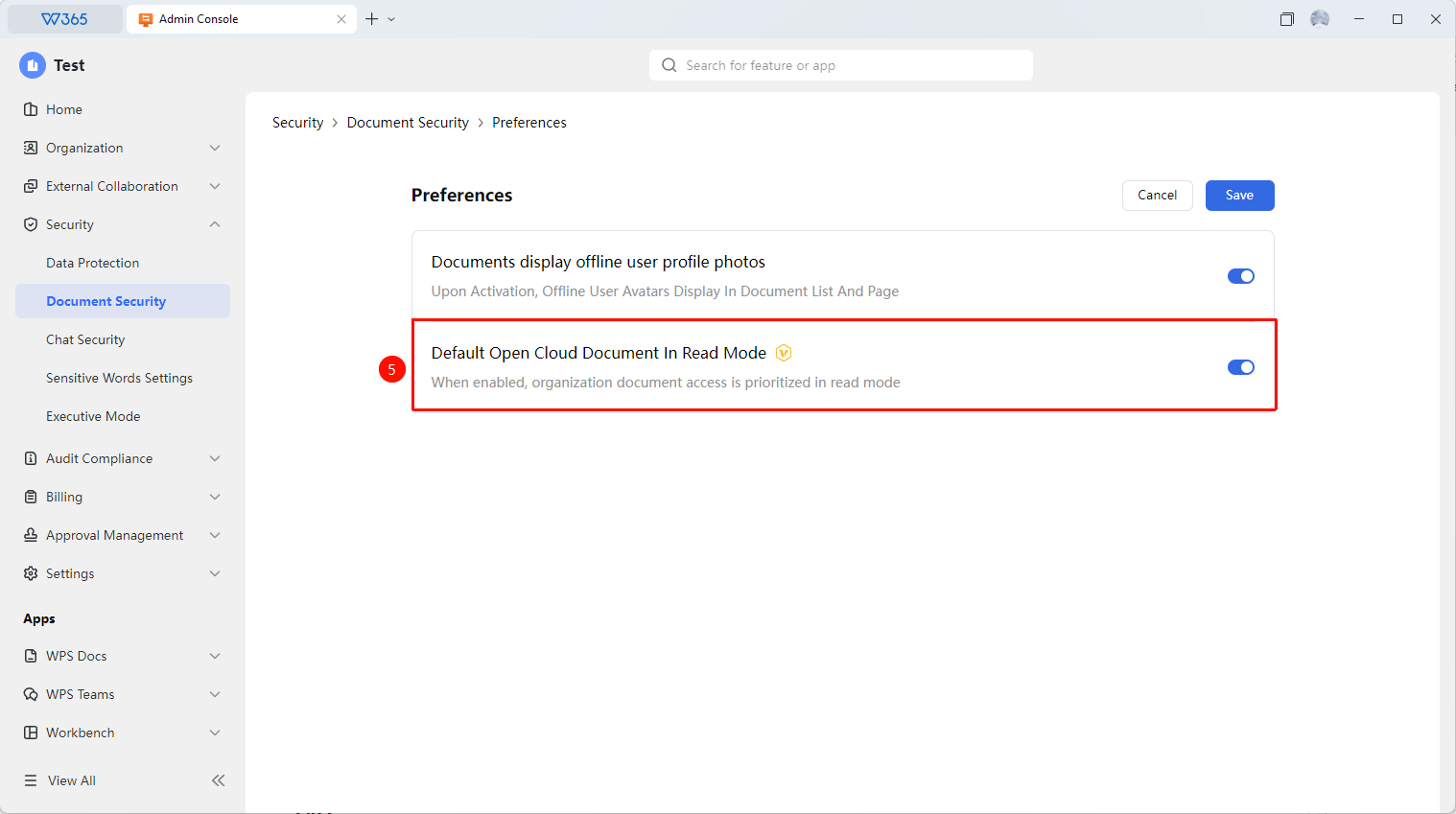
- Click 「Preferences」 in the right panel, and turn on the 「Open Cloud Document in Read Mode by Default」 switch
- Click 「Save」 to apply
- After enabling, organization documents will be opened in Read Mode first when accessed

FAQ
Q1: After enabling Read Mode, can members still edit documents?
- Solution: Yes. The default Read Mode only changes the initial state when a document is opened. If a member needs to edit, they can click the 「Edit」 button at the top of the document to switch to Edit Mode. This feature is mainly to prevent accidental modifications.
Q2: Does this feature apply to Online Documents and local documents?
- Solution: It only applies to organization cloud documents. The opening mode of local documents is not affected by this setting and still uses the default opening method of the WPS client.
Notes
- After enabling, newly opened cloud documents will be displayed in Read Mode by default
- Members can still switch to Edit Mode on their own
- It is recommended to enable this feature for sensitive documents or new members to reduce the risk of accidental editing