Feature Summary
Restrict the number of devices each member can simultaneously sign in to WPS 365, preventing account misuse or proliferation across multiple devices
Feature Description
| Feature Dimension | Description |
|---|---|
| Plan Restrictions | No plan restrictions |
| Version Restrictions | No version restrictions |
Operation Steps
Chat Client Sign-in Device Count Restriction
Feature Entry
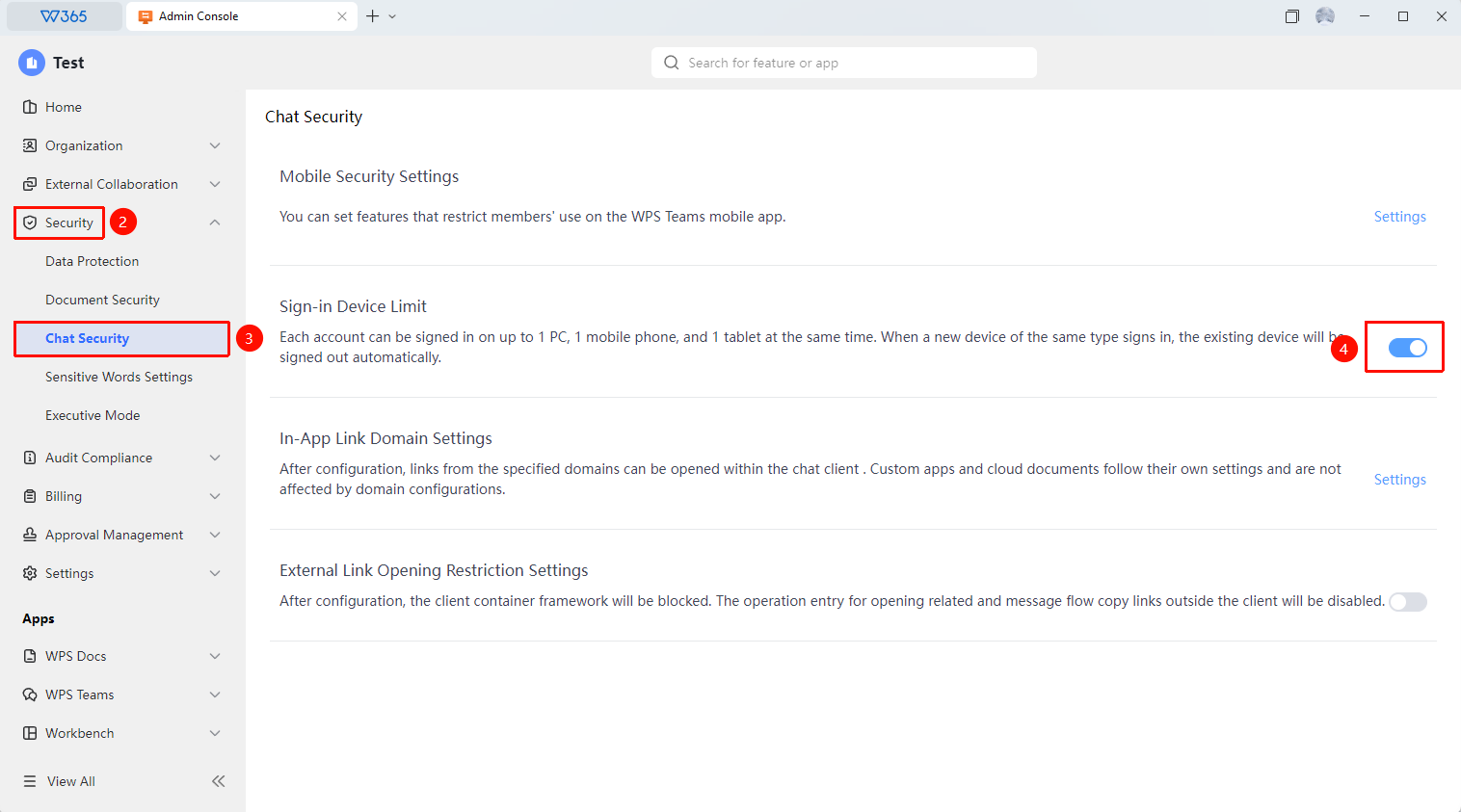
Office Document → Security Control → Chat Security → Chat Client Sign-in Device Count Restriction
- Open the WPS 365 client, and click Office Document in the lower-left corner of the client homepage
- Click 「Security Control」 in the left-side list
- Click 「Chat Security」 in the drop-down list
- Click to enable/disable 「Restrict Sign-in Client Device Count」
- At any given time, a member account can sign in on up to: 1 computer, 1 phone, and 1 tablet. When a new device of the same type signs in, the old device will be automatically signed out.

FAQ
Q1: Can a member still sign in after exceeding the device limit?
- Solution: When a new device of the same type signs in, the old device will be automatically signed out.
Notes
- It is recommended to set a reasonable device count based on the normal usage habits of organization members
- Restricting device count can effectively reduce the risk of account credential leakage