Feature Summary
You can set relevant restriction rules for different groups within the organization, such as executives and employees about to leave, for example, prohibiting others from initiating chats to prevent malicious harassment.
Feature Description
| Feature Dimension | Description |
|---|---|
| Plan Restriction | Requires a subscribe to organization plan |
| Version Restriction | No version restriction |
Operation Steps
Enable/Disable Executive Mode
Feature Entry
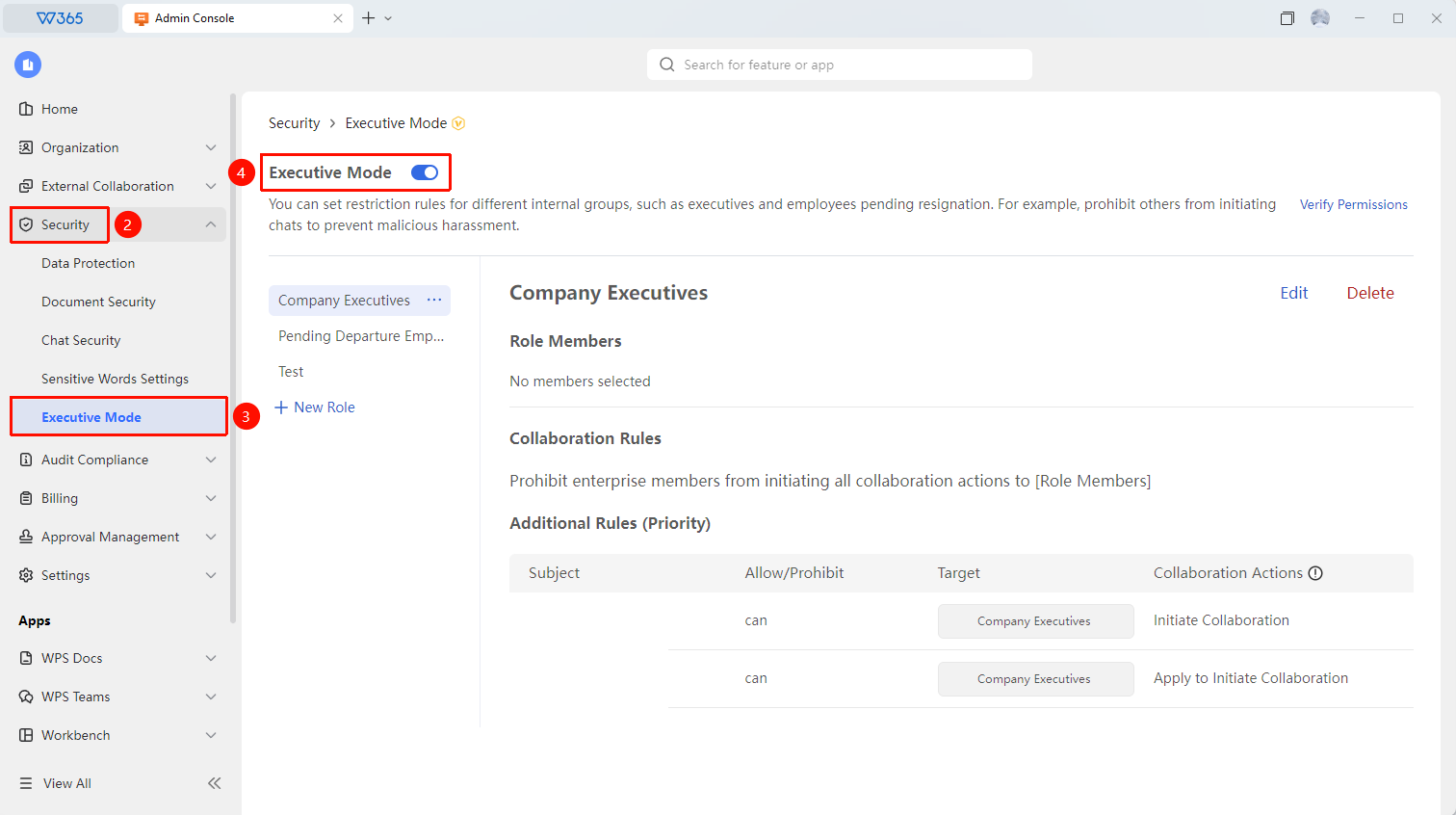
Office Document → Security Control → Executive Mode
- Open the WPS365 client, and click Office Document in the lower-left corner of the client homepage.
- Find and click 「Security Control」 in the left-side list to expand the dropdown list.
- Click 「Executive Mode」 in the dropdown list.
- Click the 「Executive Mode」 toggle button to quickly enable/disable Executive Mode.

Add/Edit Role
Feature Entry
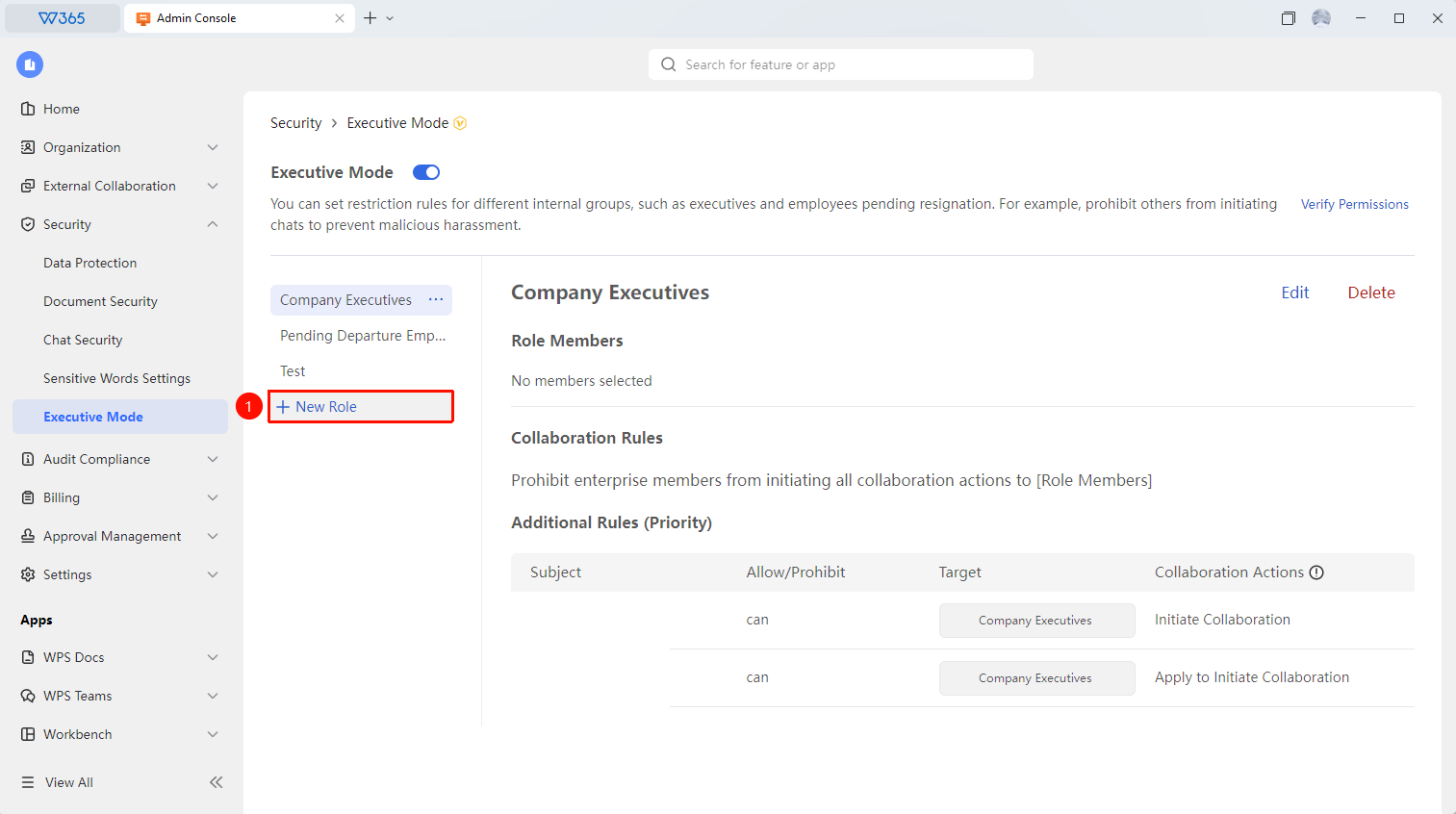
Executive Mode → Add Role / Click an existing role → 「Edit」
- In Executive Mode, click 「Add Role」 / an existing role to quickly add a new role or edit an existing role.
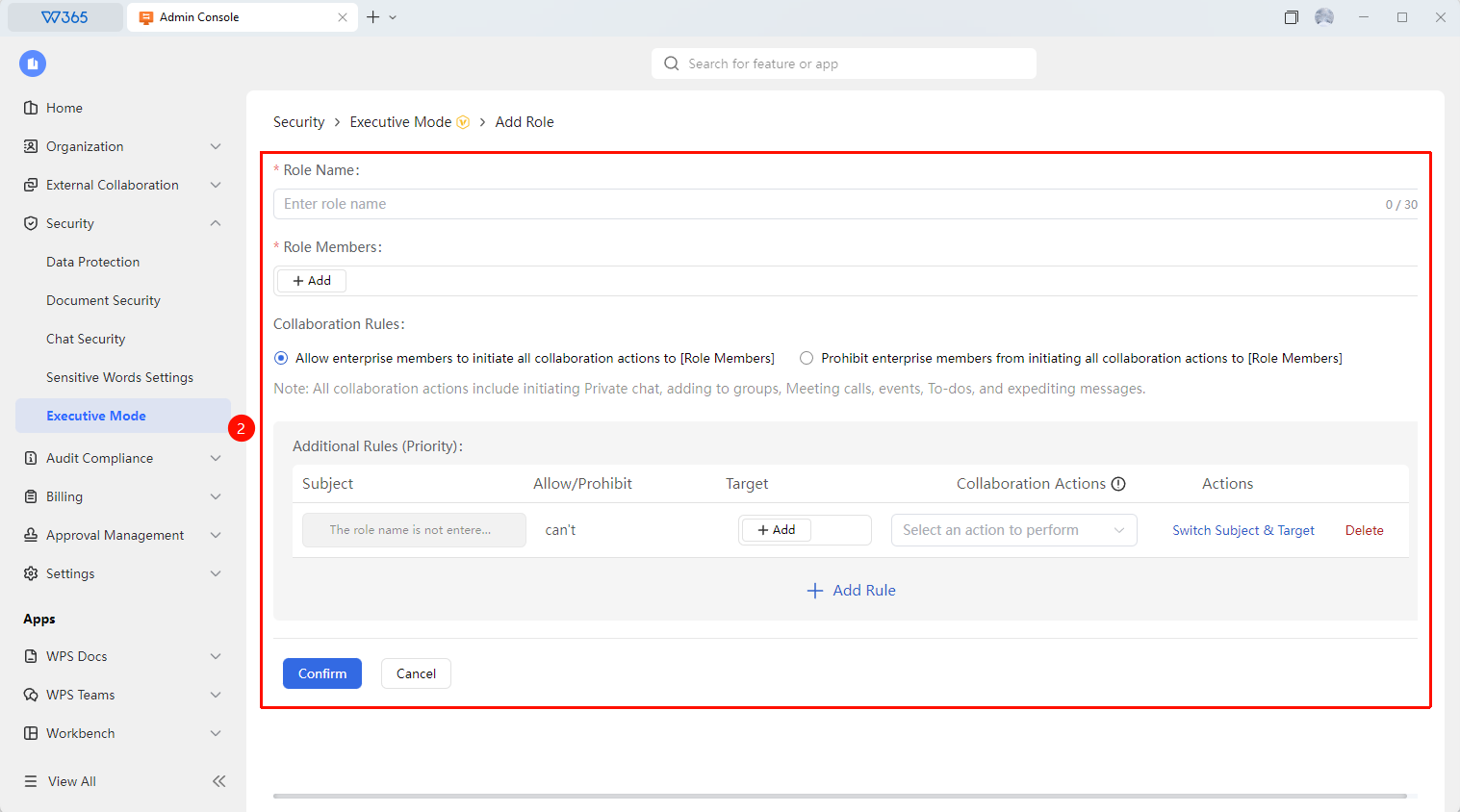
- Set the following options in the role editing panel:
- Role Name
- Role Members: Organization members belonging to this role.
- Collaboration Rules: Allow/Prohibit organization members from initiating collaboration actions with this role.
- Supplementary Rules: Add rules for other subjects initiating collaboration actions with this role.
3.Click 「Confirm」 to create the role / apply the rules.
Delete Role
Feature Entry
Executive Mode → Click an existing role → 「Edit」
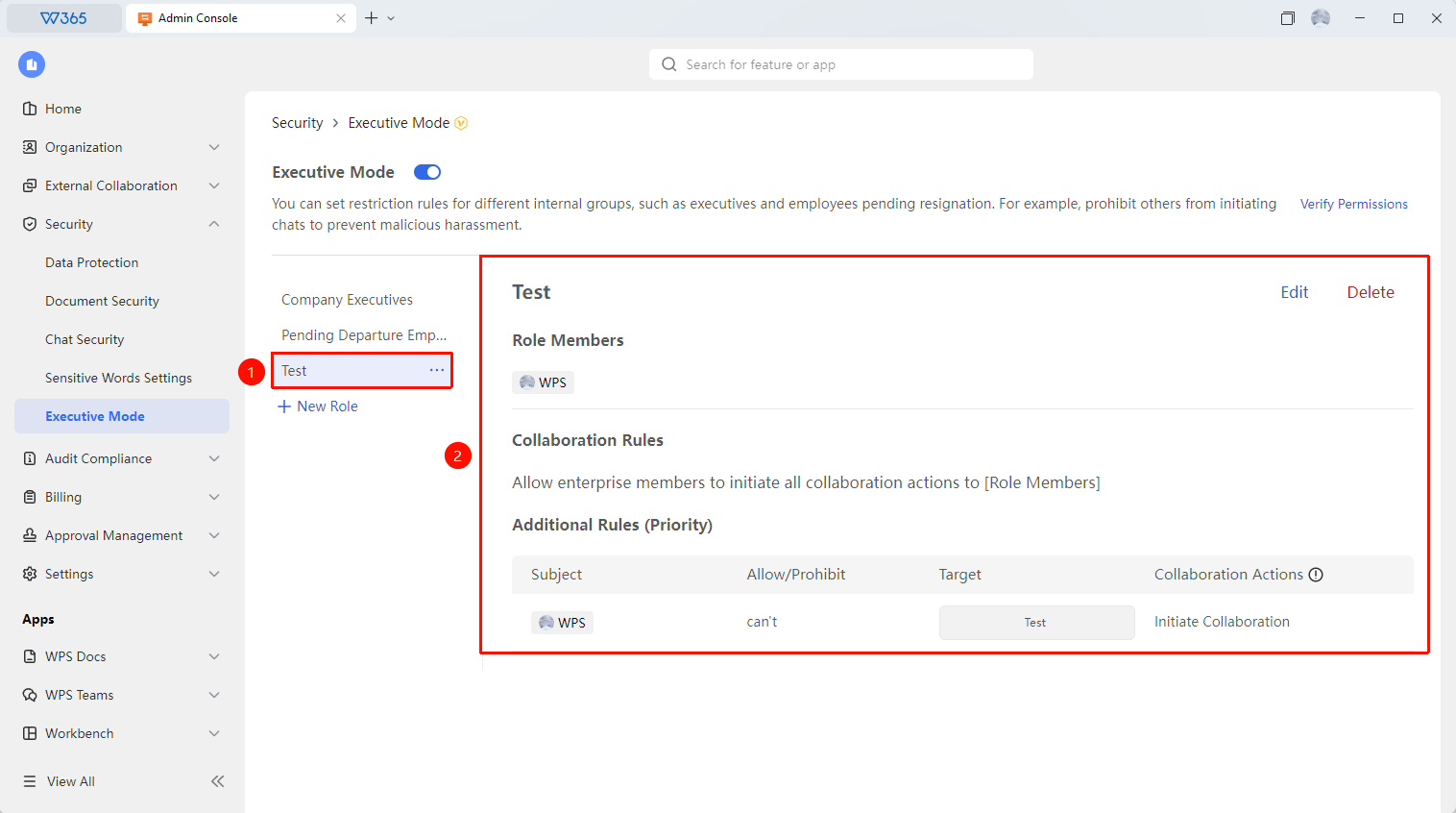
- In Executive Mode, click to select an existing role to view its specific rules.
- Click the 「Delete」 button on the right to delete the role and its rules.
FAQ
Q1: Which members are suitable for Executive Mode?
- Solution: It is recommended that core management of the organization and executives who hold core business secrets join, such as CEO, CFO, core technical leaders, etc. Ordinary members are not recommended to enable Executive Mode.
Q2: Can executives disable Executive Mode by themselves?
- Solution: Executive Mode needs to be configured and disabled by the Super Admin or an Admin with assigned permissions in the organization's Office Document.
Notes
- It is recommended to keep the number of added executives within a reasonable range to avoid excessive protected accounts affecting normal collaboration and communication.
- When an executive leaves, Executive Mode must be disabled first before proceeding with the normal account transfer process.