Feature Summary
Allocate and manage purchased membership benefits of WPS 365 organizations to designated members, improving resource utilization
Feature Description
| Feature Dimension | Description |
|---|---|
| Plan Restrictions | No plan restrictions |
| Version Restrictions | No version restrictions |
Operation Steps
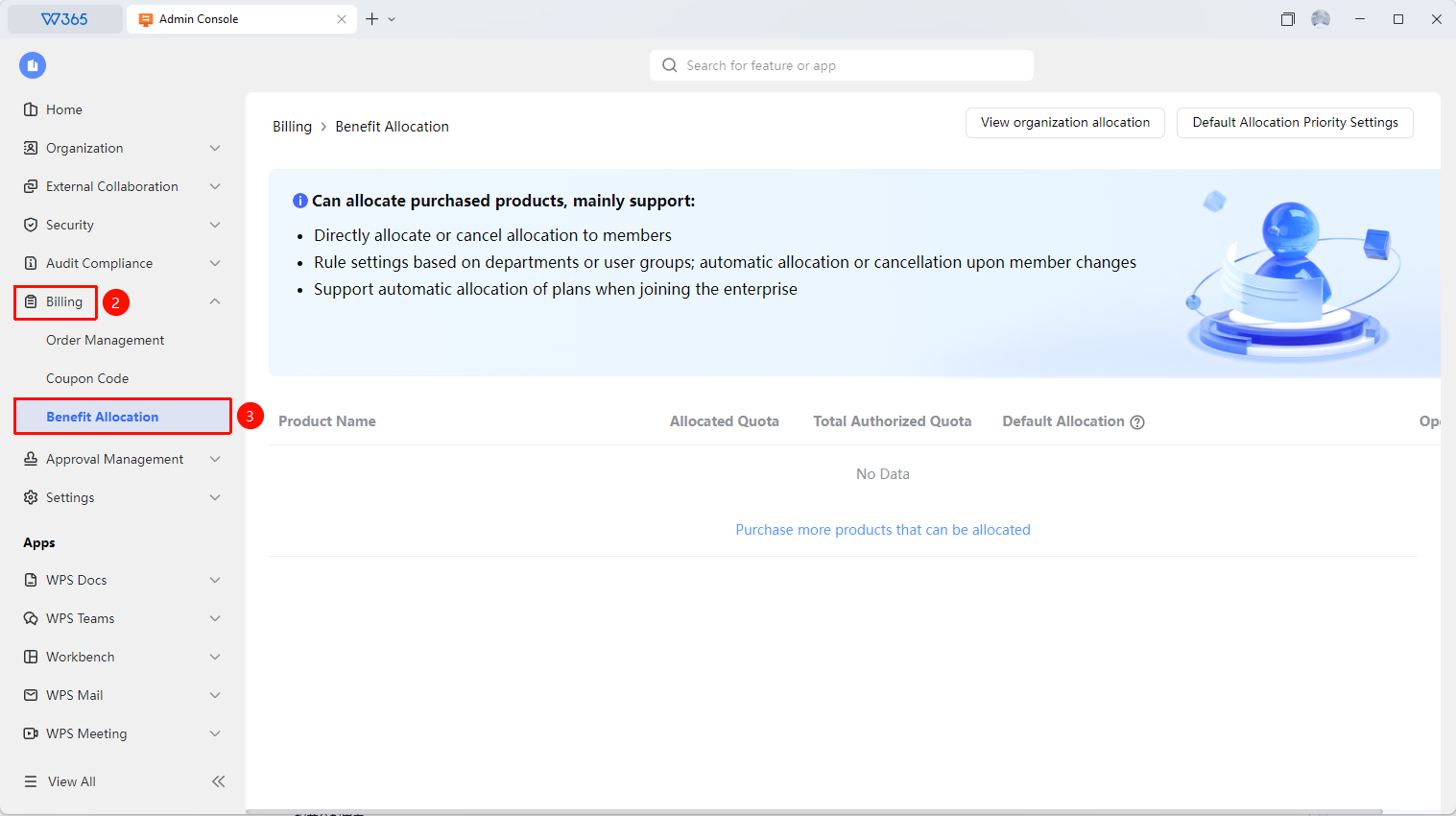
Allocate Benefits
Feature Entry
Office Document → Order Benefits → Benefit Allocation
- Open the WPS 365 client and click Office Document in the lower-left corner of the client homepage
- Find and click 「Order Benefits」 in the left-side list to expand the dropdown list
- Click 「Benefit Allocation」 in the dropdown list
- Select the type of benefit to be allocated
- Check the target members and click 「Allocate Benefits」
- The benefit takes effect immediately after confirmation
- Click 「View Organization Allocation Details」 in the upper-right corner to see all benefit allocation details

Set Default Allocation Priority
Feature Entry
Benefit Allocation interface
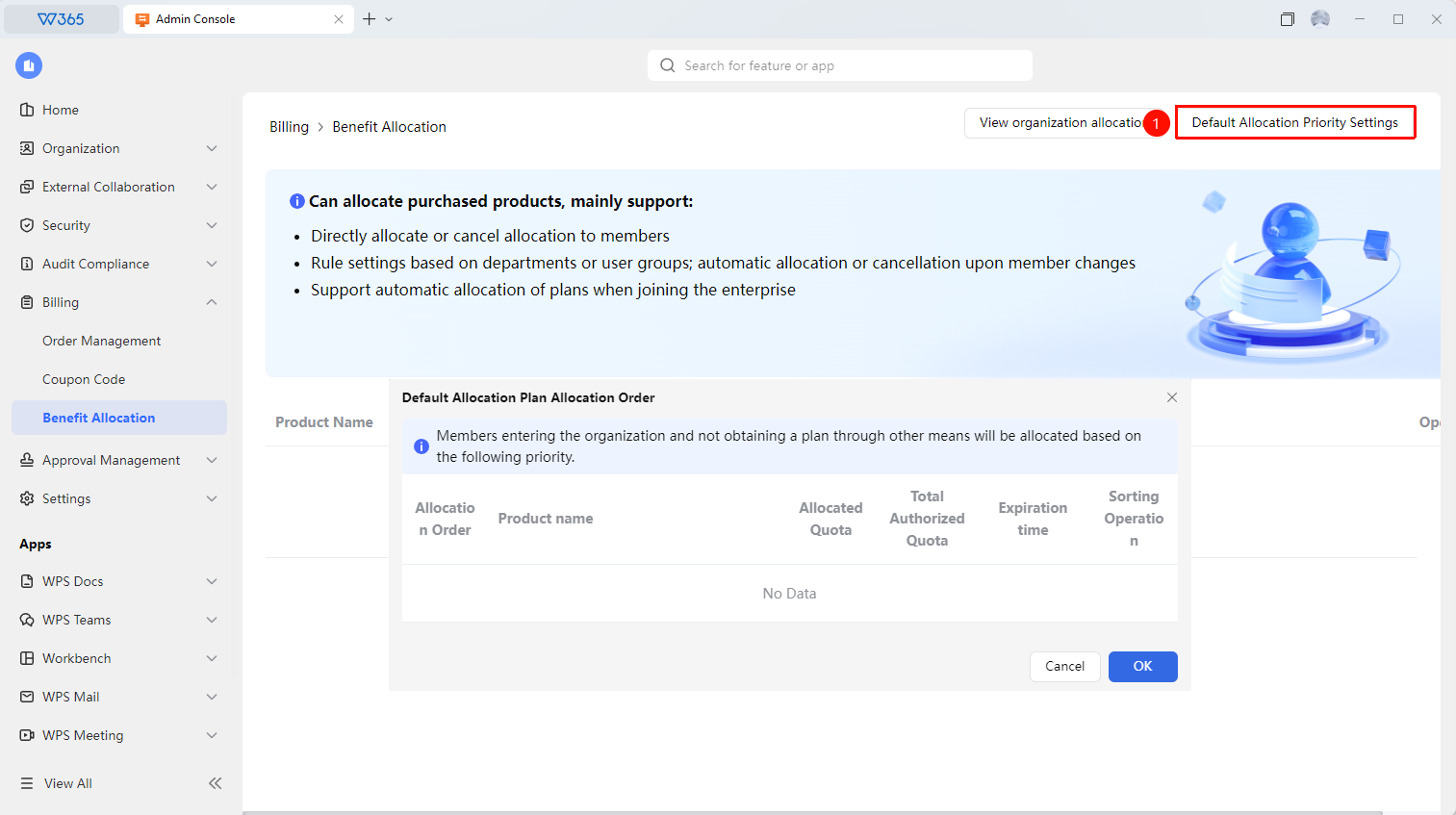
- In the Order Benefit Allocation interface, click 「Default Allocation Plan Assignment Order」 in the upper-right corner
- Set the default allocation plan assignment order in the panel that appears
- Assignment Order : The order in which purchased organization plans are assigned
- Product Name : The name of the purchased organization plan
- Allocated Quota : The number of organization plans already allocated
- Total Authorized Quota : The total number of purchased organization plan sets
- Expiration Time : The expiration time of the organization plan
- Sorting Operation : Default priority sorting for organization plans
3.Click 「Confirm」 to apply the default allocation plan assignment order
4.When a member joins the organization and has not obtained a plan through other means, a plan will be assigned according to the default allocation plan assignment order
FAQ
Q1: After benefits are allocated to a member, will they be automatically recovered if the member leaves the organization?
- Solution: Yes. WPS 365 supports automatic recovery rules. After a member leaves the organization, the allocated benefits will be automatically recovered and can be reallocated to other members, avoiding resource waste.
Q2: Can the same benefit be allocated to multiple members at the same time?
- Solution: Yes. On the allocation page, check multiple target members and click allocate to perform batch allocation. The allocation quantity is limited by the total number of benefits purchased by the organization, and the system will prompt if it is exceeded.
Notes
- Benefit allocation only supports operations by Super Admins or Admins with order benefit management permissions
- Before allocation, please confirm that the organization has a sufficient number of purchased benefits
- Benefits take effect within approximately 5 minutes after allocation. If they do not take effect immediately, try refreshing the page
- If the default allocation priority is not set, the system will automatically assign a plan for a single organization plan. In cases where there are multiple combination plans within the organization, manual allocation by the Admin is required