Feature Summary
Purchase additional benefits or value-added services on top of your existing plan to expand your organization's office capabilities
Feature Description
| Feature Dimension | Description |
|---|---|
| Plan Restrictions | No plan restrictions |
| Version Restrictions | No version restrictions |
Operation Steps
Purchasing Additional Benefits
Feature Entry
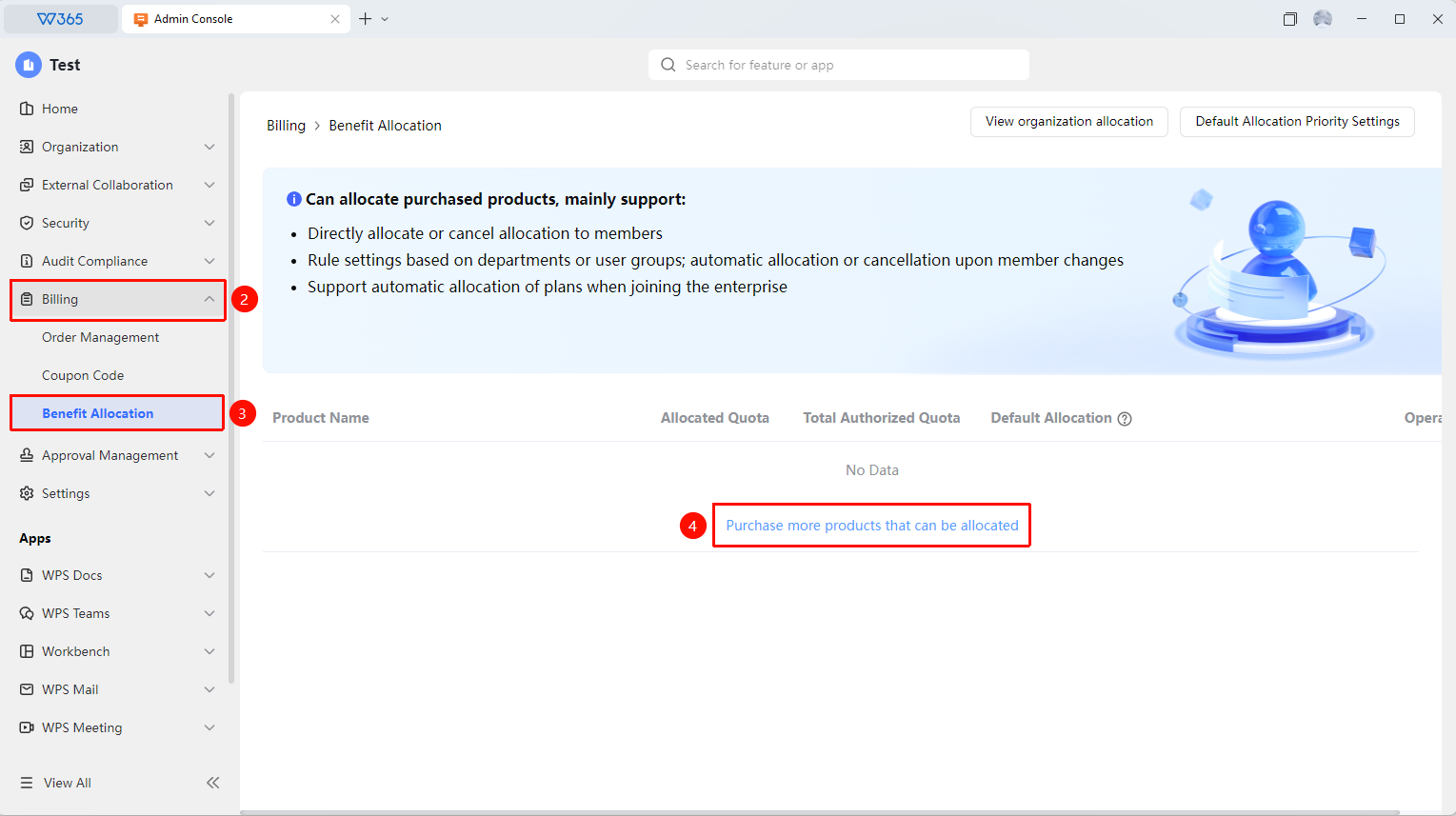
Office Document → Order Benefits → Benefit Allocation
- Open the WPS365 client and click Office Document in the lower-left corner of the client homepage
- Find and click 「Order Benefits」 in the left-side list to expand the dropdown list
- Click 「Benefit Allocation」 in the dropdown list
- Click the 「Purchase More Allocable Products」 button to go to the add-on purchase interface
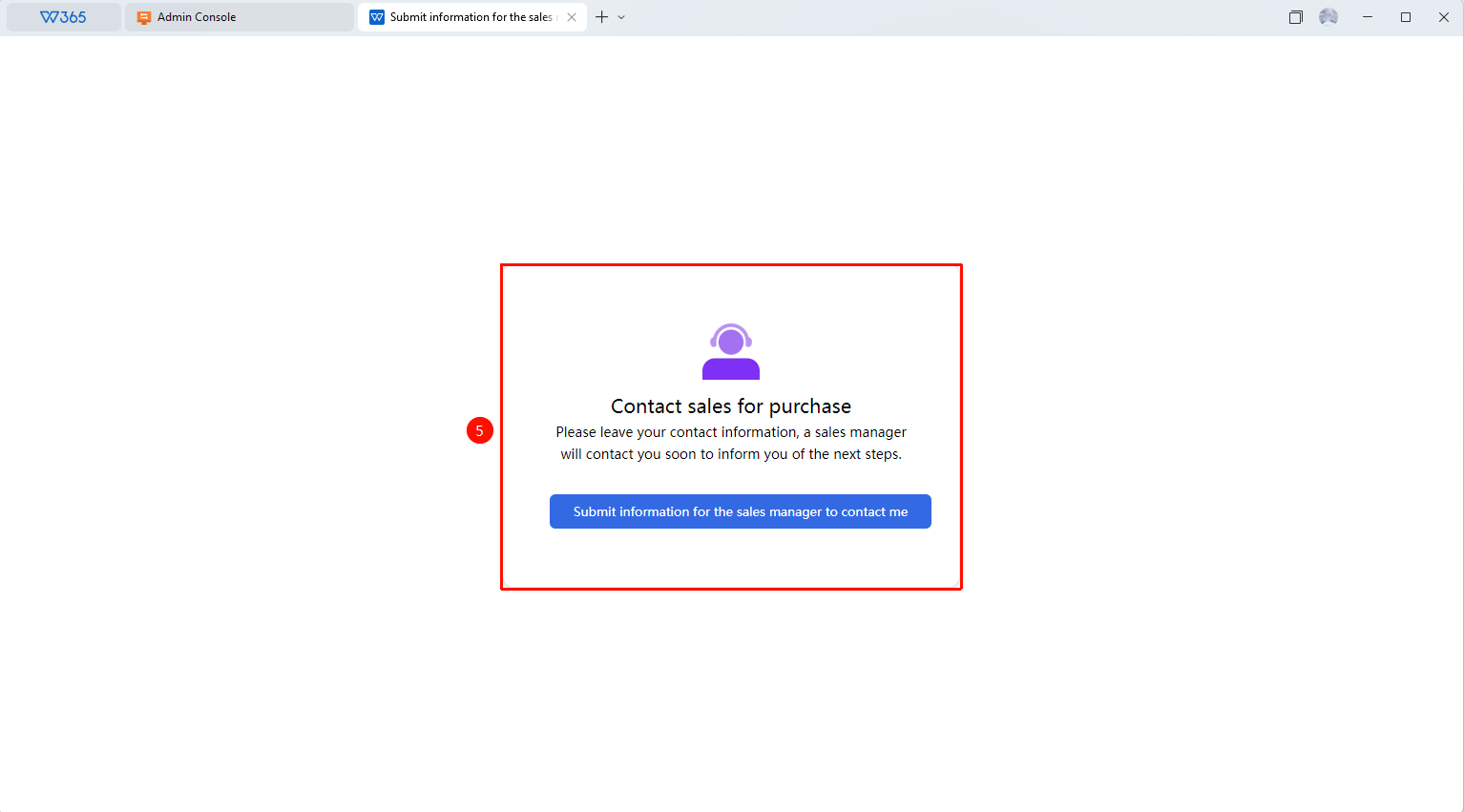
- On the add-on purchase interface, click 「Submit Information for Sales Manager to Contact Me」 to proceed with the add-on purchase

FAQ
Q1: What is the difference between add-on purchase and renewal?
- Solution: Add-on purchase means adding extra benefit quantities or value-added services on top of your existing plan, while renewal means extending the usage period of your current plan. Add-on purchase does not affect the expiration date of the original plan.
Q2: How soon does an add-on purchase take effect?
- Solution: It is recommended to confirm the benefit activation time with the sales manager before purchasing. If you encounter order synchronization issues, you can contact WPS enterprise customer service for assistance.
Q3: How is the expiration date of add-on benefits calculated?
- Solution: The expiration date of add-on benefits is consistent with the main plan and will not be calculated separately. If you need to configure different expiration dates for specific members, you need to contact a professional sales representative to customize a solution.
Notes
- Before purchasing add-ons, it is recommended to confirm whether the current plan supports this benefit type
- For add-on purchases of special collaboration versions, please contact your designated sales representative to confirm the specific price
- You can also purchase additional seats in the organization's Office Document → 「Organization Overview」