Guide to Using Document Log Feature in WPS365
Feature Summary
Record the full lifecycle operations of organization documents, and track actions such as document creation, editing, sharing, and deletion.
Feature Description
| Feature Dimension | Description |
|---|---|
| Plan Limit | Requires subscribing to an organization plan |
| Edition Limit | No edition limits |
Steps
View Document Logs
Feature Entry
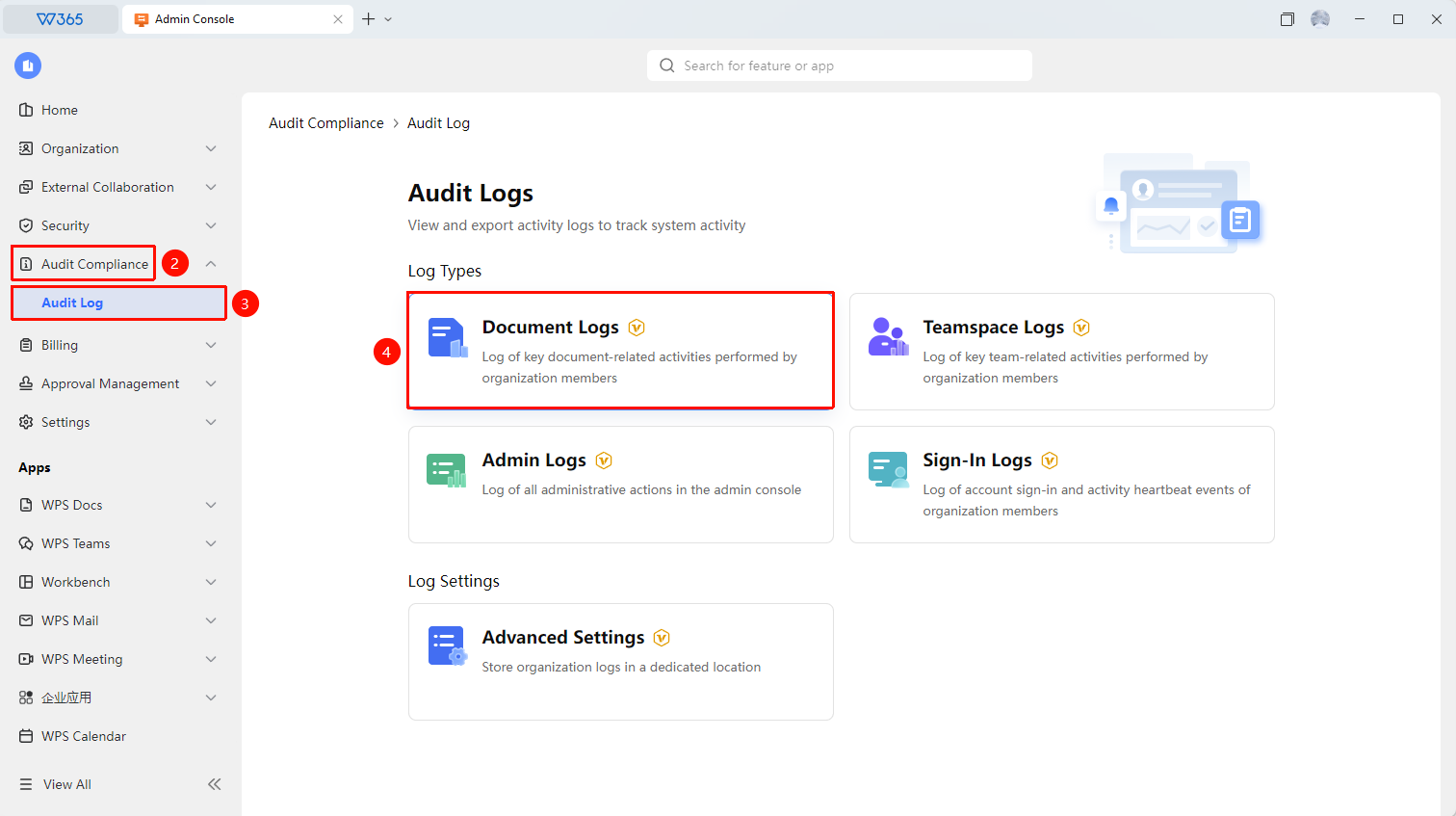
Admin Console → Audit Compliance → Audit Log → Document Logs
- Open the WPS 365 client, and click Admin Console in the lower-left corner of the homepage.
- Locate and click Audit Compliance → Audit Logs in the left list.
- Click to open the Document Logs tab on the expanded page.
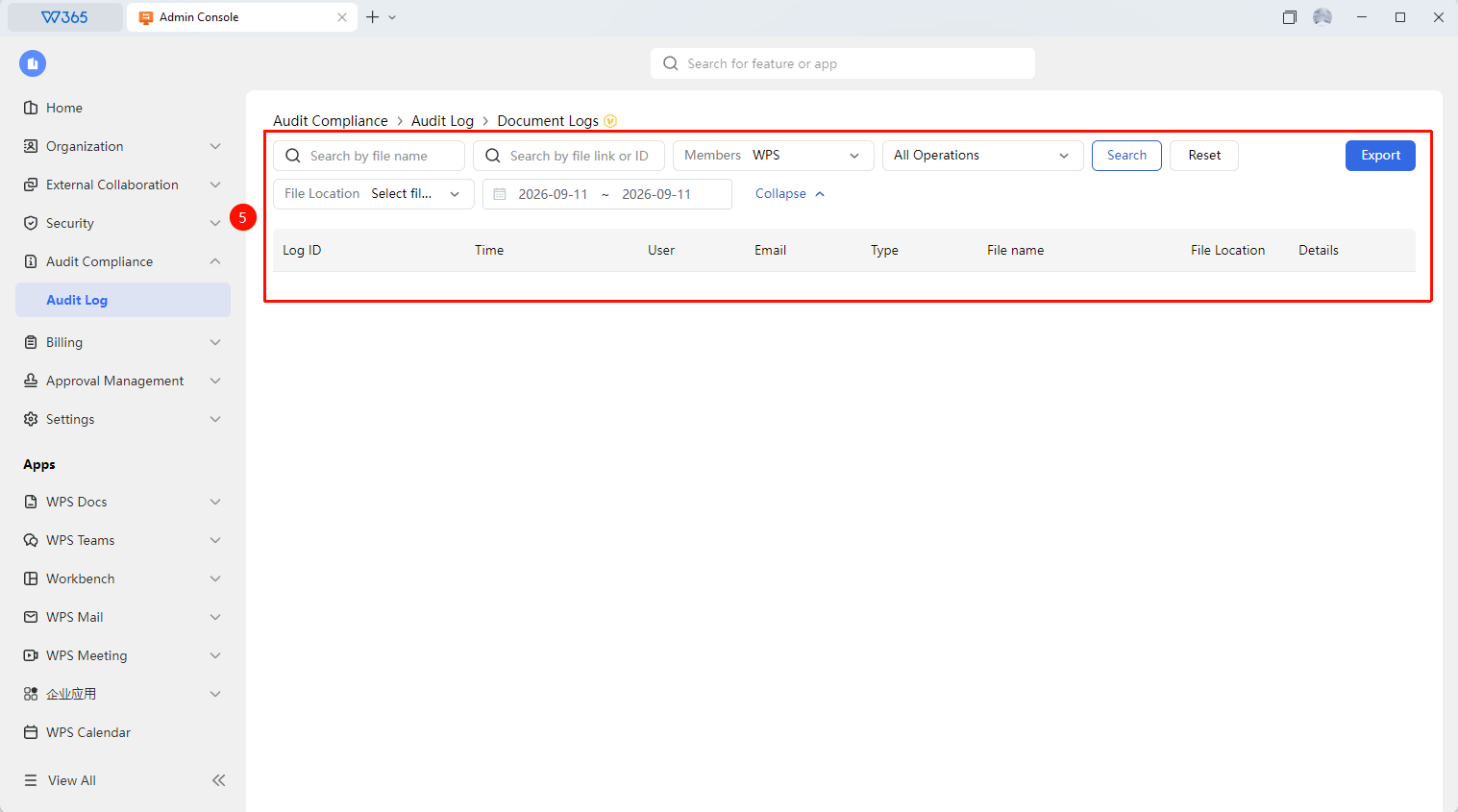
- Filter by criteria such as member, time, and operation type.
- Click Export to export the log file.

FAQ
Q1: Can document logs track the operation records of all members?
- Solution: Yes. Document logs record operations on documents by all members within the organization, including creation, access, editing, sharing, deletion, and downloading. It also retains information on the operator, time, and file location.
Q2: Can document logs be exported?
- Solution: Yes. Click the Export button on the log page to export it as a spreadsheet file for offline analysis and archiving.
Notes
- Using document logs requires super admin permissions or an admin with view permissions enabled.
- Exported log files contain sensitive action information and must be kept secure.