Guide to Using Teamspace Logs Feature in WPS365
Feature Summary
Record the full lifecycle Teamspace Logs to keep track of overall team changes
Feature Description
| Feature Dimension | Description |
|---|---|
| Plan Restrictions | Requires subscribe to an organization plan |
| Version Restrictions | No version restrictions |
Operation Steps
View Teamspace Logs
Feature Entry
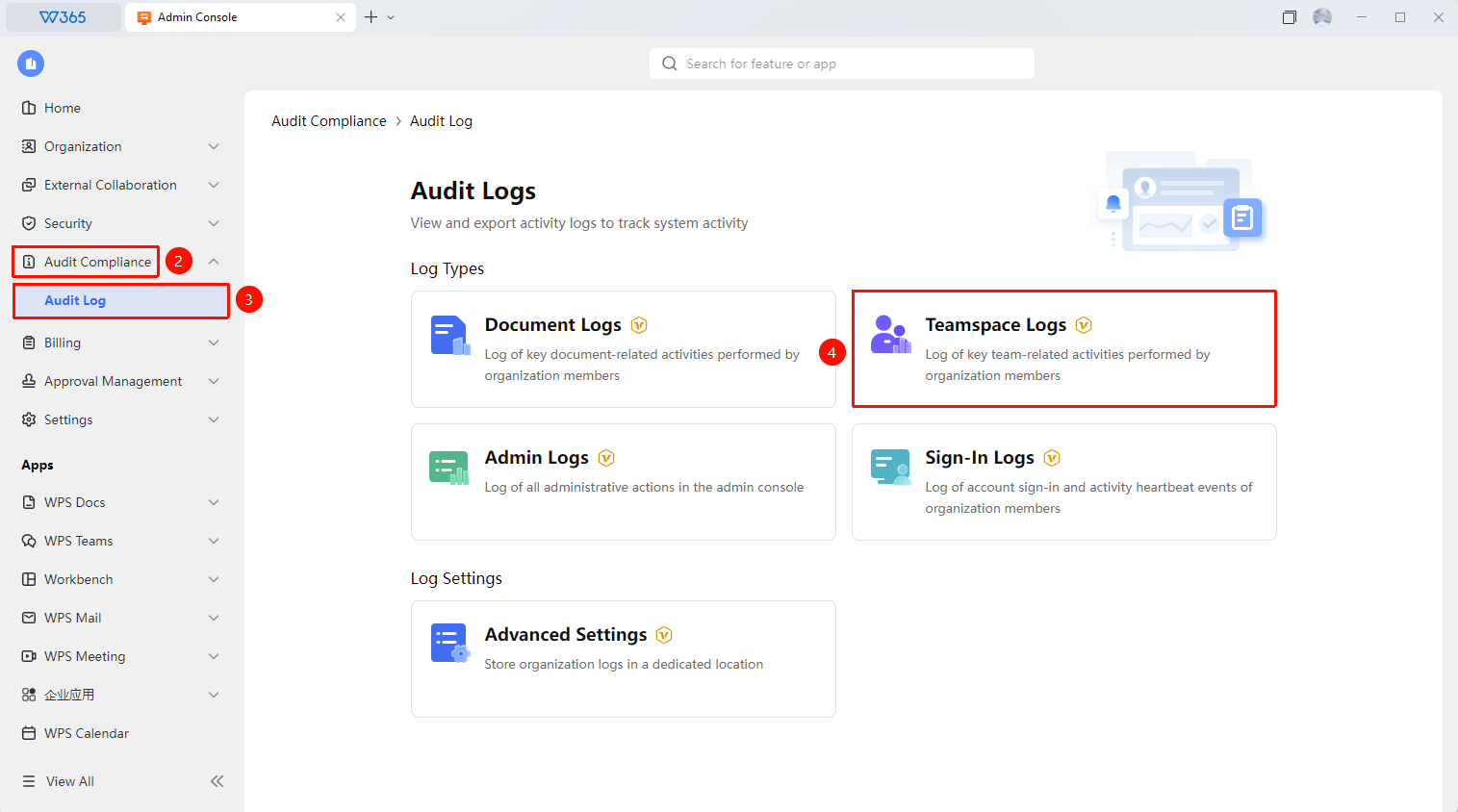
Office Document → Audit Compliance → Audit Log → Teamspace Logs
- Open the WPS365 client, click Office Document in the lower-left corner of the client homepage
- Locate and click Audit Compliance > Audit Log in the list on the left.
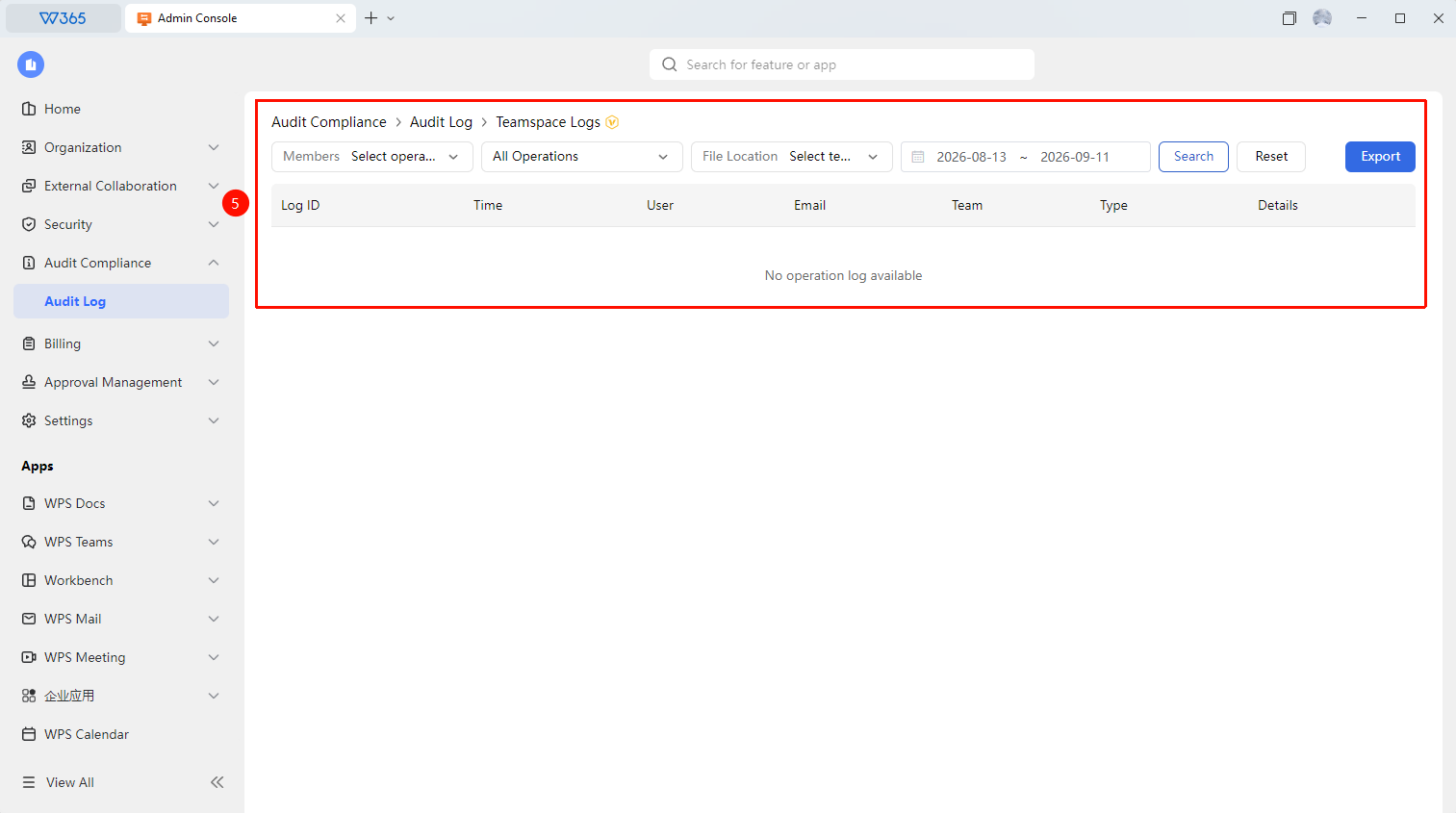
- Click 「Teamspace Logs」 on the page to open the tab
- Filter by personnel, time, operation type, and other criteria
- Click 「Export」 to export the log file

FAQ
Q1: What is the difference between Teamspace Logs and Document Log?
- Solution: Document Log focuses on detailed operation records of a single document, while Teamspace Logs aggregates collaboration behaviors at the team level, including team-level activities such as team creation and member changes.
Q2: Can I view the logs of all teams?
- Solution: Yes. In the Teamspace Logs, you can filter by team to view the log records of different teams, making it convenient for department heads to keep track of changes within their respective teams.
Q3: Can the Teamspace Logs show who joined/left?
- Solution: Yes. The Teamspace Logs records the operating user, operation time, and operation type for each action such as creating/joining/leaving/removing members, supporting precise traceability.
Notes
- Teamspace Logs does not support searching by a single document. If you need to view details of a single document, please use Document Log.
- It is recommended to regularly export and back up log data.