Feature Summary
Records member sign-in records.
Feature Description
| Feature Dimension | Description |
|---|---|
| Plan Restriction | Requires a subscribed-to organization plan |
| Version Restriction | No version restriction |
Operation Steps
View Sign-in Log
Feature Entry
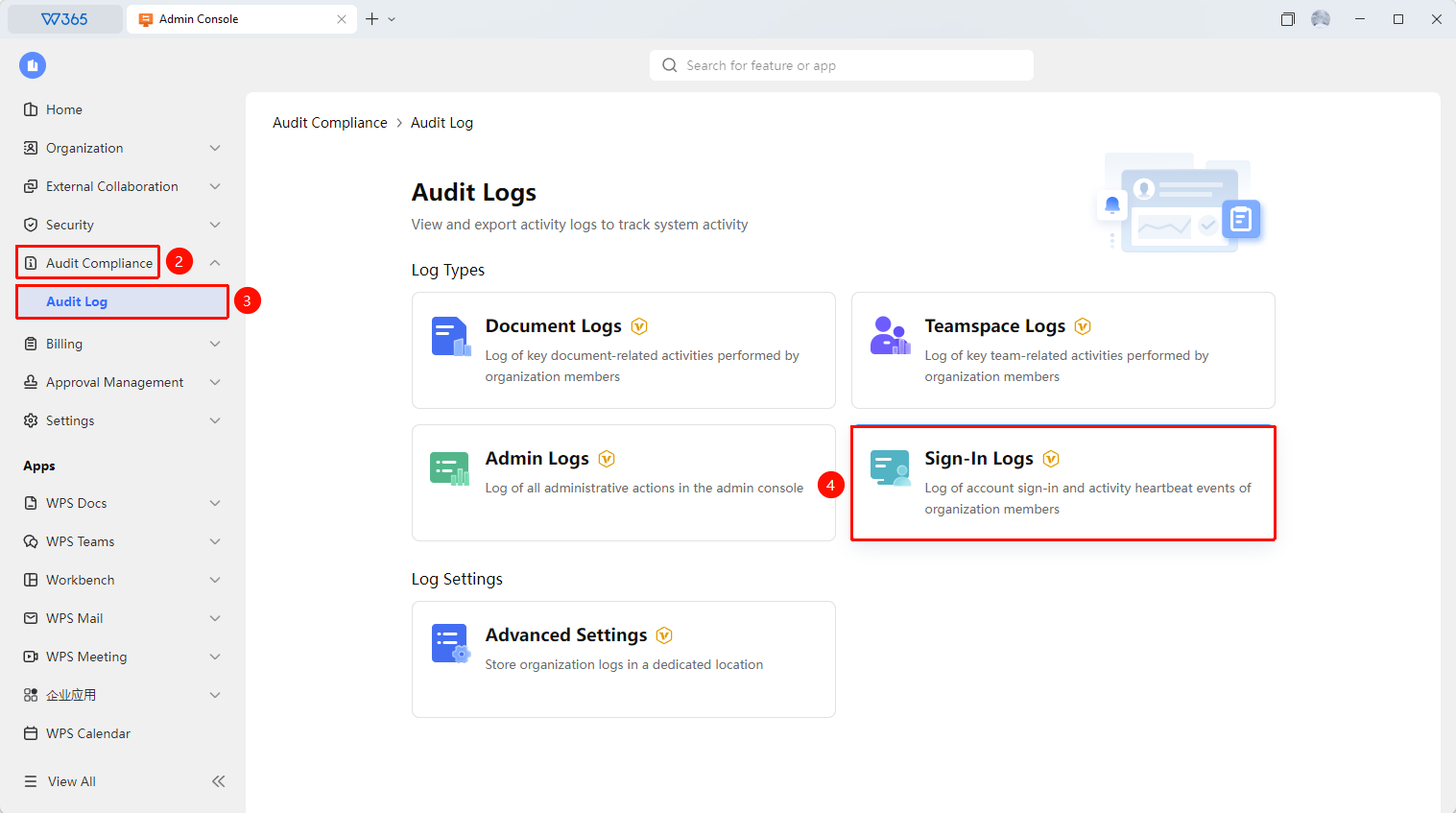
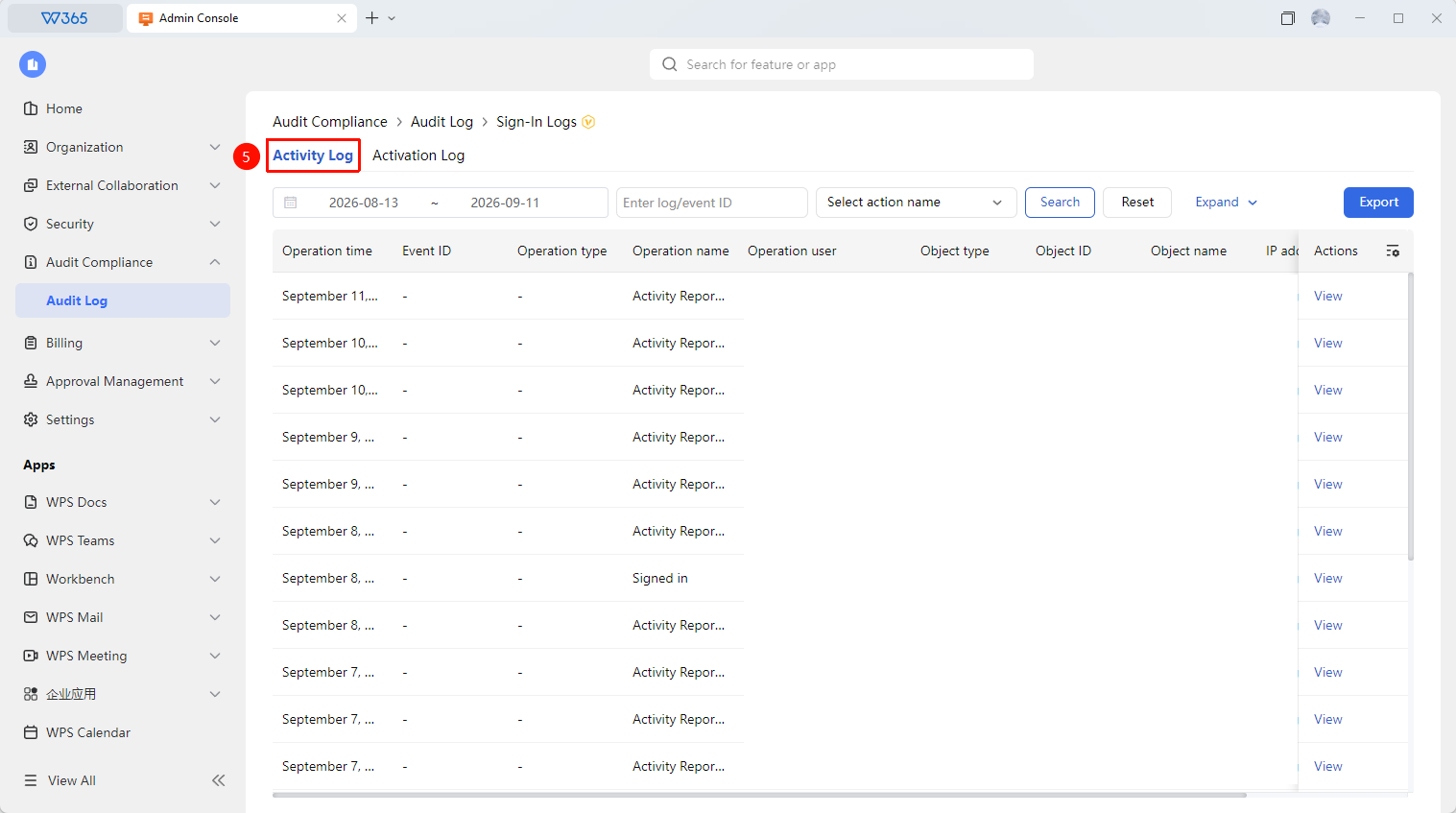
Office Document → Audit Compliance → Audit Log → Sign-In Logs →Activity log
- Open the WPS365 client, and click Office Document in the lower-left corner of the client homepage.
- Locate and click Audit Compliance > Audit Log in the list on the left.
- On the page that opens, click the "Sign-In Logs" tab.
- Click " Sign-in Log".
- Filter by personnel, time, sign-in type, and other criteria.
- Click "Export" to export the log file.

View Activation Log
Feature Entry
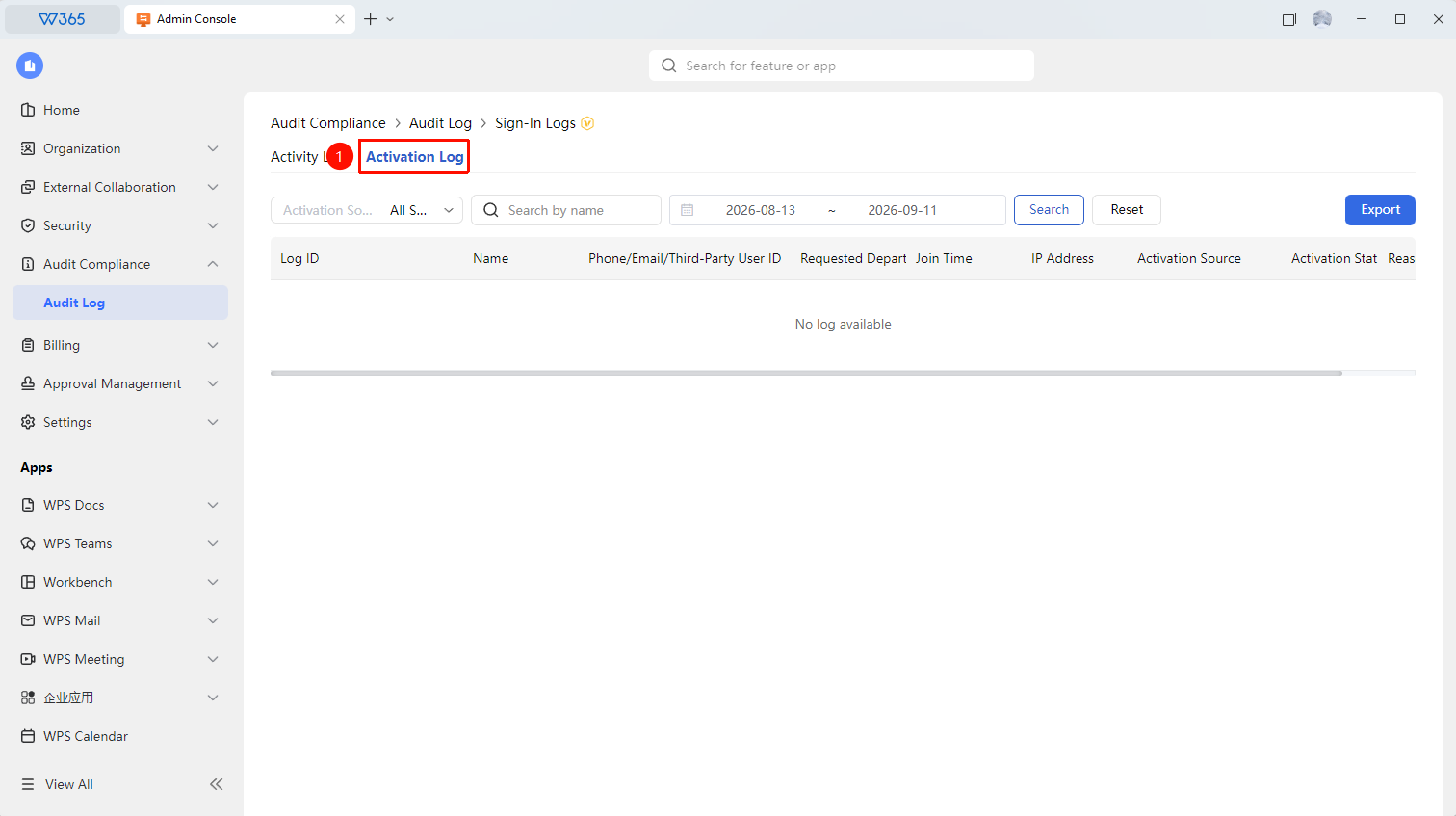
Office Document → Audit Compliance → Audit Log → Sign-In Logs → "Activation Log"
- Open the WPS365 client, and click Office Document in the lower-left corner of the client homepage.
- Locate and click Audit Compliance > Audit Log in the list on the left.
- On the page that opens, click the "Sign-In Logss" tab.
- Click "Activation Log".
- Filter by activation source, name, and time.
- Click "Export" to export the log file.
FAQ
Q1: Will logs still be recorded after a member leaves?
- Solution: After a member leaves, the account will no longer generate new sign-in records, but historical log data will be retained, which does not affect subsequent tracing.
Q3: Can the Sign-In Logs export a specific member's complete sign-in log?
- Solution: Yes. After filtering by operator and clicking Export, you can generate the complete sign-in record for that member within the specified time range.
Notes
- Sign-In Logss are suitable for permission reviews and abnormal behavior monitoring during personnel changes.
- When the log data volume is large, it is recommended to narrow the query time range to improve query speed.