Feature Summary
Review applications from new members joining the organization and manage member admission
Feature Description
| Feature Dimension | Description |
|---|---|
| Plan Restrictions | No plan restrictions |
| Version Restrictions | No version restrictions |
Steps
Approving Member Joining
Feature Entry
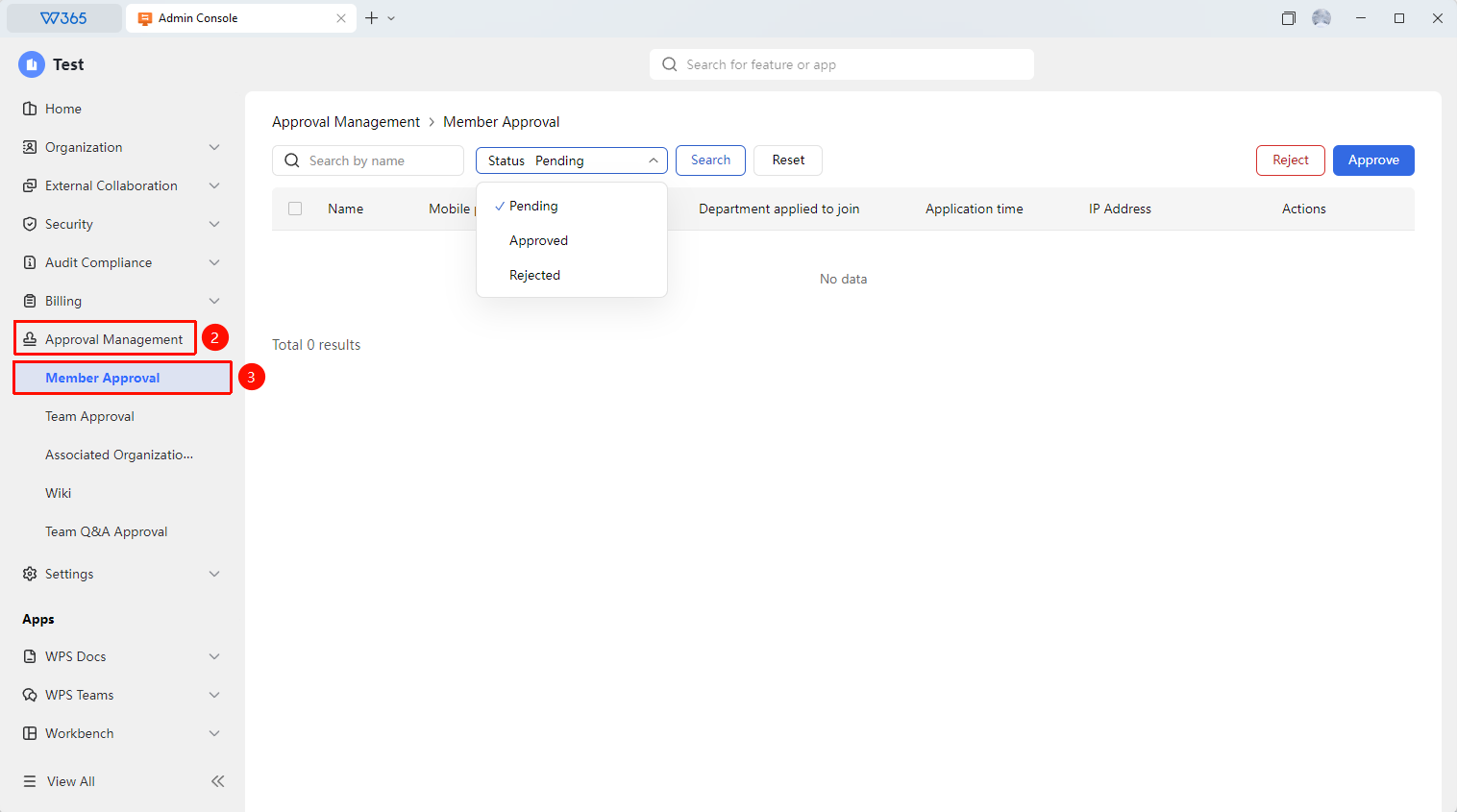
Office Document → Approval Management → Member Approval
- Open the WPS365 client and click Office Document in the lower-left corner of the client homepage
- Find and click 「Approval Management」 in the left-side list to expand the dropdown list
- Click 「Member Approval」 in the dropdown list to open the tab
- Quickly filter the desired approval targets by name or approval status
- Click 「Approve」 or 「Reject」
- After approval, the member automatically joins the organization

FAQ
Q1: Will the member automatically join the organization after approval?
- Solution: Yes. After approval, the member will automatically join the organization and receive a notification of successful joining. The Admin can view the new member's information in Contacts.
Q2: Can I see the applicant's information during review?
- Solution: Yes. On the approval page, you can view the applicant's name, Email, application time, and other information, which helps the Admin decide whether to approve.
Q3: Can the applicant apply again after being rejected?
- Solution: Yes. The applicant can resubmit the joining application, and the Admin will review it again. It is recommended to provide a reason when rejecting, so the applicant can understand and reapply.
Notes
- The Member Approval feature requires the organization's join review mode to be enabled before it takes effect
- Batch join invitations bypass the member approval process and directly join the organization
- It is recommended to set up approval reminders to avoid long waiting times for new members awaiting review results