Feature Summary
Set your organization size to get tailored office solutions.
Feature Description
| Feature Dimension | Description |
|---|---|
| Plan Limit | No plan limit |
| Edition Limit | No edition limit |
Steps
Set Organization Size
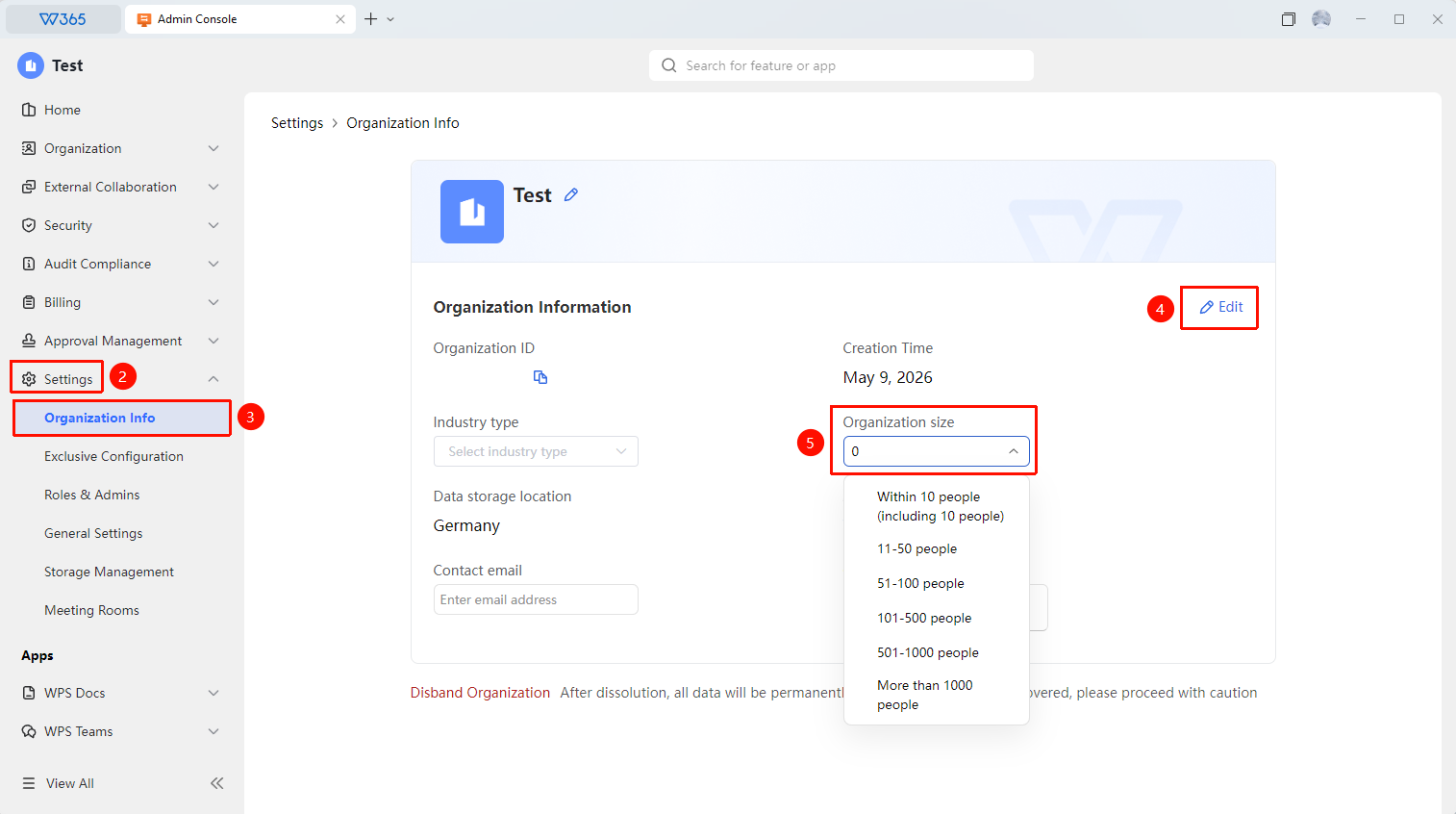
Feature Entry: Admin Console > Organization Settings > Organization Information
- Open the WPS365 client, and click Office Document in the lower-left corner of the client homepage
- Click Organization Settings > Organization Information.
- Click Edit in the Organization Information panel.
- Select the corresponding range for your organization size.
- Click Save to complete the settings.

FAQ
Q1: Does the organization size include all departments?
- Solution: Yes. The organization size counts the total number of members in the organization, including all departments and branches. We recommend entering the actual number of active members to receive more accurate service recommendations.
Q2: Do I need to update the organization size when it grows?
- Solution: We recommend updating this information in a timely manner when there are significant changes in your organization size. This helps the platform recommend plans and feature configurations that are better suited to your current scale.
Q3: Will the organization size affect the plan price?
- Solution: It will not directly affect the plan price. The organization size is used for service optimization and recommendations. The actual plan price is determined by the number of purchased benefits and the plan type.
Notes
- Enter only the total number of members for the organization size. You do not need to break it down by department.
- Changing the organization size does not affect the plan currently in use.
- This information is only visible for internal management and will not be made public.
- Changing organization information requires an organization super Admin account.