Feature Summary
Set up an official contact email address for your organization to receive service notifications and after-sales communications.
Feature Details
| Feature Dimension | Description |
|---|---|
| Plan Limit | No plan limits |
| Version Limit | No version limits |
Steps
Set Up a Contact Email
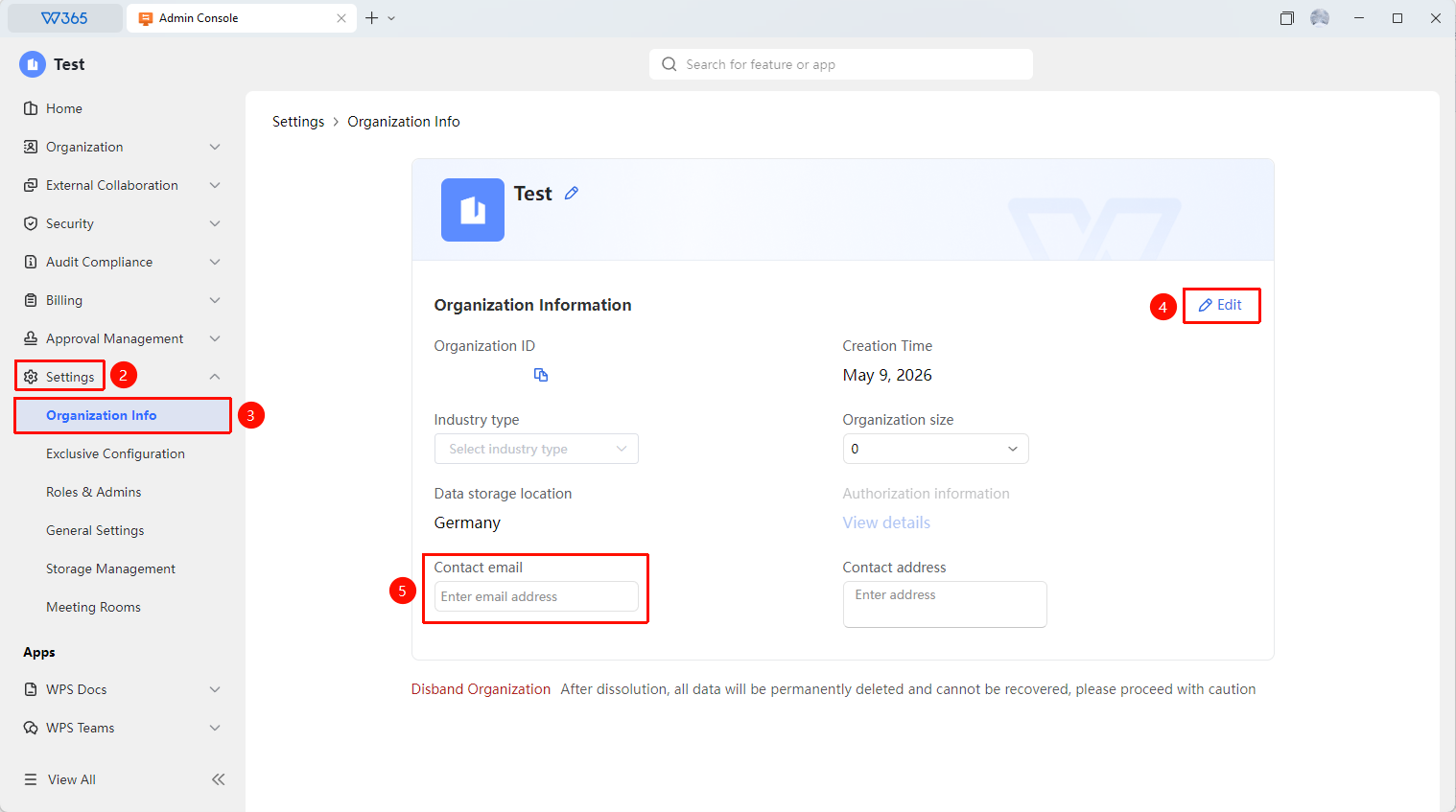
Feature Entry: Admin Console > Organization Settings > Organization Information
- Open the WPS365 client and click Office Document in the lower-left corner of the client homepage.
- Click Organization Settings > Organization Information.
- Click Edit in the Organization Information panel.
- Enter your official organization email address in the contact email field.
- Click Save.

FAQ
Q1: Can I use a personal email address as the contact email?
- Solution: We recommend using an official organization email address (such as admin@yourcompanydomain.com) to facilitate formal communications, such as receiving official notifications, invoices, and after-sales support. Personal email addresses may miss important notifications.
Q2: Do I need to verify the contact email after changing it?
- Solution: No verification is required.
Q3: What notifications are sent to the contact email?
- Solution: It is primarily used to receive administrative notifications, including service notifications, order details, invoices, security alerts, and after-sales support. This does not affect the personal email usage of organization members.
Notes
- We recommend setting up a shared email address managed by a designated person as the contact email.
- Update the contact email promptly if it changes to avoid missing important official notifications.
- The contact email is not visible to regular organization members.
- Changes to organization information must be made by the organization super administrator account.