Feature Summary
Adjust the display name of your organization in WPS 365 to adapt to brand upgrade requirements.
Feature Description
| Dimension | Description |
|---|---|
| Plan Limit | No plan limits |
| Edition Limit | No edition limits |
Steps
Modifying Organization Name
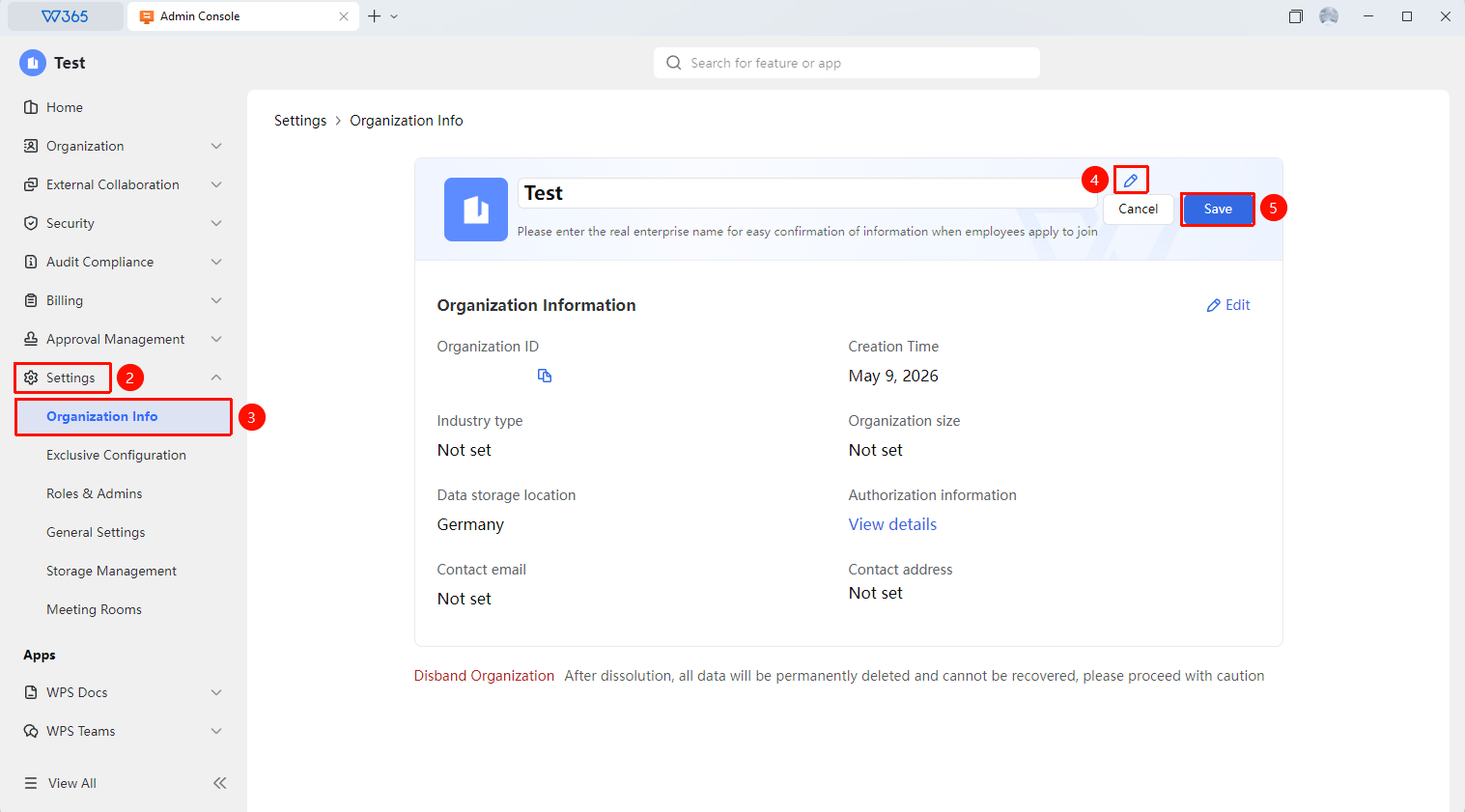
Feature Entry: Admin Console > Organization Settings > Organization Information
- Sign in to the WPS 365 Admin Console.
- Click Organization Settings > Organization Information.
- Click the pencil icon next to the organization name.
- Enter a new organization name.
- Click Save to sync and update the name across all display locations.

FAQ
Q1: Can an organization name be the same as another organization's?
- Solution: Yes. Duplicate organization names are supported, and modifications will not be restricted due to duplicate names. However, to establish brand recognition, we recommend using a unique name.
Q2: Is there a limit on how many times the organization name can be modified?
- Solution: There is no strict limit on the number of modifications, but we recommend not modifying it frequently to avoid affecting member recognition and corporate brand consistency.
Notes
- The organization name is for display purposes only and does not affect the account ID or Admin Console sign-in.
- After modifying the organization name, we recommend updating the organization logo at the same time to maintain brand consistency.
- Modifying the organization name will not affect purchased plans and benefits.
- We recommend entering a real organization name to help employees confirm information when applying to join.