Feature Summary
Delete a WPS 365 organization account and complete organization data cleanup.
Feature Description
| Feature Dimension | Description |
|---|---|
| Plan Limit | No plan limit |
| Edition Limit | No edition limit |
Steps
Disband an Organization
Disband an organization is a high-risk and irreversible action. Proceed with caution.
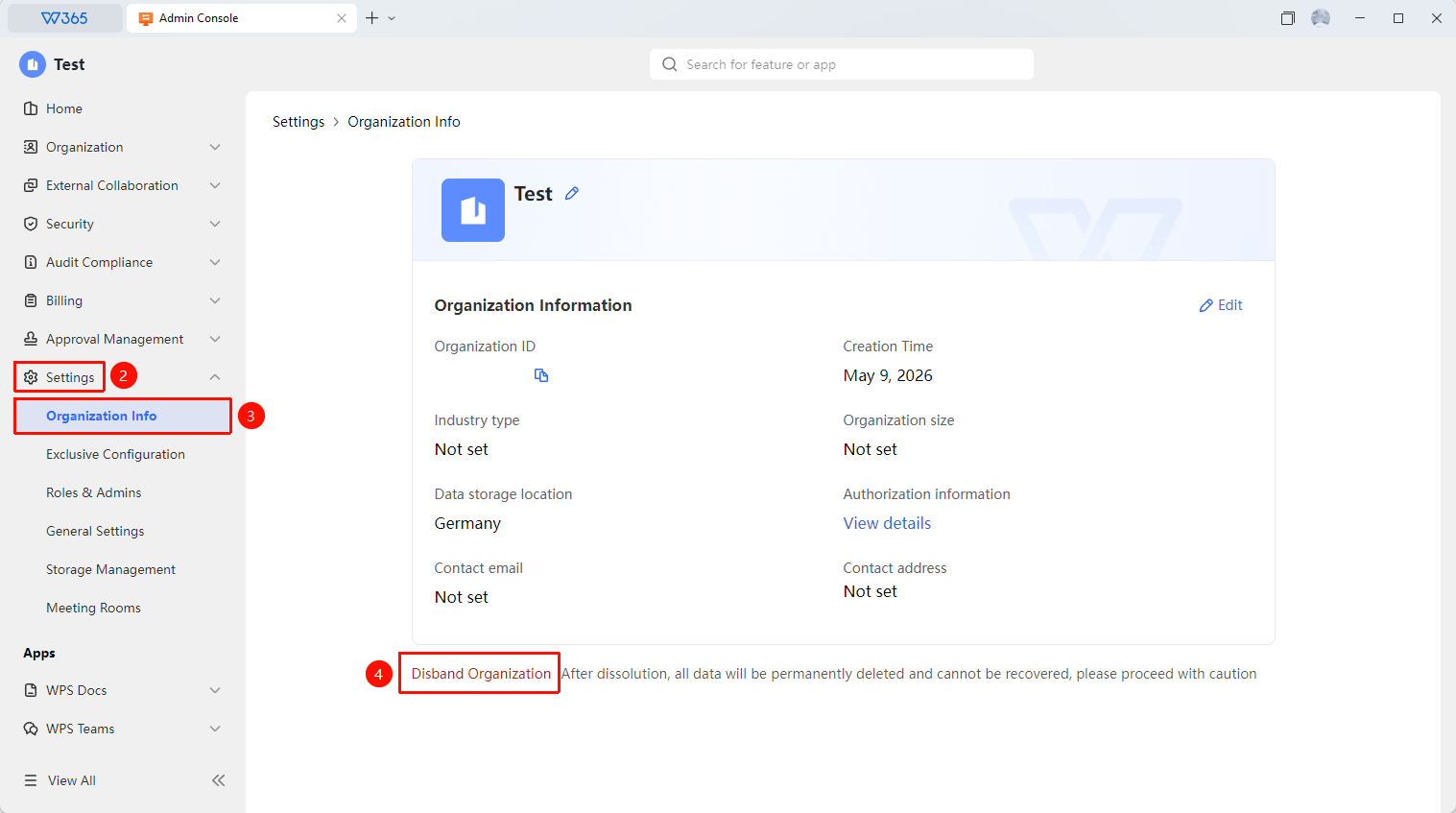
Feature Entry: Admin Console > Organization Settings > Organization Information
- Open the WPS 365 client. In the lower-left corner of the homepage, click to enter the Admin Console.
- Click Organization Settings > Organization Information.
- At the bottom of the page, click Dissolve Organization.
- Read the dissolution reminder carefully and confirm the action.
- Enter the verification information and confirm the dissolution.

FAQs
Q1: Can data be recovered after Disband an organization?
- Solution: Disband an organization is irreversible. Once an organization is dissolved, all member data, documents, and team information will be cleared and cannot be recovered. Back up your data before proceeding.
Q2: What are the requirements for Disband an organization?
- Solution: Only the super Admin has permission to perform this action. We recommend confirming that all important documents are backed up before Disband the organization.
Q3: What happens to purchased plans after Disband an organization?
- Solution: Purchased plans and benefits will terminate upon dissolution, and remaining fees will be handled according to the Service Agreement. We recommend contacting customer service first to confirm refund details.
Notes
- Export all important documents and data before Disband the organization.
- The dissolution action requires verification information to prevent accidental operations.