Feature Summary
Custom splash screen content for the organization's desktop client to build a unified brand image.
Feature Description
| Feature Dimension | Description |
|---|---|
| Plan Limit | Requires subscribing to an organization plan |
| Version Limit | No version limits |
Operation Steps
Configure Splash Screen Content
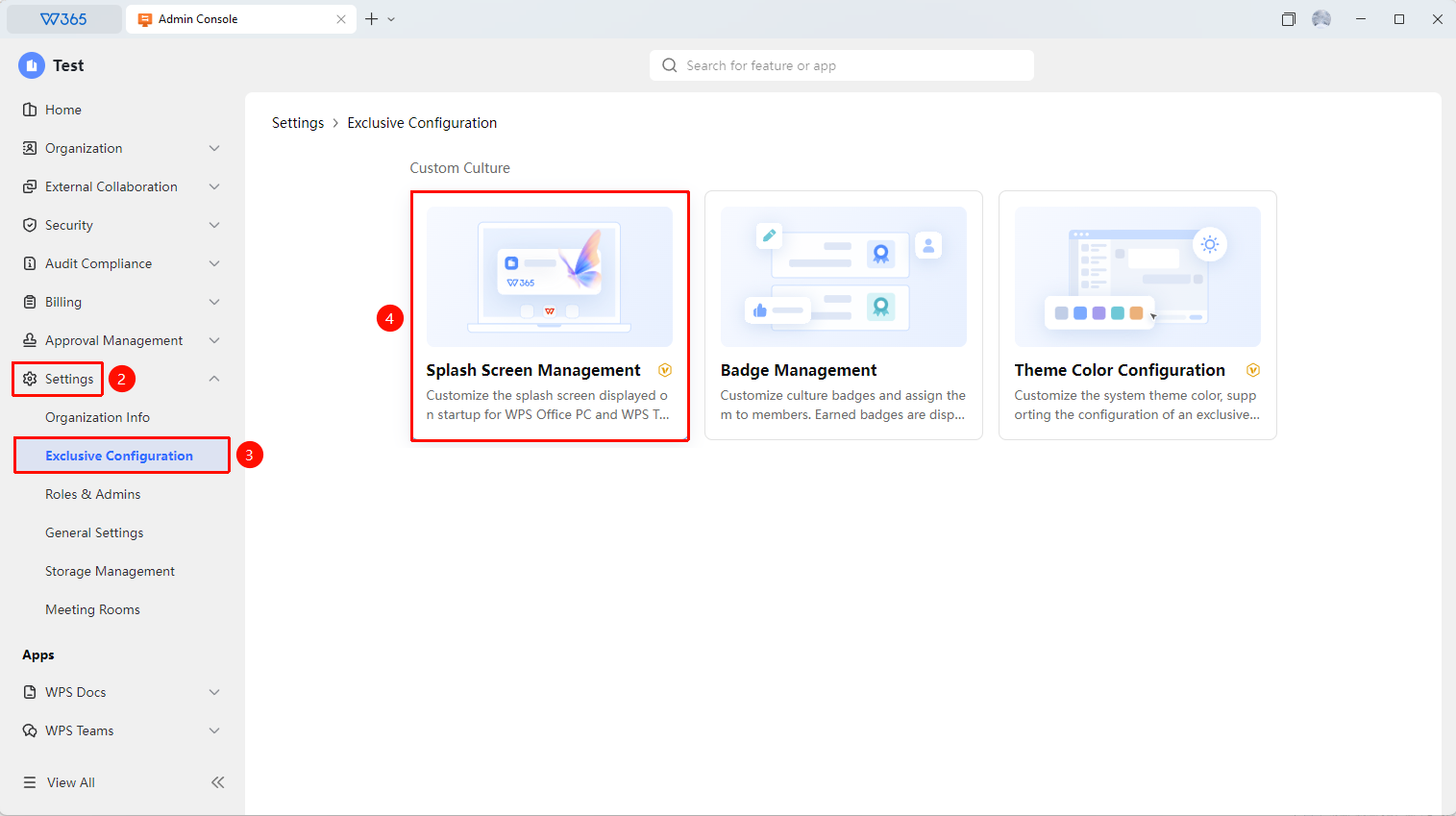
Feature Entry: Admin Console > Organization Settings > Exclusive Configuration > Splash Screen Management
Open the WPS 365 client, and click Admin Console in the lower-left corner of the homepage.
Find and click Organization Settings in the left list to expand the dropdown list.
Click to open the Exclusive Configuration > Splash Screen Management tab in the dropdown list.
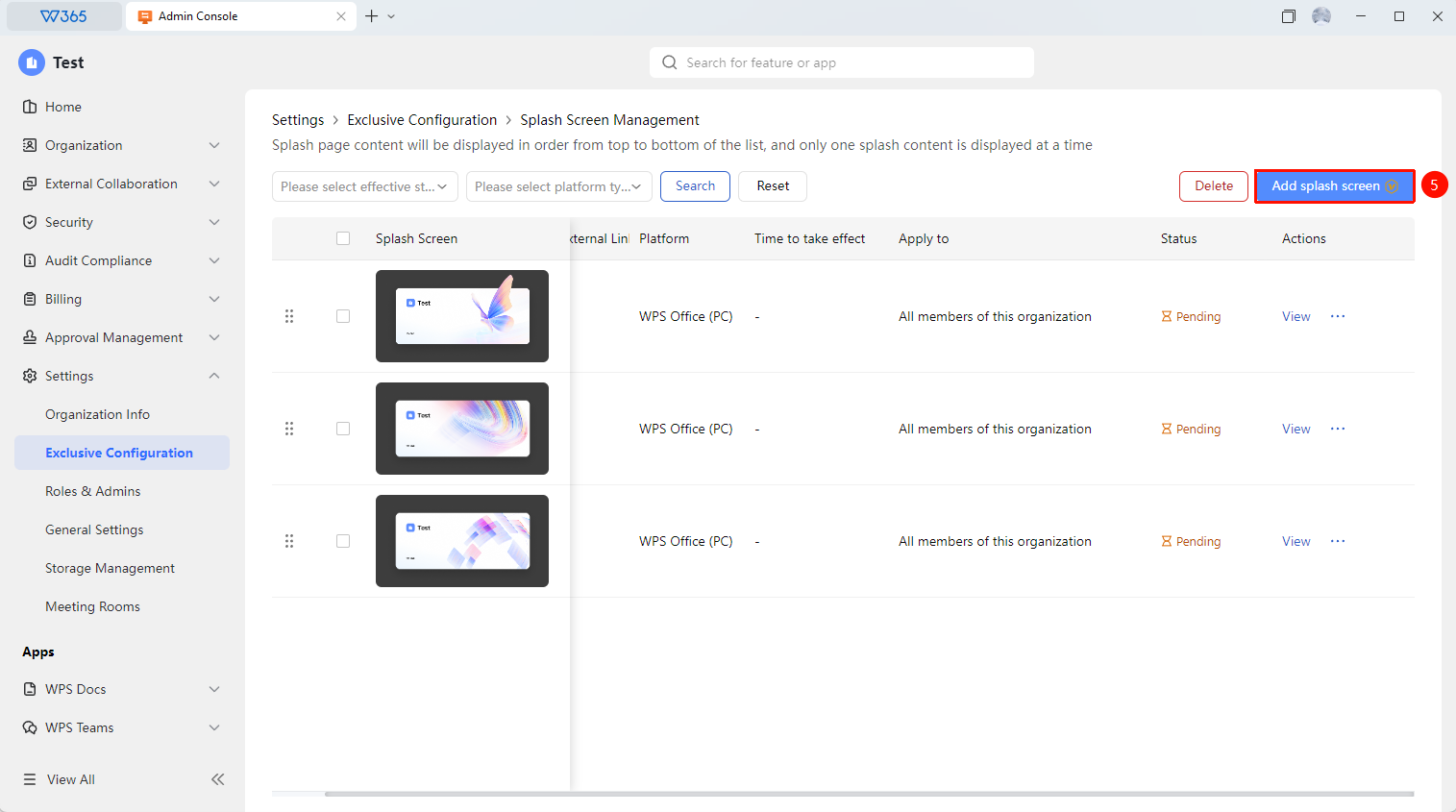
Click Add Splash Screen to configure specific settings:
- Client Type: WPS Teams / WPS Office
- Splash Screen Page: Upload a display image and set a redirect link.
- Validity Period: Valid permanently or for a specified period.
- Scope: All members or specified departments/members.
- Display Limit: Unlimited or a specified number of times (number of times the splash screen is displayed on each device per day).
- Click Preview to preview the effect.
Click Save to apply the changes.

Manage Splash Screen Content
Feature Entry: Splash Screen Management page
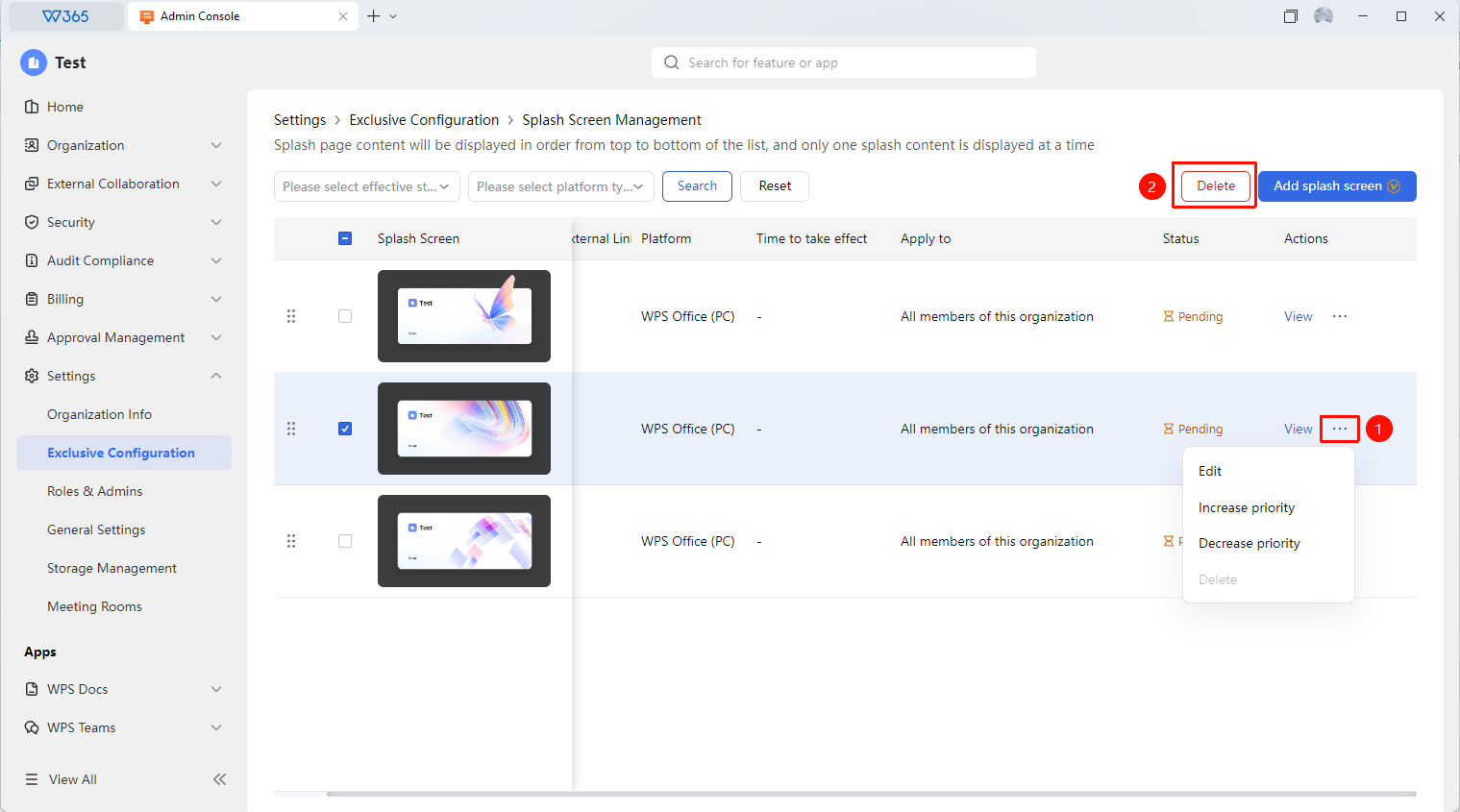
- Search for active splash screens on the Splash Screen Management page by status and platform type.
- Select the target splash screen to edit it, or click Delete in the upper-right corner to delete it.
FAQs
Q1: What formats and sizes are supported for splash screen images?
- Solution: JPG and PNG formats are supported. The recommended size is 1920x1080 pixels or higher to ensure optimal display on devices with different resolutions. The file size is recommended to be within 5 MB.
Q2: Will all members see the configured splash screen?
- Solution: You can set the display scope to show it to all members or only to specified departments/teams. You can also set a validity period, and the default splash screen will automatically restore after expiration.
Q3: Can multiple splash screen images be displayed at the same time?
- Solution: Carousel display of multiple images is not supported. Only one splash screen can be displayed at a time. To change it, you must manually upload and configure a new one.
Notes
- Splash screen image content must comply with organization standards and must not contain illegal content.
- We recommend configuring exclusive splash screens during important holidays or events to enhance the organization's cultural atmosphere.
- After configuring the splash screen, you must sign out and sign in to the client again to see the changes.