Feature Summary
Centrally manage organization meeting room resources, including meeting room creation and configuration, device binding, booking management, and usage data statistics, to improve meeting room utilization.
Feature Description
| Feature Dimension | Description |
|---|---|
| Plan Limit | No plan limits |
| Edition Limit | No edition limits |
Operating Steps
Creating and Configuring Meeting Rooms
Feature Entry:
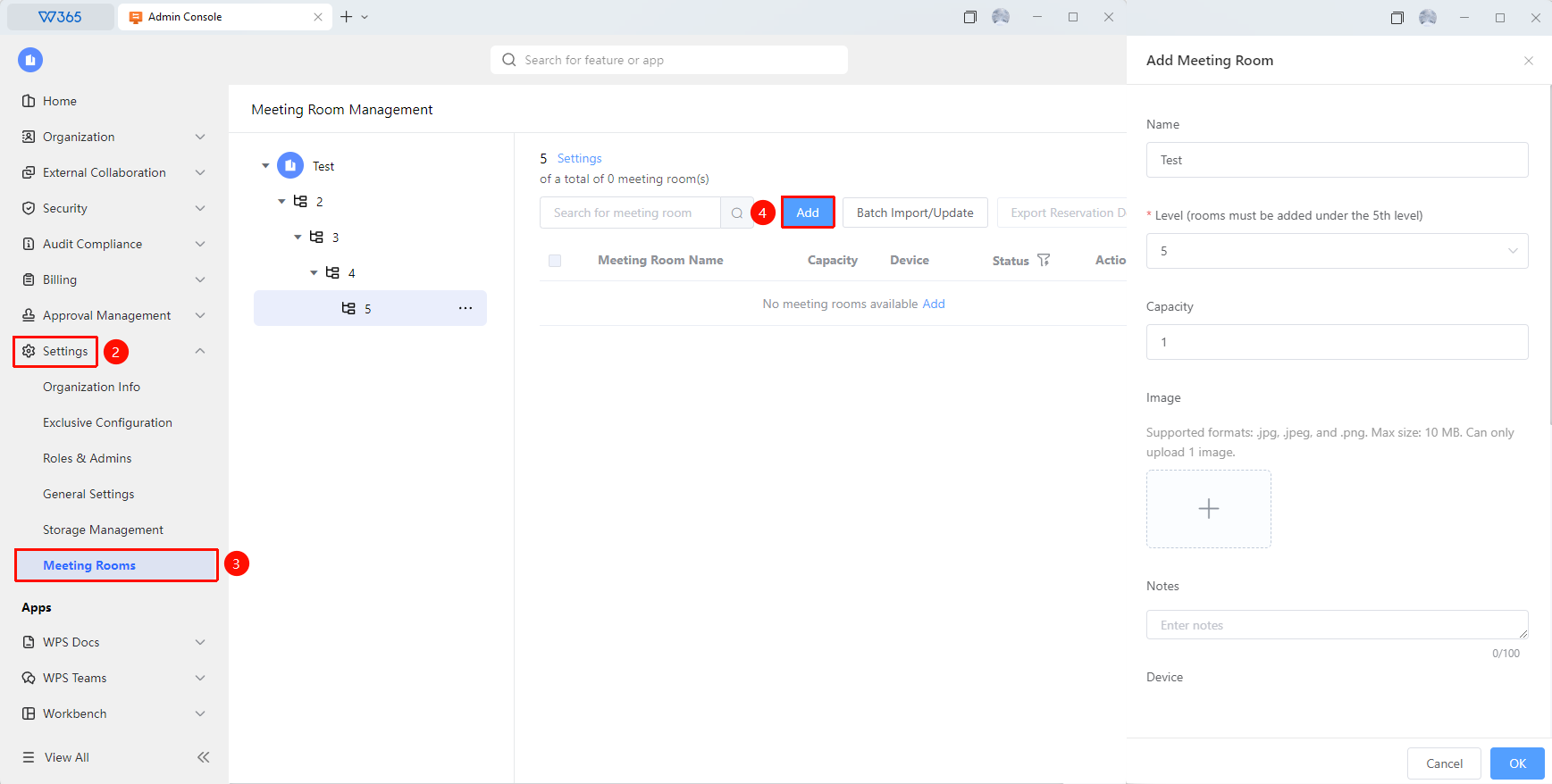
Admin Console > Organization Settings > Meeting Room Management > Add
Open the WPS 365 client, and click Admin Console in the lower-left corner of the homepage.
Click Organization Settings in the left list to expand the dropdown list.
Click the Meeting Room Management label in the dropdown list.
Click the Add button in the upper-right corner.
Fill in the meeting room information:
- Meeting Room Name: The name used for identification and search.
- Hierarchy: Fill in the hierarchy information.
- Capacity: Fill in the maximum capacity of the meeting room.
- Meeting Room Image: Add a photo of the meeting room.
- Meeting Room Note: Add a text note for the meeting room.
- Devices: Select the devices equipped in the meeting room (TV, whiteboard, etc.).
Click Save to complete the meeting room creation.
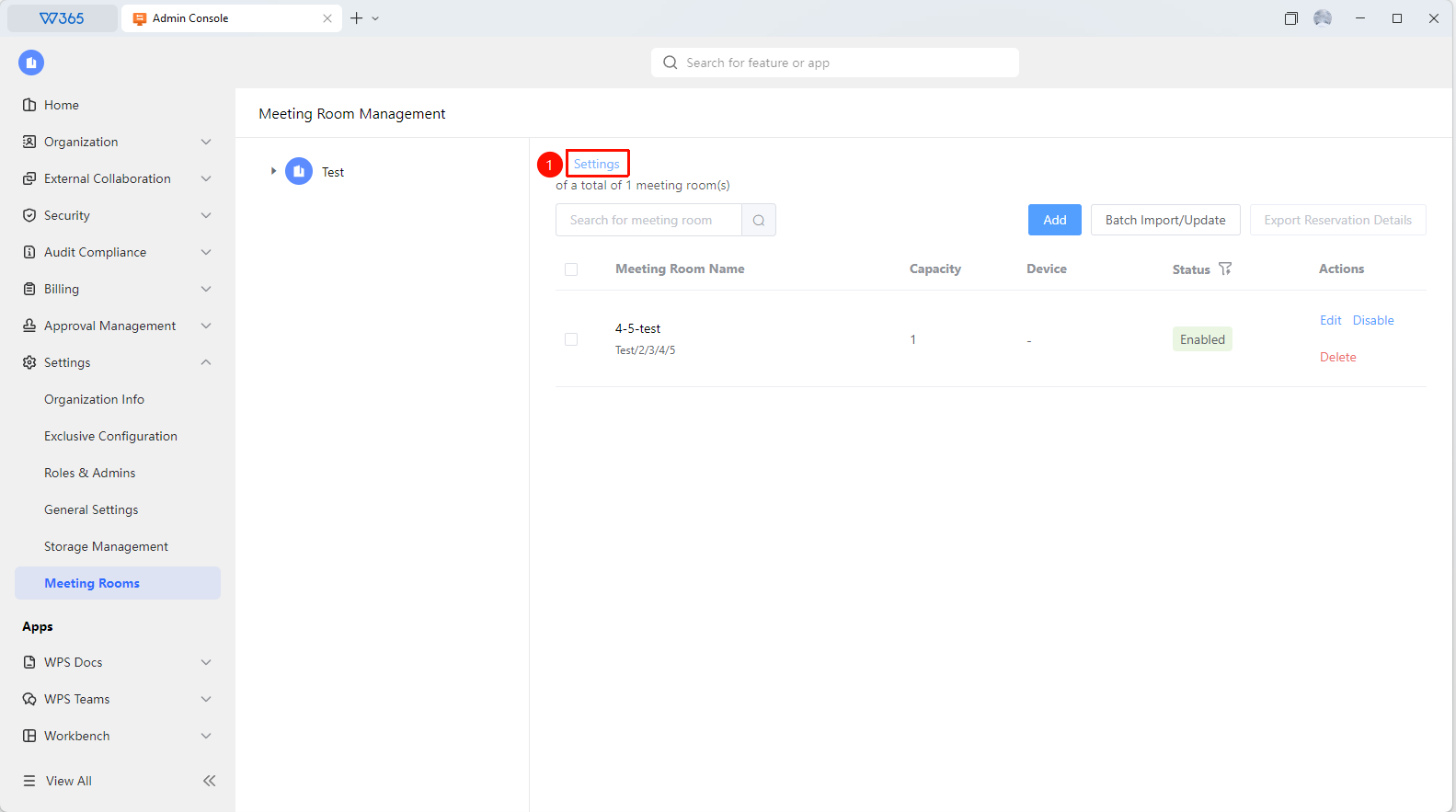
After creation, you can edit, enable, or delete meeting rooms in the list.

Batch Importing/Updating Meeting Rooms
Feature Entry: Meeting Room Management page > Batch Import/Update
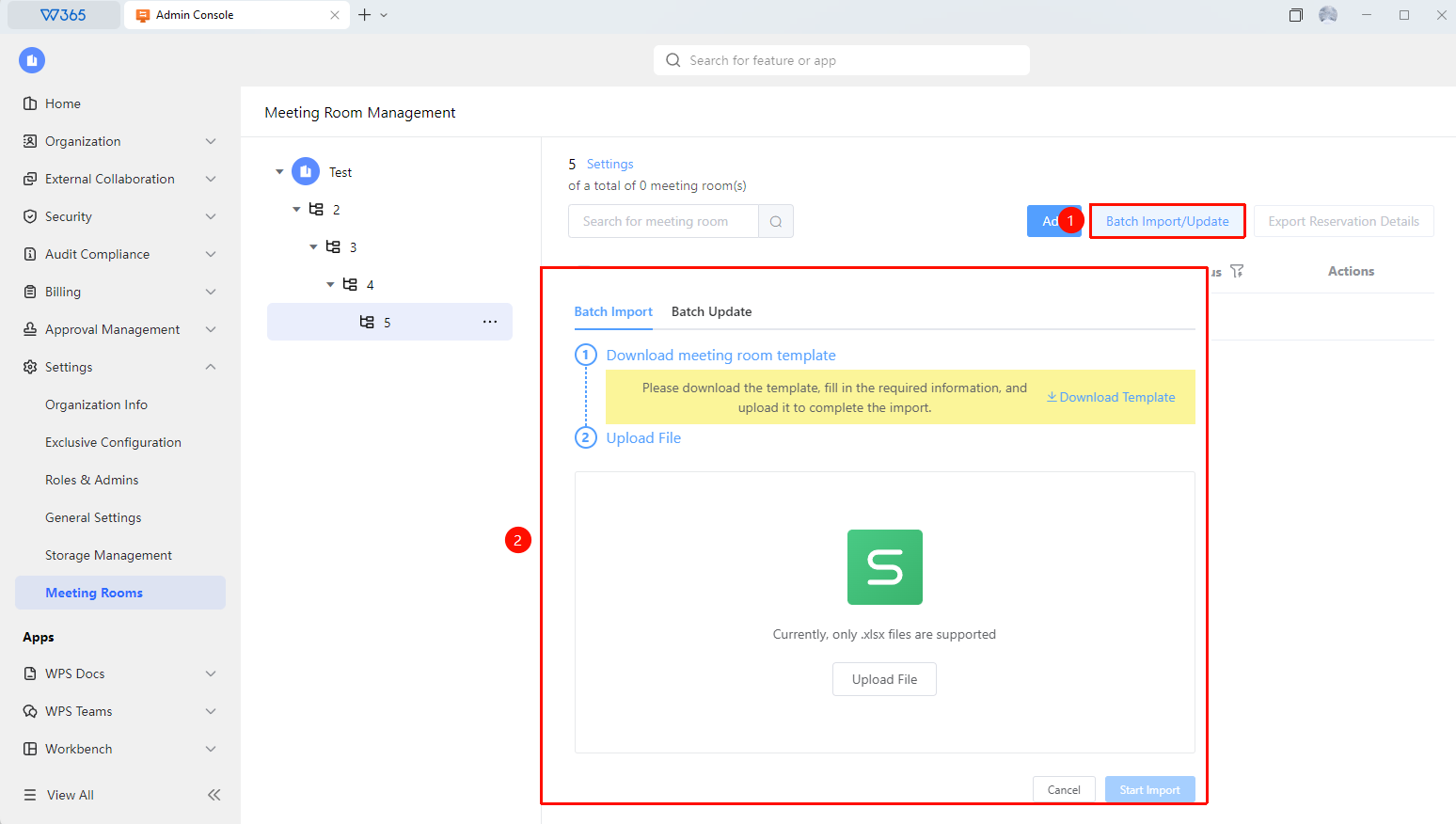
Click Batch Import/Update in the upper-right corner of the Meeting Room Management page in the Admin Console.
- Batch Import: Download the template, edit it according to the template format requirements, and upload it to complete the meeting room import.
- Batch Update: Export meeting rooms, edit them according to the template format requirements, and upload them to complete the batch update.
Meeting Room Settings
Feature Entry: Meeting Room Management page > Settings
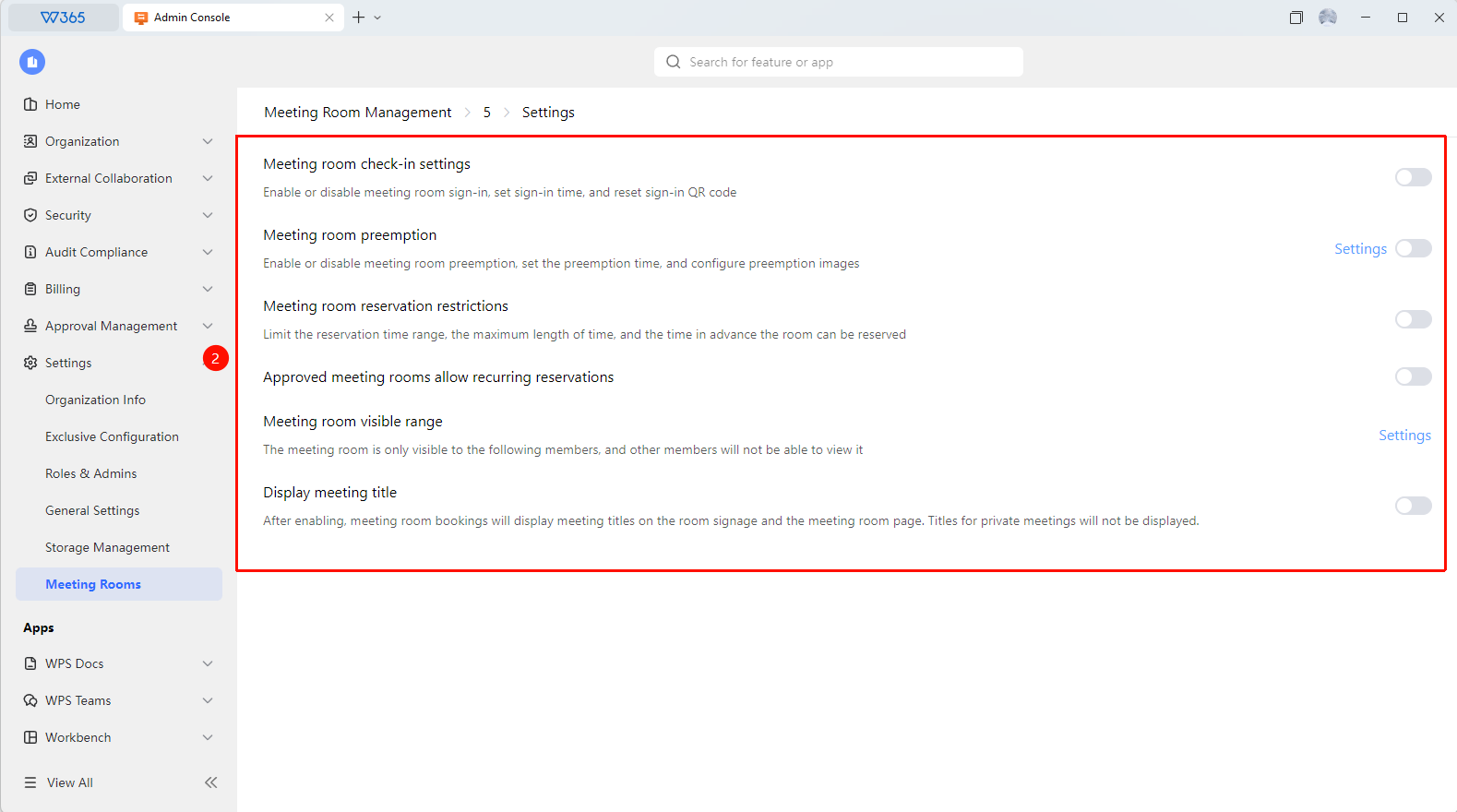
Click Settings on the Meeting Room Management page in the Admin Console to enter the Meeting Room Settings page:
- Meeting Room Sign-in Settings: Enable or disable meeting room sign-in, set the sign-in time, and reset the sign-in QR code.
- Meeting Room Reclaiming: Enable or disable meeting room reclaiming, set the reclaimable time, and configure the reclaiming image.
- Meeting Room Booking Limits: Limit the bookable time range, maximum duration, and advance booking time for meeting rooms.
- Approval for Periodic Bookings: Enable or disable whether periodic meeting bookings require approval.
- Meeting Room Visibility: Meeting rooms will be visible to the following members; non-configured members cannot view the corresponding meeting rooms.
- Meeting Room Allowlist: Allowlist users do not need to sign in or obtain approval when booking meeting rooms. Meeting room booking limits will be restricted using allowlist user rules.
- Show Meeting Title: Once enabled, meeting room bookings will display the meeting title on the meeting room Panel and the meeting room page. Private meetings will not display the meeting title.
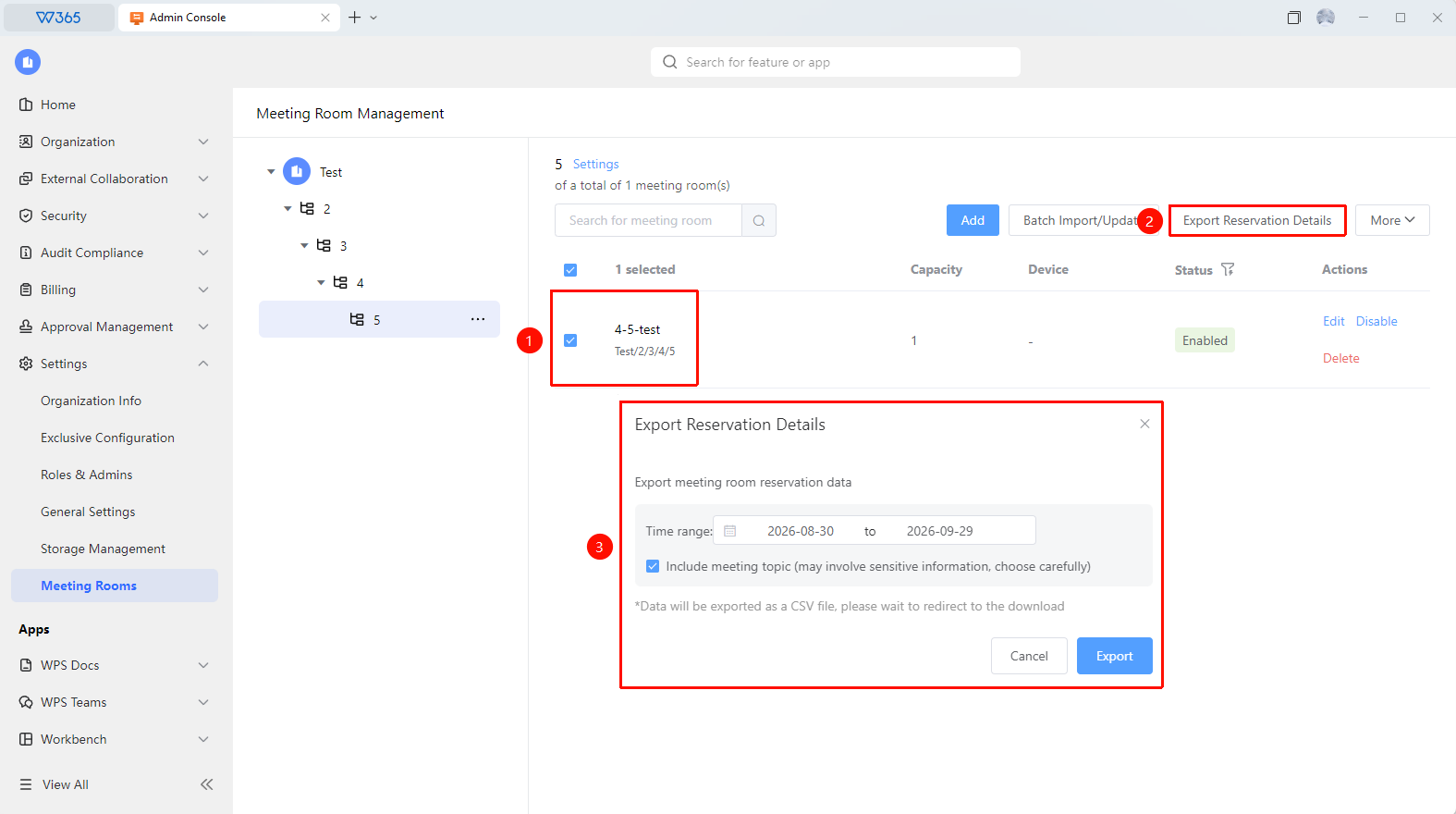
Exporting Meeting Room Booking Data
Feature Entry: Meeting Room Management page > Export
- Select the added meeting rooms on the Meeting Room Management page in the Admin Console, and click the Export button in the upper-right corner.
- Filter the required time range for exporting bookings.
- Select whether to Include Meeting Main Image.
- Verify your Admin identity to export the CSV file.
FAQ
Question 1: How do I add, edit, or delete meeting rooms?
- Solution: Go to WPS 365 Admin Console > Organization Settings > Meeting Room Management, and click the Add, Edit, or Delete buttons to perform the operations.
Question 2: What are the standards for setting up meeting rooms?
- Solution: We recommend using the actual space size and photos of the meeting room as a reference. Correctly select the supported devices, photos, and capacity when adding a meeting room.
Notes
- We recommend regularly checking meeting room usage data and adjusting meeting room configurations and booking rules in a timely manner to improve meeting room utilization.