Feature Summary
Unified management of cloud storage Management for organization members and teams, with flexible configuration of storage limits.
Feature Description
| Feature Dimension | Description |
|---|---|
| Plan Limit | Requires subscribing to an organization plan to use |
| Edition Limit | No edition limits |
Steps
Allocate Default Storage
Feature Entry:
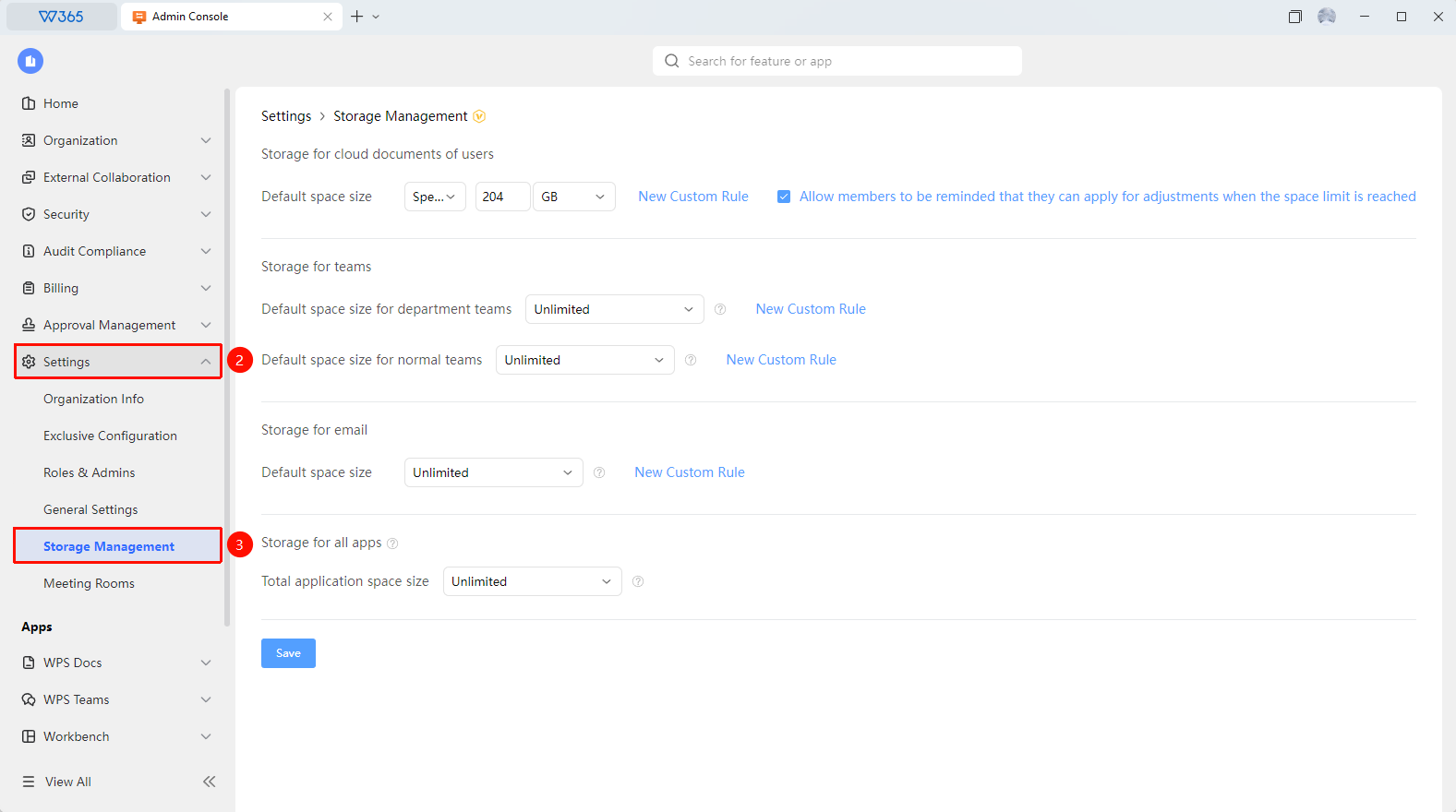
Admin Console > Organization Settings > Storage Management
Open the WPS 365 client, and click Admin Console in the lower-left corner of the homepage.
Click Organization Settings in the left list to expand the dropdown list.
Click the Storage Management label in the dropdown list.
Select to set default storage limits by different roles:
- Member Cloud Document Storage: Set the default storage limit for members' cloud documents.
- Organization Teamspace Storage: Set the default storage limit for departments and teams.
- Email Storage: Set the storage limit for emails.
- App Storage: Set the storage limit available for all authorized apps.
Supports Add Custom Rule.
Click Save to apply changes.

FAQ
Question 1: What should I do if the organization cloud storage is full?
- Solution: If the total organization storage is insufficient, you can purchase more storage. After expansion, you need to readjust the limits for each member and team in Storage Management.
Question 2: Can unused storage allocated to members be reclaimed?
- Solution: Yes. You can reclaim unused storage by adjusting the member's storage limit on the Storage Management page. Reclaimed storage returns to the total organization storage pool.
Question 3: Are Team Space and members' personal cloud documents separated?
- Solution: Yes. Team Space is used for team collaboration storage, and member cloud documents are used for personal document storage. Admins can set team storage limits and personal storage limits separately.
Notes
- Storage Management only allocates the total cloud storage and does not affect the maximum capacity limit of the organization Drive.
- We recommend setting different storage limits for different departments to suit actual needs.
- When a member's storage reaches the limit, they will not be able to upload new files. Adjust the limit in a timely manner.