Feature Summary
Set up sharing controls for Team Space documents to ensure secure and orderly collaboration.
Feature Description
| Feature Dimension | Description |
|---|---|
| Plan Limits | Includes features of some organization plans |
| Version Limits | No version limits |
Steps
Includes features of some organization plans. Pay attention to the membership badge before using.
Document Permission Settings
Feature Entry:
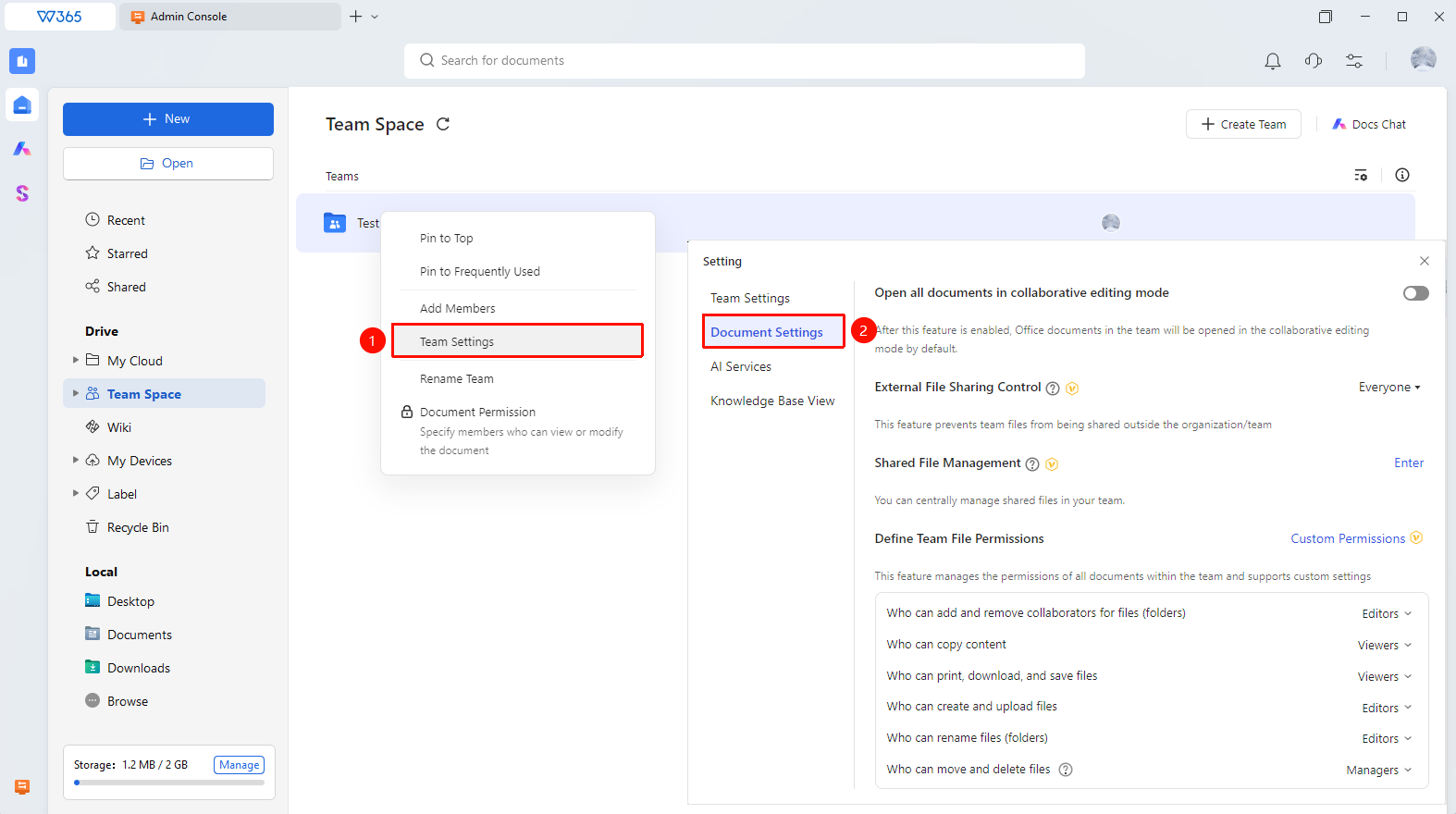
Team Space > Target Team Folder > Team Settings > Document Settings
Open the WPS 365 client, and click Team Space in the left navigation bar on the home page.
Right-click the team folder name, and choose Team Settings > Document Settings from the shortcut menu.
Configure the following options in the expanded panel:
- Open All Documents in Multi-Person Edit Mode: Team Space documents will open in collaboration mode by default.
- External File Sharing Control: You can prevent team files from being shared outside the organization or team.
- Default File Permissions for External Members: Custom default file permissions that external members get after joining the team.
- Shared File Management: Centrally manage shared files in the team.
- Team File Permission Definition: You can manage permissions for all documents in the team and customize settings.