Feature Summary
Manage basic team information, member permissions, transfer and disband teams, and uniformly configure team collaboration rules.
Feature Description
| Feature Dimension | Description |
|---|---|
| Plan Limit | No plan limit |
| Version Limit | No version limit |
Steps
Team Settings
Feature Entry:
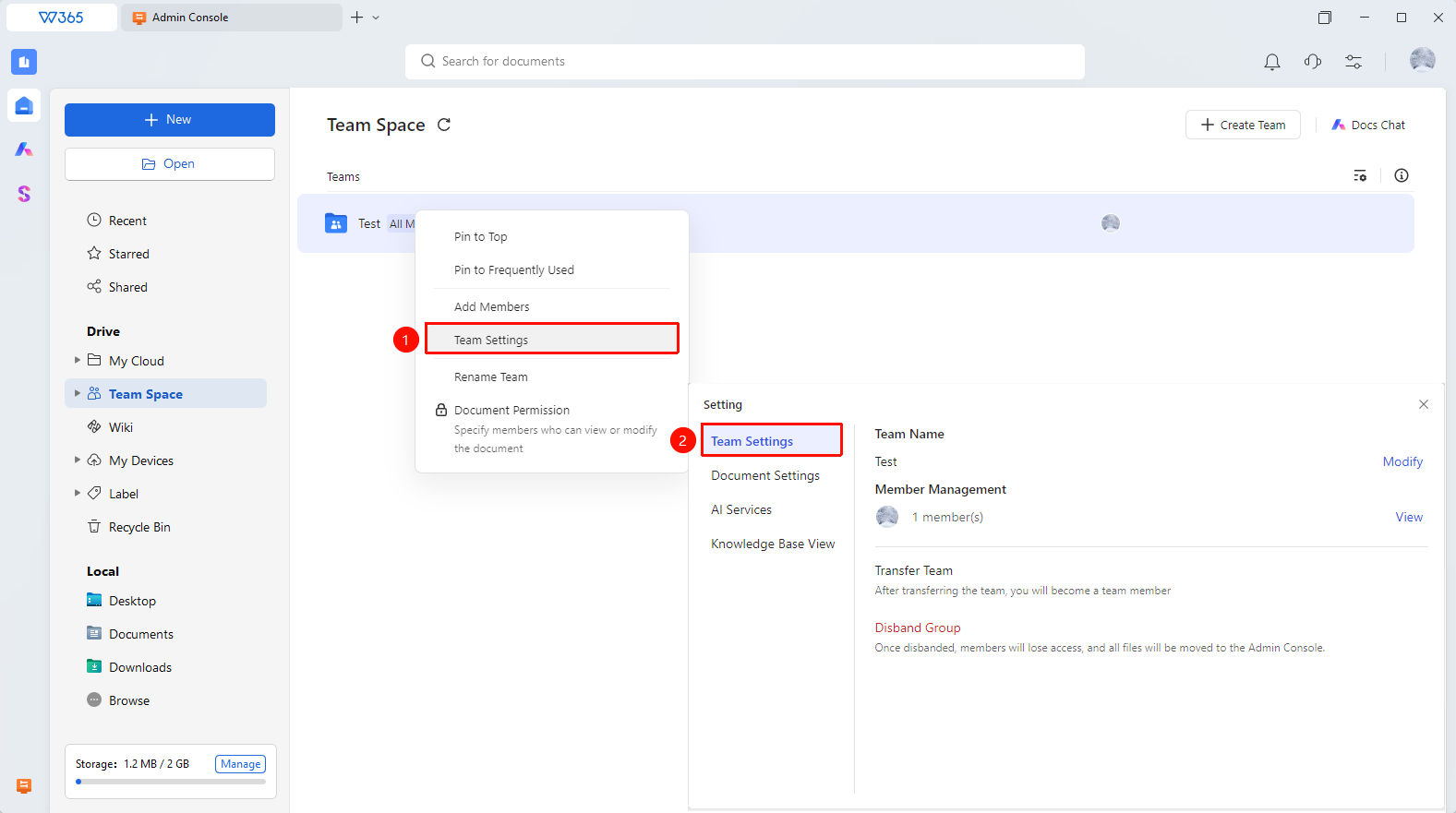
Team Space > Target team folder > Team Settings > Team Settings
Open the WPS 365 client, and click Team Space in the left navigation bar on the home page.
Right-click the team folder name, and select Team Settings > Team Settings from the shortcut menu.
In the settings area, you can modify the following:
- Team Name: Click to edit, and enter a new name.
- Member Management: Click to view the Team Space permissions of each member.
- Transfer Team: Transfer the Teamspace owner identity (must be performed by the Teamspace owner).
- Disband Team: Once disbanded, members will no longer have access, and all files will be moved to the Admin Console.
Click Save or OK to apply the changes.
FAQ
Question 1: Will existing document links be affected after modifying the team visibility range?
- Solution: No. Modifying the visibility range only controls how the team is displayed in the cloud document list and does not affect the access permissions of existing document share links. External share links that have already been generated remain valid and do not need to be regenerated.
Question 2: Can regular members see the Team Settings page?
- Solution: Yes. They can view the basic information on the Team Settings page but cannot modify any settings. Only team Admins and the Teamspace owner have permission to modify team settings.
Notes
- We recommend notifying team members before changing the team name to prevent them from being unable to find the team due to the name change.
- Team settings can only be configured by team Admins and the Teamspace owner. Regular members do not have permission to modify them.