Guide to Using Teamspace Logs Feature in WPS365
Feature Summary
Modify the display name of a created team. This is applicable to scenarios such as team business adjustments, department reorganizations, or name changes.
Feature Description
| Feature Dimension | Description |
|---|---|
| Plan Limit | No plan limit |
| Version Limit | No version limit |
Steps
Modifying a Team Name in Team Space
Feature Entry:
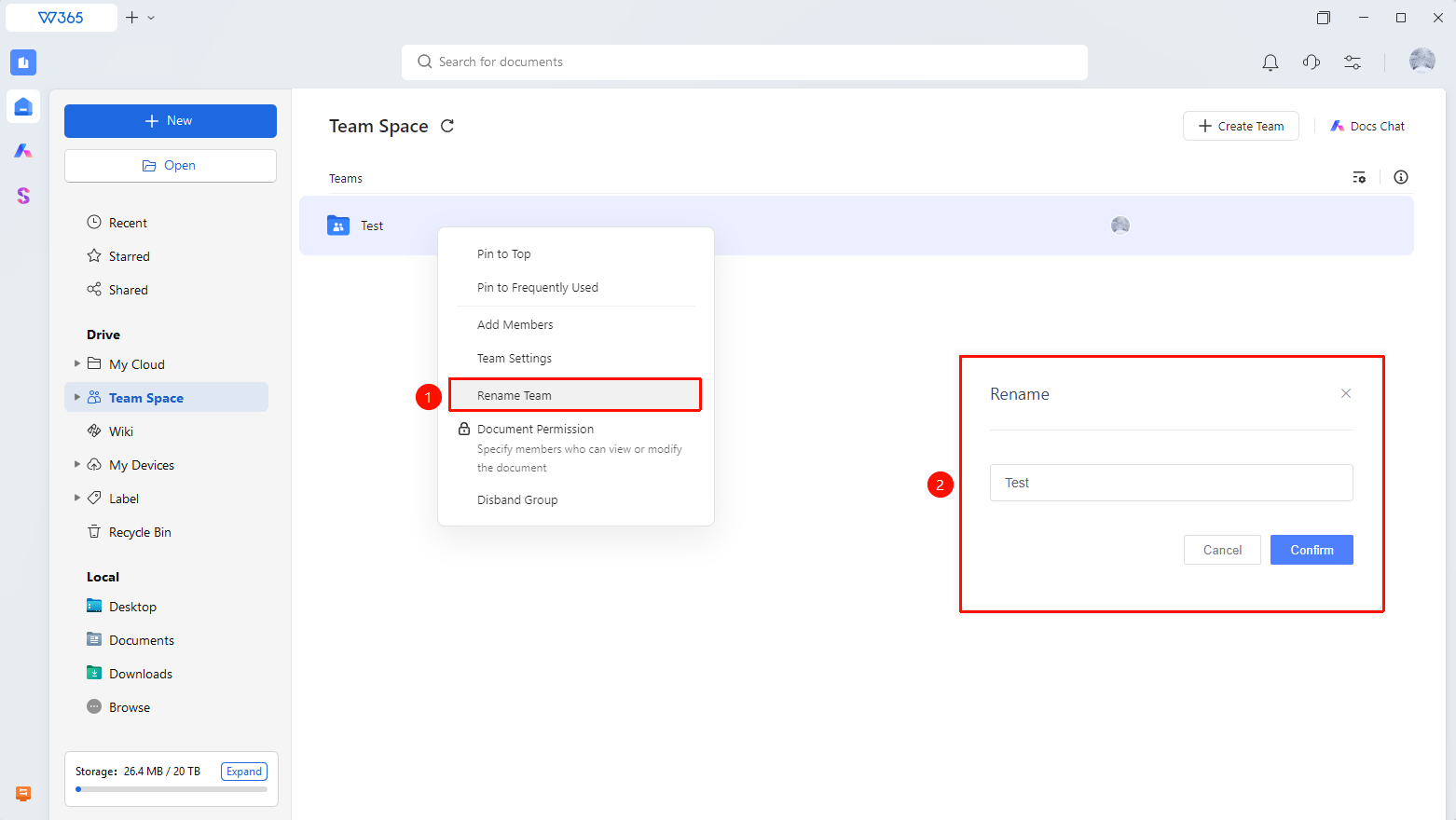
Team Space > Target team folder > Rename Team
- Open the WPS 365 client, and click Team Space in the left navigation bar on the home page.
- Right-click the team folder, and select Rename Team from the shortcut menu.
- Enter a new team name.
- Click OK to complete the modification.
FAQ
Q1: Will document share links within the team expire after the team name is modified?
- Solution: No. Modifying the team name only changes the display name. The team ID and document storage path remain unchanged. All existing document share links and collaboration permissions are unaffected, and members can still access them normally.
Q2: Are there any naming restrictions for team names?
- Solution: Team names support Chinese, English, digits, and common punctuation marks. We do not recommend using special characters (such as / \ * ? |). These characters may cause compatibility issues in the file system. Team names within the same organization can be identical, but we recommend using unique names for easy distinction.
Q3: What do other members need to do to see the new name after a team name is modified?
- Solution: Generally, the modification takes effect in real time. Members can see the updated name by refreshing the cloud document list. If the client does not refresh in time, try restarting the WPS client or signing in to the account again to sync the name.
Notes
- Modifying the team name only changes the display name. It does not affect the team ID, storage path, or member permissions.
- Only teamspace owners and administrators have the permission to Rename Teams.
- If the team is linked to third-party apps or integrated services, you may need to sync the configuration again after modifying the name.
- We recommend notifying team members via group chats or emails after changing the team name to prevent them from being unable to find the team.
- Team names should not be changed frequently. We recommend confirming the name before making modifications to avoid confusing members.