Feature Summary
Change or transfer Teamspace ownership to accommodate member departures and team adjustments.
Feature Description
| Feature Dimension | Description |
|---|---|
| Plan Limit | Requires subscription to an enterprise plan |
| Version Limit | No version limits |
Operation Steps
Transfer Team Ownership
Feature Entry:
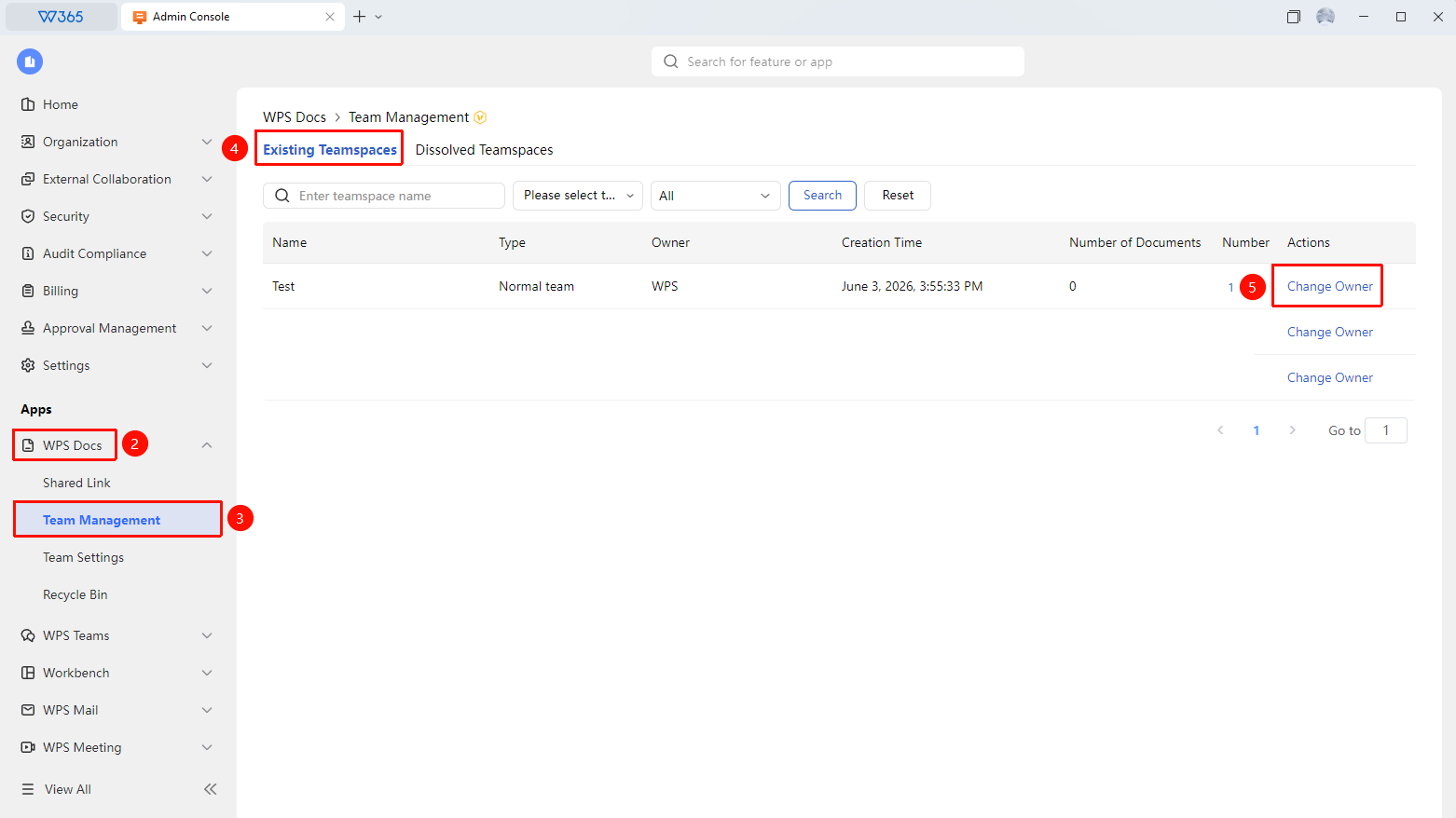
Admin Console > Documents & Teams > Team Space Management
- Open the WPS 365 client, and click Admin Console in the lower-left corner of the homepage.
- Click Documents & Teams on the left list to expand the dropdown list.
- Click the Team Management tab in the dropdown list.
- Click "Assign Owner" under the existing team tab and select the new team owner.
- Confirm to complete the transfer.

FAQ
Q1: Can the original owner still manage the team after transferring Team ownership?
- Solution: After the transfer, the original owner becomes a regular member and no longer has team management permissions. If they need to continue participating in team management, the new owner can reassign a management role to them.
Q2: What should I do if a Teamspace owner leaves the organization?
- Solution: You can find the team in the team list of the Admin Console and directly assign a new Teamspace owner. We recommend completing the owner transfer before the member leaves to avoid a management vacuum.
Q3: Will transferring Teamspace ownership affect team members and documents?
- Solution: No. The transfer only changes the owner identity. Members, documents, and permission configurations within the team remain unchanged.
Notes
- We recommend completing the Teamspace owner transfer before a member leaves the organization.
- A team must have at least one owner. You cannot leave a team without an owner after a transfer.
- Please notify the new owner and other team members in a timely manner after the transfer.