Feature Summary
Create a new collaborative team to start collaborating on team documents.
Feature Details
| Feature Dimension | Description |
|---|---|
| Plan Limit | No plan limits |
| Edition Limit | No edition limits |
Operation Steps
Create a Team
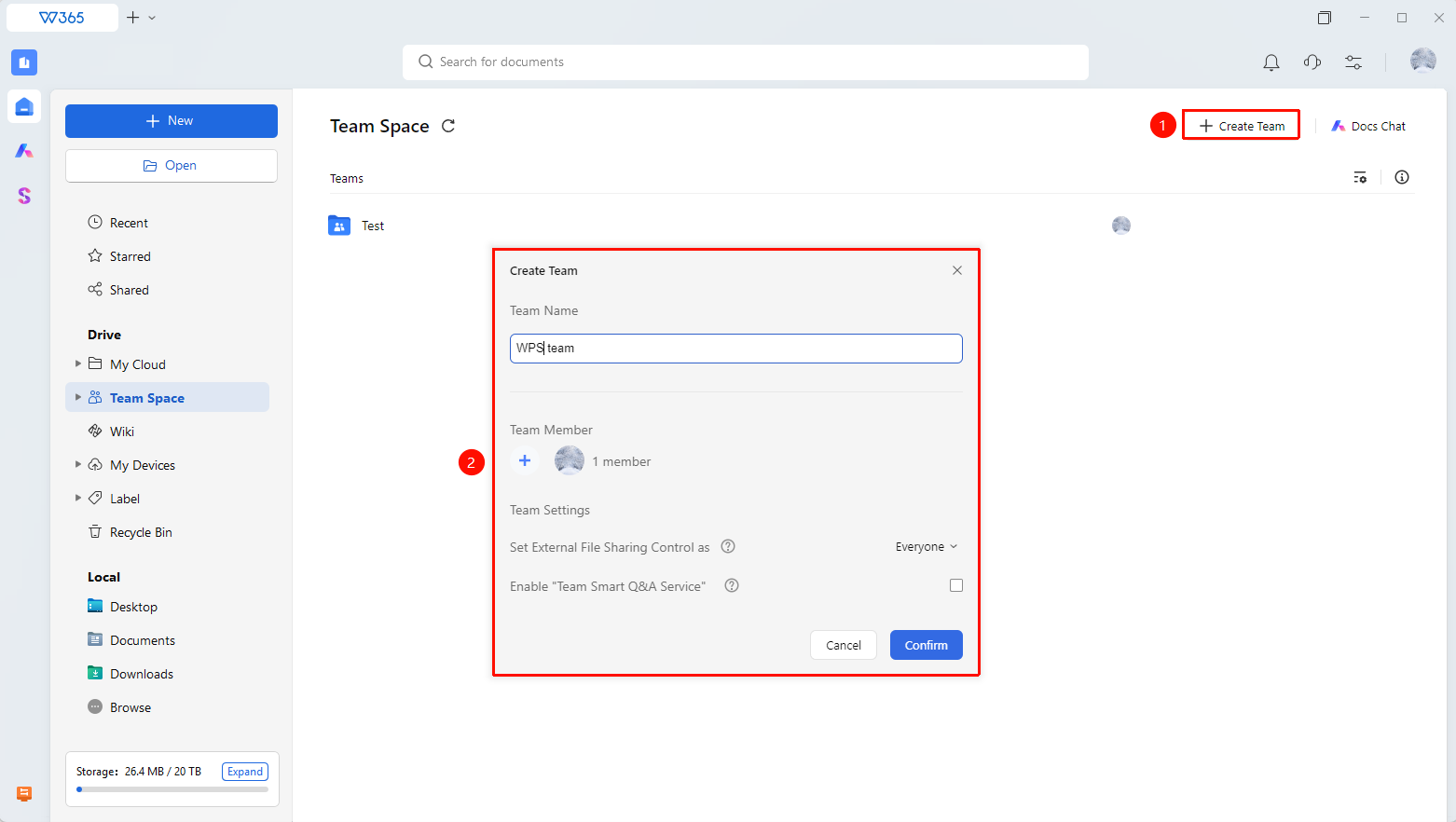
Feature Entry: WPS Home > Team Space > Create Team
- Open WPS and sign in to your organization account.
- Click Team Space > Create Team on the left sidebar of the WPS Home page.
- Set a team name and add initial team members.
- Set External Document Control.
- Click OK to complete creation.
FAQ
Q1: Can I change the team name after creating a team?
- Solution: Yes. The Teamspace owner can change the team name, description, and other information in Team Settings. Changes will take effect for all members immediately.
Q2: What is the maximum number of members I can add when creating a team?
- Solution: There is no strict limit on the number of members. However, the total number of organization members and the team storage size will affect actual usage. We recommend configuring members based on your collaboration needs.
Q3: What is the default storage size for a new team?
- Solution: The default storage size is configured by the Admin in storage allocation. If no specific limit is set, the default organization storage limit will apply.
Notes
- We recommend using a concise and clear team name so members can easily identify and search for it.
- We recommend configuring team permissions and approval modes immediately after creating a team.
- You can add or remove members at any time after creating a team.
- Members with administrative permissions can right-click the team under Team Space on the WPS Home page to manage it.