Feature Summary
Dissolve a team and remove associated documents and resources.
Feature Description
| Dimension | Description |
|---|---|
| Plan Limits | No plan limits |
| Version Limits | No version limits |
Steps
Dissolving a Team
Feature Entry
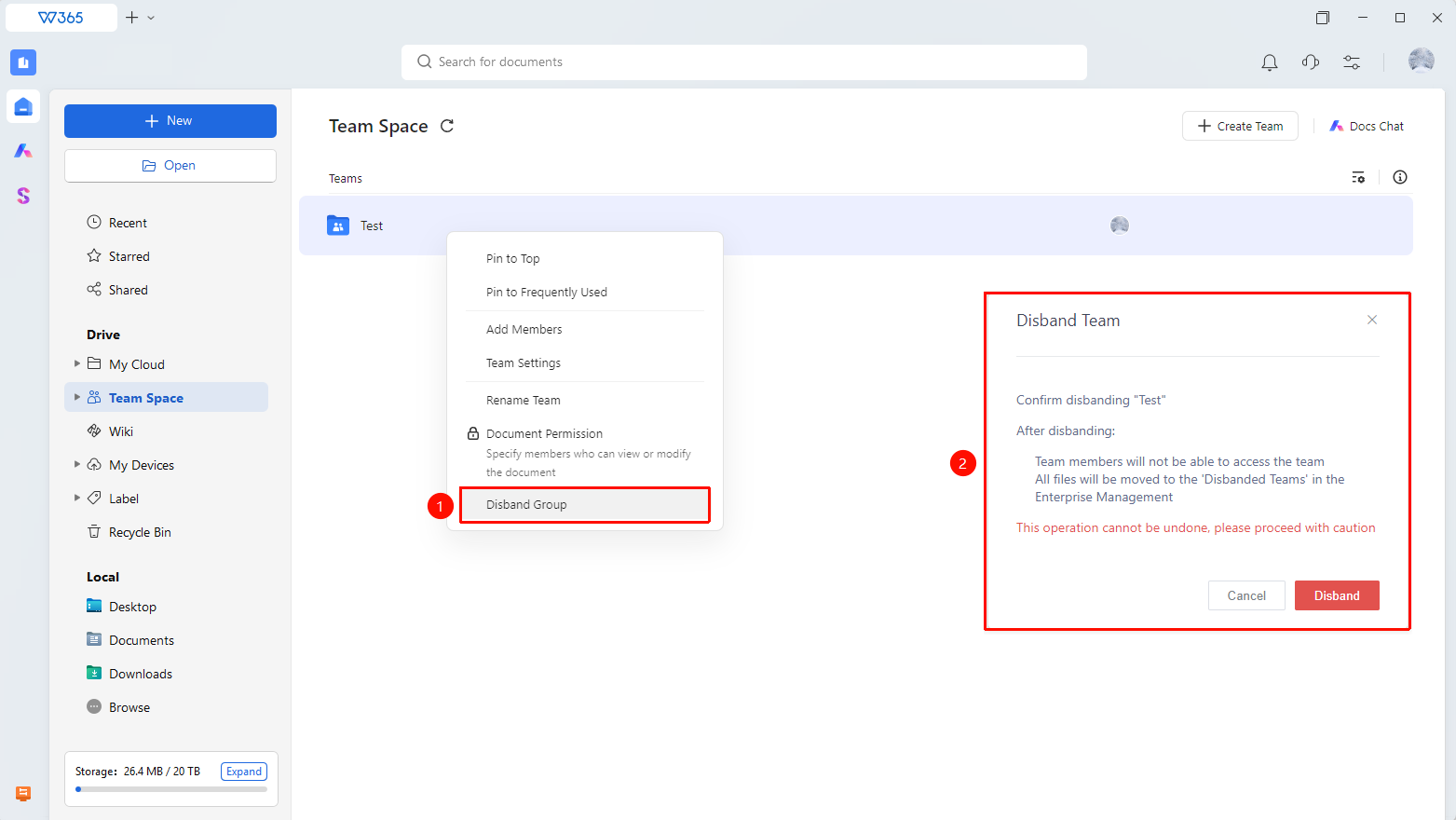
Team Space > Target team folder > Disband Team
- Open the WPS 365 client, and click Team Space in the left navigation bar on the home page.
- Right-click the team folder name, and select Disband Team from the shortcut menu.
- Read the dissolution notes carefully.
- Click Disband to complete the operation.
- Once disband, team members will no longer have access to any files in this team, and the team will be moved to Disband Teams in the Admin Console.
FAQ
Q1: What is the difference between disband a team and deleting a team?
- Solution: Disband a team is performed by the team owner, which moves the team and its documents to the Admin Console. Deleting a team is performed by the organization super admin/admin, which permanently deletes the team from the Admin Console.
Q2: Will team members be notified after a team is disband?
- Solution: Yes. Team members will receive a notification that the team has been dissolved and will no longer be able to access the team's documents. We recommend notifying all members before dissolving the team.
Q3: Can documents from a disbanded team be recovered?
- Solution: Yes. You can retrieve documents by restoring the team. We recommend exporting important documents before dissolving the team.
Notes
- Be sure to export all important documents in the team before disbanding it.
- If the secure team feature is enabled, you must disable it and wait for the files to be decrypted before dissolving the team.