Feature Summary
Restore disbanded teams and the documents within them.
Feature Specifications
| Dimension | Description |
|---|---|
| Plan Limit | No plan limits |
| Version Limit | No version limits |
Steps
Restore a Disbanded Team
Feature Entry:
Admin Console > Documents & Teams > Team Management
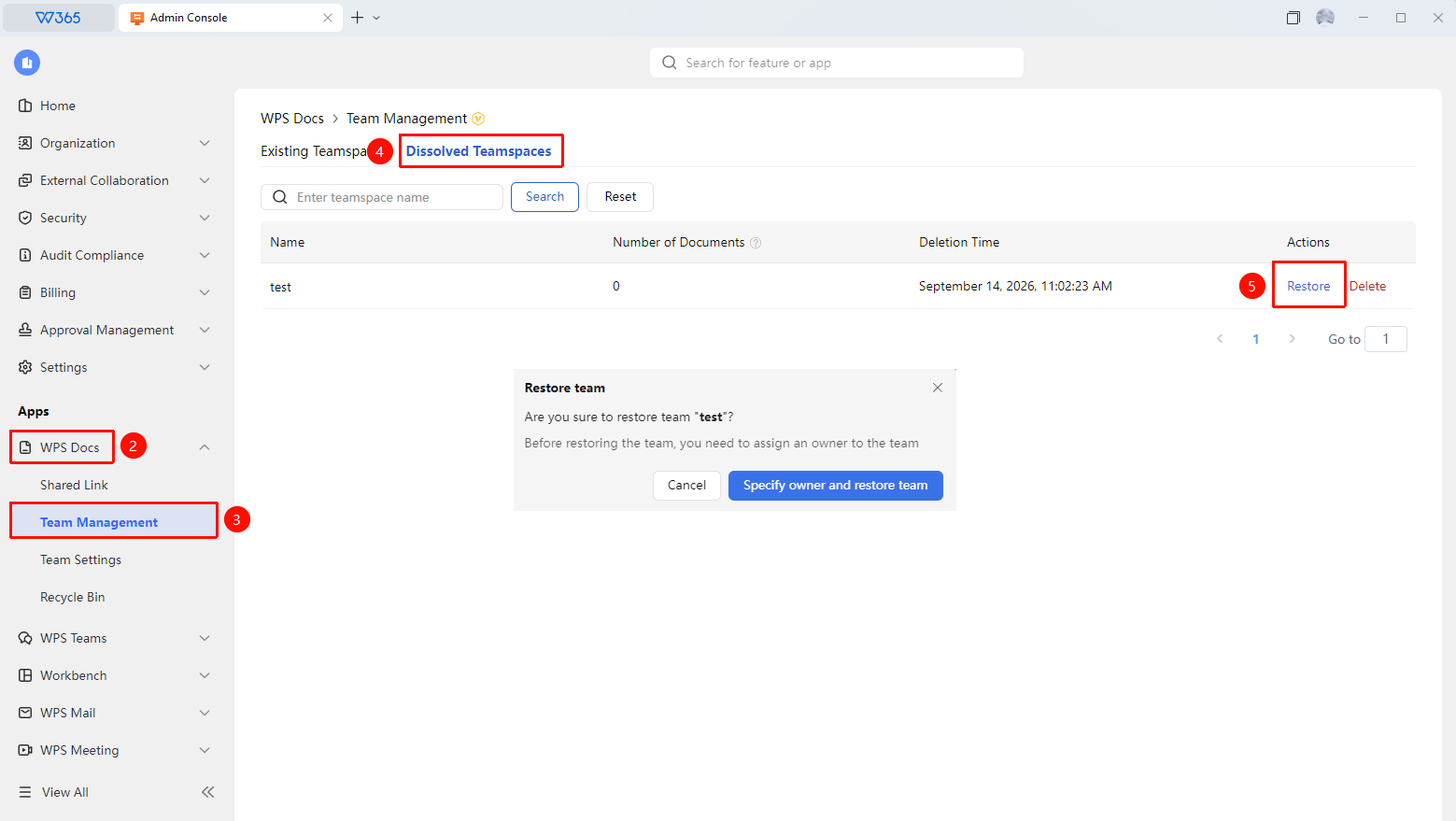
- Open the WPS 365 client, and click Admin Console in the lower-left corner of the homepage.
- Click Documents & Teams in the left list to expand the dropdown list.
- Click the Team Management tab in the dropdown list.
- Click Dissolved Teams.
- Find the team you want to restore.
- Click Restore.
- Confirm the action to restore both the team and its documents.

FAQ
Q1: Will the documents still be there after restoring the team?
- Solution: When you restore a team, the documents within the team will be restored to their state before the team was disbanded.
Q2: What permissions are required to restore a team?
- Solution: Super Admins or Admins with team management permissions can perform this action. Ordinary members cannot restore disbanded teams.
Notes
- We recommend confirming why the team was disbanded before restoring it to avoid disbanding it again.
- If the team contains a large number of sensitive documents, we recommend checking the permission settings immediately after restoration.