Guide to Using Delete Teams Feature in WPS365
Feature Summary
Permanently delete teams and team configurations.
Feature Description
| Dimension | Description |
|---|---|
| Plan limits | No plan limits |
| Version limits | No version limits |
| Platform limits | No platform limits |
Steps
Delete a Team
Feature Entry
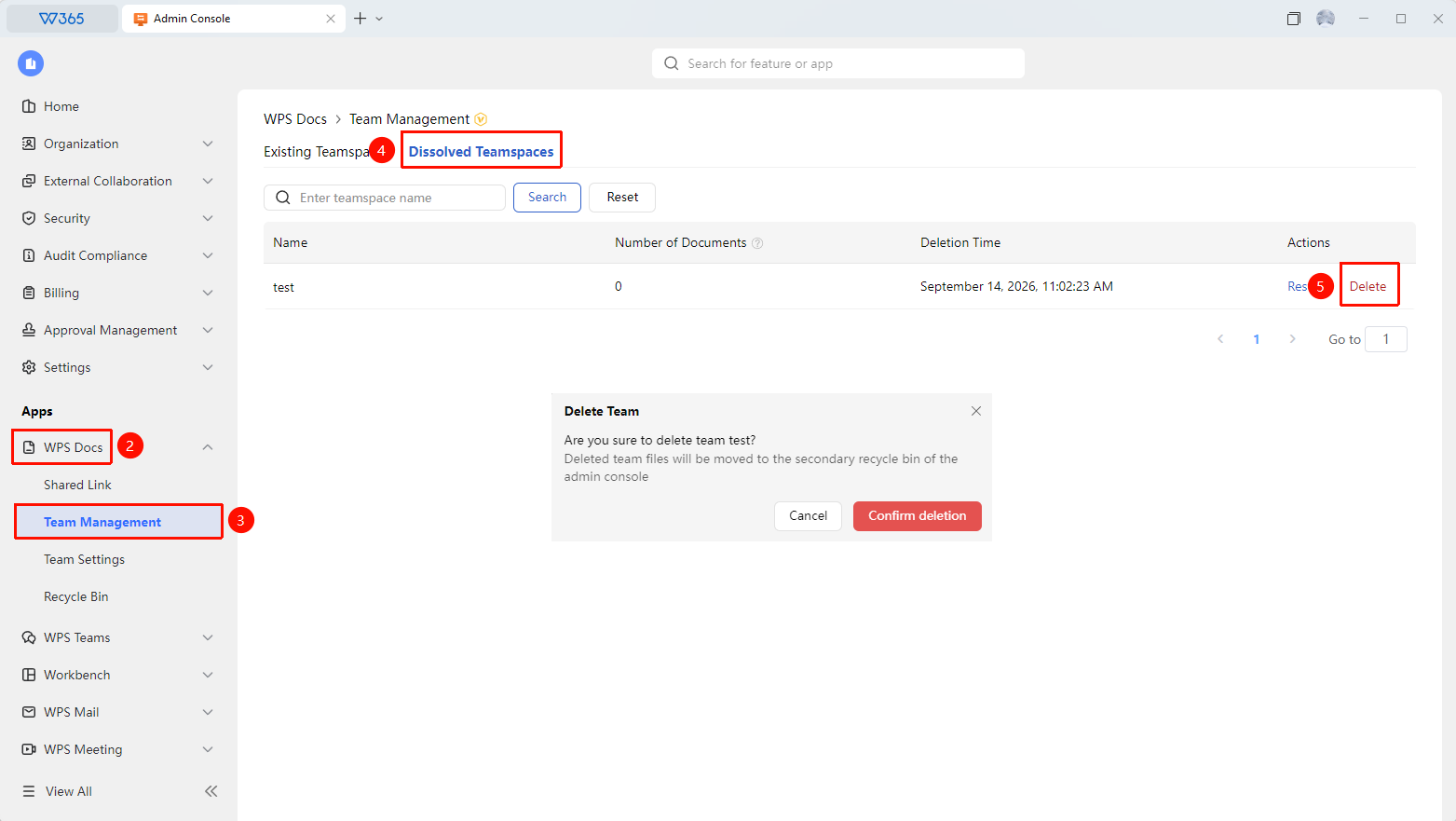
Admin Console > Documents & Teams > Team Management
- Open the WPS 365 client, and click Admin Console in the lower-left corner of the home page.
- In the left sidebar, click Documents & Teams to expand the list.
- Click the Team Management tab.
- Click Dissolved Teams.
- Find the team you want to delete.
- Click Delete.
- Confirm the deletion. The team will be deleted, and its documents will be moved to the organization's second-stage recycle bin.

FAQ
Q1: What is the difference between deleting a team and disbanding a team?
- Answer: Disbanding a team is performed by the team owner, which moves the team and its documents to the Admin Console. Deleting a team is performed by the organization's super administrator or administrator, which permanently deletes the team from the Admin Console.
Q2: Can a deleted team be restored?
- Answer: Deleting a team is irreversible. Proceed with caution. Once deleted, the team cannot be restored, and its files will be moved to the organization's second-stage recycle bin.
Notes
- Once a team is deleted, it cannot be recovered via Restore Team.
- Once a team is deleted, its documents will be moved to the organization's second-stage recycle bin.