Summary
Configure the system to automatically generate associated teams when departments are created, simplifying team management.
Feature Details
| Dimension | Description |
|---|---|
| Plan limits | No plan limits |
| Version limits | No version limits |
Operating Steps
Enable Automatic Team Creation
Feature Entry
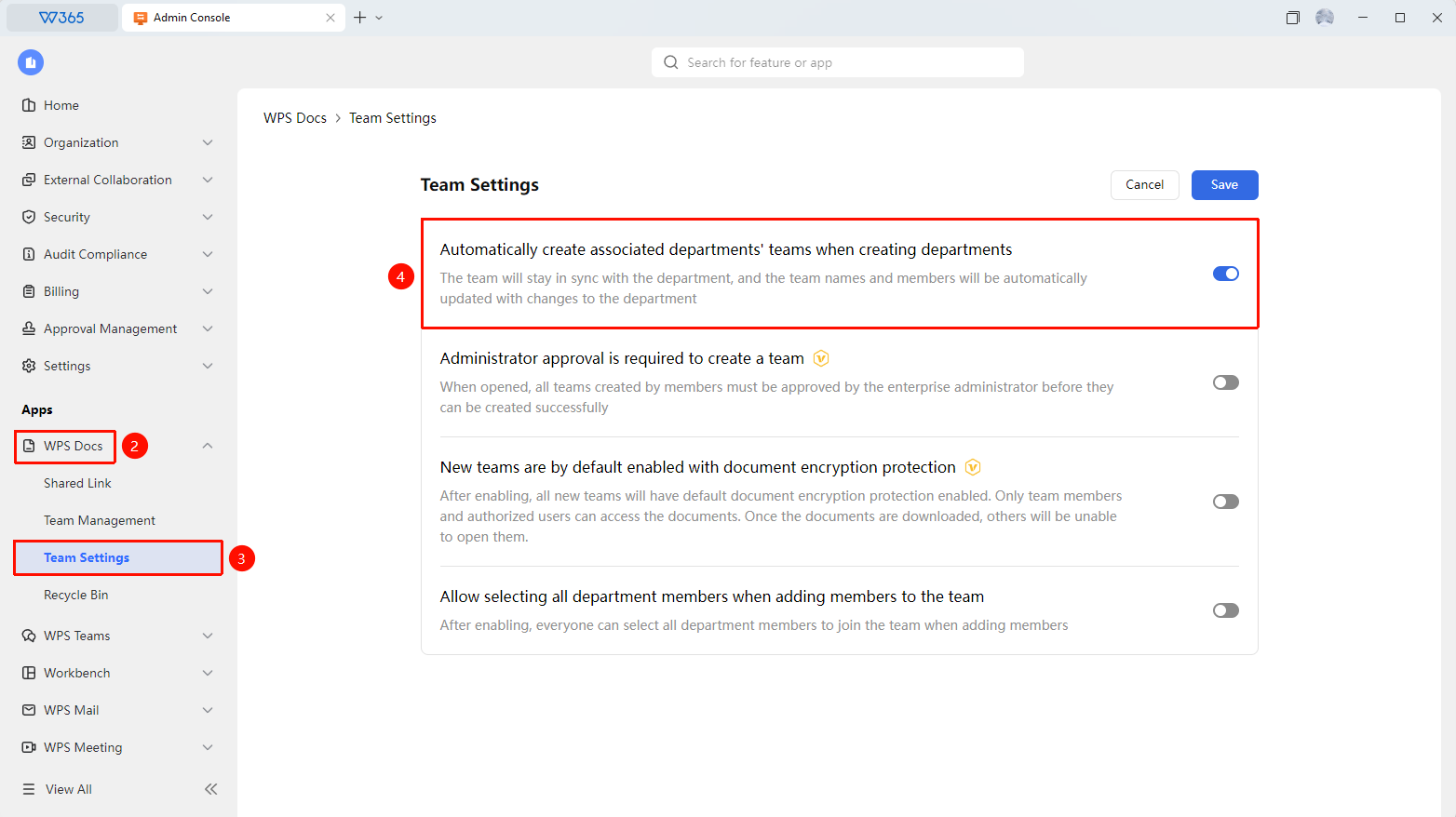
Admin Console > Document & Teams > Team Settings
- Sign in to the WPS 365 Admin Console as a super admin or an admin with this permission.
- Click Document & Teams > Team Settings.
- Locate the Automatically create associated departments' teams when creating departments option.
- Turn on the switch.
- Once saved, a team with the same name will be automatically created whenever a new department is created.

FAQ
Q1: Is the automatically created team name the same as the department name?
- Solution: Yes. Automatically created teams use the department name as the team name by default for easy identification. You can manually change the team name after creation if needed.
Q2: Is there a default size for the automatically created team storage?
- Solution: The default team storage size is configured by the administrator in storage allocation. If not configured separately, the default organization storage limit will be used.
Q3: If a department is deleted, will the associated team be automatically deleted?
- Solution: No. Deleting a department will not automatically delete its associated team. The teamspace owner must manually dissolve the team.
Notes
- We recommend aligning with your organizational structure before enabling this feature to avoid generating redundant teams.
- Automatically created teams use the open-to-join mode by default. Adjust this manually if needed.
- If a department is renamed, the associated team will not be automatically renamed. You must adjust it manually.