Feature Summary
Enable the team creation approval process to manage and control team creation.
Feature Details
| Dimension | Description |
|---|---|
| Plan Limit | Requires subscription to an enterprise plan |
| Version Limit | No version limits |
Steps
Enable Team Creation Approval
Feature Entry
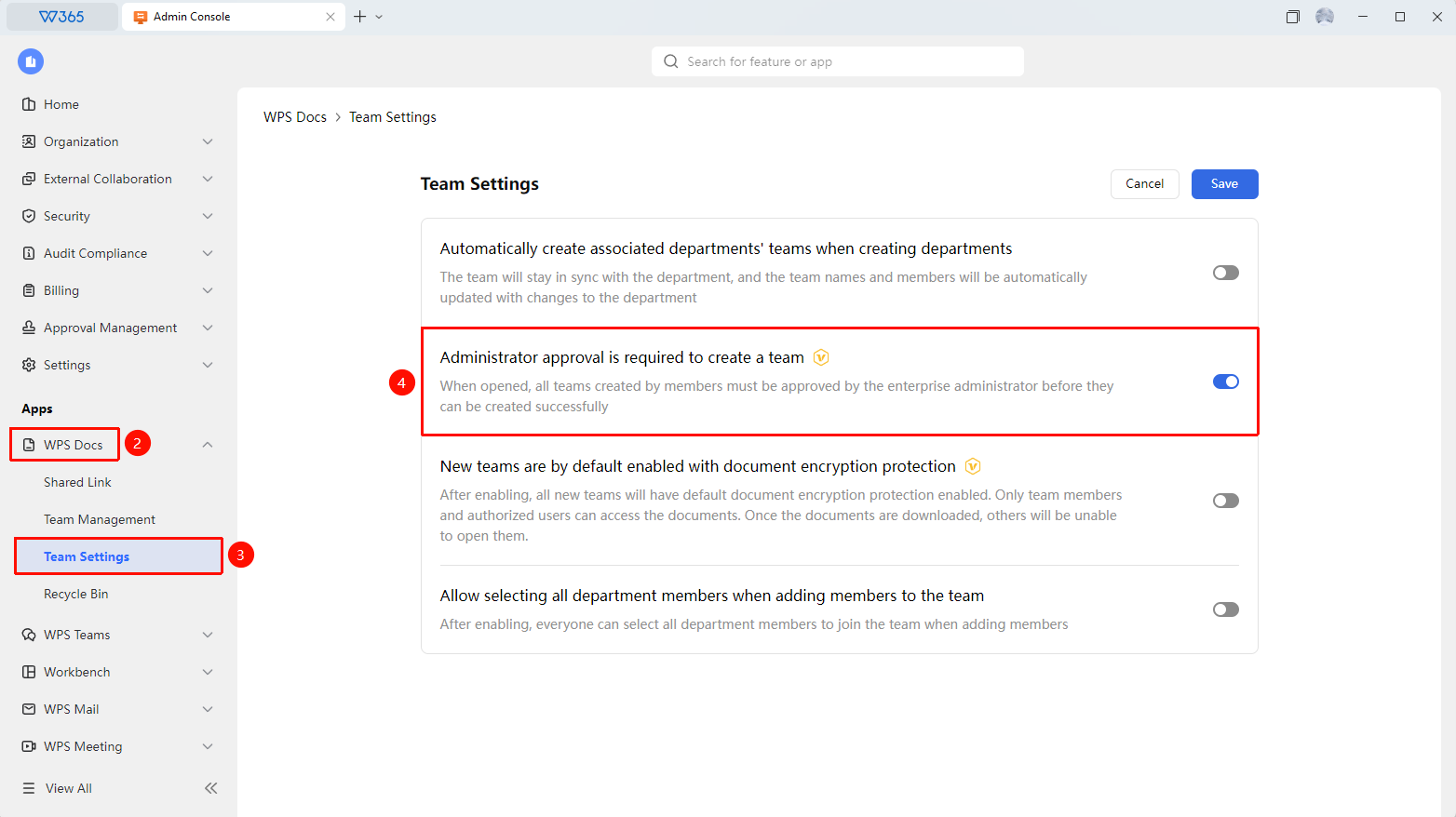
Admin Console > Documents & Teams > Team Settings
- Sign in to the WPS 365 Admin Console as a super admin or an admin with this permission.
- Click Documents & Teams > Team Settings.
- Locate the Administrator approval is required to create a team option.
- Turn on the approval switch.
- After saving, team creation by members will require admin approval.

FAQ
Q1: Once approval is enabled, will all members need approval to create teams?
- A: Yes. Once enabled, all regular members must submit an application when creating a team. The team will be created only after the admin approves the request.
Q2: What information is visible during review?
- A: The review page displays the applicant's information, team name, team description, team purpose, and other details to help the admin make a decision.
Q3: Does the team take effect immediately after approval?
- A: Yes. Once approved, the team is successfully created, and the applicant can start using the team to collaborate on documents.
Q4: Where do I approve requests after enabling this feature?
- A: Sign in to the Admin Console as a super admin or an admin with this permission, and go to Approval Management > Team Approvals to review requests.
Notes
- We recommend enabling this feature in large organizations to prevent the uncontrolled creation of teams.
- We recommend that admins establish a unified team naming convention for approvals.
- For departments that need to create teams frequently, you can communicate with them individually to understand their actual needs.