Feature Summary
Enable document encryption by default for new teams to ensure data security.
Feature Details
| Dimension | Description |
|---|---|
| Plan Limit | Requires subscription to an enterprise plan |
| Version Limit | No version limits |
Operation Steps
Set Default Encryption
Feature Entry
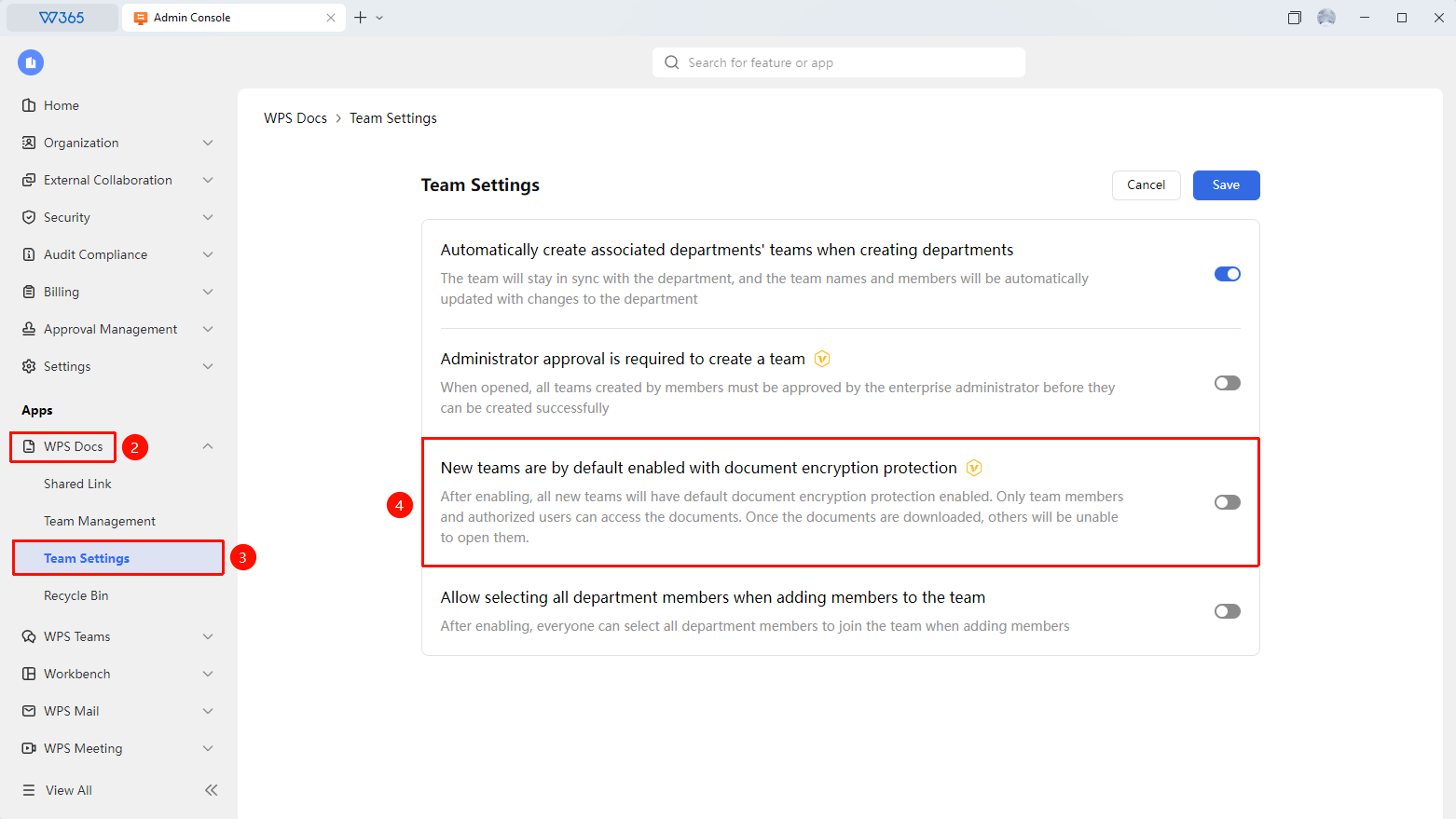
Admin Console > Document & Team > Team Settings
- Sign in to the WPS 365 Admin Console as a super administrator or an administrator with the required permissions.
- Click Document & Team > Team Settings.
- Locate the New teams are by default enabled with document encryption protection option.
- Turn on the switch.
- After saving, document encryption will be enabled by default for all newly created teams.

FAQ
Q1: Will existing teams be automatically encrypted after this feature is enabled?
- Solution: No. This setting only applies to teams created after the feature is enabled. Existing teams will not be automatically encrypted and must be configured manually.
Q2: Can other members still view documents after they are encrypted?
- Solution: Yes. Team members can view and edit encrypted documents as usual. Access is restricted only for users outside the team. Encryption primarily prevents documents from being shared outside the team.
Q3: Can documents in an encrypted team still be opened after being downloaded locally?
- Solution: Encrypted documents downloaded locally require identity verification to open. This ensures that even if files are taken outside the team, they cannot be viewed by unauthorized personnel.
Notes
- Enabling or disabling team document encryption in the background may take some time, depending on the number of files in the team.
- Thumbnails cannot be previewed for encrypted documents outside the team.
- We recommend enabling document encryption for teams that handle sensitive data.