Feature Summary
Retrieve deleted document files in the second-stage recycle bin.
Feature Description
| Dimension | Description |
|---|---|
| Plan Limit | No plan limits |
| Version Limit | No version limits |
Operating Steps
Search the Recycle Bin
Feature Entry
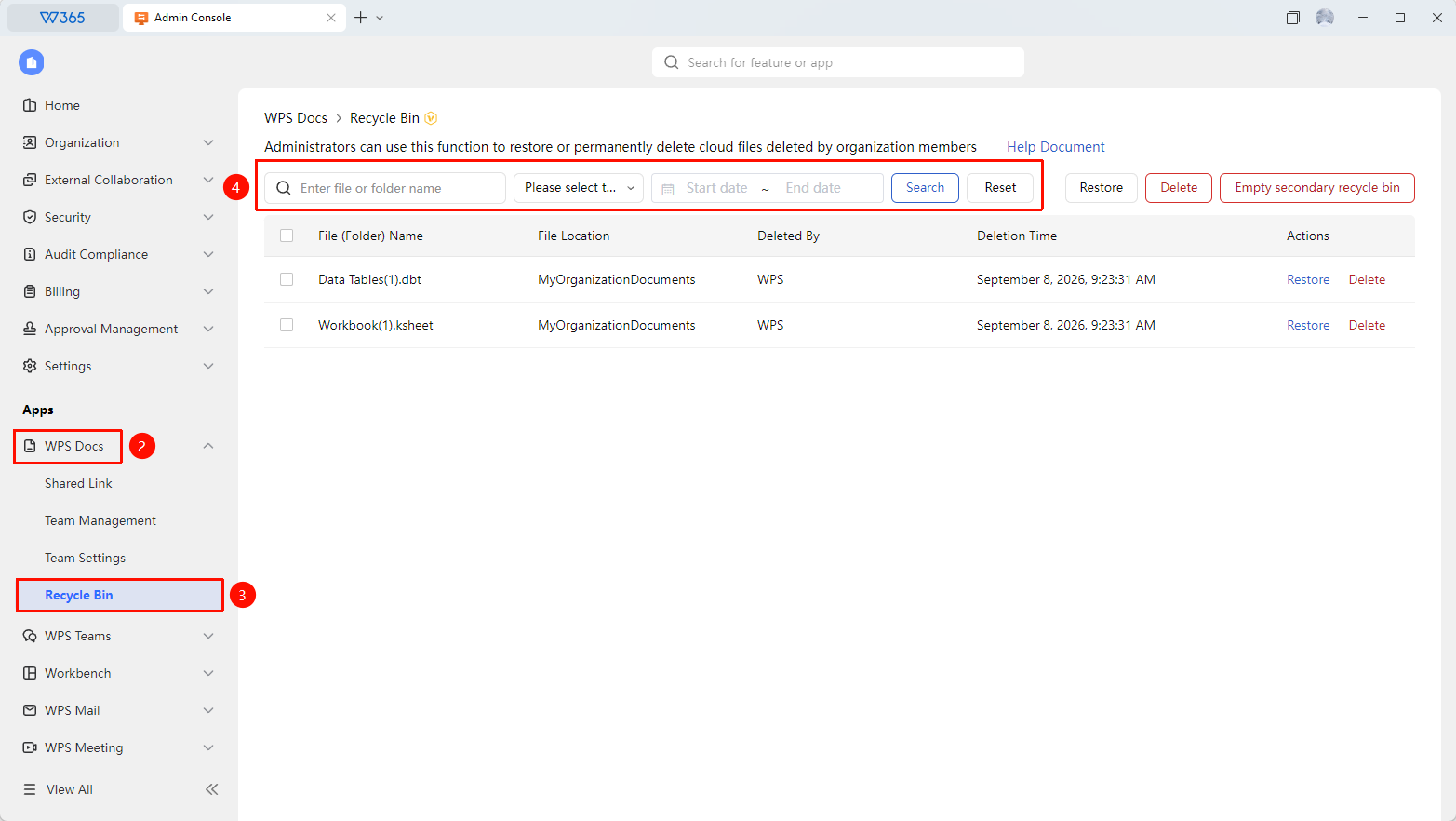
Admin Console > Documents & Teams > Recycle Bin
- Open the WPS 365 client, and click Admin Console in the lower-left corner of the homepage.
- Click Documents & Teams in the left list to expand the dropdown list.
- Click Recycle Bin to open the tab.
- Search by file or folder name, deletion time, deleted by, or other criteria.
- View file details and deletion records.

FAQ
Question 1: What is the difference between the recycle bin and the regular recycle bin?
- Solution: The regular recycle bin (first-stage) stores files deleted by members themselves, which can be managed by members. The second-stage recycle bin stores files that have been permanently deleted from the regular recycle bin, and can only be accessed by organization super admins or admins with management permissions for the second-stage recycle bin.
Question 2: Do all deleted files go into the recycle bin?
- Solution: Not necessarily. Only files permanently deleted from the regular recycle bin will enter the second-stage recycle bin.
Question 3: What criteria can be used to search in the recycle bin?
- Solution: You can search by file or folder name, deleted by, deletion time, and other criteria to quickly locate files that need to be restored or cleared.
Notes
- The storage duration for files in the second-stage recycle bin is unlimited, but restoring files that were deleted a long time ago requires organization plan support.
- We recommend regularly clearing files that are no longer needed in the second-stage recycle bin to free up cloud storage space.
- The second-stage recycle bin does not support previewing file content. You can only view file names and basic information.